



 Solution
 Support Center
 About Us
 Contact
How to Erase iPhone with or Without Password: 4 Proven Ways
 Clara Prescott Published on August 11, 2026iOS Tips3-min reading
"Hello! I just got a new iPhone and I need to trade in the old one, and I want to make sure it's properly wiped. I signed out of iCloud on it, and I'll wipe it from settings as soon as I know I'm good... Is there anything left I forgot to do, or should I be good to go?"
Wiping an iPhone before selling is a smart move. Data security is gold; you can never be too careful about it. But simply deleting files doesn't remove them permanently. How to completely wipe an iPhone? In this guide, we will offer 4 ways to wipe an iPhone to factory settings, leaving no remains.

In this article:
Part 1. When to Wipe an iPhone: Common Scenarios
- 1.Before selling or donating your old iPhone to another person, you must wipe your data completely. It's no joke when you involuntarily give your personal information to a stranger.
- 2.After 10 incorrect passcode entries, an iPhone locks itself to avoid potential theft. It's very thoughtful, but not so pleasant when it's you who entered the wrong passcodes. To use the disabled iPhone again, you have to reset it before restoring the disabled iPhone from a backup.
- 3.Factory reset is often a last resort for fixing system issues: freezing, black screen, iOS glitches, post-update breakdown, etc. Usually you try other fixes first, like force restart or deleting problematic files. When none of them work, a reset is the ultimate fallback.
- 4.You would desperately want to erase data if your iPhone got lost or stolen and you couldn't retrieve it. And yes, it's feasible to erase your iPhone even when it is not handy. You can protect your privacy from afar.
Part 2. Before Wiping: Create a Backup
If your iPhone can still be accessed normally, make a backup before you wipe it. In this way, you keep your personal data secure and complete, and you can restore it effortlessly to a new iPhone.
Note:
You can't back up the iPhone when it's already disabled and can't be entered.
There are two ways to back up your data: on iCloud (online) or on a PC/Mac (local).
How to Back up iPhone on iCloud
Make sure your iPhone is connected to a stable Wi-Fi before opening Settings.
Go to your user profile, select iCloud, scroll down, and tap iCloud Backup.
Hit the Back Up Now button.
If you want your iPhone to back up automatically, toggle on the Back Up This iPhone option on the Backup screen.
How to Back up iPhone on a PC/Mac
To back up to a computer, you need iTunes/Apple Devices App installed on your Windows, or Finder on your Mac.
Connect your iPhone to the computer with a cable. Then launch iTunes/Apple Devices/Finder.
If you're using a PC: Once it auto-detects your iPhone, click the Phone button at the top left corner, go to the Summary tab, and then the Backups section.
If you're working on a Mac: Click your phone name, head to the General tab, and locate the Backups section.
Select This Computer / Back up all the data on your iPhone to this Mac, then click Back Up Now.
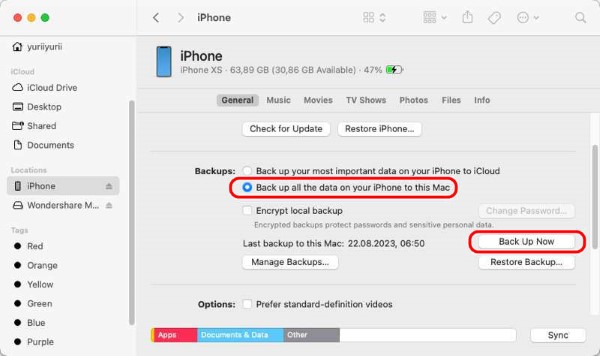
Before factory resetting the iPhone, don't forget to unpair your Apple Watch and AirPods (if you have one), disable Find My iPhone, sign out of your Apple account, and remove your SIM card.
Part 3. How to Wipe an iPhone When You Know the Passcode
How to wipe an iPhone for trade-in? When you have it with you and can open it, a quick on-device reset will be enough.
Open Settings on your iPhone.
Enter the General section, scroll down, and tap Transfer or Reset iPhone or Reset, depending on your iOS version. Then tap Erase All Content and Settings.
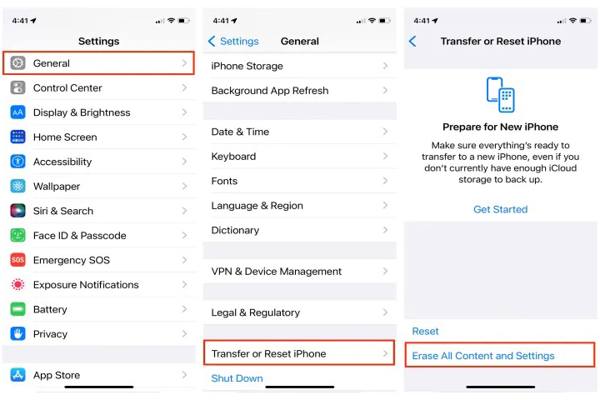
Read the alert that appears. If you confirm, tap Continue. If prompted, enter the passcode for your iPhone. Bear in mind that your Touch ID or Face ID is not available here.
Part 4. iPhone Factory Reset Without Passcode
How to wipe an iPhone without a passcode? You'll need a computer to do this.
How to Factory Reset an iPhone via Finder or iTunes
If you're using Windows, make sure you have iTunes installed (or the Apple Devices App; they have the same sync feature). For a Mac, Finder will work.
Put your iPhone into Recovery Mode.
- For iPhone 8 and later: Press and release Volume Up, then Volume Down. Press and hold the Side button.
- For iPhone 7 / 7 Plus: Press and hold Volume Down and the Side button together.
- For iPhone 6s or earlier: Press and hold the Home button and Power button together.
Hold the buttons until you see the Recovery Screen, which displays a laptop and a cable.
On your computer, select your iPhone in Finder or iTunes. Then click Restore.
Confirm your choice. After that, the computer will erase the iPhone.
How to Wipe an Old iPhone Using imyPass iPassGo
imyPass iPassGo is a professional tool for resetting an iPhone. It doesn't require a screen passcode or Apple ID login, which is why it's a top choice for an old iPhone whose passwords have gone lost in time. The software is available on both Windows and Mac.

4,000,000+ Downloads
Wipe an iPhone with a single click.
Remove all passcodes, including Face ID and Touch ID.
Erase Apple ID on your iPhone without a password.
Decrypt iTunes backup without a password.
Download and install iPassGo on your computer.
Launch the software. You'll see the Unlock iOS Screen section on the left. This feature is originally designed to fix a disabled iPhone and iPad, but since it works by resetting the device, it can solve our problem here. Click Start Unlocking.
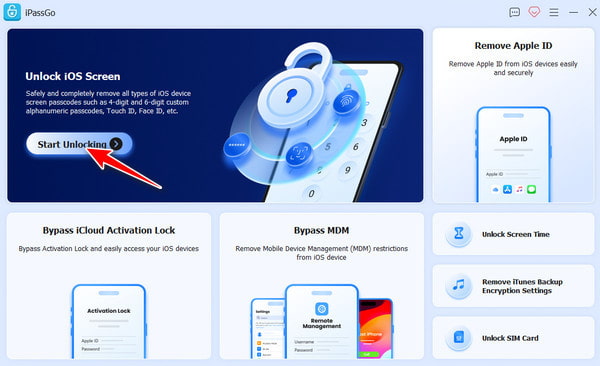
Connect your iPhone to the computer. iPassGo should automatically detect the iPhone. View Details of your iPhone device info. If everything's correct, click Start Now.
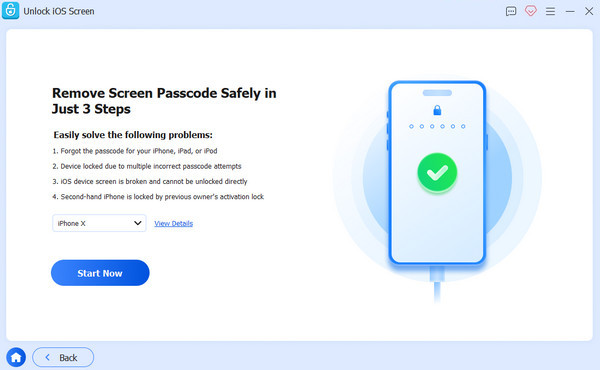
iPassGo starts to download the firmware package. Make sure your Internet connection is stable during the process. It will take only a few minutes.
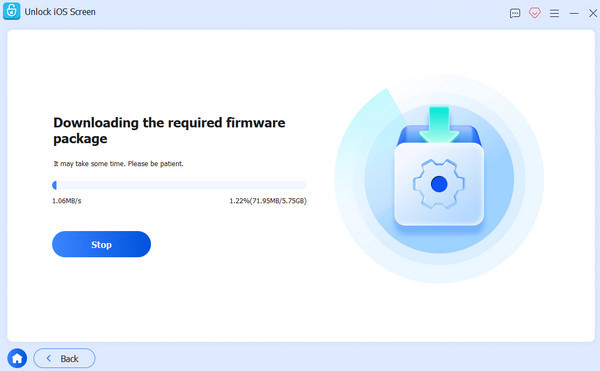
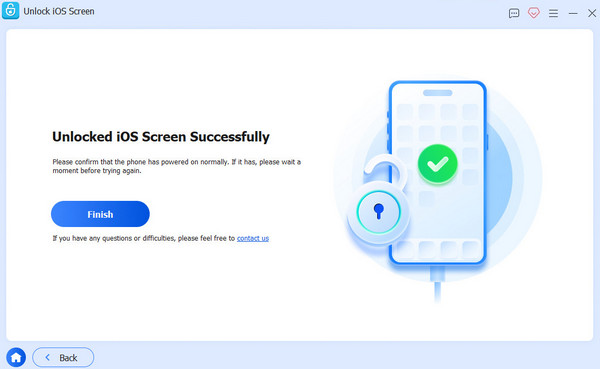
After downloading, click Start Removing to continue. Read the pop-up notification carefully. If you confirm it, click Confirm Again to proceed. Then wait for it to finish.
Part 5. How to Remotely Wipe a Lost or Stolen iPhone
Imagine an iPhone is lost or stolen. It's wandering somewhere else you don't know with all your personal data on it. Luckily, you can remote wipe an iPhone via iCloud Find My on a browser. This method lets you factory reset an iPhone without a password or a computer.
Note:
This solution requires the Find My feature to be activated on your iPhone.
Open a browser on any device. Go to this website: icloud.com/find
Sign in with your Apple account.
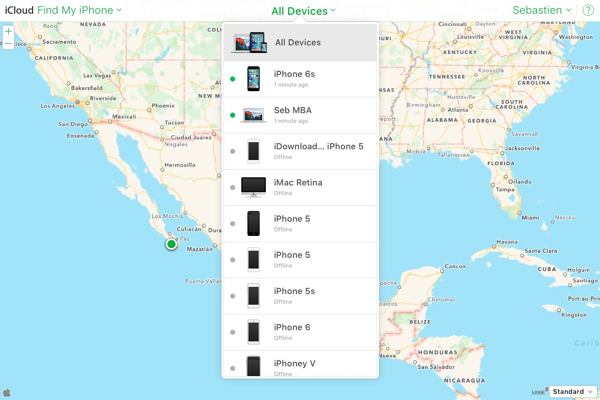
At the top of the page, click All Devices, and select the iPhone you want to erase from the dropdown list.
On the device info panel, click Erase iPhone / Erase This Device. It will display an alert reminding you that this action will delete all data (which is what you want). After you click Erase iPhone to confirm it, you may be asked to enter your iPhone passcode or Apple account password. Then, the erasing begins.
Conclusion
Erasing an iPhone helps protect your personal information in various situations. How can you wipe an iPhone completely? Based on your access to iPhone passwords, you can either erase the iPhone on-device or do it on a computer / a browser. Even without an Apple ID, you can still reset the iPhone using imyPass iPassGo. Act before your data is passed on to someone else.
Clara has over 8 years of experience helping users recover lost files and transfer data. She previously worked as a data recovery technician for a major IT service company. Certified in Data Recovery and Digital Forensics, her articles focus on simple solutions that make complicated recovery tasks easier for everyday users.
Hot Solutions
-
iOS Tips
-
Unlock iOS
-
GPS Location
-
Windows Tips


