Solution
 Support Center
 About Us
 Contact
What Is OEM Unlock, How to Enable It, and Related Troubleshooting
 Gideon Byron Published on December 18, 2025Unlock Android4-min reading
When you want to change to a custom system firmware on Android, your phone denies it. That's because the OEM in your Android phone refuses any custom firmware installation. That's why you need OEM unlock when you especially want to replace a system firmware. However, maybe you have no idea what Android OEM unlock is. Don't worry. This article offers an introduction to it, and you will learn about OEM unlock on Samsung and many other phone brands.

In this article:
Part 1: What Is OEM Unlock?
OEM unlock is a feature in Settings on your Android phone. For example, if you want to do SM G960U OEM unlock, you should go to Developer Options in the Settings app on your Samsung phone, and then you'll see the OEM unlock option.
After Android OEM unlock, you can install any other system firmware and boot your Android phone easily. You may have never heard of system firmware or OEM unlock, but new Android phones are high-end enough to run smoothly and contain many practical features. However, if you insist on custom system firmware for a particular function, Android OEM unlock is your choice.
Why Need to Enable Android OEM Unlock
The main purpose of Android OEM Unlock is to give users or developers full control over the device’s system, allowing them to install custom ROMs, gain root access, remove manufacturer restrictions, and perform advanced testing or modifications.
- Customize ROMs – Replace the stock system with custom Android versions.
- Gain Root Access – Perform advanced system control and remove the pre-installed apps.
- Bypass Manufacturer Restrictions – Unlocks features that are blocked by default.
- Advanced Testing – Perform app testing or system-level experiments.
Important Warnings After Enabling OEM Unlock
Enabling OEM Unlock on your Android device gives you more control over your phone, but it also comes with serious risks if misused. Here’s what you need to know:
- Data Loss – OEM Unlocking usually erases all data on your device.
- Warranty Void – Many manufacturers will no longer offer warranty services after unlocking OEM.
- Security Risks – An unlocked device is more vulnerable to malware or virus attack.
- System Stability – Flashing custom ROMs or modifying system files may cause system crashes or permanent damage.
Part 2: How to Enable Android OEM Unlock
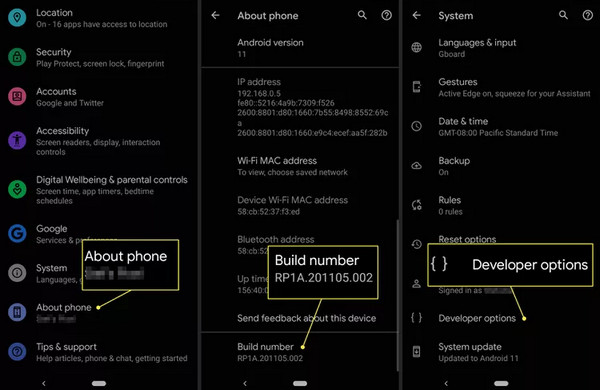
p title=”OEM unlocking is one of the steps to unlock the bootloader on your Android. Although it’s not easy to unlock the bootloader, you can easily enable OEM unlocking. To do that, a trick must be mastered.” /]Open the Settings app on your Android phone and slide down to tap the About phone button. Then, you'll see the Build number button. Tap on it seven times to enter a new panel to open Developer options.
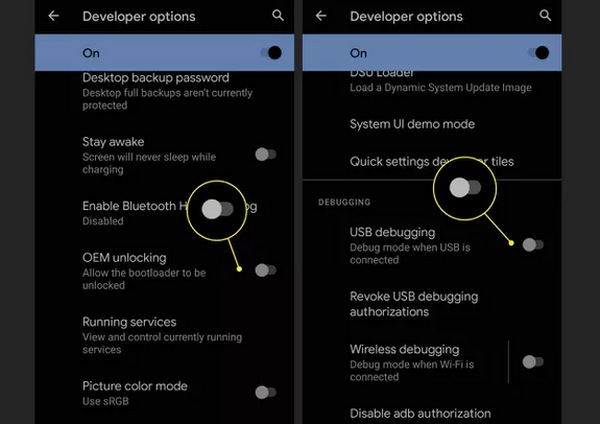
Now, you can enable OEM unlocking. If you go on to unlock the bootloader, don't forget to slide down and tap on USB debugging. However, it will wipe out everything on your phone, so you can prepare a password manager for Android to keep important passwords.
Part 3: How to Fix OEM Unlocking Greyed Out
You may encounter OEM unlocking greyed out after you open Developer options. Without Android OEM unlock, you can't remove the bootloader to install your desired system firmware. But you don't need to worry much, for you can easily fix OEM unlocking greyed out easily.
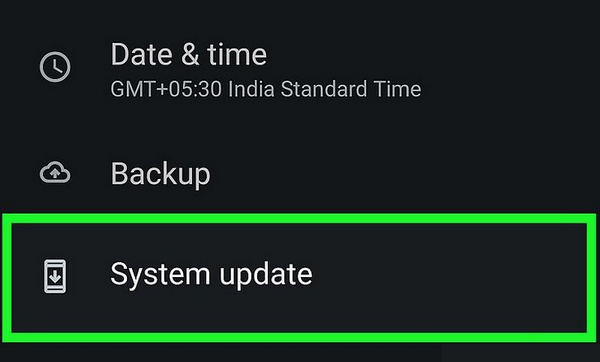
Update the System Version
Although OEM unlock is to change to another system firmware, you still have to update to the latest system version, or OEM unlocking is greyed out, and you can't go on to remove the bootloader on your Android phone.
Factory Reset Your Android
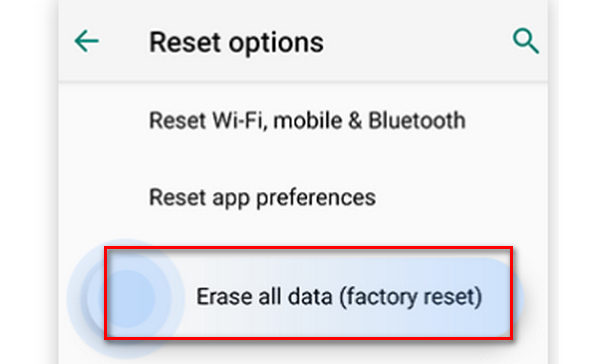
Even if you've updated to the latest Android version, you may still find OEM unlocking greyed out. In that case, you will have to factory reset your Android to enable OEM unlocking. You should erase all data and settings on your Android phone, just like Lenovo factory resetting, or you can't turn on OEM unlock when your phone restarts.
Part 4: How to Fix OEM Unlock Missing on Android
Some people reported that they cannot sometimes OEM unlocking cannot be found in the developer options. This might be due to system limitations or setting issues. You can follow the methods below to fix this issue:
- Make Sure the Developer Option is enabled.
- Check your system versions. Some Android versions don’t support unlock OEM.
- Log in to your main account. Some brands require that OEM unlocking can only be displayed when logging in to the device with the main account.
- Check whether it is an operator-customized device that may block the OEM unlock option.
- Restart your device after modifying the Settings or updating the system.
Bonus: Easily Unlock the Screen Without a Password on Android
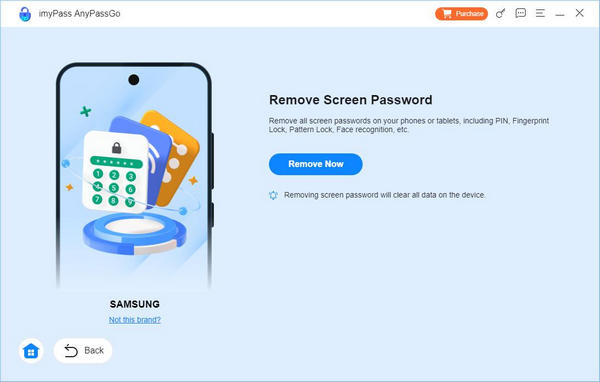
If you get a second-hand Android phone, you may not know the screen passcode, and then you can't unlock OEM on the phone. Don't worry; this article will show you how to unlock your Android screen without a passcode. imyPass AnyPassGo can easily erase the screen lock when you don't know the password. After that, you can quickly factory reset your phone and start OEM unlocking easily.
4,000,000+ Downloads
Remove screen lock to unlock OEM on Android.
Reset your Android phone to help you fix OEM unlocking greyed out.
Refresh your Android phone after you unlock the screen.
Also support to bypass Google FRP.
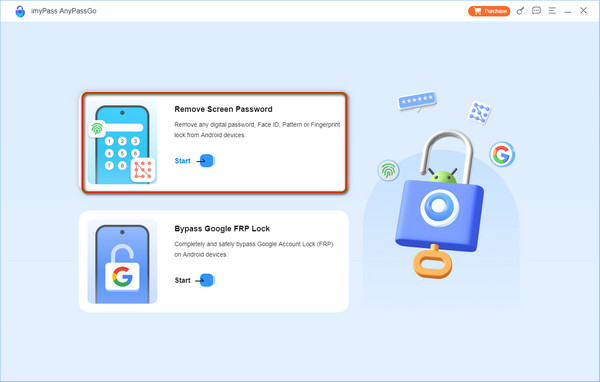
Download and launch AnyPassGo and connect your Android device to the PC. It would help if you chose Remove Screen Lock.
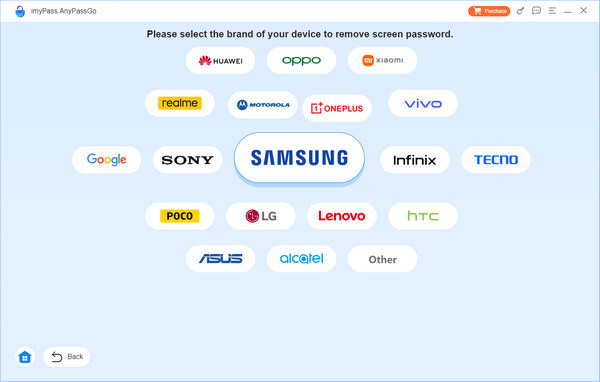
Select and confirm your phone brand and click the Start button to start the screen unlock.
Now, everything should be ready. Click Remove Now and wait for your device to be unlocked.
FAQs.
-
Why can't I see OEM unlocking on my Android phone?
If you've ever hard reset your Android, the OEM unlocking option will disappear for 7 days. Also, maybe you've already enabled OEM unlocking, and it will disappear automatically.
-
What's the difference between OEM unlock and bootloader unlock?
OEM unlock is a feature that helps you unlock the bootloader on your phone, so you can consider Android OEM unlock as a prerequisite for bootloader unlock on your phone.
-
What is the OEM unlock code?
It's a code provided by your phone's manufacturer. With an Android OEM unlock code, you can easily remove the bootloader and install any custom system firmware package.
-
Is OEM unlock safe?
It depends. With OEM unlock, you can install any custom system firmware on your phone; what decides the security is what you install. Therefore, OEM unlock is not dangerous.
-
Is OEM unlock the same as rooting?
No, it isn't. OEM unlock can only help you remove the bootloader and change to another custom system while rooting gives you complete access to the system on your Android.
Conclusion
This article briefly introduces OEM unlock on Android. You can also learn to fix the OEM unlocking greyed out, and what to do when the OEM unlock is missing easily. It's really easy to do that on many phone brands.
But you should also know that OEM unlocking is only a precondition for bootloader unlocking. If you get a second-hand Android phone and need to know the screen passcode, you should be aware of imyPass AnyPassGo, which can easily wipe out the screen lock on any Android phone. After that, you can do an Android OEM unlock and remove the bootloader.
Gideon writes about unlocking iOS, Android, and Windows devices. He previously worked as a mobile device specialist in a repair center, assisting customers with locked devices and password recovery. In his spare time, he tests new unlock tools, customizes smart devices and makes complex unlock processes simple and safe.
Hot Solutions
-
Unlock Android
-
Unlock iOS
-
Password Tips
-
iOS Tips