Solution
 Support Center
 About Us
 Contact
How to Factory Reset a Locked Android to Remove Screen Lock
 Gideon Byron Published on January 30, 2026Unlock Android3-min reading
Mobile phones, like Android phones, are secured due to the screen lock feature they contain. You do not need to worry about your data and information from your Android phone when you leave it unattended. If the person does not know your lock screen password, they cannot access your Android phone.
However, what if you cannot remember your Android phone lock screen password? This issue will be very stressful because you cannot unlock the mentioned device. So, you can read this entire article to factory reset a locked Android phone. It offers six quick methods for the mentioned procedure. Continue browsing to know their full details.

In this article:
Part 1. Reset a Locked Android Phone with Buttons
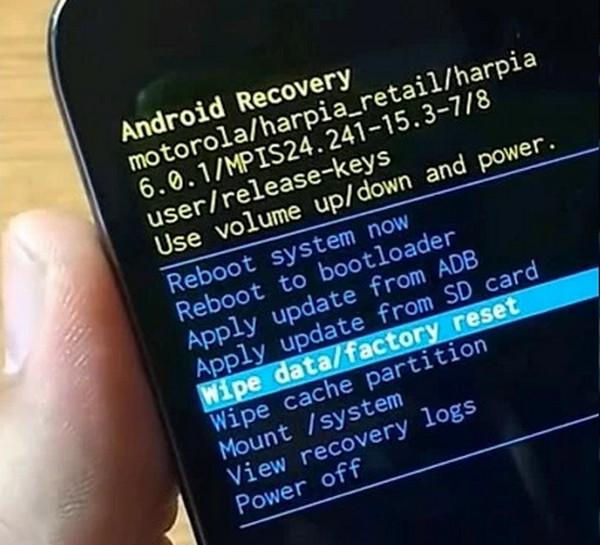
The Android phone recovery mode can be accessed with its physical buttons. This mode has a lot of commands that can be used for your Android phone. It includes rebooting, wiping the cache partition, factory reset, and more. The best thing about it is that it can be accessed when the Android phone is locked. However, it does not bypass the Google lock. You are required to enter your Google account after the factory reset. The steps below will show you how to reset a locked Android phone with its buttons.
Press and hold Power and Volume Down together. Release them when the Android phone turns off. Once the Android phone is turned off, press and hold Power and Volume Down. Release the buttons when the recovery screen is shown.
Use the Volume physical buttons to select the Factory Reset or Wipe Data/Factory Reset button. Confirm the procedure afterward and reboot the Android phone to turn it off. This way, the recovery mode screen will exit.
Part 2. Reset a Locked Android Phone Online via Google Find My
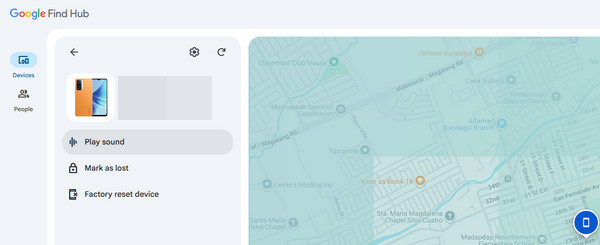
Google Find My Device or Find Hub is a free service offered by Google. It allows you to track your real-time location with your GPS location. This free service can also be used to factory reset your Android phone. However, like the previous method, it does not bypass the Google FRP on your Android phone. This procedure uses a strong internet connection. Please follow the steps below to know how.
Search for the official website of Find Hub or Find My Device. Then, sign in to the associated Google account on your Android phone. The digital map screen will be prompted. Please select the Devices button at the top left.
Select the Android phone name from the screen. Later, select the Factory Reset Device button from the list of features. Confirm the action by choosing the Erase button from the small window that will appear.
Part 3. Reset a Locked Android Phone Using a Pro Tool
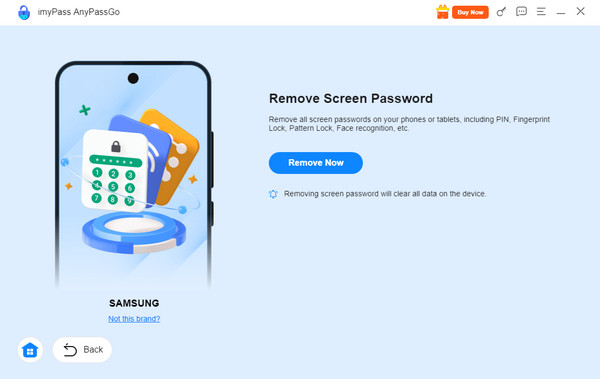
You can also use a professional tool to factory reset a locked Android phone. imyPass AnyPassGo can unlock all types of Android screen lock types. It includes fingerprint, PIN, pattern, face recognition, password, and more. It will wipe your Android phone after the unlocking process without the passwords. In earlier versions of Samsung models, you have the choice to erase your data or not. The tool can also be used for bypassing the Google FRP lock on your Android phone. Xiaomi, Huawei, Samsung, and other Android phone brands are supported. The steps below will help you use this tool quickly.
Pay a visit to the imyPass AnyPassGo website. Then, download the tool on your computer and set it up. Later, install and launch the software to start using it on your computer immediately.
Click the Start button under the Remove Screen Password button at the top left. Then, you will be prompted to the supported Android phone brands of the tool. Please select the brand of your Android phone to proceed.
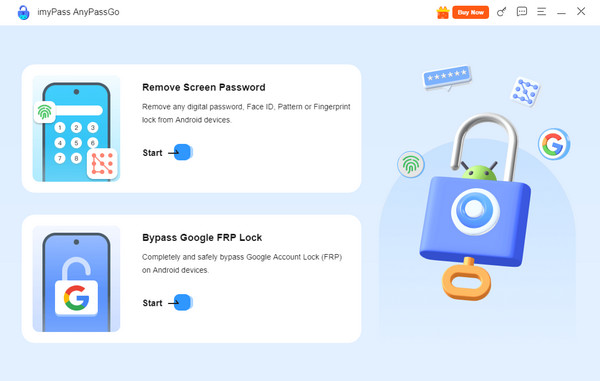
You will be required to plug your Android phone into your current computer using a USB cable. Click the Remove Now button under the description. This way, the unlocking procedure will start.
Part 4. Reset a Locked Android Phone with Safe Mode
Safe Mode is a feature on Android phones that allows you to bypass third-party apps. These apps might be screwing with your lock screen. This mode can be accessed with the physical buttons of your Android phone during boot. It can bypass Face ID or face recognition, pattern, PIN, password, and more screen locks.
However, Safe Mode is not permanent. The feature will be disabled after you turn off your Android phone. If so, you need to put your Android phone into Safe Mode again. Here are the steps to enter your Android phone into Safe Mode.
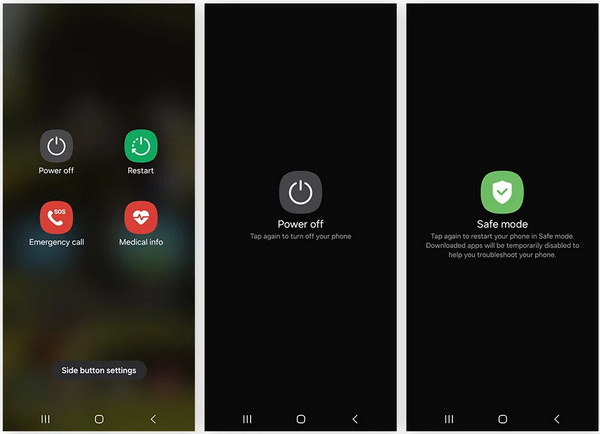
Press and hold the Power physical button and Volume Down buttons of your Android phone. Release the buttons when options are shown on your screen. Please tap the Power Off button, and it will be prompted at the center.
Long-press the Power Off button at the center. Then, the button will change into Safe Mode. Tap the mentioned button to enter your Android phone into Safe Mode.
Part 5. Reset a Locked Android Phone via ADB Command
Android Debug Bridge, or ADB, is a known command that allows your Android phone to communicate with your computer. This command-line instruction enables different tasks on your Android phone. It allows you to install applications, enable debugging, delete apps, transfer files, and more. It uses the Android SDK platform tools for its operations.
The command can also reset a locked Android phone. However, this procedure requires professional skills. The steps below are detailed to help you with this process.
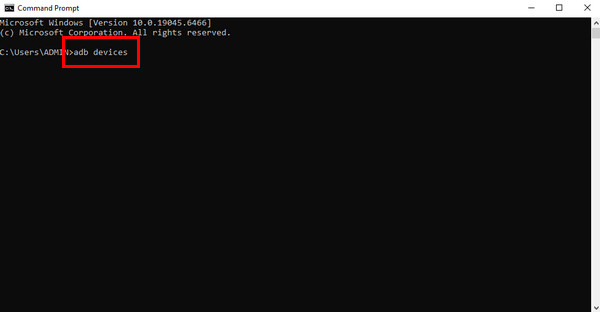
Grab your USB cable and use it to plug your Android phone into the computer. After that, open the Command Prompt or Terminal tool on your computer. Type the adb devices code using your keyboard. Hit the Enter key to encode it.
Run the adb shell rm /data/system/gesture.key code. Alternatively, you can enter the adb shell rm /data/system/password.key code. They have the same operation on your Android phone.
More options will be prompted on your screen. Please type the adb reboot code and follow the on-screen instructions to factory reset an Android phone using your computer with the ADB command.
Conclusion
All in all, this post teaches you how to reset a locked Android phone. It suggests the six proven ways to help you factory reset the locked Android phone. imyPass AnyPassGo is the best tool from the list. It can remove different lock types on your Android phone, including PIN, password, pattern, and more. What are you waiting for? Download the tool now!
Gideon writes about unlocking iOS, Android, and Windows devices. He previously worked as a mobile device specialist in a repair center, assisting customers with locked devices and password recovery. In his spare time, he tests new unlock tools, customizes smart devices and makes complex unlock processes simple and safe.
Hot Solutions
-
Unlock Android
-
Unlock iOS
-
Password Tips
-
iOS Tips