Solution
 Support Center
 About Us
 Contact
How to Reset Samsung Account Password [Online & On Your Phone]
 Gideon Byron Published on April 16, 2026Unlock Android4-min reading
Forgot your Samsung account password? Without it, you can't access services like Galaxy Store, Samsung Pay, or SmartThings Find. Fortunately, you can reset your Samsung password easily online or directly on your phone. This guide will show you the methods step by step so you can regain access to your Samsung services quickly.

In this article:
Part 1: How to Reset Samsung Account Password
How to Reset Samsung Password Without Two-step Verification Enabled
If two-step verification is enabled for your Samsung account, the password reset process includes additional identity verification steps. Below are the instructions for both situations.
Go to the Samsung Account password reset page in your browser and enter your account ID.
Click Reset password, then choose your email address to receive a reset link.
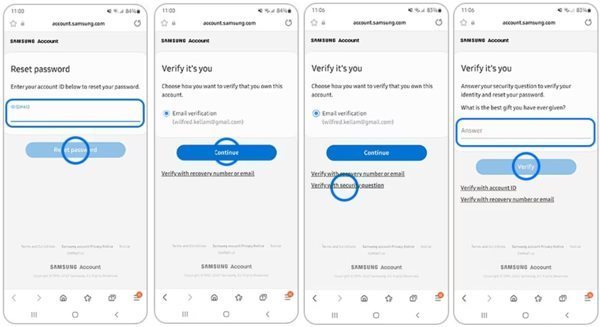
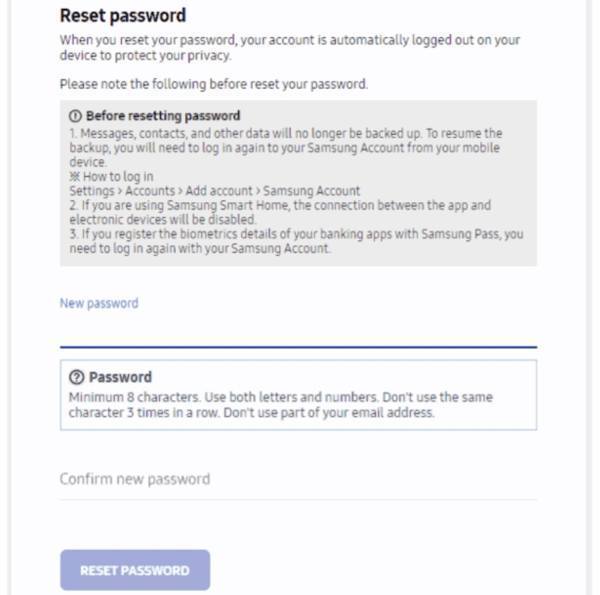
Open the email from Samsung, click Reset password, then set a new password and confirm it.
Note:
After resetting your Samsung account password, make sure to update the new credentials on your phone, tablet, or other Samsung devices. Otherwise, Samsung services may not sync properly.
How to Reset Samsung Password with Two-step Verification Enabled
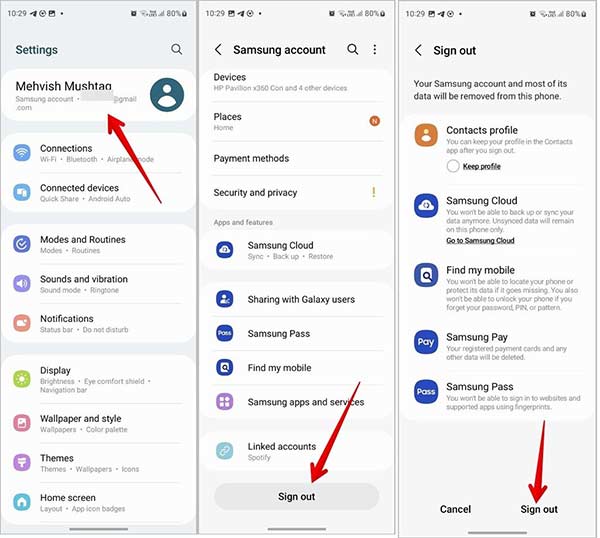
Also, input your Samsung account ID on the password reset web page, and click Reset password. To reset your password on your Samsung phone, go to the Settings app, tap Samsung account at the top of the screen, press Sign out, and hit Sign out again. Then tap Reset password to redirect the web page to your mobile browser.
Input your two-step verification phone number and hit Continue.
Then you have four methods to reset your Samsung account password.
Account ID email: receive a reset link via email
Recovery phone number: receive a verification code via SMS
Recovery email: reset password via email link
Security question: answer your security question to proceed
Troubleshooting: Samsung Password Reset Issues
1. Didn't receive the reset email?
Check your spam folder and make sure you entered the correct Samsung account email. If you still don't receive it, try using other email addresses you own.
2. The reset password link doesn't work?
Select the web address in the email to complete the password reset process. If the link expires, go back to the reset page to reset it again.
3. Can't sign in to Samsung account?
Verify your email address or phone number, or try another possible account you may have used. You can also sign in using your Google account or QR code if they were previously set up.
4. Didn't get the verification code?
Check your network connection and ensure your phone number is correct and active. If you changed the phone number, you need to update the new phone number on your Samsung account.
5. No access to recovery options?
You may need to contact Samsung Support or try alternative verification methods.
Part 2: How to Update Samsung Account Password
After resetting your Samsung account password, you need to update the changes to your Galaxy phone or tablet. Otherwise, the Samsung services will report errors or won't be working. Here are the steps to remove and reset password for your Samsung phone.
Turn on your Samsung phone, and open the Settings app.
Go to the Accounts and backup tab, choose Manage accounts, and select your Samsung account.
Tap the Remove account button, read the alert message, and hit the Remove account button again. This step removes the old login session from your device so you can sign in again with the new password.
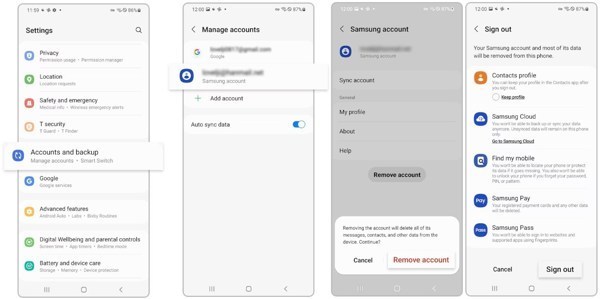
Press Sign out and follow the instructions to remove your Samsung account from your phone.
Next, go back to the Settings app, navigate to Accounts and backup, and Manage accounts. Tap Add account, and enter your Samsung account ID and new password.
Note:
If you still remember your Samsung account password, you can reset it directly on your phone. Go to Settings > [account ID] > Security and privacy > Password, then enter your current password, set a new one, and tap Next.
Bonus Tip: Unlock Samsung Phone Without Password
If you are locked out of your Samsung phone, you can unlock it using your Samsung account credentials. But what if you also forget your Samsung account password? Is there still a way to access your locked Samsung phone without a passcode? Yes! imyPass AnyPassGo can help remove the screen lock from your Samsung phone or tablet without a passcode. It also supports a wide range of Android devices, including Samsung, Xiaomi, Huawei, and more.
4,000,000+ Downloads
Get rid of any type of screen lock on Android devices without a password.
Unlock Samsung phones by removing passwords like PIN, pattern, fingerprint, etc.
Offer bonus features, like FRP removal and factory reset.
Easy, safe, and fast to use.
Support phones and tablets like Samsung, Xiaomi, Google, and more.
FAQs.
-
What is a Samsung account?
A Samsung account is used to access Samsung's services on Galaxy phones, tablets, Samsung TVs, and other products. Every customer can create one using an email address and a memorable password.
-
What is two-step verification for Samsung accounts?
2-step verification is an enhanced security feature that blocks someone else from logging into your Samsung account without permission. It strengthens the security by using two different authentication factors to verify your identity, a password and a security code.
-
How do I manage and recover my Samsung account?
You can set up and manage your Samsung account on your phone, tablet, computer, and TV since these devices have Samsung account software built in. If you forgot your Samsung account ID, you can find it back on Samsung's website.
Conclusion
Now, you should understand how to reset password for your Samsung account on a computer or your smartphone. The process may require a verification code, your email, the associated phone number, or your security questions and answers. Plus, we also shared a powerful tool to reset passwords on your locked Samsung phone or tablet.
Gideon writes about unlocking iOS, Android, and Windows devices. He previously worked as a mobile device specialist in a repair center, assisting customers with locked devices and password recovery. In his spare time, he tests new unlock tools, customizes smart devices and makes complex unlock processes simple and safe.
Hot Solutions
-
Unlock Android
-
Unlock iOS
-
Password Tips
-
iOS Tips