Solution
 Support Center
 About Us
 Contact
How to Unlock an Android Phone Without Password: 8 Proven Ways
 Penny Warren Published on September 11, 2026Unlock Android3-min reading
You may have created a memorable password for your smartphone, but it is still possible to forget it. Perhaps it is an old handset that has been sitting in your drawer for years, or you have just got a second-hand device that is locked. Whatever the reason, you can still regain access to your Android phone even without the password. This article provides practical ways to show you how to unlock a phone in various scenarios.

In this article:
Part 1: How to Unlock Any Android Phone Without Password
What to do if you're locked out of your Android phone? It sounds complicated to unlock a phone when you forgot the password. Fortunately, this dedicated unlock tool can provide a convenient solution. imyPass AnyPassGo is a powerful Android unlocker that helps remove all screen locks and regain access to your Android phone with ease.
4,000,000+ Downloads
Remove any type of screen locks, like PIN, password & pattern.
Bypass fingerprint or face unlock on Android.
Bypass Google FRP lock easily without password.
Compatible with Samsung, Motorola, Google, LG, Huawei, etc.
Here is the procedure to unlock a cell phone without the password:
Install imyPass AnyPassGo
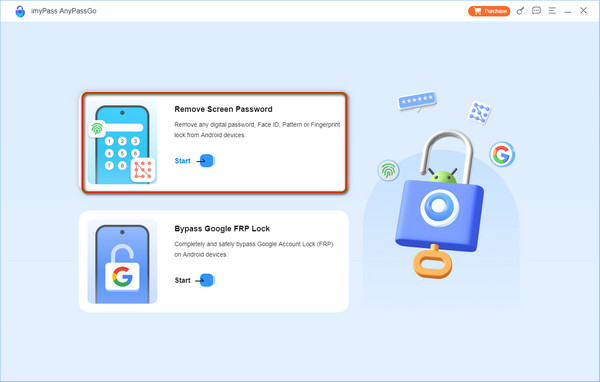
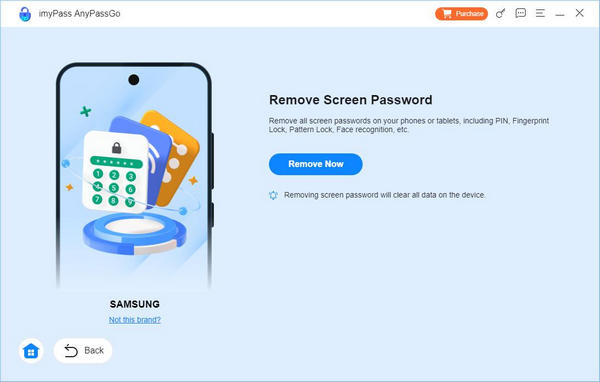
Start the Android phone lock software once you install it on your PC. Choose Remove Screen Password from the home interface.
Select phone brand
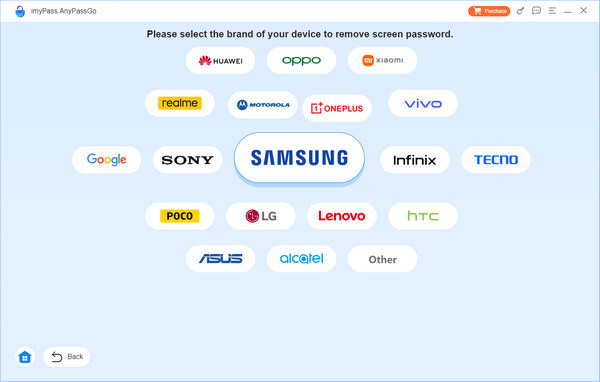
Connect your phone to your PC with a compatible USB cable. Click the Start button, and choose your device brand.
Unlock your phone
Next, put your phone into the Recovery Mode following the on-screen instructions. Then the software will begin removing your screen lock after you click Remove Now. When it is done, you will see the success screen. Disconnect your phone, restart it, and set up a new password.
Part 2: How to Unlock Android Phone for Free - 3 Methods
Unlock a Phone with a Google Account
If you've set up your Android phone with a Google account, you may be able to regain access to your phone with the Google account when you forget your PIN or pattern. This method only works on Android 4.4 or earlier, as newer Android phones cannot be unlocked this way.
Prerequisites:
1. Your phone is associated with a Google account.
2. Your phone is running Android 4.4 or lower.
3. You still remember the Google account credentials.
Here are the steps to unlock an Android phone password without losing data:
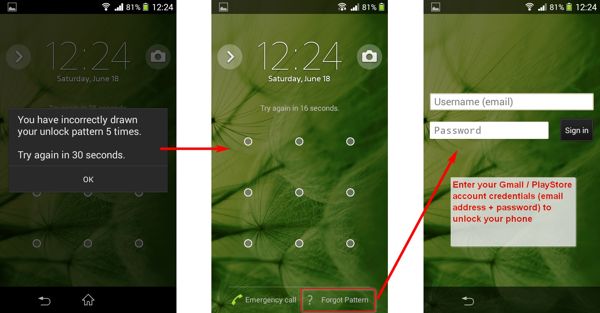
Continuously enter a wrong PIN or pattern until your phone is disabled and displays the emergency call screen.
Tap the Forgot Pattern or Forgot PIN button at the bottom right corner.
Then type in the associated Google account and password.
Note:
Some older Android devices may also offer security questions as an alternative verification method. If this option is available, answer the questions correctly to regain access to your phone.
Unlock a Phone via Google Find Hub
Google Find Hub, also known as Google Find My Device, is a built-in service that helps you locate, secure, and erase Android devices remotely. Although it cannot directly remove your screen lock, you can use it to erase your phone remotely and regain access after a factory reset. However, this process will delete all data, apps, and personal settings stored on your device.
Prerequisites:
- 1.You have turned on Find Hub.
- 2.You have signed in with a Google Account
- 3.Your phone is connecting to a stable network.
- 4.You need a PC or an accessible Android phone.
Bear in mind that this way will erase all data, apps, and personal settings on your phone. Here is the workflow to bypass the Android lock screen without a password.
On Website:
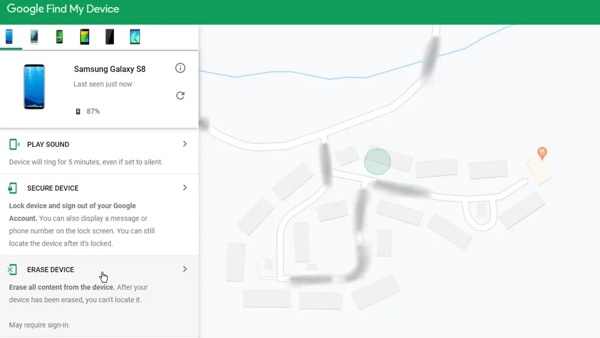
Go to Google's Find Hub website in a browser, and sign in with the associated Google account.
Choose your locked phone at the upper left side and Google will track your device on the map.
Next, click the ERASE DEVICE button, and confirm the action.
Note:
If you cannot find the ERASE DEVICE button, click Factory reset device.
On App:
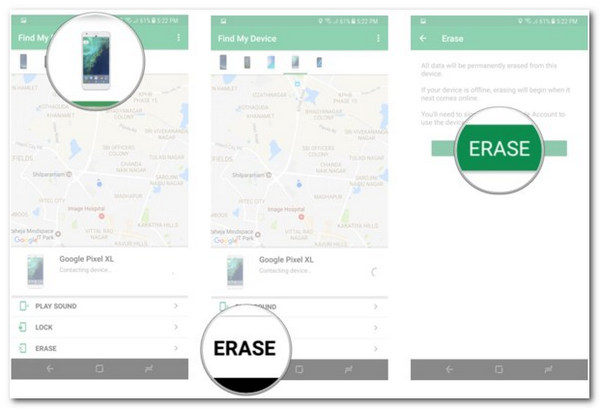
Open the Find My Device app (or Find Hub app, depending on your device) on another Android phone.
Tap your phone name on the top of the screen, and tap the ERASE button on the toolbox.
When prompted, tap ERASE again.
Unlock a Phone in Recovery Mode
The Recovery Mode is a unique system feature built into almost all Android devices. It delivers a set of tools for diagnosing and resolving software issues on Android. In brief, it enables you to unlock your phone for free with a factory reset. Since it erases all content and settings on your phone, you'd better back up your device before the process. The advantage is this way does not require extra software or hardware.
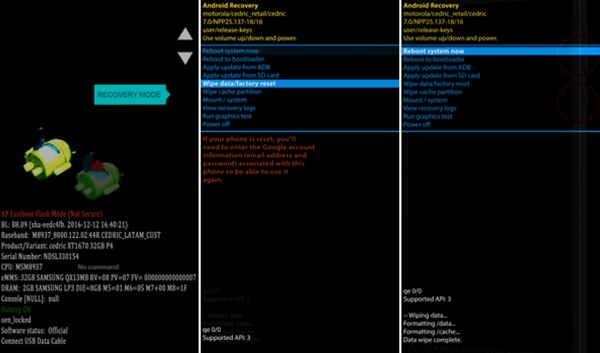
Long press the Power button until the power-off screen pops up. Then shut down your phone.
Tip: If your power-off screen offers a Recovery Mode option, tap it directly.
Put your phone into the Recovery Mode:
On Samsung phones, hold down the Volume Up + Power buttons at the same time. Keep pressing the button combination when you see the Samsung logo. Release the buttons once you see the Recovery Mode screen.
On Motorola and most Android devices, hold down the Volume Down + Power buttons simultaneously until Recovery Mode appears.
Use the volume buttons to scroll to the Wipe data/factory reset, and press the Power button to select it.
When prompted, select Yes to begin factory resetting your phone.
When it finishes, scroll to Reboot system now, and select it to boot into the normal mode.
Part 3: Advanced Ways to Unlock Android Phone
Unlock a Phone Using ADB Commands
ADB (Android Debug Bridge) is a command-line tool that can help manage Android devices through commands. On some older Android versions with USB Debugging already enabled, it may help unlock an Android phone if you forgot the PIN or password.
Prerequisites:
1. This way requires a PC and a compatible USB cable.
2. You must have enabled USB Debugging mode on your phone.
Besides, this way works with command lines, so it is not a good choice for non-tech-savvy.
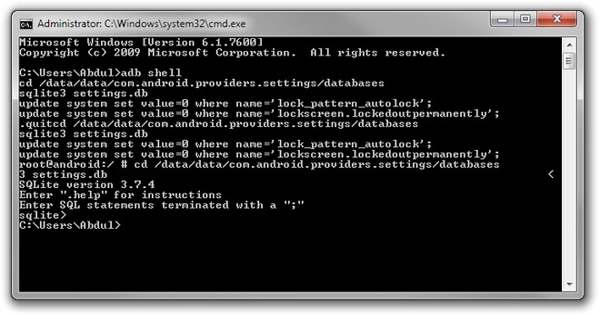
Go to the Android SDK Platform Tools web page, and download the platform tools according to your operating system. Unzip the archive to a new folder.
Locate the new folder, and press the Shift key on your keyboard while right-clicking on an empty area. Choose Open PowerShell window here to open a command prompt window.
Connect your locked phone to your PC with a USB cable.
Input adb devices, and hit the Enter key. If ADB recognizes your phone, move on. If not, disconnect your phone, reboot it, and reconnect it to your PC.
Next, execute the commands below:
adb shell
cd /data/data/com.android.providers.settings/databases
sqlite3 settings.db
update system set value=0 where name='lock_pattern_autolock';
update system set value=0 where name='lockscreen.lockedoutpermanently';
.quit
Restart your phone and it should unlock with any pattern.
Unlock a Phone with Smart Lock
Google Smart Lock or Extend Lock is a native feature on Android phones. It allows you to bypass the lock screen without losing data by detecting specific actions or when the locked Android phone is close to trusted locations and devices.
Prerequisites:
1. You have set up Smart Lock on your phone.
2. Put your phone as closely as the trusted places and devices.
3. You have accessed your phone within 4 hours.
Here are the steps to set up Smart Lock on an Android phone:
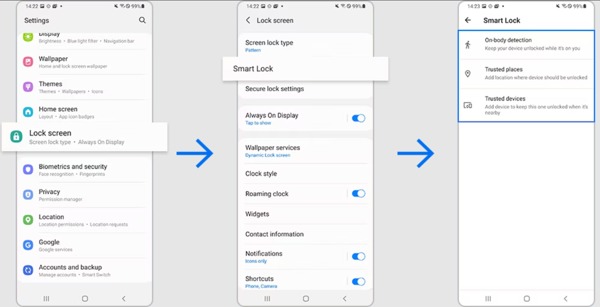
Go to the Lock Screen tab in your Settings app. The navigation is a bit different on smartphones.
Tap Smart Lock or Extend Lock, and follow the instructions to set it up.
Here you can see three Smart Lock types:
On-body detection: keep your phone unlocked when it is on you.
Trusted places: your phone stays unlocked at trusted locations.
Trusted devices: your device remains unlocked when it is nearby or connected to the trusted device.
Select and set the Smart Lock types according to your preference. Then Android will skip the lock screen automatically as long as the conditions are
Part 4: How to Unlock a Samsung Phone/Pixel Phone
In addition to general ways to unlock a phone without a password, some manufacturers release device management tools for their products, such as Samsung's Find My Mobile and Google's Pixel Repair Tool.
How to Unlock a Samsung Phone on Find My Mobile
Older Samsung devices once supported Remote Unlock through Find My Mobile (now integrated with SmartThings). It allows users to remotely locate, unlock, or erase their Galaxy devices. But Samsung has discontinued the remote unlock feature since 2023, so you cannot unlock a Samsung phone remotely if you use newer models.
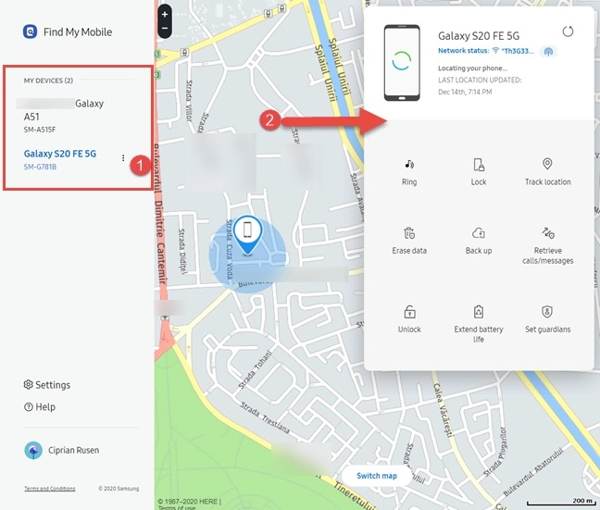
If you have set up Find My Mobile on your phone, visit Samsung's Find My Mobile website when you want to unlock it.
Sign in with your Samsung account, choose your phone on the list, and click Unlock on the toolbar.
If prompted, enter your Samsung account password again, and unlock your device remotely.
How to Unlock a Pixel Phone via Pixel Repair Tool
Google's Pixel Repair Tool is an official online service designed to repair software issues, reinstall the operating system, and restore Pixel devices. It can help you unlock a Pixel phone by reinstalling the system.
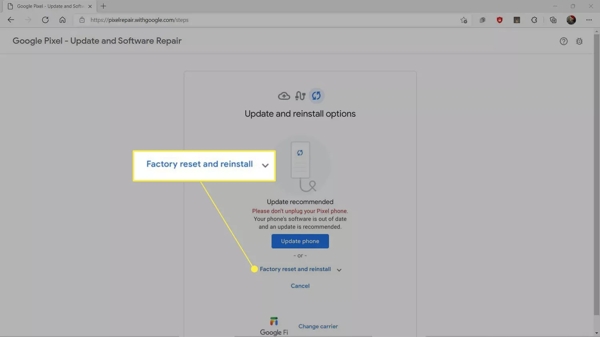
Connect your phone to a computer with a USB cable.
Go to pixelrepair.withgoogle.com in your browser, click Get Started, select your carrier, and click Next.
Follow the on-screen instructions to enter the Fastboot mode on your device, highlight Rescue Mode with the volume buttons, and select it with the Power button.
Next, click Factory reset and reinstall on Pixel Repair Tool.
FAQs.
-
How to unlock any phone password using an emergency call?
Enter the wrong password again and again until the emergency call screen pops up. Tap Emergency call to open the phone call screen. Here you can dial secret codes to access specific features. However, there is no secret code to unlock an Android phone password.
-
Can I bypass the Android lock screen using Camera?
Yes. When your phone is locked and you forget the password, swipe left or right on your screen to open the Camera app. Take a picture, and tap the thumbnail to open the Gallery app. You can only access these two apps.
-
How much does it cost to unlock a phone?
The common ways allow you to unlock a phone for free. If you use a third-party tool, it is usually not free.
Conclusion
Now, you have learned 8 ways to unlock your phone when you forgot the password. Some of them may not work on newer models or requires specific conditions to be met. To unlock your Android phone easily, you can try imyPass AnyPassGo, which works on Android 5-17 and removes various screen locks effortlessly.
Penny focuses on GPS troubleshooting and Windows optimization. She formerly worked as a technical support engineer, helping clients solve location-based and system issues efficiently. Backed by IT support experience, she provides practical solutions that really work. In her free time, she likes hiking and geocaching, testing GPS tech in the real world.
Hot Solutions
-
Unlock Android
-
Unlock iOS
-
Password Tips
-
iOS Tips