Solution
 Support Center
 About Us
 Contact
Unlock Bootloader Xiaomi: Full Guide to Using the Mi Unlock Tool
 Gideon Byron Published on January 30, 2026Unlock Android3-min reading
Using the Xiaomi unlock tool may seem like the fastest way to open a locked Xiaomi phone, but the process is not always smooth. This guide follows a practical approach of looking at the functionality of the tool in practice through hands-on testing using various models and configurations. You will find out what to expect prior to beginning, where time wastage and mistakes are likely to exist and when a different approach is the best option. The object of this is to assist you in unlocking with less danger and without conjecture. We then move on to requirements, step-by-step, how it is used, glitchy bits and how to do it with fewer dangers.

In this article:
Part 1. Prerequisites & Preparation
1. Official Requirements
Mi Account
In order to unlock your Xiaomi, you are required to have a valid Mi Account signed into the device. This connects your phone to Xiaomi servers and authenticates ownership. In its absence, the unlock process will not take place. It is essential to ensure that before you start using it, you have at least a functioning account that is logged in at least once on the device.
Binding Period
After linking your Mi Account, Xiaomi enforces a mandatory waiting period, usually 7 days for most devices. During this time, no Xiaomi unlock code is issued. This time is used to ensure that Xiaomi is dealing with the correct device and account, and avoiding the possibility of unauthorized intrusion. An attempt to go around this step normally results in mistakes or unsuccessful unlocking.
Developer Options & OEM Unlocking
Turn on Developer Options by clicking the MIUI version in Settings > About Phone multiple times. Then, go to Settings > Additional Settings > Developer Options and turn on OEM Unlocking and USB Debugging. These settings allow the Mi Unlock Tool to communicate with your phone over Fastboot and authorize the unlock. Skipping them is a common reason unlock attempts fail.
2. What You Need to Download
Mi Unlock Tool
Download the official MI Unlock Xiaomi tool for Windows. This software authenticates your Mi Account, communicates with Xiaomi servers and transmits the unlock command. One thing to avoid is the use of unofficial tools that may end up locking your bootloader indefinitely or even permanently deleting data.
Xiaomi USB Drivers
Install Xiaomi USB drivers so your PC can detect the phone in Fastboot mode. Without these drivers, the Mi Unlock Tool may fail to recognize your device, showing errors like device not found. Correct drivers are essential for a smooth unlock process.
A Windows PC
One of the requirements is a Windows computer since the Mi Unlock Tool is not compatible with other systems. Ensure that your PC is stable, with administrative privileges and that it is connected with a good USB cable so as to avoid any interruptions during unlocking.
Part 2. Step-by-Step Unlocking Process
Backup Your Data
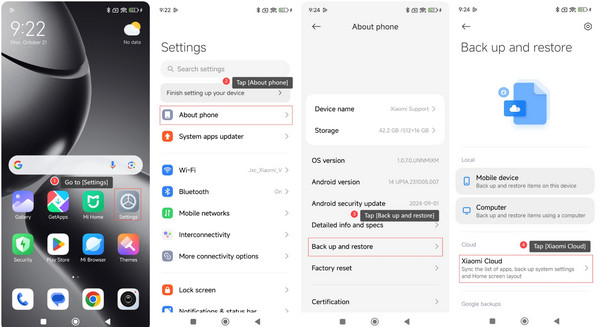
You should back up all the valuable information before starting the unlock process. Opening the bootloader will remove all the data in your Xiaomi phone, such as apps, contacts, photos, and settings. Save your files using cloud services or use a PC or an external drive to be sure that nothing of importance is lost in the process.
Enter Fastboot Mode
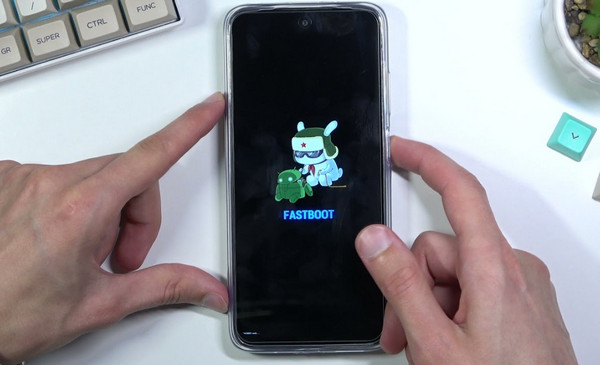
To unlock the Bootloader of Xiaomi, your device must be in Fastboot mode. Press and hold the Volume Down + Power buttons simultaneously until the Fastboot logo appears on the screen. This mode allows the Mi Unlock Tool to communicate directly with your device and safely send the unlock command.
Use the Mi Unlock Tool on PC
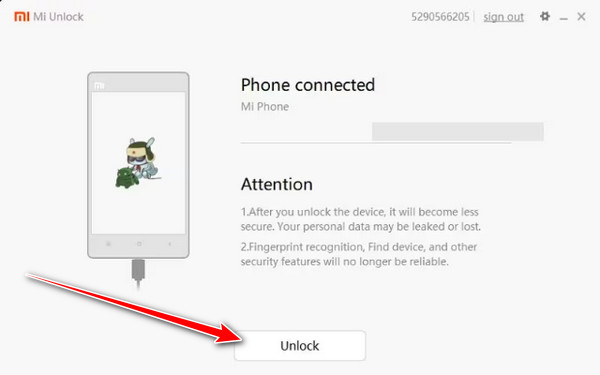
Download and open the official Mi Unlock Tool on a Windows PC. Log in with the same Mi Account that is linked to your device. Connect your phone via USB while it is in Fastboot mode. The tool will identify the device and provide a phone-connected status. Click on Unlock and confirm by clicking on Unlock Anyway. The tool will start unlocking the process and display the progress on the screen.
Completion & Reboot
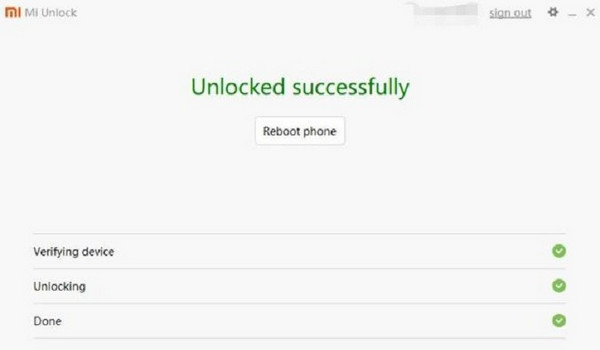
Once the unlock process finishes, the tool will display Unlock Successfully. Now, it is safe to disconnect the phone and press Reboot Phone. The device will reboot with an unlocked bootloader, ready for customization, custom ROMs, or rooting. Congratulations, you have completed the unlock without errors.
Part 3. Troubleshooting "Xiaomi Couldn't Unlock" Errors
Even after following all the steps, some users see the Xiaomi couldn't unlock message in the Mi Unlock Tool. This usually happens due to account issues, device setup problems, or server restrictions. Understanding the common causes can save time and frustration when you try to unlock the Bootloader on your phone.
1. Device Not Properly Linked to Mi Account
The most widespread explanation is that the phone is not dedicated to your Mi Account to the full extent. Ensure that you have added your account in Developer Options > Mi Unlock Status, and the confirmation message appears. Unless properly linked, the Mi Unlock Tool is unable to check ownership.
2. Waiting Period Not Completed
Xiaomi enforces a mandatory waiting period before you can unlock the Xiaomi bootloader. If your account was added recently, attempting to unlock early will trigger errors. There is no official way to bypass this timer, so patience is required.
3. Account Authorization Problems
Mistakes such as Your account is not authorized to unlock occur in your Mi Account does not qualify to unlock, or it is not active or not linked with the correct region of your device. This problem can be addressed by using a valid international account.
4. Connection and Driver Issues
When your machine fails to recognize your device or the unlock process halts halfway through, then it could be something with the USB driver or PC connection. Make sure that you have the latest Xiaomi USB drivers, a good USB cable and temporarily turn off the antivirus or firewall programs that may be a hindrance to Xiaomi Mi Unlock communication.
5. Network or Server Errors
Unlock failures may be a result of temporary network or server problems. Most of the errors, such as Network Error, often vanish when you restart again or when you change wifi connections or when you connect to a stable VPN.
6. Regional Restrictions or Unsupported Devices
The official unlock servers do not support some Xiaomi devices or region-specific ROM. In case you are getting messages related to unsupported devices, make sure that you are operating under the right global tool version or official firmware.
By identifying the exact cause, most users can resolve these errors and successfully unlock their Xiaomi phone without repeated failures. Following the correct setup, account linking, and using the official tool are the safest ways to unlock your device.
Part 4. Easier Way to Unlock Xiaomi Screen Lock
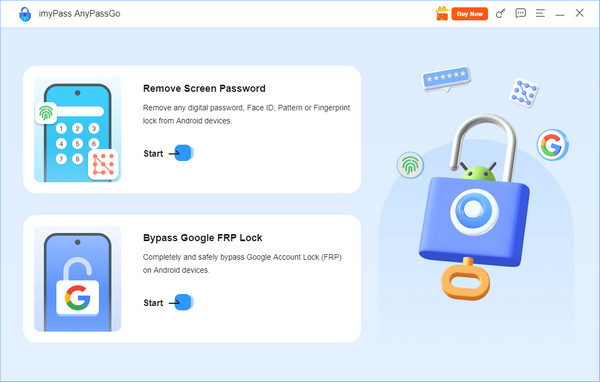
When official Xiaomi Mi Unlock methods fail, imyPass AnyPassGo provides a simple way to unlock Xiaomi screen locks and bypass FRP. Supporting Xiaomi and other Android devices from version 6.0 to 15, it removes PINs, patterns, passwords, fingerprints, and face locks. The process is easy: install the software, connect your phone via USB, let AnyPassGo detect the device, and start removal.
It does not require any technical skills, so it is suitable for forgetting passcodes, broken screens, second-hand phones, and unlocking PINs on Android. It has good user reviews and a 30-day refund, which makes it a safe option in case standard Xiaomi unlock methods fail.
Conclusion
To unlock the Bootloader on Xiaomi, you need to prepare several things, such as the information we mentioned in part 1. As you keep on reading, we explained how to do it, the reasons for errors, and an alternative to use. So, if you ever encounter this problem again, do not hesitate to use the guide in here.
Gideon is a senior editor from imyPass. He is an expert in unlocking phones and computers, and he has written password tutorials in imyPass for 3 years.
Hot Solutions
-
Unlock Android
-
Unlock iOS
-
Password Tips
-
iOS Tips