



 Solution
 Support Center
 About Us
 Contact
How to Fix the iPhone Keep Asking for Password Error
 Penny Warren Published on November 07, 2025Unlock iOS3-min reading
"Ever since I updated my iPhone to iOS 13, I keep getting pop-ups asking me to input my Apple ID password. This happens at least once a day. How to fix iPhone keeps asking for Apple ID password?" This is a common problem that many iPhone users have encountered. Besides, this error could lead to Apple services being inaccessible. This article explains how to fix this error and use your iPhone normally.

In this article:
Part 1: Why iPhone Keeps Asking for Password
As a common error, a lot of factors could lead to the Apple ID password error. The good news is that most issues are related to software. The potential reasons why my iPhone is asking for my Apple ID password include:
1.You have changed your Apple ID password and forgot to update it on your iPhone.
2.Temporary software glitches or bugs.
3.Ongoing apps, music, and other content download gets stuck or fail.
4.iMessage or FaceTime has activation issues.
5.Something is wrong with your iCloud settings.
6.Outdated software or a beta version of iOS.
Part 2: How to Fix iPhone Keeps Asking for Apple ID Password
Solution 1: Restart iPhone
The easiest solution for making your iPhone stop asking for the Apple ID password is restarting your iPhone. That can close all apps in the background and remove system junk. It may stop the error loop quickly.
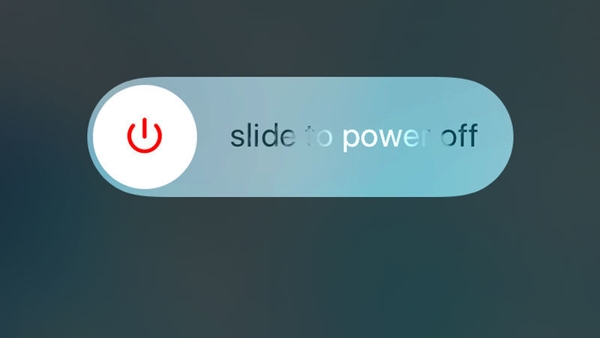
Press and hold the Side and either Volume buttons to trigger the power-off screen on an iPhone with Face ID.
For an iPhone with the Home button, long-press the Side button until you see the power-off screen.
Move the slider to shut down your device.
A few minutes later, hold the Side button until you see the Apple logo.
Solution 2: Update Software and Apps
Outdated software or apps could lead to a variety of software issues, including the iPad constantly asking for the Apple ID password. The solution is simple: always keep your software and apps up to date.
Update Software
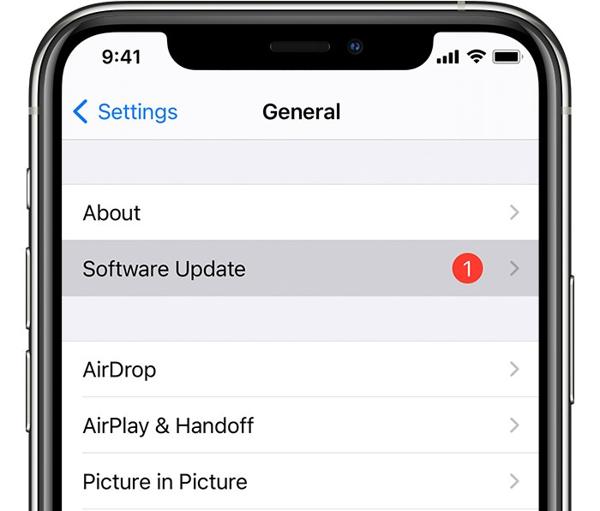
Run your Settings app.
Go to General and Software Update.
If an update is available, tap Download and Install.
Follow onscreen instructions to update software.
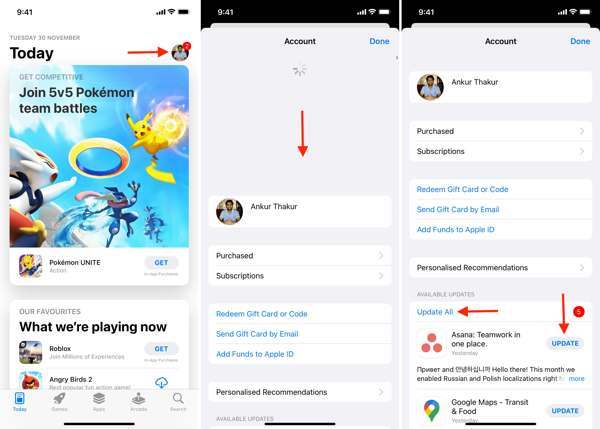
Run the App Store app.
Tap on your profile and pull down the Account screen.
Locate the Available Updates section and tap Update for each app.
Solution 3: Turn off and on iMessage and FaceTime
iMessage and FaceTime run through your Apple ID. If they get stuck on the activation process, your iPad will always be asking for your Apple ID password. You can fix this error by disabling and re-enabling them.
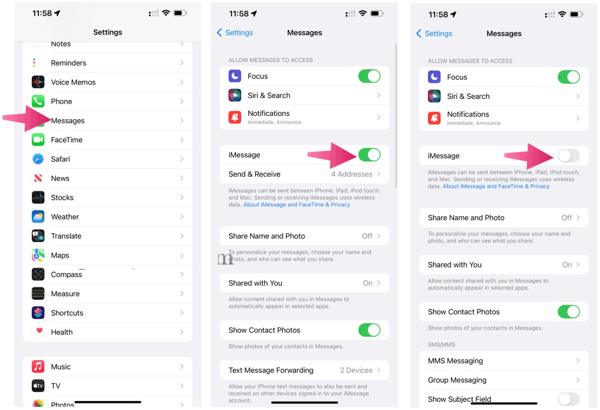
Go to Settings.
Scroll down and choose Messages.
Toggle off iMessage.
Back to the previous screen, choose FaceTime.
Toggle off FaceTime.
Restart your device.
Then, turn on iMessage and FaceTime in Settings.
If prompted, enter your Apple ID password. If you forget your Screen Time password, you can also use your Apple ID password to reset it.
Solution 4: Sign in to Apple ID
If you have changed your Apple ID online or on other Apple devices, you’d better update it on your iPhone. Otherwise, your iPhone is randomly asking for your Apple ID and password until you update the change.
Go to Settings.
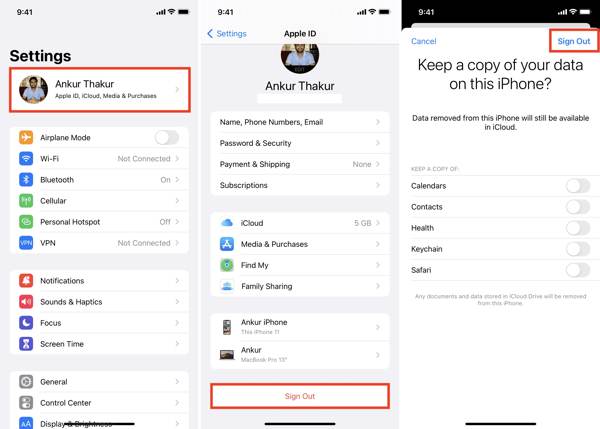
Tap on your profile, scroll down, and hit Sign Out at the bottom.
If prompted, enter your Apple ID password.
Select the data types you want to keep and tap Sign Out.
Restart your device and open Settings.
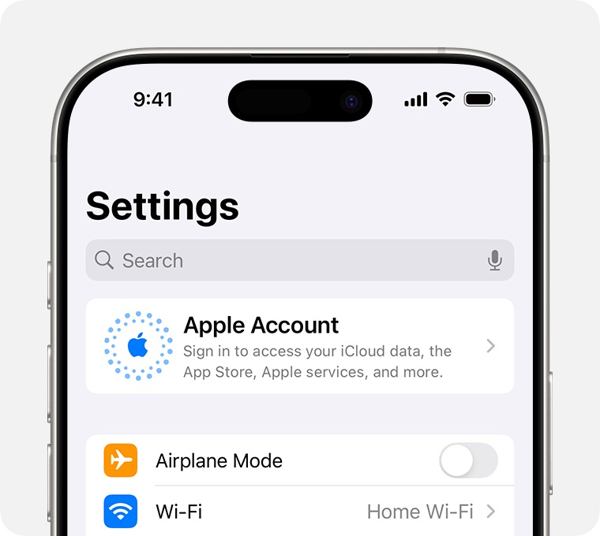
Tap Apple Account and sign in to your account manually or using another Apple device.
Solution 5: Reset Apple ID password
Another solution to fix iPhone keeps asking for Apple ID and password is resetting your Apple ID password online. That can unlock your account and correct the inconsistent password quickly.
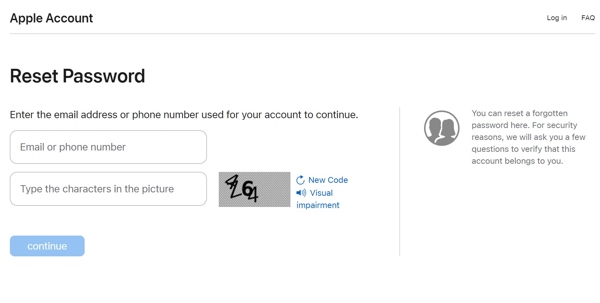
Visit https://iforgot.apple.com/ and click Reset Password.
Enter your Apple ID and type the characters in the picture.
Click Continue.
Follow the prompts to verify yourself.
Type a new password and update it on all your Apple devices.
Part 3: Ultimate Solution for iPhone Keep Asking for Password
If the common solutions are unavailable and iPhone still keeps asking for Apple ID password, imyPass iPassGo can help you fix this error. It allows you to remove the outdated Apple ID from your device without the password. Then, you can create a new account.

4,000,000+ Downloads
Remove old Apple ID without the password.
Available for a wide range of situations.
Support the latest models of iPhone and iPad.
Offer bonus features, like creen Time bypass.
How to Fix iPhone Keep Asking for Apple ID Password
Connect to your iPhone
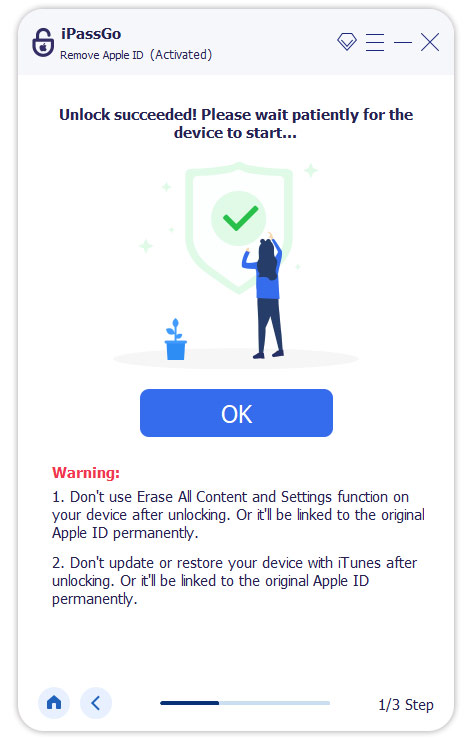
Start the best Apple ID removal tool after installing it on your computer. Plug your iPhone into your computer with a Lightning cable. Go to the Remove Apple ID mode.
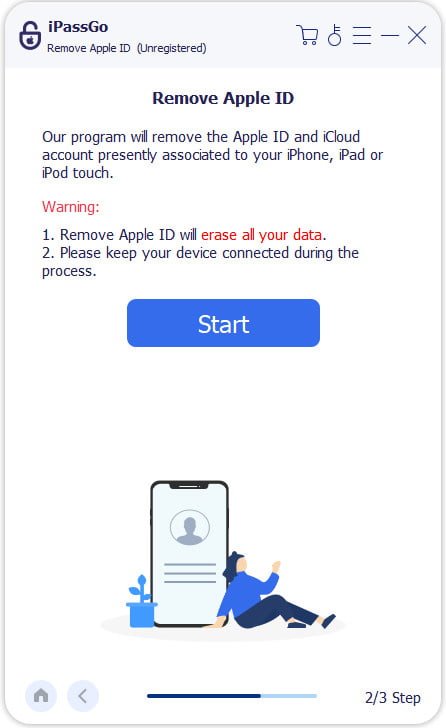
Remove your Apple ID
If Find My iPhone is disabled, click the Start button to begin removing the Apple ID.
If Find My iPhone is enabled and you run iOS 11.3 or earlier, reset all settings. Then, the software will do its job.
If Find My iPhone is enabled and you run iOS 11.4 or newer, turn on Two-factor authentication. Enter 0000 and confirm unlocking. Check your iPhone information and click Start to remove Apple ID.
Conclusion
This article helps you fix iPhone keeps asking for Apple ID password. You can try the common solutions one by one to get rid of the error and use your device as usual. imyPass iPassGo is the ultimate solution to get rid of the error on your device with a single click.
Penny focuses on GPS troubleshooting and Windows optimization. She formerly worked as a technical support engineer, helping clients solve location-based and system issues efficiently. Backed by IT support experience, she provides practical solutions that really work. In her free time, she likes hiking and geocaching, testing GPS tech in the real world.
Hot Solutions
-
Unlock iOS
-
iOS Tips
-
Unlock Android
-
Password Tips


