



 Solution
 Support Center
 About Us
 Contact
Locked Out of iPad or iPhone: Unlock It to Get Back Your Access
 Samuel Spenser Published on February 27, 2026Unlock iOS3-min reading
The iPhone and iPad allow you to secure your content and settings by adding a lock screen password. It could be numerical, alphanumeric, PIN, etc. You should know the correct password because multiple wrong password attempts can lead to being locked out of an iPhone or iPad. This security lock disables the iPhone or iPad, which means that you cannot use it. It requires a factory reset.
This procedure will indeed wipe all the content and settings on your iPhone or iPad. If the iPhone or iPad data is not backed up, it will be permanently deleted. Discover the four quick ways to unlock a locked-out iPhone or iPad with this post as you scroll below.

In this article:
Part 1. Unlock iPhone & iPad Easily with imyPass iPassGo
If you want a 100% success rate to unlock your locked-out iPhone or iPad, use imyPass iPassGo. This tool is designed to unlock your iPad and iPhone safely from various screen lock types. It includes Touch ID, Face ID, Screen Time passcode, PIN, and more. It is also designed to remove your Apple ID from your iPhone, iPad, and iPod. Besides a locked-out iPhone and iPad, it can also fix Face ID or Touch ID not working, a second-hand device, and more. Please use the tool with the detailed steps below.
Search for the website of imyPass iPassGo. Download, install, and access the tool on your computer afterward. This way, you can start the process.
The supported features will appear. Please click the Wipe Passcode button at the top of the main interface. Select the Start option on the next screen to proceed.
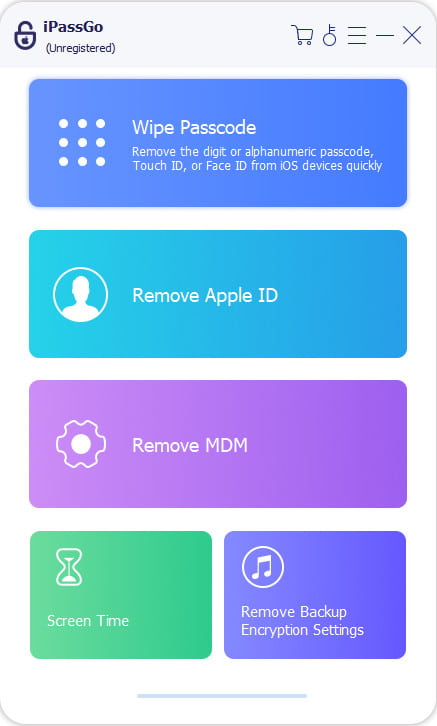
Plug an iPhone or iPad into the computer. Later, select the Start button. Choose the Unlock button and enter the 0000 code. Finally, please click the Next button to start unlocking your iPhone or iPad.

Part 2. Erase iPhone & iPad Using Recovery Mode
The recovery mode allows you to unlock the locked-out iPhone and iPad. This command requires you to use a computer with the help of iTunes and Finder. Finder is available on the latest versions of Mac. On the other hand, iTunes is available on Windows and earlier versions of macOS. See how they unlock your iPhone and iPad using recovery mode with the steps below.
Put your iPhone or iPad into its recovery mode. On iPhone, press and release Volume Up and Down. Press and hold Side until the Connect to Computer screen is shown. Alternatively, you may press and hold Volume Down and Side or Side and Home.
On iPad, press and quickly release Volume Up and Down. Press and hold Top until the recovery mode screen is shown. Alternatively, press and hold Top and Home.
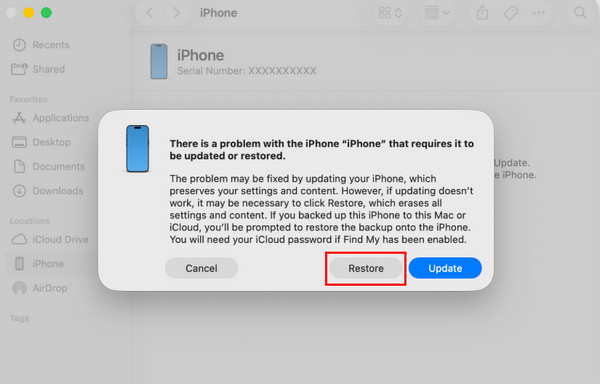
Plug the iPhone or iPad into the computer. Then, open Finder or iTunes. Later, a small window will appear. Click the Restore button.
Part 3. Wipe iPhone & iPad via iCloud
On the other hand, can you unlock a disabled iPad or iPhone without iTunes or Finder? iCloud is a free service offered by Apple. It allows your Apple devices to be backed up, synced, restored, etc. This free service can unlock a locked out of iPad forgot passcode, including an iPhone. Unlike iTunes and Finder, it can unlock your iPhone and iPad wirelessly using its website. The steps below will guide you through this process.
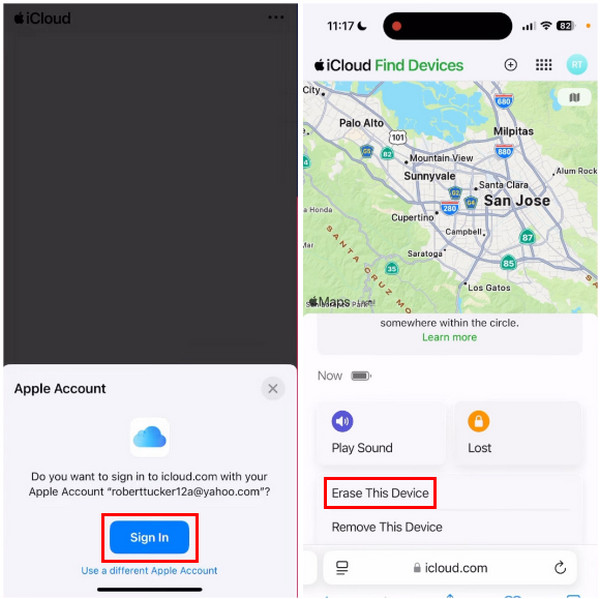
Visit the official website of iCloud. Then, sign in with the associated Apple ID of your iPhone and iPad. Please select the Find My button at the bottom. The website will ask you once again about the Apple ID account you will sign in to.
The digital map will appear. Please select the iPhone or iPad name from the list. Select the Erase This Device button. Finally, perform the on-screen instructions to complete the process.
Part 4. Clear iPhone & iPad Without a Computer
Your iPhone or iPad can also be associated with the Find My feature for your friends and family. It is with the help of the Family Sharing feature. You can use this feature to fix a disabled iPhone or iPad wirelessly. Please note that the Activation Lock feature will still be enabled. Knowing the Apple ID will help you unlock the iPhone or iPad completely. A locked out of iPad how to reset with the iCloud Family Sharing feature, including iPhone? The steps below will reveal the procedure.
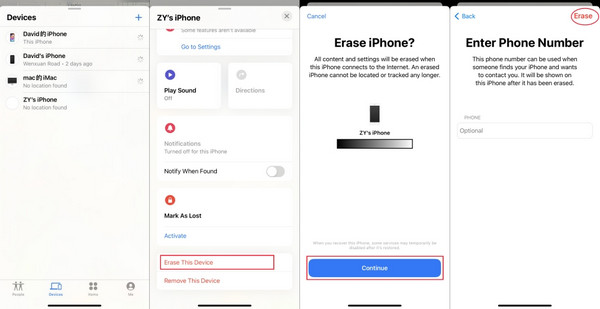
Open the Find My application on the iPhone or iPad of your friend or a family member. After that, sign in to the account where the iPhone or iPad is associated. Then, select the Devices button at the bottom to see the associated devices.
The supported features will appear. Please select the Erase This Device button at the bottom. A new window will appear. Please tap the Continue button to confirm the action. After that, enter the phone number from the Phone section. Finally, tap the Erase button at the top right.
Part 5. How to Prevent This in the Future
A locked out of an iPhone passcode not working is one of the serious issues you could ever experience, including on your iPad. You cannot use your entire iPhone or iPad. In this section, we recommend the best preparations to prevent a locked-out iPhone or iPad from happening.
1. Regular Backups
A locked iPad and iPhone will require you to factory reset them. If so, the content and settings of the mentioned devices will be permanently deleted. You can only save your iPhone and iPad data if you back them up. You can use iCloud or Google Drive for the backup process.
2. Use a Memorable Passcode
Some iPhone and iPad users rely on the suggested passwords recommended by iCloud Keychain or the Passwords app. These passwords are indeed hard to guess. However, they are also hard to memorize. We suggest that you use a memorable passcode, including your birthday, anniversary, etc. On the other hand, you need to add a few changes to the password to prevent an easy guess of the password.
3. Ensure Find My is On
Find My is introduced as one of the methods to unlock a locked iPad or iPhone. Ensure that the feature is turned on to be able to perform the process. Turning it on will let you lose the chance to unlock the device wirelessly.
4. Note Your Passcode
You can also note your passcode on your notebooks, sticky notes, spare device, etc. This way, you can have a backup for your passcode. However, ensure that these materials are kept in a private place to secure them from unauthorized access.
Conclusion
To summarize, you can be locked out of an iPhone for 8 hours or more, including an iPad. This article did not allow you to experience the issue for too long. It posted the four easy ways to unlock the locked-out iPhone and iPad. imyPass iPassGo is also here to help you with the problem. The tool can also remove Apple ID from your iPhone and iPad. Download the tool now to explore it!
Samuel specializes in password security and digital privacy. He used to work as a cybersecurity consultant for small businesses to protect digital assets. With certifications in Cybersecurity and Ethical Hacking, he turns complex security topics into easy-to-follow advice. He also enjoys sharing password tips to help users protect their accounts more confidently.
Hot Solutions
-
Unlock iOS
-
iOS Tips
-
Unlock Android
-
Password Tips


