



 Solution
 Support Center
 About Us
 Contact
5 Ways to Bypass Administrator Password Restrictions Safely
 Samuel Spenser Published on December 12, 2025Windows Password3-min reading
How to bypass administrator password on Windows 10, 8, 7, XP, Vista, and other versions becomes a real concern once the password is forgotten. The admin password keeps your computer safe, yet a forgotten one can stop program installs, block updates, and limit system changes. A total lockout may also occur when the admin password is the main login password.
Because of that, this guide will share five clear methods you can use. Each method fits a different situation, so you can follow the one that helps you get access again.

In this article:
Part 1: Why Bypass Windows Administrator Restrictions
Sometimes, people need to bypass Windows administrator restrictions. It can happen if they forget their password or cannot log in. It can also be when they want to fix issues or make changes that normal users cannot do.
Bypassing restrictions helps get into the computer easily and safely. It can also save time and avoid the need to ask for help from others. But, it is necessary to use this method responsibly, only on computers you own or have permission to access.
Part 2: 3 Ways to Bypass Windows Administrator Restrictions
If you have a similar reason from above for needing to bypass a Windows administrator password, this section will be helpful. It provides all the steps you need to do it; just pick the one that works easy for you.
1. Using imyPass Windows Password Reset
Forgetting your Windows administrator password can stop you from using your computer. Fortunately, imyPass Windows Password Reset makes it simple to fix. It can remove admin and user passwords on Windows operating systems without losing any data. You can even make a new admin account. You just need to have or prepare a CD/DVD or USB drive ready to make a boot disk.
Refer to the steps below to learn how to bypass administrator restrictions on Windows 10, 8, 7, XP or Vista.
You need to download, install, and open imyPass Windows Password Reset on a working Windows computer.
Choose to burn a disk, either a CD/DVD or a USB, depending on what you bought. Please insert it into your computer and click Burn CD/DVD or Burn USB. After the disk is burned, click OK and remove it.

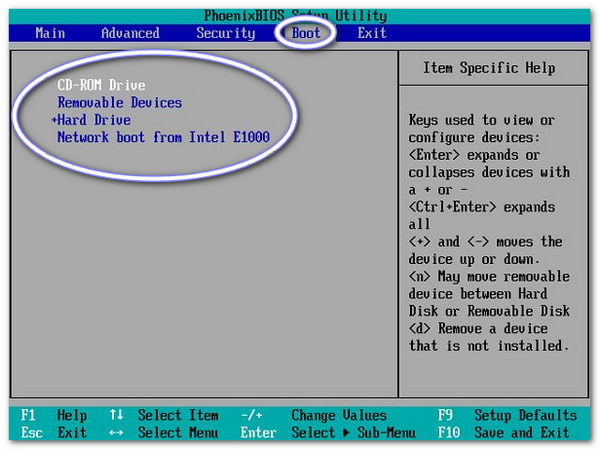
Go to your locked computer. Please turn it on and press F12 or ESC on your keyboard to open the Boot menu. You can use the arrow keys to pick your inserted CD/DVD or USB. Once selected, press Enter. Now, save your changes and exit the menu, and your computer will restart.
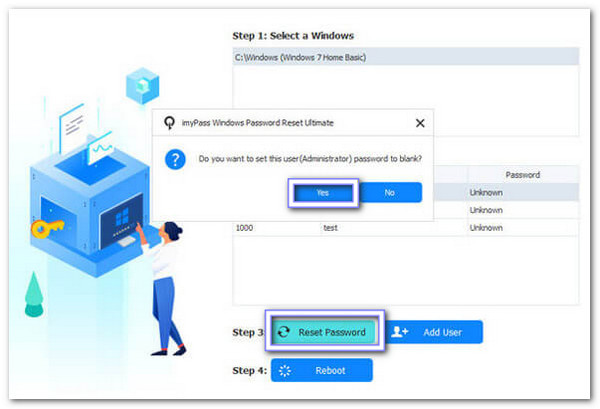
Once the computer boots up, imyPass Windows Password Reset will open. Now, choose your Windows operating system and your user account. Then, click Reset Password and then confirm by clicking Yes.
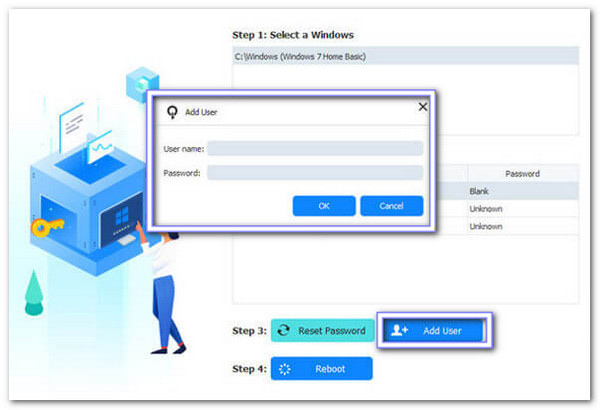
After you bypass the password, you can make a new administrator account by hitting Add User. Fill in the new username and password. Once settled, click OK, and then Reboot to restart your computer. You will now see your new account and can use it to log in.
Must-know: It only supports Windows 11 if BitLocker was turned off before the password was forgotten. It is also a paid program, but unlike others, it comes with a thirty-day money-back guarantee.
2. Resetting Online (Using Microsoft Account)
This method gives you a safe way to bypass the admin password on Windows 7 when you cannot get into your computer. You answer the right checks, like email codes or phone codes. Then, the system lets you make a new password.
Go to the login page for your Windows or Microsoft account. Click on Forgot Password or Can't access your account? to start the reset process.
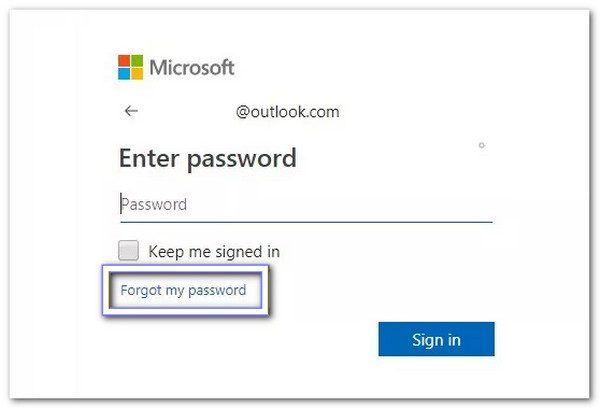
Type in the email or phone number linked to your Microsoft account. Then, Microsoft will send a verification code to your email or phone.
Check your email or phone texts for the code. Type the code on the website to verify your identity. Then, create a new password for your account. Use this new password to log into your Windows account, bypassing the admin restrictions.
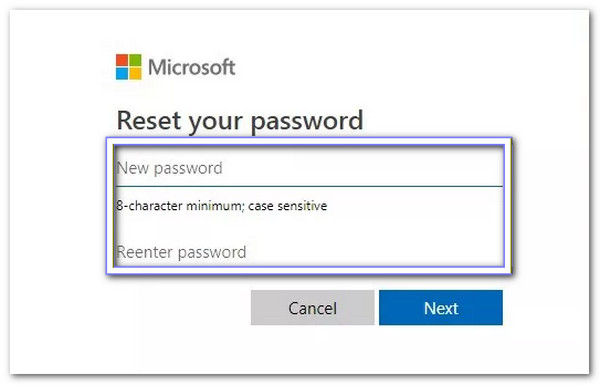
Must-know: It needs an internet connection. It also needs you to remember the Microsoft account details. It will not work if the device is using a local account. But it is also helpful if you need to bypass the Windows 11 password.
3. Using Password Reset Disk
A password reset disk is a big help to bypass the admin password on Windows 8 when you can’t find the stored Windows password. All you need to do is plug in the one you prepared. After that, Windows will allow you to create a new password without losing files.
First, make sure you have already created a password reset disk, like a USB drive or CD.
When you see a message saying the password is wrong on the login screen, click OK. Then, insert your password reset disk into your computer's drive; plug in the USB or put the CD into the optical drive.
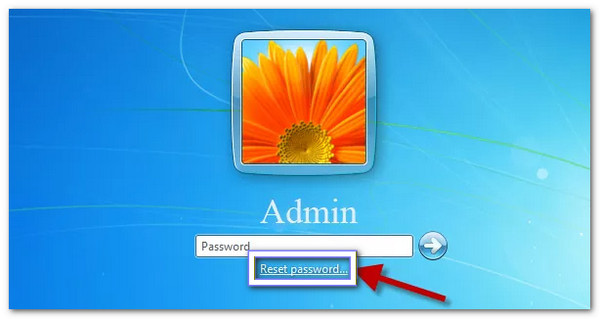
After inserting the disk, click on Reset Password. It opens a wizard that guides you step by step.
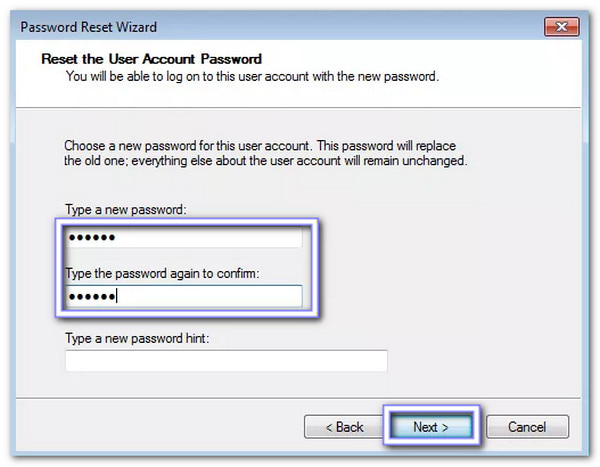
Type a strong new password twice, then click Finish. Now, you can log in with your updated password, bypassing the old admin password.
Must-know: This method only works if the disk was made before the password was lost. You cannot make it after. Many users forget to create a Windows password reset disk, so this limits its use. The disk can also be lost or damaged, which makes it useless.
Part 3: Risks When You Bypass Admin Restrictions on School/Company Computer
Bypassing admin restrictions on a school or company computer may look easy, but it carries real dangers. These risks can harm the device, the network, and even you. It is necessary to understand what can happen before you try anything, even if you only want quick access.
1. Security Risks
When you bypass an administrator password, you remove a main layer of protection. It makes the computer open to attacks. Someone with bad intentions could install malware, steal files, or change system settings. School and company computers are linked to bigger networks, so one weak device can put many others at risk.
2. System Problems
Batch files and admin tools need to run in an exact way. One small mistake can break things. Running programs as an administrator gives them full power over the system. A simple typo or wrong command can delete files, damage settings, or cause Windows to stop working. It leads to long repairs and possible data loss.
3. Legal Trouble
Bypassing admin rules on any device you do not own is illegal. It does not matter if you mean no harm. School and company computers belong to the organization, and they have strict rules. Trying to break past restrictions can lead to punishment, lost access, or even legal action. You should only use these methods on your own personal computer.
Conclusion
Is it possible to bypass the admin password on Windows Vista, XP, 10, 8, or 7? Of course! This write-up provides three working methods you can try. We put imyPass Windows Password Reset in number one because it is easy to use, safe for your data, can remove passwords and add user accounts, and helpful for beginners.
Samuel specializes in password security and digital privacy. He used to work as a cybersecurity consultant for small businesses to protect digital assets. With certifications in Cybersecurity and Ethical Hacking, he turns complex security topics into easy-to-follow advice. He also enjoys sharing password tips to help users protect their accounts more confidently.
Hot Solutions
-
Windows Password
-
Windows Tips
-
Fix Windows
-
Password Tips


