



 Solution
 Support Center
 About Us
 Contact
Delete Admin Account on Windows 10 for Better Management
 Penny Warren Published on December 12, 2025Windows Tips3-min reading
Multiple administrator accounts on a Windows 10 computer can make your system cluttered and harder to manage. Old or unused accounts can also create security risks or cause confusion. Do you want to delete them? You came to the right page.
This post will explain what to do before deleting the administrator user and, most importantly, how to delete an administrator account on Windows 10. Please learn these steps so you can safely manage your computer and keep it organized.

In this article:
Part 1: Before You Delete the Administrator User on Windows
We want you to understand that deleting an administrator account on Windows 10 is serious. If you remove it without preparing, you could lose essential files or lock yourself out. Before doing anything, it is smart to take some steps to stay safe.
1. Back Up Your Data
Before you delete the administrator, save all essential files. It includes documents, pictures, videos, and downloads. You can use an external hard drive or cloud storage, like OneDrive or Google Drive. Sometimes, applications save data in hidden places, so double-check those, too.

2. Create Another Administrator Account
Windows needs at least one administrator account to manage settings. Before deleting the old admin, make a new one. Here is how:
Go to Settings > Accounts > Family & other users.
Click Add someone else to this PC. Next, choose I don't have this person's sign-in info and then Add a user without a Microsoft account.
Please set a username and password. Once the account is created, please select it and click Change account type.
Finally, please set it to Administrator. Now, you have another admin account to manage the computer.
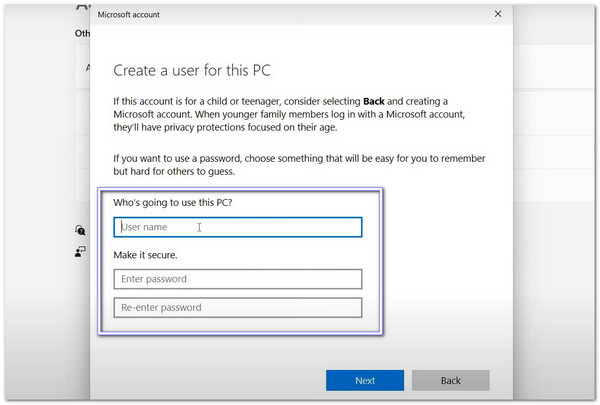
For more learning, you can also use Netplwiz, Computer Management, and Command Prompt to add a Windows 10 user.
Part 2: How to Delete Administrator Account on Windows
Deleting an admin account on Windows 10 can be done using Settings or Control Panel. Make sure you have backed up your files, and another admin account is ready. Please follow the steps below carefully!
1. Delete Administrator Account in Settings
It feels nice when Windows gives you a simple place to manage your stuff. The Settings application is one of those spots because it lets you manage user accounts in a clean and organized way. You can use it to remove an admin account as long as another admin is active on the computer.
To learn how to delete the Administrator account on Windows 10/11, please check the guide presented.
Click the Windows Start button in the lower-left corner. Then, click the Gear button to open Settings.
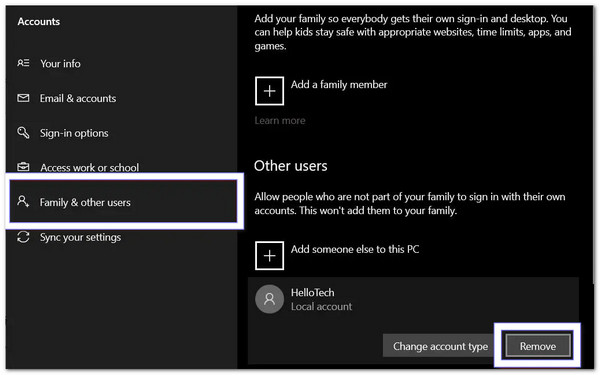
Select Accounts, then click Family & other users in the left sidebar. Find the administrator account you want to delete.
Click Remove. Make sure the user is signed off. Windows will not let you delete an account that is currently in use.
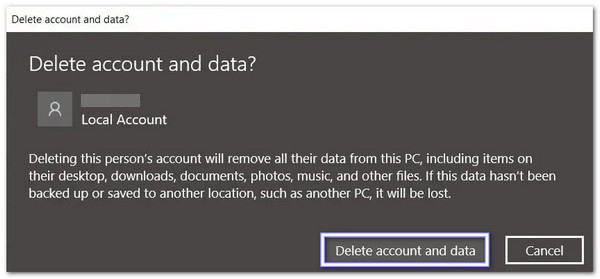
Hit Delete account and data to remove the account completely. Only do this if your essential files are backed up, because this will delete everything from that account.
2. Delete Administrator Account in Control Panel
Some people like old tools because they feel familiar. The Control Panel is that kind of tool. It still handles user accounts with its classic layout, and it helps when newer menus do not show what you need. It gives you direct access to account controls and lets you remove an admin account that is no longer needed.
Discover how to delete a Windows 10 administrator account below:
Click the Magnifying glass in the lower-left corner, type Control Panel, and press Enter. Then, change the view to Small icons.
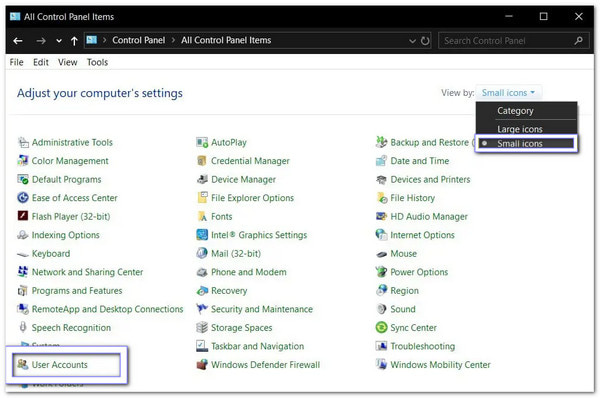
Click User Accounts, select Manage another account, and then search for the admin account you want to remove.
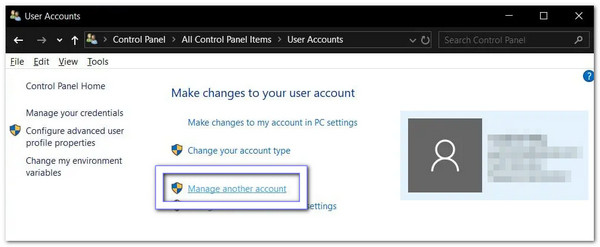
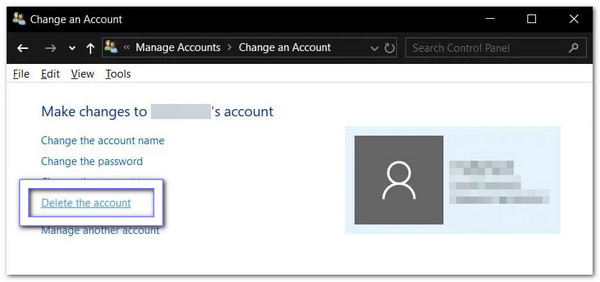
Hit Delete the account. Make sure the user is signed off first.
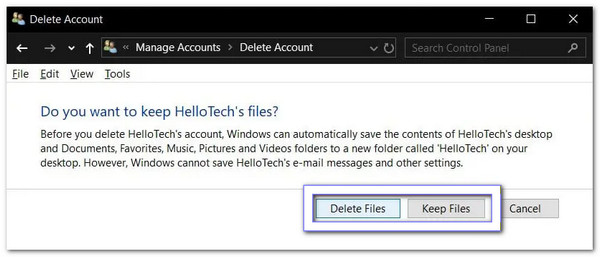
Choose Delete Files to remove everything, or Keep Files to save their files in a folder on the desktop. Decide based on what you need.
Part 3: Can You Delete the Built-in Administrator Account
The truth is that Windows does not let you delete the built-in Administrator account. It is a system account, so the delete option will never appear. But Windows does let you turn it off. When you do this, the account disappears from the Control Panel.
Turning it off is what people mistake for "deleting" it. The account becomes inactive. It will not bother you anymore. Only the leftover files remain in the Users folder, and those can be removed by hand.
Part 4: In Case You Forget the Admin Password
You are ready to start work, but the admin password suddenly slips your mind. Because of that, you cannot access your files or programs, and frustration sets in. That is when imyPass Windows Password Reset becomes a lifesaver.
It can remove your admin password without touching any of your data. It works on Windows 10, 11, 8.1, 7, XP, and Vista. You can even create a new account without logging in to get full permissions.
On an available Windows computer, get and set up imyPass Windows Password Reset.
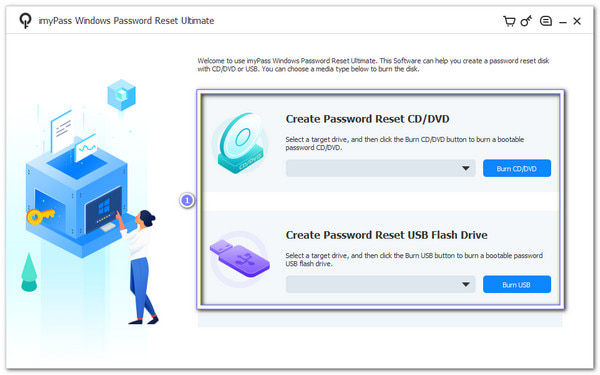
imyPass Windows Password Reset gives two options for creating a bootable disk: CD/DVD or USB flash drive.
So, please place a blank CD/DVD or USB, then choose Burn CD/DVD or Burn USB, depending on your plan. Once the burning finishes, click OK, eject the disk, and close the program.
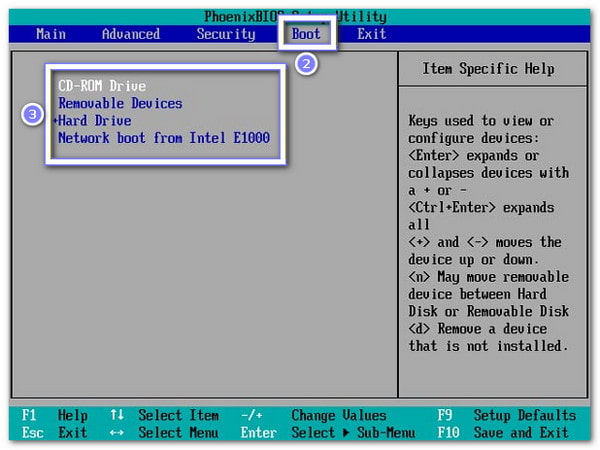
Please plug the burned disk into the locked Windows computer. Do not forget to restart the computer and press F12 or ESC to enter the Boot menu.
Here, you must highlight your burned disk with the navigation keys and press Enter, then save and exit from the menu. After that, your computer will reboot automatically.
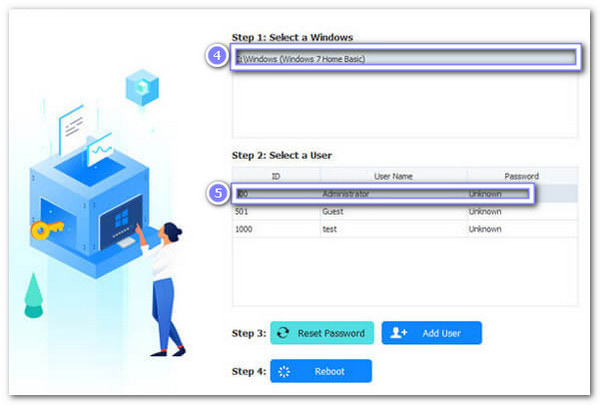
After reboot, the imyPass Windows Password Reset interface will appear. On your screen, please select your Windows version if multiple operating system versions are installed. Then, choose the admin account whose password you forgot.
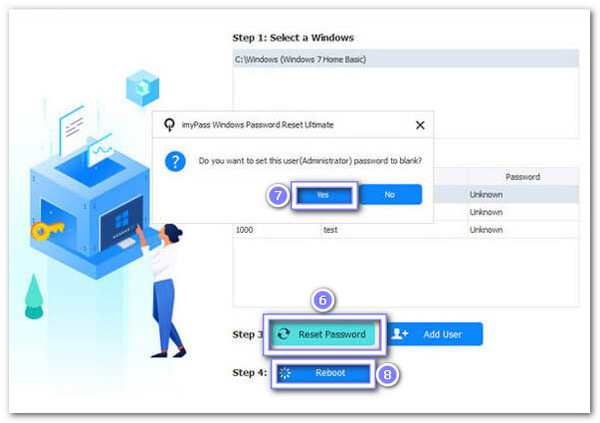
Head to the bottom and click Reset Password, and confirm by hitting OK in the pop-up. The program will immediately remove the admin password and set it to blank. Now, please eject the burned disk and reboot your computer.
Other essential aspects that show its main strengths:
• 100% Success Rate - Resets Windows admin passwords reliably every time.
• Works on Many Brands - Compatible with Dell, HP, Samsung, Acer, Lenovo, ASUS, Toshiba, Sony, and more.
• Compatible with BIOS & Legacy Mode - Works on computers with standard BIOS or Legacy systems.
• Supports Most File Systems - Works with FAT16, FAT32, NTFS, NTFS5, and others.
• Reset Methods - Factory reset Windows via CD/DVD or USB Flash Drive.
Conclusion
Deleting the administrator account in Windows 10 is a simple way to manage who has control over your computer. It helps keep your system secure, remove unused accounts, and prevent unauthorized access.
But if you ever forget the admin password, imyPass Windows Password Reset is there to help. It works 100%, removes the password safely, and lets you get back into your computer easily, so you can start what you need to do without stress.
Penny focuses on GPS troubleshooting and Windows optimization. She formerly worked as a technical support engineer, helping clients solve location-based and system issues efficiently. Backed by IT support experience, she provides practical solutions that really work. In her free time, she likes hiking and geocaching, testing GPS tech in the real world.
Hot Solutions
-
Windows Tips
-
Windows Password
-
Fix Windows
-
Password Tips


