Solution
 Support Center
 About Us
 Contact
Guide on How to Factory Reset Windows 10/11 with the 4 Ways
 Penny Warren Published on June 04, 2025Windows Tips3-min reading
At times, giving your computer a fresh start can solve many issues. It could be experiencing problems, taking forever to load or cluttered with features you do not use. A reset may simplify solving problems or clearing up your device before giving it to someone else. In this guide, we will show you exactly how to factory reset Windows 10/11 step by step, with no tech jargon or guesswork. Get your PC running like new again.

In this article:
Part 1: Why Do You Need to Factory Reset Windows 11/10
Over time, your computer can start to feel cluttered, with low performance, random errors, or programs that do not work like they used to. In some cases, these issues go beyond a quick fix. That is when a factory reset becomes a smart solution.
Resetting your PC clears away unnecessary files, applications and configurations, making the system like new again. It simplifies removing persistent software issues, frees up valuable memory and can improve performance across the board. A thorough PC reset is necessary if you plan to give your device to someone else so they do not have access to your private information.
Many users look up how to factory reset Windows 11 when they have exhausted other options and need a clean slate. If your PC feels more like a problem than a tool, a reset might be just what it needs to get back on track.
Part 2: How to Quickly Factory Reset Windows 11
Resetting your Windows 11 OS can fix many problems, like lag, errors, or software issues. The reset tool is built into your system, so you will not need to download anything extra if you are searching for how to factory reset a PC Windows 11 quickly and safely. Here are just a few steps.
Go to the Settings menu by clicking the Start button, selecting the gear icon, or pressing Windows + I on your keyboard. In the Settings window, click System, then scroll down and select Recovery from the options.
Under the Recovery options section, click the Reset PC button next to Reset this PC. Depending on whether you want to keep your data or start completely fresh, choose whether to keep my files or remove everything.
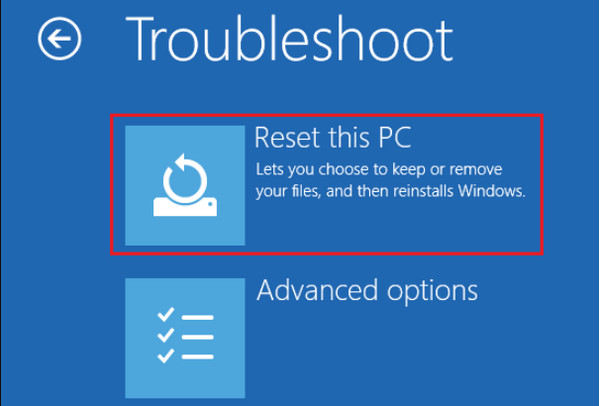
Select either Cloud download to get the latest version of Windows or Local reinstall to use the files already on your device. Review your choices, then click Next and Reset to initiate the process. Your PC will restart and reset itself automatically, and it can also be used to reset an ASUS laptop when needed.
Part 3: How to Factory Reset Windows 10
Suppose the Windows 10 computer runs slowly, freezes, or acts strangely. A factory reset might be the best way to get things back to normal. Like in Windows 11, the reset tool is built into the system, making it easy to wipe away problems and start fresh. If you have been looking for how to factory reset Windows without any hassle, here is exactly what you need to do.
Click the Start menu, then open Settings by clicking the gear icon or pressing Windows + I on your keyboard.
In the Settings window, choose Update & Security, then select Recovery from the menu on the left.

Underneath the Reset this PC area, tick Get started to initiate the reset process. Choose either Keep my files to keep your personal data or Remove everything for a full reset.
Select how to reinstall Windows, either Cloud download for the latest version or Local reinstall using files already on your PC. Review the summary of your choices, then click Next and Reset to start the process; your PC will restart and reset itself.
Part 4: How to Factory Reset Windows Without Settings
Here is how to factory reset a Windows computer without it:
On the sign-in screen, hold the Shift key, tick the Power icon in the lower-right corner, then select Restart while still holding Shift.
Your PC will restart and open the Windows Recovery Environment; when it does, click Troubleshoot, then select Reset this PC.
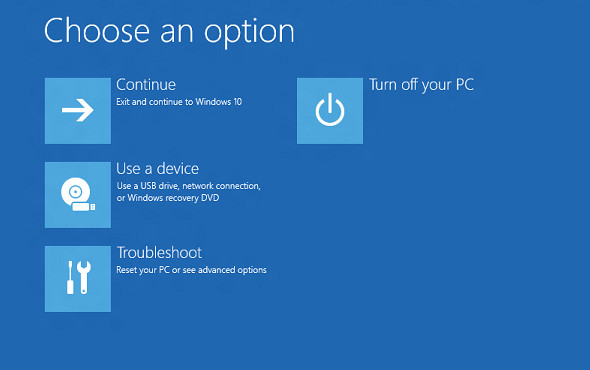
Choose either Keep my files to remove apps but keep personal files, or Remove everything that erases all data and settings for a full reset.
Follow the on-screen instructions to complete the reset; your PC will restart and begin the reset process.
Part 5: How to Factory Reset Windows 11/10 Without Password
If you are locked out of your computer and do not remember the password, you might think about resetting it. But before learning how to factory reset Windows 7 or any other version, try an easier option: imyPass Windows Password Reset. This tool can remove your password in one click. It is easy to use, causes no data loss, and works with a high success rate on Windows 11, 10, 8, and 7.
Tick the button below to download the latest version of imyPass Windows Password Reset. Once the download is complete, open the installer and follow the on-screen instructions to set it up on your computer.
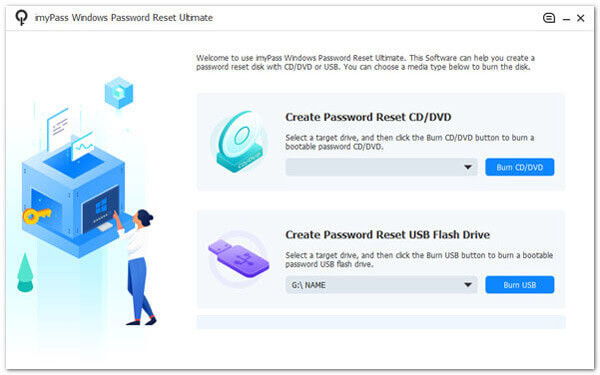
Launch the imyPass tool and select a method to create your reset disk: Burn CD/DVD or Burn USB Flash Drive. Insert a blank disc or USB drive into your computer, then click Burn. Once the process is complete, safely remove the disk or drive and click OK to proceed.
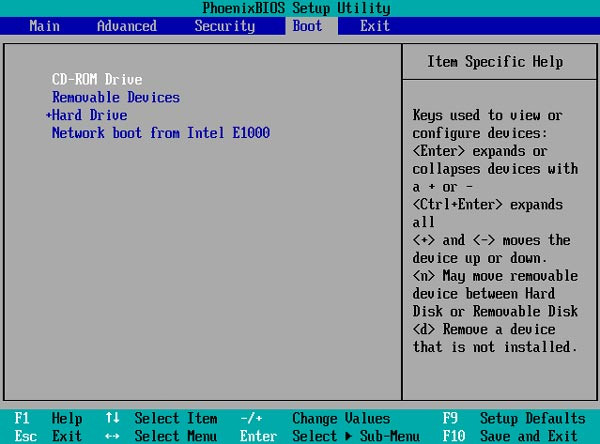
Insert the newly created reset disk into the locked computer. Restart the device and press F12, ESC, or the correct key for your system to access the Boot Menu. From there, go to the Boot tab, select the inserted USB or disc, press Enter, then save and exit by pressing F10.
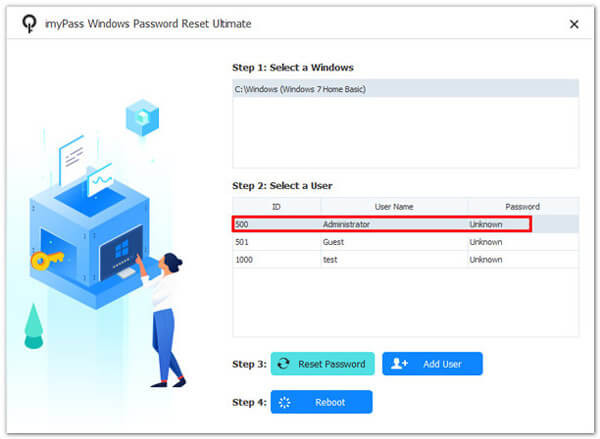
Once the imyPass interface loads, choose the Windows version you want to access. Select the locked user account, click Reset Password, and then hit OK to confirm. The tool will reset the password instantly.
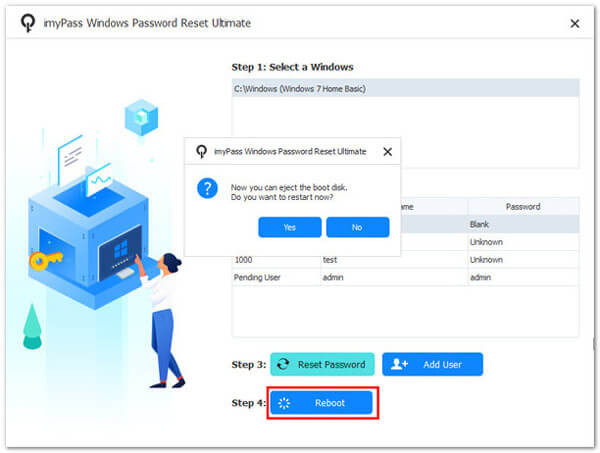
After the password is successfully reset, remove the reset disk or USB drive. Click Reboot to restart your computer. Congratulations, you have learned how to factory reset Windows without a password.
Part 6: What to Do Before a Factory Reset
Before learning how to reset Windows to factory settings, preparing your computer to avoid data loss and other issues is important. First, back up your documents, photos, and apps to an external drive or cloud storage. Make a list of programs you will need to reinstall later. Also, sign out of your Microsoft account and deactivate any software tied to your device. Do not forget to connect your laptop to a power source or charge it completely, and have your Windows product key handy if needed. Following this advice will ensure that resetting your device goes more smoothly and with greater security.
Conclusion
These new methods teach you how to factory reset a Windows laptop when needed, especially when the system starts to run slowly or occasionally freezes up. If you cannot remember your password, you can use the alternative method included on this site.
Penny focuses on GPS troubleshooting and Windows optimization. She formerly worked as a technical support engineer, helping clients solve location-based and system issues efficiently. Backed by IT support experience, she provides practical solutions that really work. In her free time, she likes hiking and geocaching, testing GPS tech in the real world.
Hot Solutions
-
Windows Tips
-
Windows Password
-
Fix Windows
-
Password Tips