



 Solution
 Support Center
 About Us
 Contact
How to Reset an ASUS Laptop in 4 Comprehensive Ways
 Penny Warren Published on January 14, 2026Windows Tips3-min reading
When you find your ASUS laptop usually working slowly because of accumulated system problems, resetting it is a good method. Maybe you forgot the screen password of your ASUS laptop, and factory resetting is also a good solution. If you want to know how to reset ASUS notebook laptop, this article will show you 4 ways to do that. You will fix your problems by resetting your laptop on Windows 10 and 11, and using dedicated methods on ASUS.
In this article:
- Part 1: Why You Need to Reset an ASUS Laptop
- Part 2: How to Reset ASUS Notebook Laptop with Default Ways
- Part 3: How to Reset ASUS Notebook Laptop in Windows Recovery Environment
- Part 4: How to Reset ASUS Notebook Laptop When You Forgot Computer Password
- Part 5: How to Reset ASUS Notebook Laptop with Recovery Partition
- Part 6: FAQs of How to Reset ASUS Laptop
Part 1: Why You Need to Reset an ASUS Laptop
Fix lags or other performance issues: Suppose you have used your ASUS laptop for a long time, and it usually lags, you can reset ASUS laptop to fix those performance issues.
Wipe data: You can also factory reset ASUS laptop to wipe all data on your PC. Then, you can sell it, give it to another person, or just quickly erase your device.
Erase virus and software issues: If your ASUS suffers from malware and viruses, you can reset or factory reset ASUS laptop to quickly remove all those issues.
Part 2: How to Reset ASUS Notebook Laptop with Default Ways
Windows 10 and 11 offer skill-free methods to reset an ASUS laptop - Settings. You can select whether to keep the personal data or thoroughly reset (factory reset) your ASUS laptop. This method also works on all computer brands that run Windows 11 and 10.
How to Reset ASUS Notebook Laptop on Windows 10
Click the Start button (Windows icon) and open Settings. When you get there, click on the Update & Security button and then select Recovery.
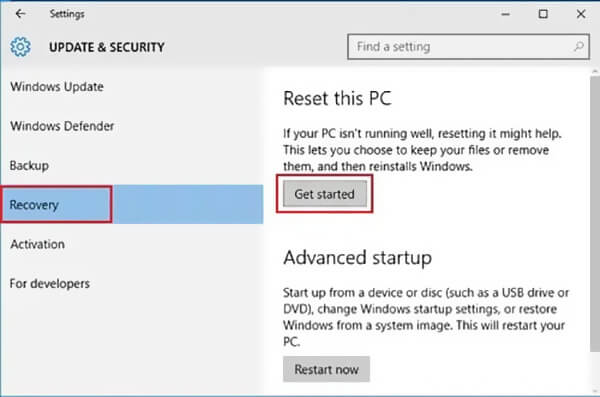
Click the Get Started button under the Reset this PC section. On the Choose an option window, you can select Keep my files or Remove everything. Both the 2 options can reset the device, but Remove everything will factory reset your ASUS laptop while wiping all data.
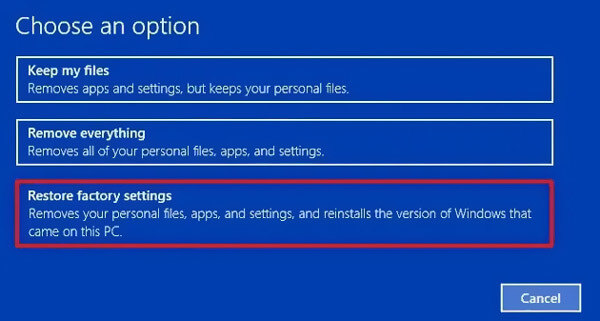
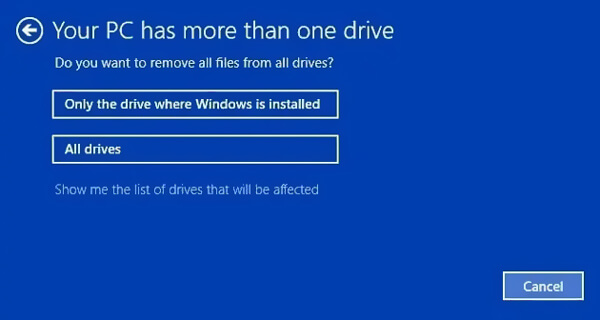
If you choose Remove everything to factory reset ASUS laptop, you will see another 2 options in the next window:
Only the drive where Windows is installed: Wipe the data on your system disk, which is commonly disk C.
All drives: Wipe all data on your ASUS laptop.
Please make your choice based on your needs.
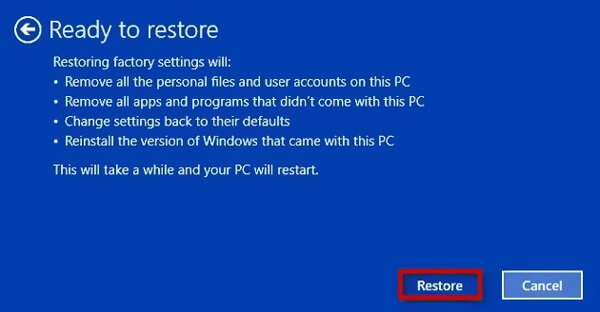
Click the Restore button, and then it will factory reset the ASUS notebook laptop.
The steps above are common on Windows 10, so you can also easily reset an HP laptop, a Lenovo, and other Windows computer models.
How to Factory Reset ASUS Notebook Laptop on Windows 11
The steps to reset ASUS laptop on Windows 10 and 11 are slightly different. You can check the guide below to do that on a Windows 11 ASUS computer.
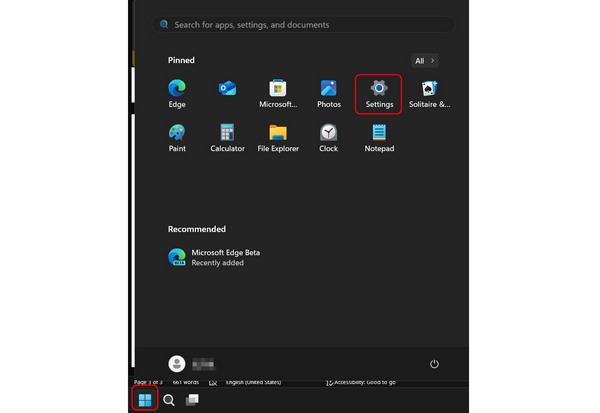
Click the Start button (Windows icon) in the bottom left corner of your Windows 11 screen. Then, click the Settings button.
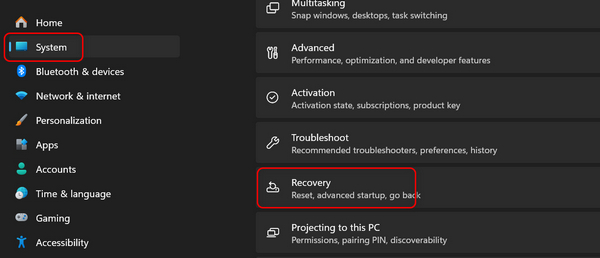
Select System on the Settings panel, and then click the Recovery button.
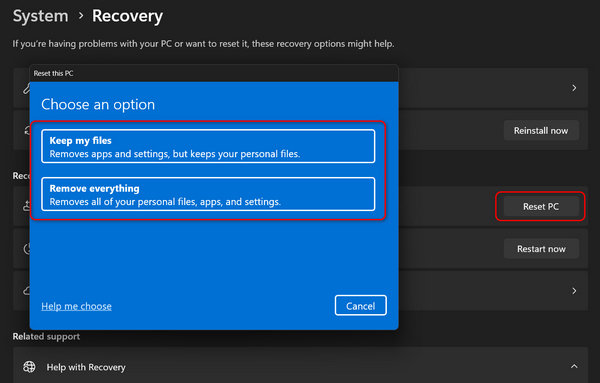
Click the Reset PC button. Then, on the Choose an option window, you can select Keep my files button or Remove everything to soft reset your device or perform an ASUS laptop hard reset.
Part 3: How to Reset ASUS Notebook Laptop in Windows Recovery Environment
When you can't boot your ASUS laptop due to a forgotten password or system errors, Windows Recovery Environment (WinRE) is a good way to restore the device to factory settings and give you access to your ASUS laptop again. This method can also help you factory reset (or hard reset) your ASUS computer.
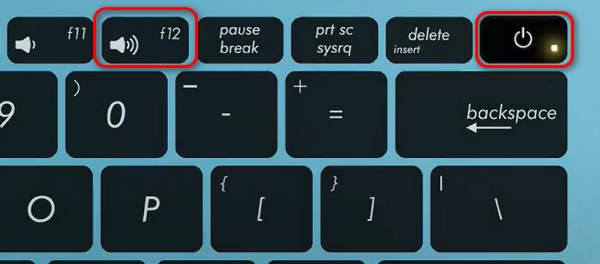
Press and hold the F12 key and press the Power button to turn on your ASUS laptop. This is the essential first step to factory reset ASUS laptop in WinRE.
In the next window, you should choose Troubleshoot to enter the Windows Recovery Environment.
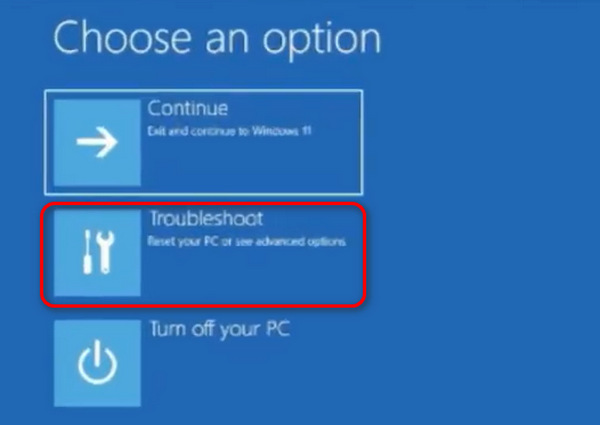
Choose MYASUS in WinRE in the next window to enter WinRE. Click the Cloud Recovery button. You should connect your PC to a Wi-Fi.
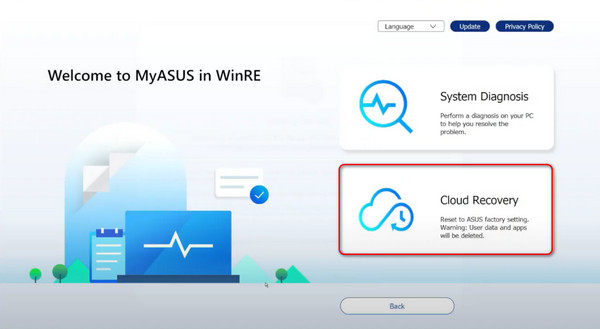
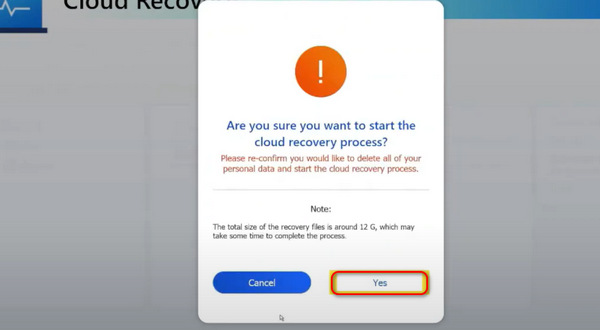
Cloud Recovery can back up your PC. After backup, you can start factory resetting your ASUS in WinRE. Click the Yes button when it asks for permission to start the cloud recovery process. Then, what you need to do is only wait.
Although the Windows Recovery Mode can lei you factory reset ASUS notebook without a screen passcode, you still need to know the associated ASUS account password.
Part 4: How to Reset ASUS Notebook Laptop When You Forgot Computer Password
If you have an old ASUS laptop and have forgotten the lock screen passcode, how can you access the PC? This can be a more complicated problem than factory resetting an ASUS laptop. Don't worry; you can easily reset the passcode without knowing it with imyPass Windows Password Reset. This program can help you remove or change the admin or standard account passcode. Then, you can easily factory reset the ASUS notebook laptop.
4,000,000+ Downloads
Factory reset ASUS laptop running 7/8/10/11 when you forgot the screen password.
Help you quickly create a Windows password reset USB or optical disc.
Recover, remove, or bypass Windows account and administrator passwords.
Support any popular Windows systems, file systems, hard disks, and laptop brands.
Free download, install and run this imyPass Windows Password Reset on your ASUS laptop. You should first create a Windows password reset USB drive or disk. Connect an external USB drive or CD/DVD disc to the computer.
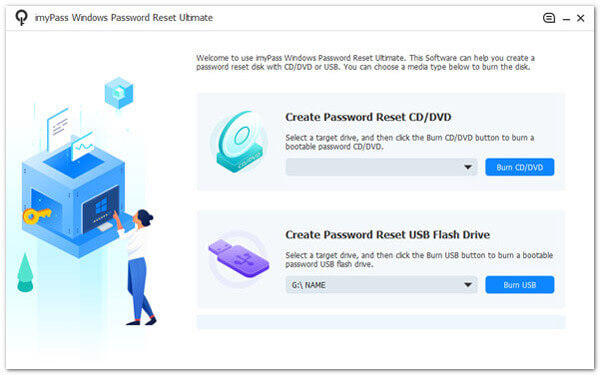
You can create the Windows password reset USB drive/disk with 2 ways, Create Password Reset CD/DVD, or Create Password Reset USB Flash Drive. Choose either one as you like.
Click the Burn CD/DVD or Burn USB button to start creating the password reset disk or USB drive. Then click OK to complete the process.
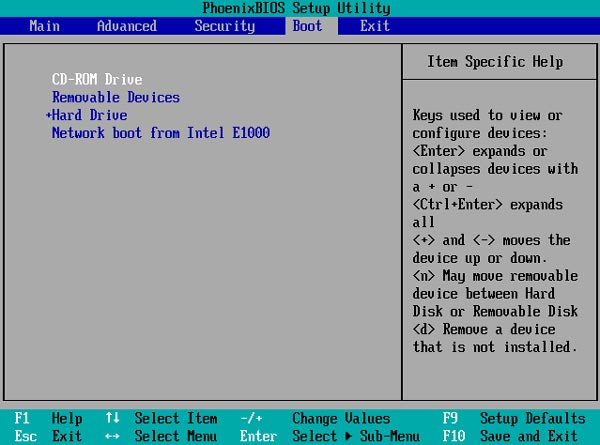
Restart your ASUS laptop and press F9 key to enter the Boot menu. Select the reset USB drive/disk you just created, and then press Enter.
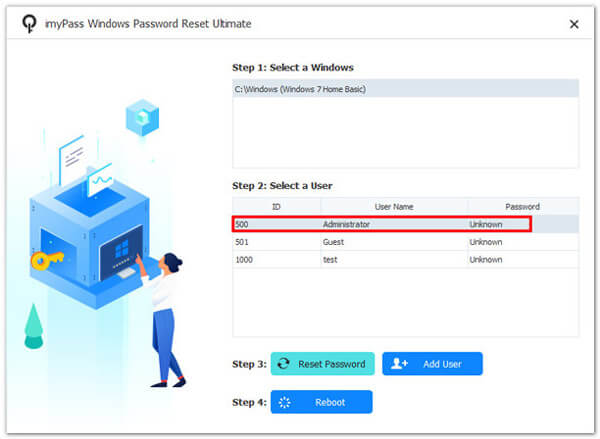
ASUS laptop will reboot itself. After that, you can choose the ASUS account you want to reset its password, and then click the Reset Password button to do it. When the forgotten computer password is removed, you can factory reset ASUS laptop as normal. This method supports all Windows computers, and you can factory reset Windows 10/11 without password.
Related Readings:
Part 5: How to Reset ASUS Notebook Laptop with Recovery Partition
There's also a common way to factory reset ASUS laptop - recovery partition. When you are no longer able to access your ASUS account, you can try this method.
Restart ASUS laptop and keep pressing F9 key as soon as the ASUS logo appears on the screen. By doing so, you can access the hidden partition and enter the boot screen.
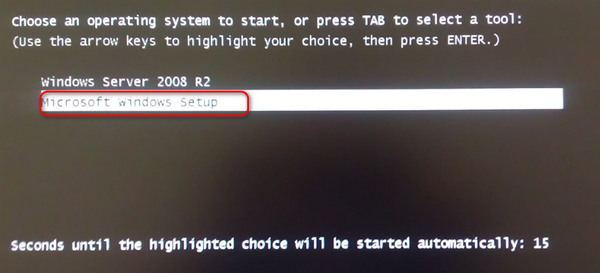
When the Windows Boot Manager appears, you can choose a suitable language from the options. Then, choose Microsoft Windows Setup and press the Enter key to continue to start factory resetting ASUS laptop.
Now you will be guided to the ASUS Preload Wizard screen. There are 3 recovering options offered there, Recover Windows to first partition only, Recover Windows to entire HD, and Recover Windows to entire HD with 2 partitions.
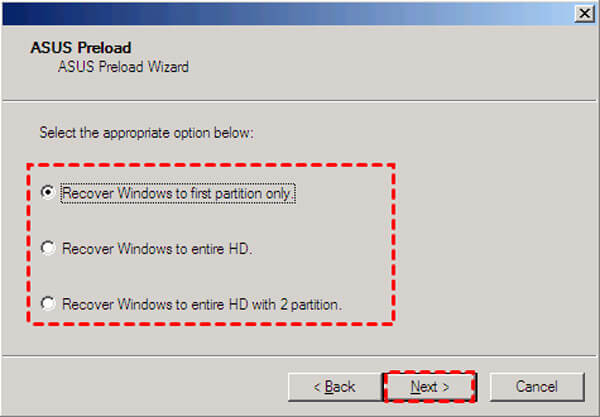
Select your preferred option and click on the Next button. Then follow the instructions to restore your ASUS laptop back to the factory settings.
FAQs.
-
Is F11 or F12 factory reset?
Neither F11 nor F12 automatically means a direct "factory reset". It depends on the computer brand and what menu those keys open. But F11 or F12 may help you enter Recovery Environment where you can find a factory reset option.
-
Does hard reset delete everything on ASUS laptop?
Yes, it does. Hard reset can reset a Windows PC when you cannot access it while wiping all data.
-
How to factory reset ASUS without logging in?
Step 1. Boot your ASUS and go to the login screen.
Step 2: Click the Power button and select Restart while keeping pressing the Shift key on your keyboard.
Step 3: The Choose an option window may appear, and you should click Troubleshoot, and then Reset this PC.
Conclusion
How do I reset ASUS laptop? After reading this post, you can learn 4 methods to reset ASUS laptop on Windows 11, Windows 10, Windows 8/7, or an earlier version. You can also access your ASUS laptop even when you forgot your computer password because imyPass Windows Password Reset can help you easily remove and create a new screen password.
Note that a factory reset will erase all existing data on your ASUS laptop. So, you'd better back up all necessary and important files before resetting.
Penny focuses on GPS troubleshooting and Windows optimization. She formerly worked as a technical support engineer, helping clients solve location-based and system issues efficiently. Backed by IT support experience, she provides practical solutions that really work. In her free time, she likes hiking and geocaching, testing GPS tech in the real world.
Hot Solutions
-
Windows Tips
-
Windows Password
-
Fix Windows
-
Password Tips


