



 Solution
 Support Center
 About Us
 Contact
Restore iCloud Backup Easily With or Without a Reset
 Clara Prescott Published on January 30, 2026Recover Data3-min reading
iCloud is the cloud storage of Apple that allows you to store data online and keep it updated from different Apple devices. It helps you back up, sync, and recover data using your account. It is completely free, and you will only pay when you upgrade your plan.
However, some iPhone users know how to back up their data, then do not know how to restore it after. How to restore an iPhone from iCloud backup? Well, you can restore the iCloud backup from your iPhone with or without a reset. In this article, we will show you how to do that. It includes the preparations before the procedure. Kindly scroll below.

In this article:
Part 1. Before Restoring iCloud Backup to iPhone
The iCloud backup allows you to secure your data. You can restore them anytime you prefer, especially if you lose your essential data included in it. However, one process of restoring the iCloud backup requires the iPhone factory reset. What are the things to consider before you restore the iCloud backup? The list is available below.
1. Backup Current Data
The current data from your iPhone will be deleted because it requires a factory reset. Back them up with iCloud first. The accounts from your iPhone will also be deleted. To ensure their accessibility, it is recommended to store their passwords in iCloud Keychain.
2. Update iOS Version
You must meet the required iOS version for iCloud backups. If not, you need to update the iPhone iOS version first. In this case, you will meet the required iOS version for the backup.
3. Remove Apple ID
The factory reset on your iPhone will not remove the iCloud Activation Lock feature. You might need to remove the iPhone iCloud account or Apple ID first. In this case, you no longer need to undergo the iCloud Activation Lock feature during the setup process. This procedure will make the restore process of your backup quicker.
Part 2. How to Restore iCloud Backup to iPhone
You can restore your iCloud with or without a reset. You do not need to reset your iPhone if it is new. On the other hand, you need to factory reset it when it already has content and settings. Make sure that you have backed up your data before the factory reset. Please ensure that you have a strong internet connection for the restore process. The duration of the restore process of iCloud on your iPhone will depend on it, including the backup file size.
Furthermore, your iPhone must have at least a 50% and higher battery charge. In this case, the restore process will not be interrupted due to a shutdown. The reason is that some users forget to charge their iPhone before the process, and it will last for 30 minutes or hours. Restore your iPhone with iCloud backup using the steps below.
You do not need to factory reset your iPhone if it is brand new. You can proceed to setting it up. If the iPhone has content and settings, factory reset it first. Tap the Settings app to access it. Then, select the General button from the list.
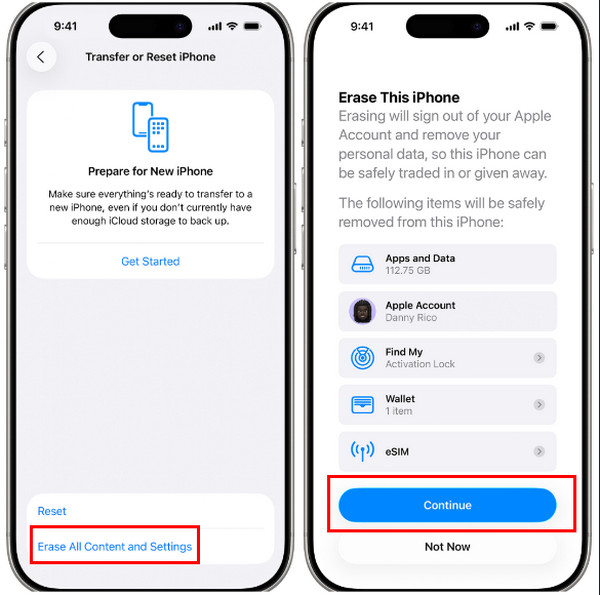
Tap the Transfer or Reset iPhone button at the bottom of the next screen. Later, tap the Erase All Content and Settings button at the bottom. You will be required to enter your iPhone passcode or Apple ID password. Finally, tap the Continue button to factory reset your iPhone.
Turn on your iPhone afterward. The Hello screen must be prompted. After that, set up your iPhone by following the on-screen guide. Later, you will see the Transfer Your Apps & Data screen. You will have options on how you want to restore your data.
Please tap the From iCloud Backup button on the list. Then, sign in to your iCloud account associated with the backup. After that, choose the backup you want to restore. Follow the on-screen instructions, and the Restore from iCloud screen will appear.
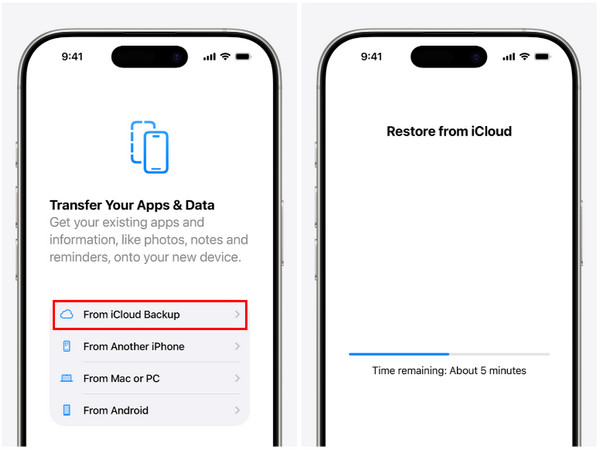
The restore process for your iCloud backup will start. The indication bar will appear at the bottom. You will see the remaining time for the restore process.
Part 3. Restore from iCloud Backup Without Resetting iPhone
For some users, a factory reset before the restore process of iCloud is inconvenient. Most especially, when the user only wants to restore specific data. imyPass iPhone Data Recovery is the best choice! This tool allows you to restore from iCloud backup without a reset. It allows you to restore specific data without restoring the whole backup. It can restore different data types from your iCloud. It includes photos, messages, contacts, notes, voice memos, calendar, reminders, app documents, and more.
Additionally, the tool can scan multiple backups from your iCloud account and iPhone. There is nothing to worry about if you are a novice. Its straightforward interface and features will give you an easy restore process. The steps below will guide you on how to use the tool quickly.
Visit the page of imyPass iPhone Data Recovery. Follow the on-screen instructions to download it from the website. Then, set up the downloaded file and install it on your computer. Your computer will open it automatically afterward.
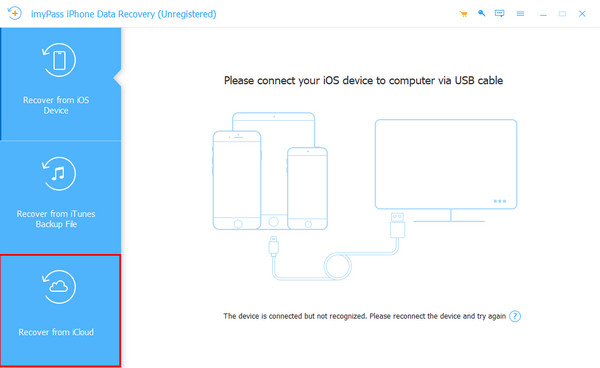
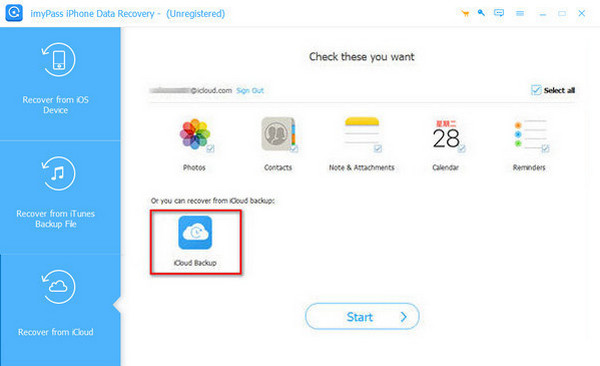
The main features of the tool will appear on the screen. Please plug your iPhone into the computer first using a USB cable. After that, the iPhone name must appear on the screen. Click the Recover from iCloud button afterward.
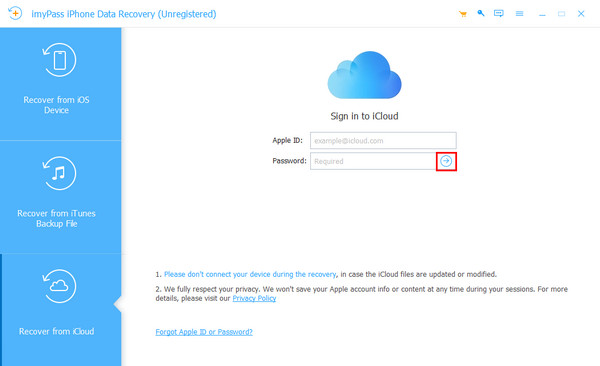
You are required to sign in with your iCloud account. Please enter your Apple ID and password from the screen. Once completed, please click the Arrow button on the right to sign into the account. Enter the two-factor authentication information afterward to confirm the action.
Please select the iCloud Backup button at the bottom left. After that, the tool will scan the available backups from your iPhone. The list of the scanned backups will appear on the next screen. Choose one, and a small window will appear.
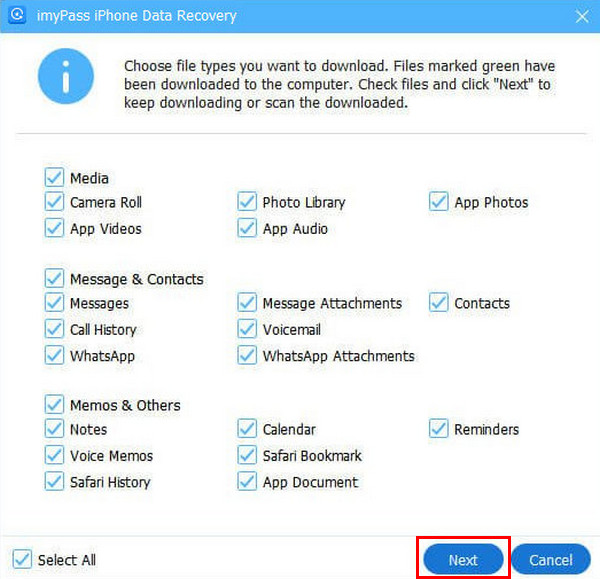
Please click all the data types you want to recover from the backup. Then, click the Next button at the bottom right. Later, follow the on-screen instructions to start restoring the data types. Please wait for the procedure to be completed before unplugging your iPhone from the computer.
Conclusion
All in all, you can restore from iCloud backup with or without a factory reset. In this post, you will learn the proper ways to do it. Additionally, the preparations before the restore process with a factory reset are posted. imyPass iPhone Data Recovery will help you restore from iCloud backup without a reset on the other hand. Download the tool and explore its features for the complete details about it.
Clara is an editor from imyPass. She specializes in data recovery. You can find professional tutorials and solutions for recovering lost data from any device. Many users reported that his tutorial is easy and useful.
Hot Solutions
-
Recover Data
- Recover WhatsApp View Once Photo
- Recover Deleted TikTok Videos on Mobile
- Recover Deleted Facebook Photo
- Recover Viber Messages, Photos, etc.
- Recover Deleted Snapchat Photos
- 5 Best Contact Recovery Apps
- Recover Deleted Discord Messages
- AppGeeker iOS Data Recovery Review
- Recover Data from DFU Mode
- Cannot Restore iPhone Backup
-
Unlock iOS
-
iOS Tips
-
Password Tips

