



 Solution
 Support Center
 About Us
 Contact
Find Administrator Password on Windows & Change/ Reset It
 Penny Warren Published on December 05, 2025Windows Password3-min reading
Many users wonder how to find the administrator password on Windows when they forget it. People often think about using the Command Prompt (CMD) to see the password. But do you think it is possible?
This write-up will answer that. You will also discover different ways to change your administrator password or reset it using another account. Not only that, we will also provide an advanced program you can use to recover or reset your administration password easily and safely.

In this article:
Part 1: Find Windows Administrator Password Using Command Prompt
Do you want to know how to find the administrator password on Windows 10 using the Command Prompt?
Unfortunately, you cannot reveal a Windows administrator password with Command Prompt or any legal tool. It is because Windows keeps passwords encrypted, and accessing them without permission is a security breach and usually illegal. If you forgot it, use official recovery or reset methods.
But you can change or reset it, which you will learn in the following part, so please continue reading.
Part 2: Change Your Administrator Password on Windows
Windows makes guest accounts limited. It keeps the computer safe. But this also means you cannot use normal CMD commands to change an admin password. The system blocks them right away. If you search for how to find Windows 10 administrator password, know that revealing the actual password with legal tools is not possible.
Still, there is a known trick that uses a system file to open a path around this limit. It is simple, but it must be used only on a computer you own. This method helps you reach the password reset screen.
First, you need to find and download a file named CVE-2017-0213_x64. This file is located on a public site that shares examples of security issues. Once downloaded, you must unzip the file.
It is time to find the file and open it. This action starts a specific exploit in the Windows system. This exploit is a trick that makes a Command Prompt window open on your screen. Because of the security trick, this Command Prompt opens with administrator privileges.
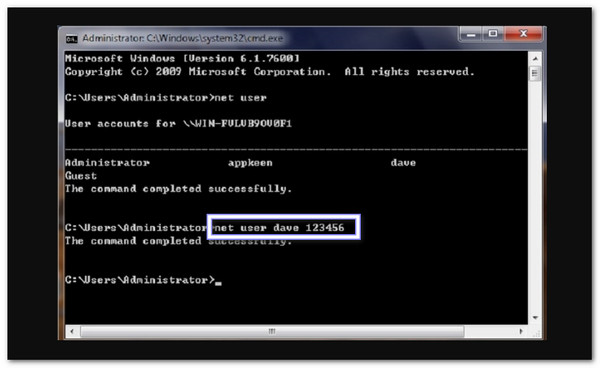
Finally, you use the powerful Command Prompt window to change the password. You must replace the placeholder with the account's name and the new password. After you press Enter, Windows checks the change. If it works, Windows confirms the password has been changed successfully.
Part 3: Reset Administrator Password Using Another Account
There is a safe way to reset an admin password when you already have another account with rights. Command Prompt, or CMD, can do this. If you search for how to check the admin password in Windows 10, remember that CMD will not show the actual password.
With the right access, CMD gives a clear path to reset the admin password. It makes the process simple, direct, and helpful when you need your computer back.
First, you open the Command Prompt window (CMD). Then, you type the simple command net user and press Enter. This command shows a list of all user accounts on the computer. You need to look at this list to find the administrator account name whose password you want to change.
Next, you type a specific command to set the new password. The command is net user [account name] [new password];. You must replace [account name] with the administrator's exact name you found in Step 1. You also replace [new password] with the unique password you want to use. Then, press Enter.
The computer should show a message saying that the command finished successfully. It means the password has now changed. To start using the new password, you need to restart the computer. Once it restarts, you can log in using the password you just set.
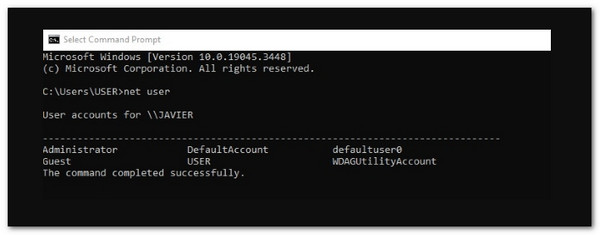
Note: If your password does not show, it is hidden for security purposes. It does not mean that you are experiencing a Windows change admin password denied error. Just type it carefully, press Enter twice, and your new password will work.
Part 4: Reset Administrator Password with Advanced Software
As you have discovered above, resetting an administrator password using another account can be hard and tricky. But with imyPass Windows Password Reset, an advanced program, the process becomes simple and fast.
While many wonder how to find the admin password on Windows 10/11, this program focuses on safely resetting it when forgotten. It makes unlocking your computer simple when you forget the admin password.
One of its highlights is that you can create a bootable CD/DVD or USB drive to reset it. It keeps your data safe and helps both beginners and experienced users regain full control of their system easily.
To begin with, grab the imyPass Windows Password Reset program. Download it on a computer you can use. Then, run the installer and follow the setup windows until it finishes. Please keep the program open when install ends.
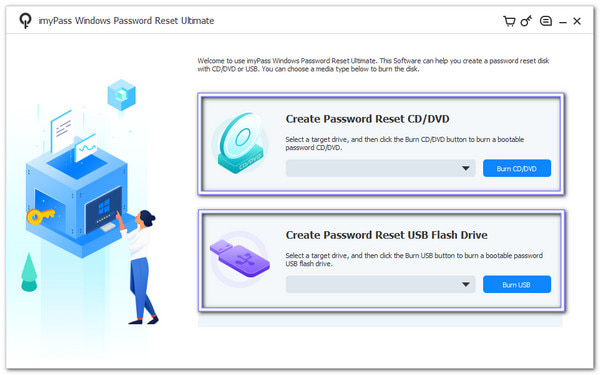
Launch imyPass Windows Password Reset and look at the main screen. Now, you need to pick the reset way you want. You can insert a blank USB, CD, or DVD. Based on what you will use, select Create Password Reset CD/DVD or Create Password Reset USB Flash Drive, and follow the prompts.
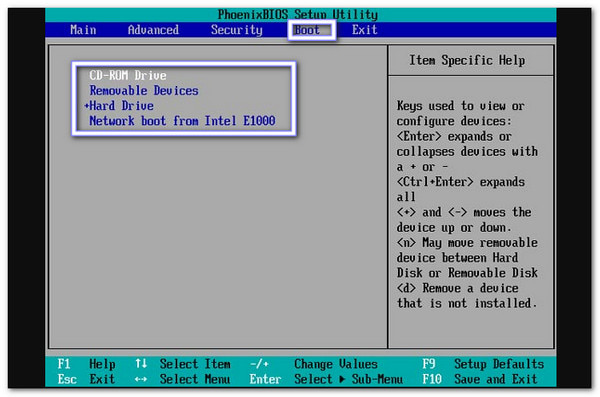
Now, please remove the media from the first computer and plug it into the locked computer. Then, restart that computer and press the key to open the Setup Utility or Boot menu. Next, choose CD‑ROM Drive for discs or select your USB Drive from the boot menu and boot from it.
imyPass Windows Password Reset will load and list all Windows user accounts. Now, select the admin account you want to unlock. Then, click Reset Password, confirm the action by clicking OK, and please wait as it applies the change.
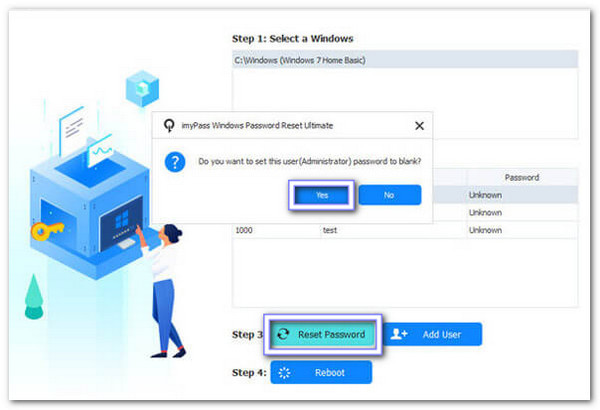
For the last step, eject the bootable disk or USB and restart the computer. Next, log in without the old admin password. Then, set a new password or make a new admin account.
You are done! No doubt, imyPass Windows Password Reset is a powerful Windows password recovery tool you can count on.
Key Features:
• Works on Windows 11, 10, 8.1, 8, 7, XP, and Vista.
• Works with RAID, SATA, IDE, SCSI, and SAS drives.
• Compatible with both UEFI and Legacy BIOS systems.
• Supports IDE, SCSI, SATA, 1394, USB, SAS, and RAID drivers.
• Offers Standard, Platinum, and Ultimate versions to fit different needs.
Conclusion
Changing or resetting your administrator password can be tricky. There are many steps, and it can feel confusing. But with imyPass Windows Password Reset, you are guided from start to finish. On top of that, this advanced program is easy to use and guarantees 100% safe results.
If you are looking for how to find the admin password for Windows 11/10, imyPass Windows Password Reset does not reveal it, but helps you reset it quickly and securely. It keeps your data safe and makes regaining access simple for both beginners and technical users!
Penny is a senior editor from imyPass. She has focused on discovering perfect GPS location solutions in all scenarios, and also has experience in fixing computers.
Hot Solutions
-
Windows Password
-
Windows Tips
-
Fix Windows
-
Password Tips


