



 Solution
 Support Center
 About Us
 Contact
Create or Use Windows 7 Password Reset Disk to Never Get Locked Out
 Penny Warren Published on November 27, 2025Windows Password3-min reading
It is very convenient to add a login password to your Windows 7, right? It makes our data, files, and information from the PC safe compared to when it does not have a password. This way, there will be no unauthorized access to your Windows 7.
This convenience can turn into a disaster if the login password is accidentally forgotten. But there is nothing to worry about if you have a password reset disk on Windows 7. If you are not familiar with this safety measure, we recommend that you browse this entire post to create and use it correctly.

In this article:
Part 1. What Is a Windows 7 Reset Disk?
A Windows 7 password reset disk is almost similar to a Windows 7 password recovery disk. It is a safety net for the user accounts on your Windows 7. The reason is that it can reset your password even though you accidentally forgot it. You may use a USB flash drive or a floppy disk. It makes and stores an encrypted key that can unlock your account from Windows 7 quickly.
In short, it does not bypass the Windows 11 login screen, Windows 7, Windows 10, or other versions. It is made to unlock the Windows 7 login screen using an encrypted key made before it is locked out.
Part 2. How to Get a Windows 7 Reset Disk?
You might wonder if you can create a Windows 7 forgot password no disk. Sadly, no. A Windows password reset disk requires a USB or floppy disk, as mentioned in the previous section. If you do not have these devices, you cannot proceed with making the Windows 7 password reset disk.
Do you have the requirements? That would be great! You can now proceed with the methods below to create or get a Windows 7 reset disk.
1. Use imyPass Windows Password Reset
imyPass Windows Password Reset is a third-party tool that allows you to make a Windows 7 password reset disk in two ways. You can create it with a CD/DVD or USB flash drive. The procedure of this tool is way easier compared to other methods. It is because of the simple features, process, and interface it offers. Besides Windows 7, this tool is compatible with Windows 10, Windows XP, Windows 8, Windows 8.1, etc.
Moreover, this tool has three versions you can avail. It has its Standard, Platinum, and Ultimate versions. Choose the best for you to make your Windows 7 password reset disk conveniently. The steps below will help you with the process of this tool.
Open one of your trusted web browsers on your computer. After that, search the main website of imyPass Windows Password Reset. Set up the tool based on the requirements. Then, install the software to launch it on your PC automatically.
The two main features will be prompted on the screen. Insert your supported USB flash drive or CD/DVD. You can select the Create Password Reset CD/DVD or Create Password Reset USB Flash Drive button. Please select the Burn CD/DVD or Burn USB button from the screen. Click the OK button afterward.

2. Create with Official Method
Windows has an official method to create a Windows 7 password reset disk. This procedure is 100% effective, like the previous method. However, it requires professional skills, which novices will find difficult. Also, the process is demanding, which can take up much of your time. It is commonly used when the Windows Change Admin Password Denied error message is shown. Follow the steps below.
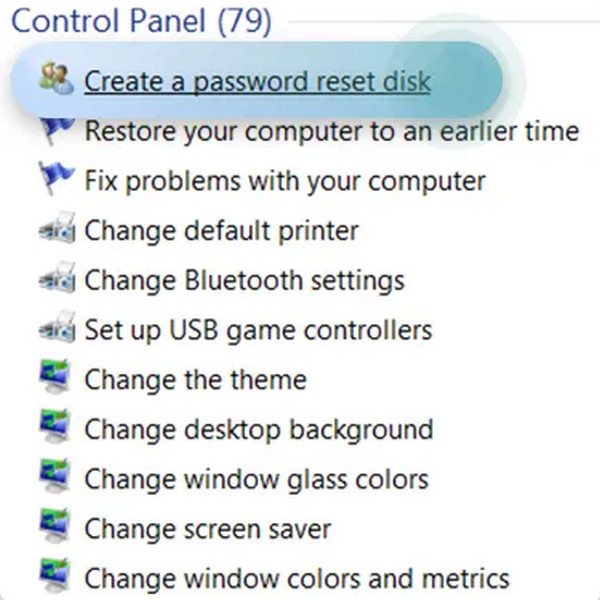
Insert the supported USB flash drive into your PC. After that, type Reset from the Windows Search Bar section. Then, select the Create a Password Reset Disk button. Click the Next button on the Forgotten Password Wizard screen.
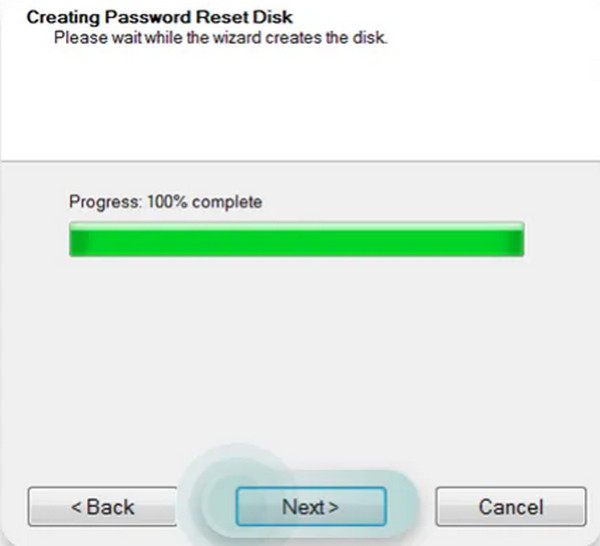
The interface will ask for the drive where you want to prepare the disk. After that, please select it from the list. Wait for the progress bar to finish. Click the Next button at the bottom center to proceed. The screen will inform you if the procedure is completed.
3. Buy Windows 7 Reset Disk on Amazon
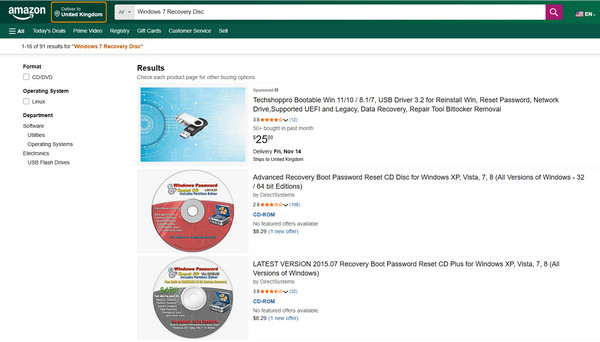
Amazon is an online shopping store that offers countless products. This online store does not have a direct connection with the Windows 7 password reset disk. But some sellers offer USB flash drives or CDs/DVDs for the Windows 7 password reset disk. However, these disks do not guarantee you a 100% reset process for your Windows 7. In fact, there are claims that these CD/DVD or USB flash drives made for a Windows 7 password reset disk do not work at all.
The only convenience it gives to Windows 7 users is that they do not need to create a Windows 7 password reset disk themselves. They only need to purchase it online, and they can use it after receiving it. Please note that the delivery time depends on your country. It might take days, weeks, or even months.
Part 3. Use a Windows 7 Reset Disk to Remove Password When Forgot
Now that you have created the Windows 7 reset password disk, it is time to use it. imyPass Windows Password Reset is the most convenient to use. This software will allow you to choose the operating system version on your Windows 7 if there are multiple installed. Also, it enables you to choose the user account you prefer to reset the password. In this case, you will not reset the other passwords of the user accounts from the PC.
This tool is 100% useful compared to the Windows password reset disk you bought from Amazon. Also, it is easier to operate than the official method that requires professional skills. The steps below will guarantee you the best result for this tool.
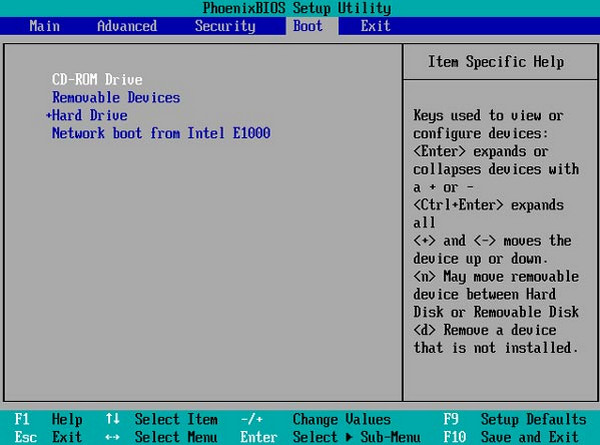
Suppose that you have created the Windows 7 password reset disk with the tool. Insert the burned CD/DVD or USB flash drive. Restart your PC and press F12 or ESC. Then, the Boot menu will appear.
The imyPass Windows Password Reset interface will pop up. Select the operating system for the locked PC. Then, choose the user account you want to reset the password for from the list.
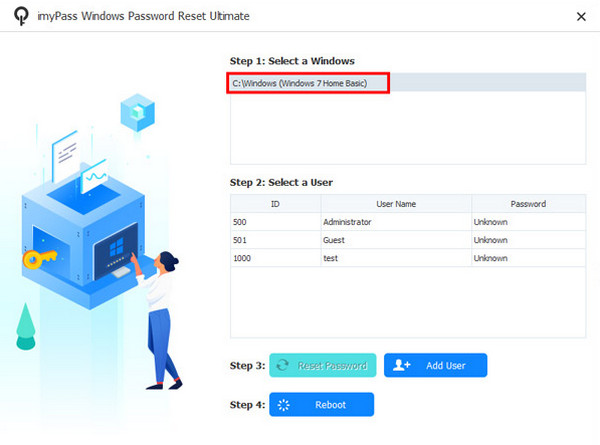
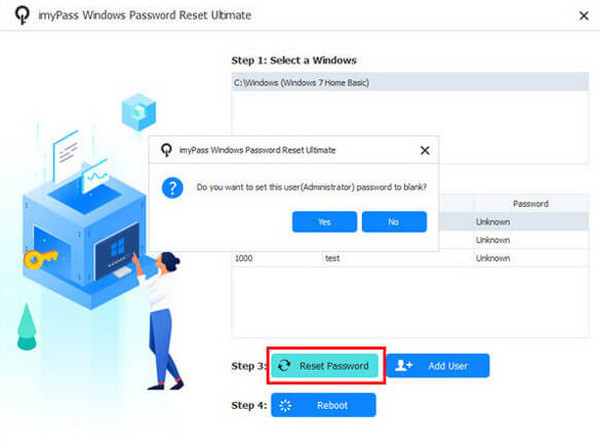
Click the Reset Password button and click the Yes button to confirm. Eject the burned disk when completed. Click the Reboot button afterward.
Conclusion
In conclusion, the Windows 7 password reset disk is your key to a forgotten password on your user account. This article helped you create and use the Windows 7 password reset disk. imyPass Windows Password Reset is also here to assist you in making and creating the security measure. Download the tool to explore more of its features.
Penny is a senior editor from imyPass. She has focused on discovering perfect GPS location solutions in all scenarios, and also has experience in fixing computers.
Hot Solutions
-
Windows Password
-
Windows Tips
-
Fix Windows
-
Password Tips


