



 Solution
 Support Center
 About Us
 Contact
How to Reset a Dell Laptop to Fix Major Performance Issues
 Penny Warren Published on March 13, 2026Windows Tips3-min reading
A Dell laptop has a fast and powerful performance. Most Dell laptops use modern Intel Core processors. They have enough RAM to handle multiple tasks at a time. Some models even scored higher than competitors, like the MacBook Air. Dell laptops are known for providing smooth performance for browsing, studying, and more.
However, Dell laptops sometimes experience performance issues. It might be due to a specific software issue. A factory reset is one of the most recommended procedures to fix these major issues. How to reset a Dell laptop computer? You will learn how to do this process with or without the password. Continue browsing for complete details.

In this article:
Back Up & Prepare Before You Begin
A factory reset on Windows, like a Dell laptop, will delete the content and settings. So, your data will be permanently deleted. It is recommended to back up your data before performing a factory reset. You can use your Microsoft account for the backup process. The steps below will guide you.
Select the Start option at the bottom left. Then, select the Settings button by searching for the name.
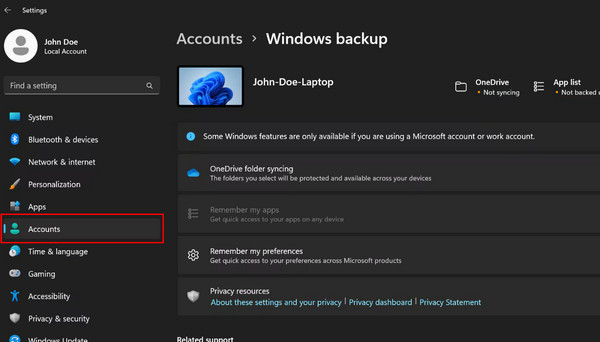
Please choose the Accounts button from the sidebar. After that, choose the Windows Backup button. Finally, follow the on-screen instructions.
Part 1: Factory Reset from Within Windows (The Easiest Way)
You can factory reset your Dell laptop within Windows and other models. You can use it for the Dell notebook reset. This procedure restores the Dell laptop to its factory condition. It uses the built-in reset feature of Windows. All of the data, including apps, files, settings, etc, is included. But this feature allows you to erase everything or keep your files intact.
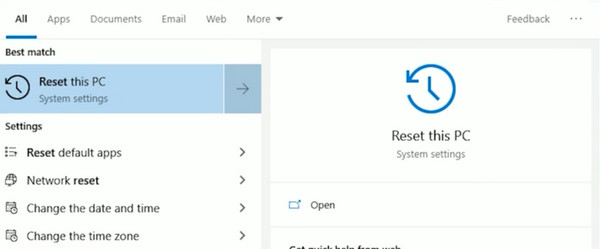
Open and unlock your Dell laptop. Search for the Reset This PC feature from the Start section at the bottom left corner. Please click the Get Started button on the next screen.
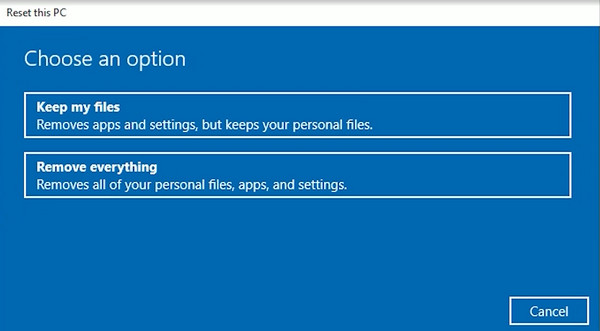
A small window will be prompted on the screen. Please click the Remove Everything button at the bottom. The factory reset will start immediately.
Part 2: Factory Reset from Boot (When Windows Won't Start)
Besides the built-in factory reset of Windows for a Dell laptop, you can also use the Boot menu to factory reset your Dell laptop. It is commonly used when Windows cannot start due to system issues. There are two ways for this procedure.
1. Use The Built-In Recovery Partition of Dell
The built-in recovery partition of Dell can fix major issues. It includes the factory reset of your Dell laptop. You can use it to factory reset Windows without a password, including a Dell laptop. It uses a key to enter the Boot menu from the device. What is the Dell factory reset from Boot F12, and how to perform it? The steps are available below.
Ensure that the Dell laptop is on. Then, press the Power button until it loads. Quickly press the F12 key until the features are prompted.
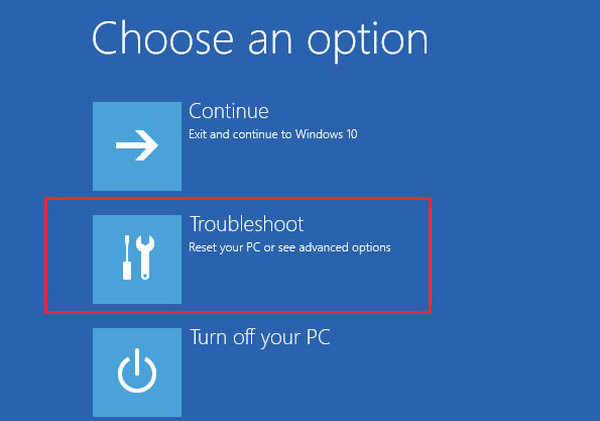
Click the Troubleshoot button and select the Reset This PC button. Perform the on-screen instructions to start the factory reset.
2. Use The Windows Recovery Environment (WinRE)
Windows Recovery Environment is almost the same as the previous method. Their only difference is the keys that need to be operated during the factory reset. How to reset a Dell laptop to factory settings? Use these features with the steps below.
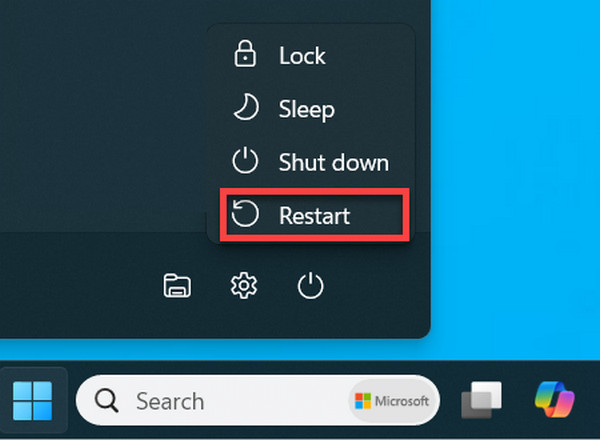
Ensure that the Dell laptop is locked. Then, press Shift and select the Power button at the bottom right. Click the Restart button. Keep pushing the Shift key and click the Restart Anyway button.
Release the Shift key when the Boot menu is shown. Select the Troubleshoot button and click the Reset This PC button. Click the Remove Everything button. Follow the on-screen instructions to complete the process.
Part 3: Factory Reset Without Password / When Locked Out
Not everyone has the password to proceed with factory resetting the Dell laptop. imyPass Windows Password Reset can help you with this issue. It offers you two ways to factory reset your Dell laptop. You can use a CD/DVD or USB flash drive. The tool supports different scenarios, including forgotten Windows password, forgotten admin password, wanting to create a new account without administrator access, or having bought a Dell laptop with a password.
Besides the Dell laptop, it supports the famous Windows brand. It includes HP, Lenovo, Sony, Asus, Acer, etc. How to factory reset a Dell laptop without a password? The steps for this tool are available below.
Download, install, and open imyPass Windows Password Reset. After that, select the Burn CD/DVD or Burn USB button. Then, the Boot menu will appear. Please press the Enter key to proceed.
The list of Windows versions will appear from the Select a Windows section. Select the one you prefer to factory reset. Then, select the account from the Select a User section.
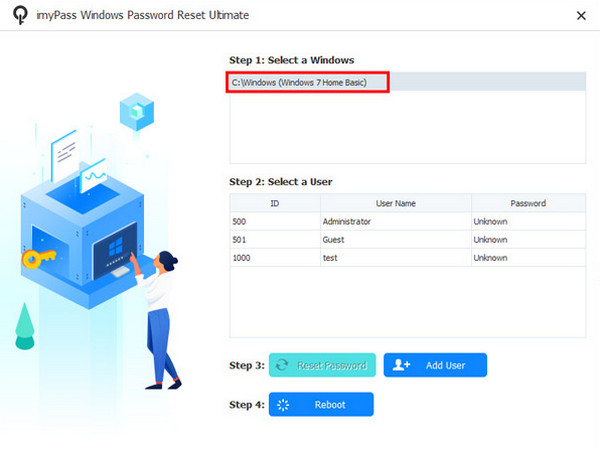
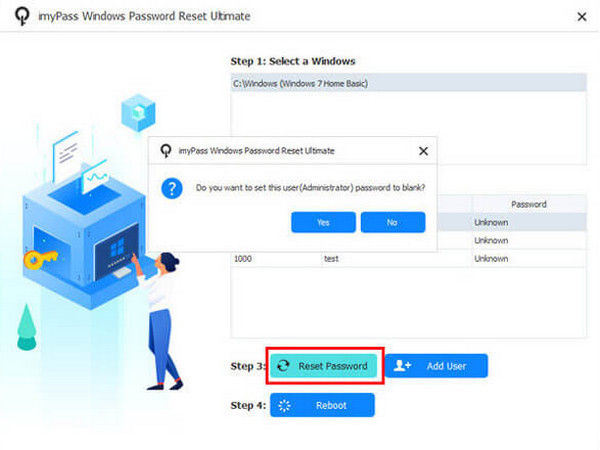
Please click the Reset Password button at the bottom left. Then, a small window will be prompted. Please click the Yes option to start the procedure.
OS & Model-Specific Sections
On the other hand, there are specific models and operating system versions of Dell. In this section, we will show you the factory reset process of Windows 7 and the Dell Chromebook. Please proceed below.
1. How to Factory Reset Your Dell Laptop Windows 7
Windows 7 was released in October 2009. But there are still users who utilize it nowadays, regardless of the latest version. Learn how to reset a Dell laptop to factory settings on Windows 7 with the steps below.
Open your Dell laptop. Then, click the Power key from the keyboard and press the F8 key to see the Boot screen. After that, select the Repair Your Computer button.
Select a layout and click the Dell Factory Image Restore button. You can also click the DataSafe button. The factory reset will start.
2. How to Reset a Dell Chromebook
Also, how to reset a Dell Chromebook? This procedure is different from the methods above. Please continue browsing to see the steps for this process.
Sign out of your Dell Chromebook. Then, press Ctrl + Alt + Shift + R from the login screen. Click the Restart button. Confirm the Powerwash button afterward.
You can also go to the Settings section. Then, select the Advanced button. Finally, click the Reset Settings button from the list.
Conclusion
In general, the performance of Dell laptops is good. But software issues are inevitable. This post is about how to master reset a Dell laptop, which can help you fix the issues. imyPass Windows Password Reset can do that without the password. You may download the tool if you want to know more about it.
Penny is a senior editor from imyPass. She has focused on discovering perfect GPS location solutions in all scenarios, and also has experience in fixing computers.
Hot Solutions
-
Windows Tips
-
Windows Password
-
Fix Windows
-
Password Tips


