Solution
 Support Center
 About Us
 Contact
Password Management iPhone Made Easy: Secure, Access & Organize
 Samuel Spenser Published on February 06, 2026Password Tips3-min reading
Your iPhone already remembers hundreds of logins for you. The problem is that most users never check how those passwords are stored or protected. Learning how to manage passwords in iPhone settings puts you back in control of speed and security. This article explains what happens behind the scenes, where your credentials live, and how to use Apple tools properly. We start with setup, then move step by step through practical management tasks.

In this article:
- Editor's Choice: Best iOS Password Manager for iPhone & iPad
- Part 1. Setting Up & Turning On iCloud Keychain
- Part 2. How to View and Edit Your Saved Passwords (The Core of Management)
- Part 3. Using Autofill for Seamless Logins
- Part 4. Security Auditing & Critical Management Tasks
- Part 5. Importing & Exporting Passwords (Advanced Management)
Editor's Choice: Best iOS Password Manager for iPhone & iPad
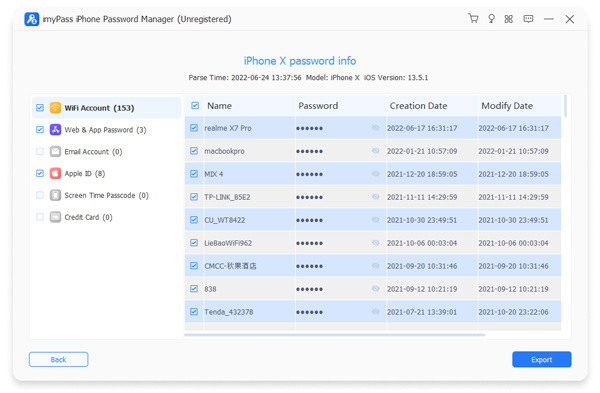
imyPass iPhone Password Manager stands out because it gives users clear, direct access to their saved iOS credentials without complicating the process. It searches stored Wi Fi passwords, app and web logins, Apple ID details, and Screen Time passcodes on an iPhone or iPad and presents them to the user in a single view.
The interface is easy, the scan is quick, and all the records are read-only and which secures system integrity. Combining safe export facilities and comprehensive support of iOS versions, imyPass provides an effective level of visibility, security, and control that built-in tools may tend to restrict.
Part 1. Setting Up & Turning On iCloud Keychain
Managing passwords on iPhone has never been easier thanks to iCloud Keychain. It is an in-built Apple utility that stores your internet site usernames, application logins, and even Wi-Fi passwords, which is synchronized across all your devices. When it is on, you will not only be sure that your passwords are secure but also can be accessed at any time when you require them, so the process of logging in will take less time, and there is less possibility of not remembering your password.
Open the Settings app on your iPhone. Tap your account name at the top to access Apple ID settings.
Select iCloud from the list of options. Tap Passwords & Keychain, or sometimes listed as Keychain.
Toggle iCloud Keychain to the ON position. Authenticate with your Apple ID password, iPhone passcode, Face ID, or Touch ID if prompted.
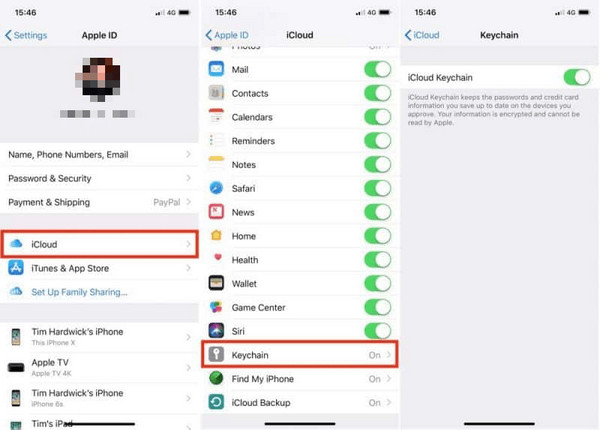
Confirm your devices that will share the iCloud Keychain to start syncing passwords across all approved Apple devices.
Once activated, your app logins, website credentials, and secure keys are automatically synced and accessible on all connected devices.
Part 2. How to View and Edit Your Saved Passwords (The Core of Management)
1. Accessing Your Password List in Settings
Keeping track of your logins is the first step in strong security. On an iPhone, open the Settings and tap Passwords and either use Face ID to authenticate, Touch ID to authenticate, or use your passcode. This will give a list of all the stored credentials, whether it be apps, websites, or Wi-Fi networks.
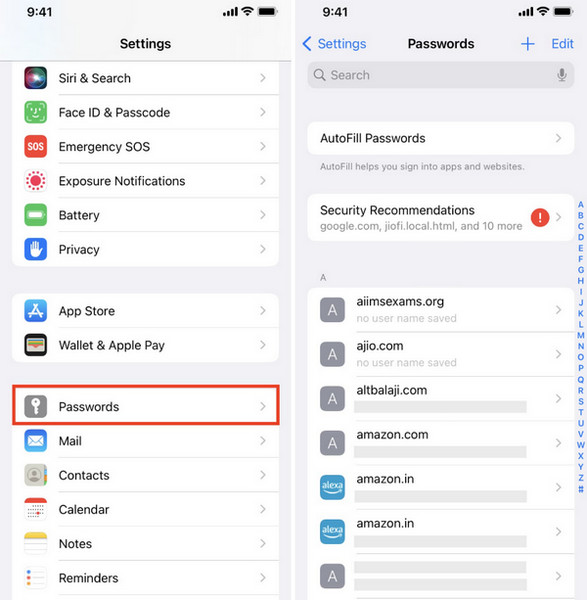
Exploring this interface gives you a snapshot of your digital accounts and highlights any weak or reused passwords. Mastering this view is essential for effective password management on iPhone, giving you control over your online security.
2. Editing a Saved Password
The passwords are changed, the account is updated, and the apps are developed. It is easy to maintain your credentials on an iPad. Navigate to Settings > Passwords, select the account to update, and tap Edit. Make your changes and save them securely.
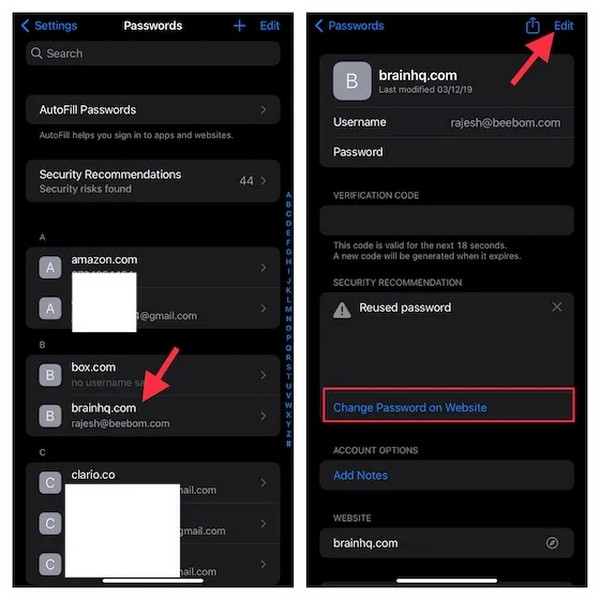
This ensures your iPad password management remains accurate and your logins work seamlessly. Within iOS, editing is encrypted, eliminating the dangerous workarounds and aiding in maintaining good security practices.
3. Adding a New Password Manually
Not every login is captured automatically, so adding credentials manually is a smart habit. On your iPad, go to Settings > Passwords, authenticate, and tap the + button. Enter the website, username, and password, then save.
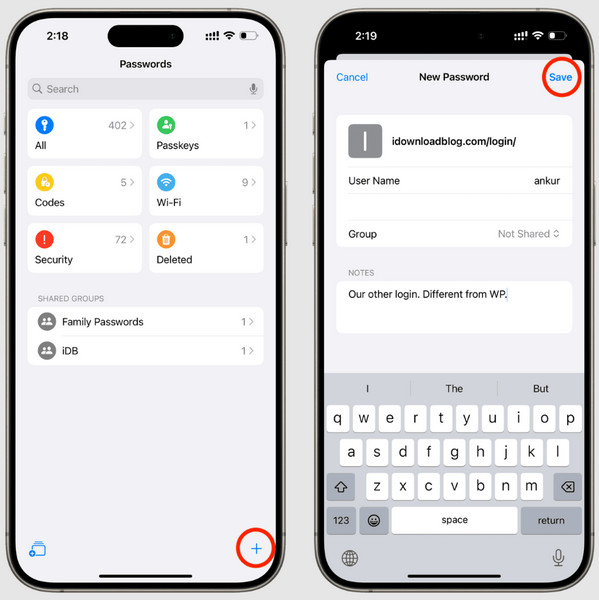
Knowing how to manage passwords on iPad this way ensures all your accounts live in one secure place, ready for autofill. It also encourages stronger, unique passwords, reducing the risk of hacks and forgotten logins.
Part 3. Using Autofill for Seamless Logins
Typing usernames and passwords repeatedly can slow you down and increase the risk of mistakes. On an iPhone, Autofill simplifies this by filling in your saved credentials automatically, which is why activating it became a must for iOS users. To enable it, go to Settings > General > AutoFill & Passwords and turn on AutoFill Passwords and Passkeys. Once active, iOS will suggest your saved logins from iCloud Keychain or a compatible password manager whenever you tap a login field in Safari or supported apps.
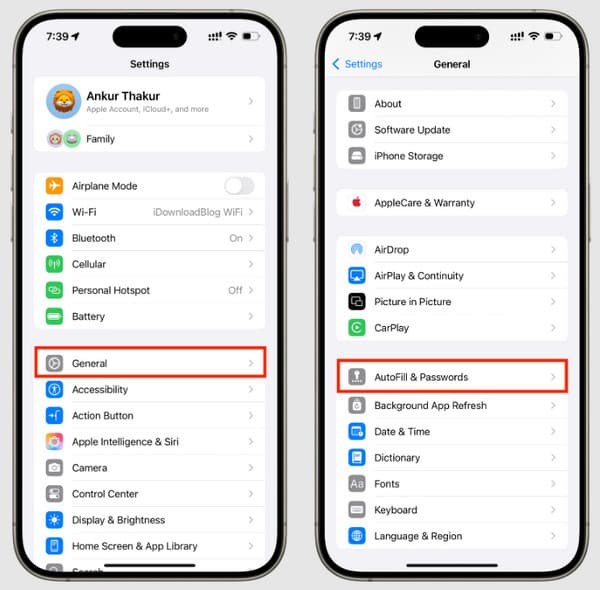
You just need to choose the proposed credential and scan your face with Face ID, or your touch with Touch ID, and iOS will log you in. Using Autofill not only saves time but also ensures your accounts remain secure, making it a key step in how you manage passwords on your iPhone.
Part 4. Security Auditing & Critical Management Tasks
1. Finding Compromised & Reused Passwords
Even good passwords can be compromised in case they are reused or in case they are disclosed in a breach. iOS on your iPhone can assist you in recognizing weak or compromised credentials by using Security Recommendations. Tap Settings > Passwords, and authenticate using Face ID, Touch ID, or your own passcode, and go through any accounts with warning labels.
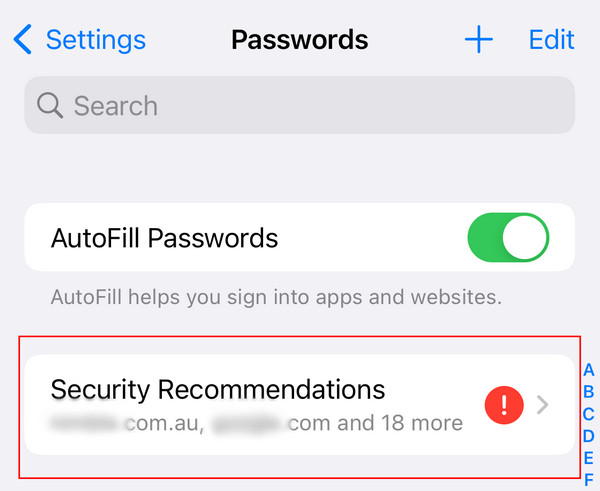
From here, you can update or replace these passwords immediately. Regularly reviewing these alerts is essential to managing passwords on iPhone effectively and keeping your accounts safe.
2. Organizing with Custom Password Groups
Since your digital life becomes larger and larger, it is important to keep passwords in order. iOS enables keeping records of accounts in order, which makes it easy and rational to find the passwords. Although sharing passwords may be used between families or teams of people, by using folders or labels to create a mental representation of the account, e.g., work, personal, or subscriptions, one can manage passwords on the iPhone efficiently. This habit ensures quick access to frequently used logins and makes it easier to save passwords on iPhone securely, keeping sensitive credentials clearly separated.
3. Sharing Passwords Securely with Family
Quite often, valuable credentials have to be exchanged in a secure manner. iCloud Keychain allows sharing passwords with the cross-trusted members of the family on an iPad. Go to Settings > Passwords, choose the account, and touch Share Password.
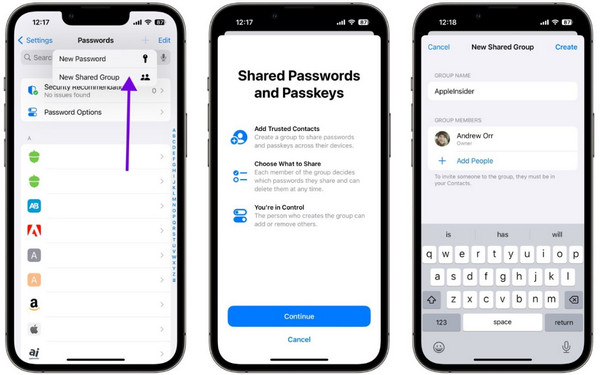
The system encrypts the transfer and maintains the privacy of the login, and gives access to individuals whom you trust. This is one of the main steps in the proper management of iPad passwords, which makes them convenient without affecting security.
Part 5. Importing & Exporting Passwords (Advanced Management)
It is challenging to keep your credentials intact on many devices, and iPadOS simplifies it. These steps will ensure that you can safely import and export logins, maintain backups, and have access to all accounts and keep them updated. Learning how to manage passwords on an iPad this way gives you full control over your credentials while keeping them safe and organized.
Open the Settings app on your iPad. Scroll down and tap Safari, then navigate to the Passwords section. Authenticate with Face ID, Touch ID, or your passcode.
In order to export passwords, tap on Export All Passwords, name the accounts to be exported and save the file in a safe place. The unprotected file should then be deleted immediately in order to maintain the safety of credentials.
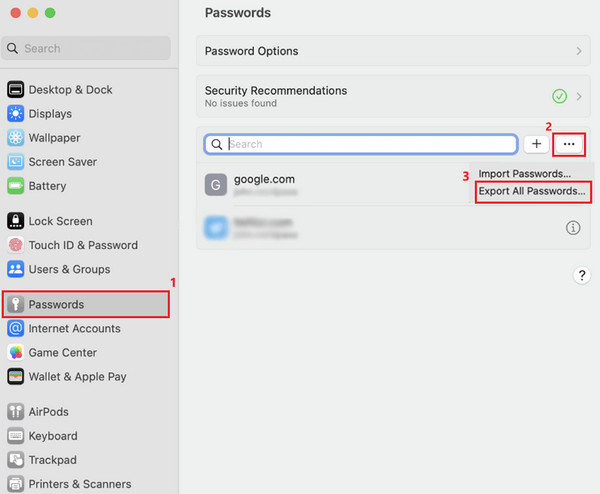
To import passwords, tap Import All Passwords, locate the CSV file from another password manager, and confirm the import. In iPadOS, your credentials can now be stored in Autofill and securely stored.
Conclusion
Managing passwords on iPhone and iPad does not have to be difficult. It is easy to keep your accounts safe using such tools as iCloud Keychain, Autofill, and security checks. You can manage, refresh and check the passwords with ease with these tips and ensure that your devices are safer when using iOS, as well as that you do not have a problem when signing into your accounts.
Samuel specializes in password security and digital privacy. He used to work as a cybersecurity consultant for small businesses to protect digital assets. With certifications in Cybersecurity and Ethical Hacking, he turns complex security topics into easy-to-follow advice. He also enjoys sharing password tips to help users protect their accounts more confidently.
Hot Solutions
-
Password Tips
- 4 Best Instagram Password Finders
- How to See Your Instagram Password
- How to Unlock Your Snapchat Account
- How to Reset Forgetten Twitter Password
- How to View Saved Passwords in Chrome
- What to Do When I Forgot My Apple ID Password
- How to Reset Your Snapchat Password
- How to Reset Forgotten Discord Password
-
Unlock iOS
-
Unlock Android
-
Windows Password