



 Solution
 Support Center
 About Us
 Contact
Top 5 Ways to Bypass iPhone Lock Screen Passcode
Unlocking your iPhone without a passcode can be a tricky and time-consuming task. It requires careful consideration of several points to ensure you don't accidentally wipe out important data or damage your iPhone. This post will discuss five effective methods to bypass iPhone passcode.

In this article:
- Part 1. Bypass iPhone iPad Passcode Using iPassGo
- Part 2. Bypass iPhone Passcode Through Find My
- Part 3. Bypass iPhone Lock Screen Passcode via Recovery Mode
- Part 4. Bypass Passcode on iPhone or iPad with iTunes
- Part 5. Bypass iPhone Passcode Without Losing Data
- Part 6. FAQs of How to Bypass iPhone Passcode
Here's a quick comparison of the most effective ways to bypass an iPhone or iPad passcode.
| Method | Computer | Data Loss | Requirements | Use Cases |
| iPassGo | Yes | Yes | Computer, USB cable | All scenarios |
| Find My | No | Yes | Apple ID, Find My enabled | Users who remember Apple ID password |
| Recovery Mode | Yes | Yes | Computer, Finder/iTunes | When device unavailable in Find My |
| iTunes | Yes | Yes | Computer, Find My enabled | Users who synced device before |
| Siri | No | No | For iOS 8 – 10 only | Very old devices only |
Part 1. Best Way to Bypass Your iPhone or iPad Passcode Using iPassGo
Best for: Users locked out of their device in various situations, such as forgetting the passcode, Face ID not working, or dealing with a disabled device.
iPassGo is a simple and reliable iOS unlocking tool that works on most iOS models and versions. Whether you forgot a 4-digit or 6-digit passcode, or can't unlock your device with Face ID or Touch ID, iPassGo helps you quickly bypass the lock screen passcode on a Windows PC or Mac.

4,000,000+ Downloads
Connect your iPhone or iPad to your PC/Mac to easily unlock it.
Remove screen lock and Apple ID password with only one click.
Unlock your iPhone and iPad while refreshing the device to a new state.
Allow you to remove Screen Time and MDM on your iPhone and iPad.
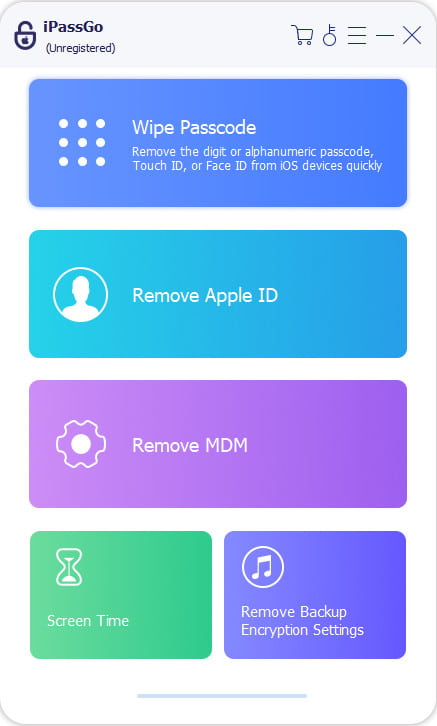
Download and open iPassGo on your Windows PC or Mac. Choose the Wipe Passcode mode. This feature also supports removing the Apple ID from your iPhone or iPad.
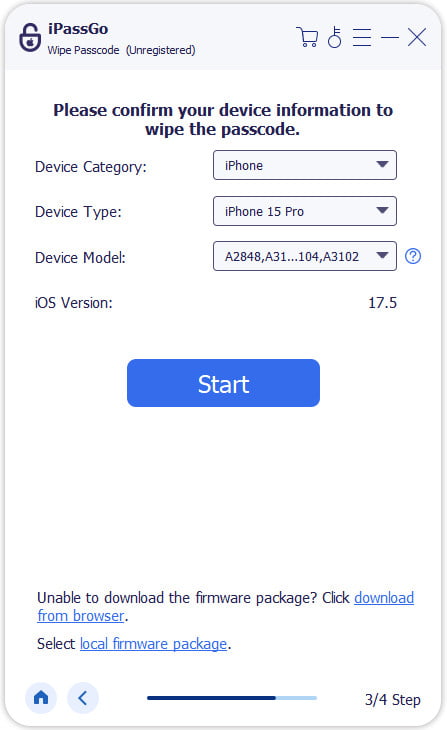
Click Start and connect your device to the computer. After it's detected, confirm the device information and download the firmware package to bypass your iPhone lock screen passcode.
When downloaded, click the Unlock button and enter 0000 to wipe your forgotten iPhone passcode and Touch ID or Face ID. This operation will remove the screen lock and let you access your iPhone without a passcode.
Note:
Removing the lock screen passcode will erase all data on your iPhone or iPad. It's recommended to back up your device in advance to avoid data loss.
Part 2. How to Bypass an iPhone Passcode Through Find My
Best for: Users who know their Apple ID password and have Find My enabled on the device.
Find My iPhone is an essential feature Apple provides to help iOS users accurately locate their lost or stolen devices. But did you know that you can also use it to unlock your iPhone or iPad screen? Follow the steps below to bypass an iPhone passcode using iCloud Find My.
Go to the iCloud website in a browser and sign in with your Apple ID and password.

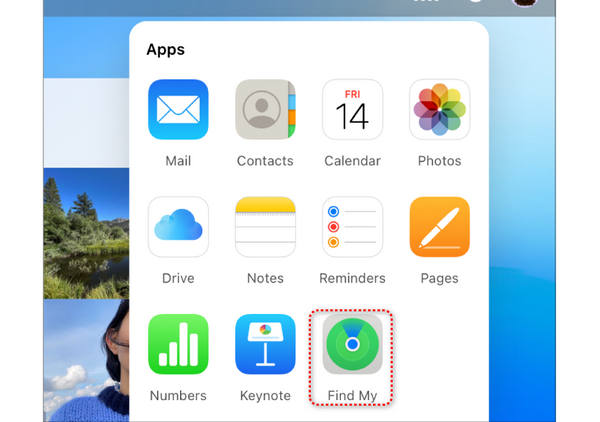
Click Find My, then select All Devices at the top screen. Choose the iPhone or iPad you want to bypass to remove the lock screen passcode.
Click the Erase iPhone option to factory reset your iPhone. You should follow the onscreen prompts to confirm your decision.
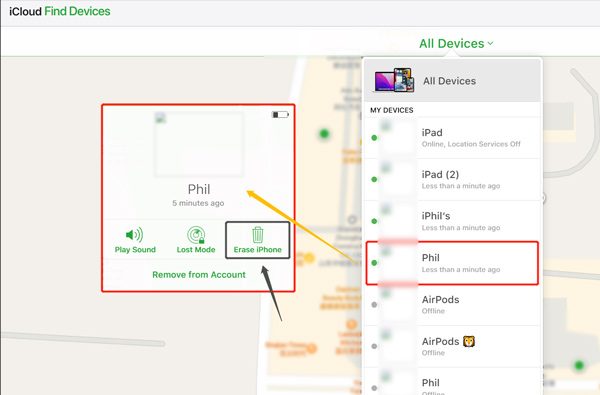
This operation will erase all data on your iPhone, including the lock screen passcode. However, the method should be a last resort since you will lose all iOS data if you haven't backed up your iPhone using iCloud or iTunes.
Part 3. How to Bypass iPhone Lock Screen Passcode via Recovery Mode
Best for: Users whose iPhone is disabled or not recognized by iTunes normally.
When your iPhone or iPad is locked or disabled, you can choose to put it into Recovery mode to bypass the lock screen password. Ensure you have ever synced your iOS device through iCloud or iTunes, then use the method below to bypass your iPhone or iPad passcode using the Recovery mode.
Connect your iPhone to a computer and launch iTunes. If iTunes prompts you to download the latest version, click the Download button to update it.
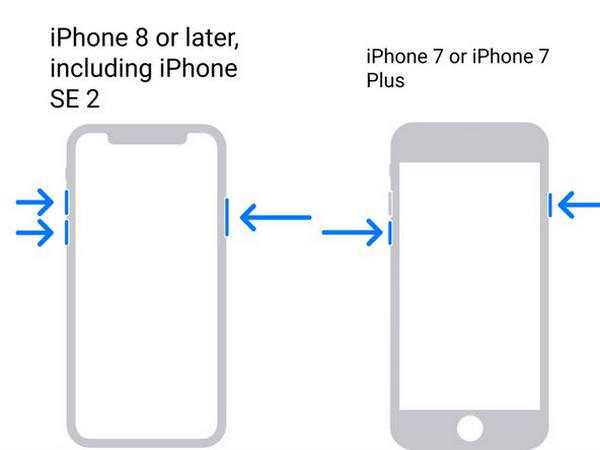
Press the Power button or Power + Volume buttons simultaneously to turn off your iPhone. When your phone is powered off, release the button(s) while holding the Power/Home button. You can release the button when you see the Recovery mode screen on your iPhone.
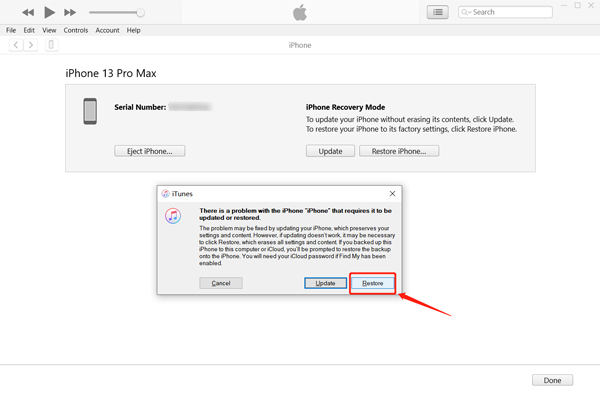
iTunes should detect an iPhone in Recovery mode and display a message saying that your iPhone must be updated or restored. Click the Restore button. If you are not using the latest iTunes version, iTunes will prompt you to update and then start restoring.
Part 4. How to Bypass the Lock Screen Passcode on iPhone or iPad with iTunes
Best for: Users who previously synced their device with iTunes on a trusted computer.
If you have ever synced your iPhone to a computer with iTunes and it remembers your passcode, you can use iTunes to easily bypass your iPhone lock screen password. The Find My feature must be turned off before bypassing an iPhone passcode using iTunes.
Run iTunes on your computer and connect your iPhone to it. When iTunes recognizes the iOS device, click the iPhone button to enter the Summary. Here you can check various related information about the iPhone. Also, you are offered options to back up, update, or restore your iPhone.
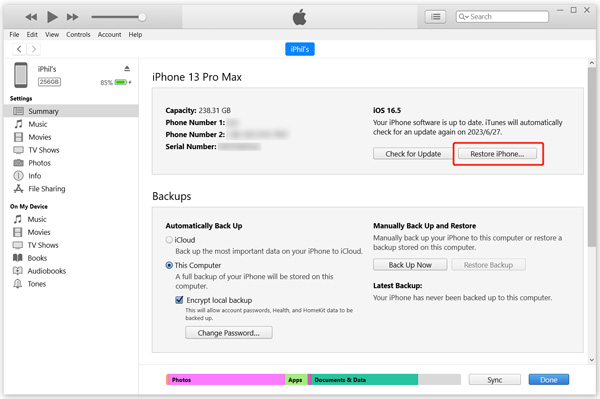
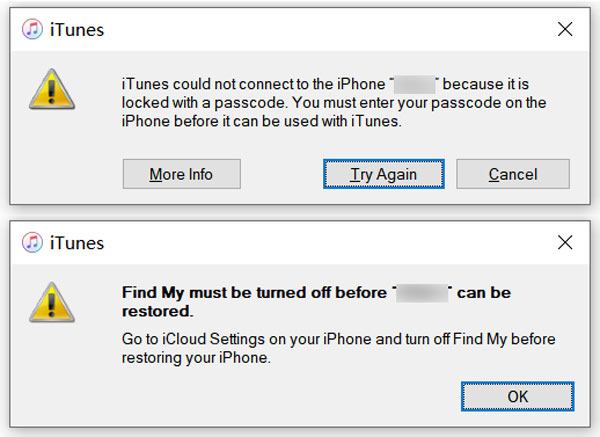
Click the Restore iPhone button and follow the prompts to restore. If iTunes prompts that you are not allowed to restore the iPhone because it is locked with a passcode or the Find My feature is enabled, you should use the method above to guide your iPhone into Recovery mode.
Part 5. How to Bypass Your iPhone Passcode Without Losing Data
Best for: Older iPhones running iOS 8.0 to iOS 10.1 with Siri enabled on the lock screen.
Siri is a trick way to bypass an iPhone passcode and unlock it. However, this method may not work on the new versions of iOS. You can only use Siri to open an iPhone running iOS 8.0 to iOS 10.1 without a password. It only works if you have enabled Siri on the lock screen.
Turn on Siri by pressing and holding the Home button. Ask Siri what time it is.
When Siri displays the time, click the clock, then tap the + and - buttons to change the time on your iPhone to a time in the past.
Now you should see Slide to unlock on your iPhone screen. Swipe right to unlock your iPhone without a passcode. This method allows you to bypass the iPhone passcode without resetting it.
Note:
This method is no longer effective on modern iPhones, as Apple fixed the security loophole in later iOS versions. It only worked on devices running iOS 8.0 to iOS 10.1.
FAQs.
-
How can I turn off the lock screen passcode on my iPhone?
Go to Settings on your iPhone and tap Face ID & Passcode or Touch ID & Passcode. Enter the current lock screen passcode to move on. Then scroll down to find the Turn Passcode Off option. Tap it and enter your passcode again to confirm that.
-
How many times can you enter the wrong passcode on an iPhone?
Your iPhone will be locked after entering the wrong passcode six times. You will get a message saying that the iPhone is disabled.
-
How to put an iPad in recovery mode?
Connect your iPad to a computer and press and hold its Home or Power button. When you see the recovery mode screen on your iPad, release the button.
-
Why did Recovery Mode fail?
Recovery Mode may fail to bypass your iPhone passcode for several reasons: (1) Outdated iTunes version. (2) Find My iPhone is enabled. (3) Connection issues. (4) Hardware problems.
If Recovery Mode fails, don't worry. You can still try other reliable methods. If your Apple ID is available and Find My was enabled, you can remotely erase your iPhone through iCloud. Otherwise, professional tools like imyPass iPassGo can help unlock your device in most scenarios.
Conclusion
This post shares five helpful methods to bypass iPhone passcode. iTunes and iCloud are complicated methods to do that. Siri is only a trick on older iOS versions. The most-recommended method should be imyPass iPassGo. It can quickly unlock your iPhone or iPad without any excessive preparation. You will get full access to your iPhone or iPad.

Samuel specializes in password security and digital privacy. He used to work as a cybersecurity consultant for small businesses to protect digital assets. With certifications in Cybersecurity and Ethical Hacking, he turns complex security topics into easy-to-follow advice. He also enjoys sharing password tips to help users protect their accounts more confidently.
Hot Solutions
-
Unlock iOS
-
iOS Tips
-
Unlock Android
-
Password Tips


