



 Solution
 Support Center
 About Us
 Contact
How to Fix iPhone Unavailable Without Erase Option [Full Guide]
 Samuel Spenser Published on September 16, 2026Unlock iOS3-min reading
Why does your iPhone suddenly show an iPhone Unavailable message? It's confusing and annoying because you cannot access all your photos, apps, and important files inside the locked device. If you're facing an iPhone Unavailable screen with no Erase option available, keep reading. We'll explain why this issue happens and show you 4 practical ways to fix it.

In this article:
Part 1: Why Does My iPhone Say iPhone Unavailable
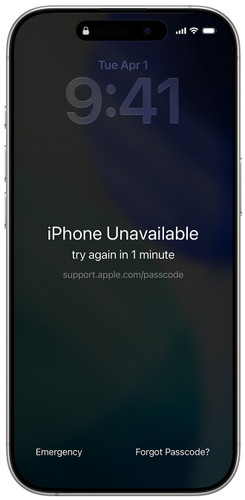
When you enter the wrong passcode on your iPhone too many times, you may see the "iPhone Unavailable" message or "iPhone Security Lockout" on the screen. What does Security Lockout mean on iPhone? This is Apple's security feature designed to prevent someone else from accessing your device and protect your personal data.
Common reasons why your iPhone says unavailable include:
- You entered the wrong iPhone passcode multiple times.
- You forgot your current iPhone passcode.
- Someone else tried to unlock your device with incorrect passwords.
- The iPhone was disabled after repeated failed unlock attempts.
Part 2: Why is There No Erase option on iPhone Unavailable Screen
On newer iOS versions, after too many failed attempts, the device may show an "Erase iPhone" option in the bottom right corner. You can reset the device and remove the passcode through this option. If you encounter iPhone Unavailable no Erase option, it may be caused by the following reasons.
- Your iPhone is running iOS 15.2 or lower, where the Erase iPhone feature was not available.
- Your iPhone is running iOS 17 or above, and the Erase option has been replaced by the Forgot Passcode option.
- You're not signed into your Apple ID on your iPhone.
- Find My iPhone is turned off.
- The iPhone is not connected to Wi-Fi or cellular data.
- You have not reached the required number of failed passcode attempts for the erase option to appear.
Part 3: How to Fix iPhone Unavailable Without Erase option - 4 Ways
If your iPhone shows "iPhone Unavailable" but there is no Erase iPhone option, you can still try these 4 ways to regain access.
Method 1: Unlock Unavailable iPhone via Old Passcode
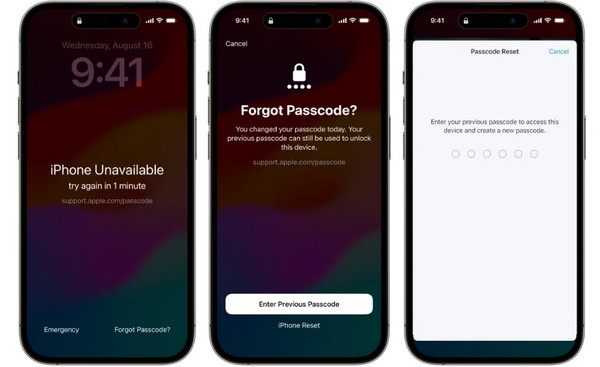
Is it possible to fix iPhone unavailable without losing data? Yes, you may be able to. If you're using iOS 17/18 or later and just changed your passcode, there's a good chance you can still get back in. Apple lets you use your old passcode for up to 72 hours after you change it. So, if you remember the previous one, it's definitely worth trying before you reset your iPhone.
Tap the Forgot Passcode? option at the bottom corner of the "iPhone Unavailable" screen.
Tap Enter Previous Passcode and enter your old passcode.
Follow the instructions to set a new passcode.
Method 2: Unlock Unavailable iPhone with imyPass iPassGo
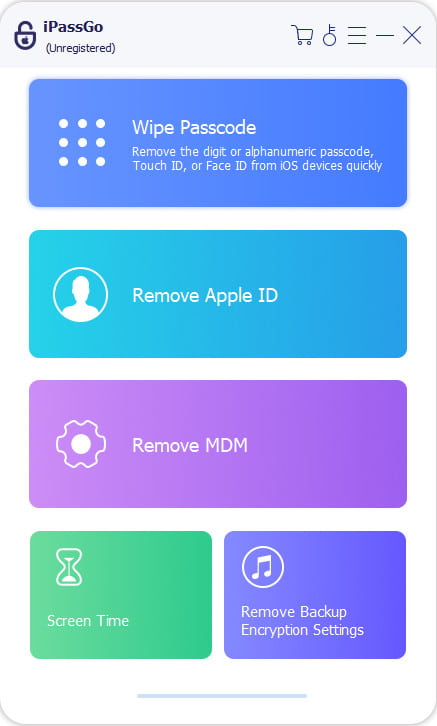
If you forgot your passcode and there is no erase option, a professional iPhone unlock tool like imyPass iPassGo can help you bypass the unvailable screen and remove the screen lock effortlessly. It can remove different types of iPhone locks, including screen lock, Activation Lock, carrier lock, or MDM and Screen Time restrictions.

4,000,000+ Downloads
Fix iPhone Unavailable without Erase option easily.
Unlock disabled, locked, damaged iPhone without passcode.
Remove screen passcode, Face ID & Touch ID easily.
Support the latest iOS models and versions.
Launch the program on your computer. Select the Unlock iOS Screen mode from the interface. Connect your device to a computer using a USB cable, then click Start Now to continue.
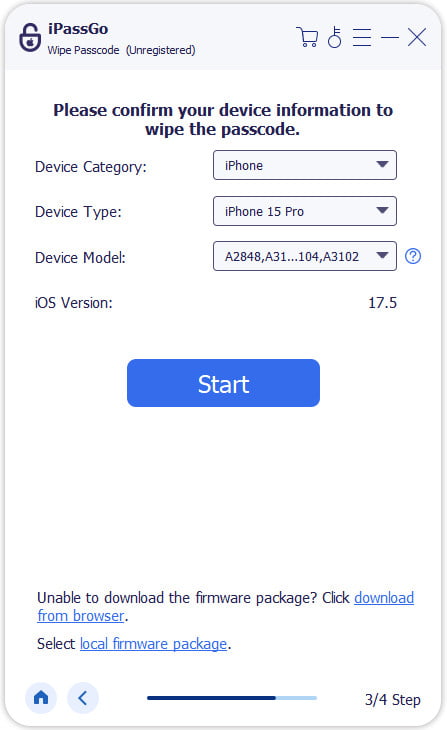
Confirm your device information and hit the Start Now button to download the firmware package. Wait for the download to complete and the firmware to be verified.
After verification, click the Start Removing button and confirm again. The software will automatically unlock the disabled iPhone, then you can use your device again.

Method 3: Fix Unavailable iPhone with iTunes/Finder
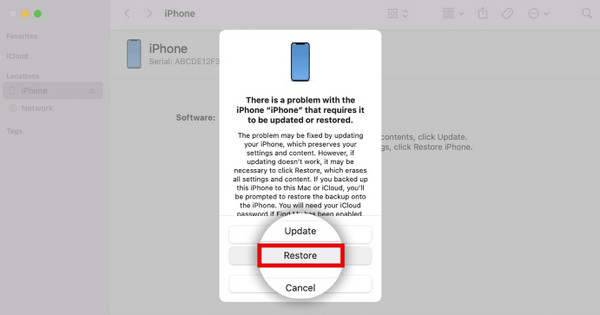
Recovery mode works when the iPhone Unavailable Erase option is missing. You can use a computer to connect your device and restore your iPhone via iTunes or Finder.
Power off your disabled iPhone. Launch the latest version of iTunes on your PC (or Finder on Mac). Connect your iPhone to the computer using a USB cable.
Put your iPhone into Recovery Mode.
- iPhone 8 or later: Press and quickly release the Volume Up button, then Volume Down button. Press and hold the Side button until the recovery mode screen appears.
- iPhone 7/7 Plus: Press and hold both the Volume Down and Side buttons simultaneously until the recovery mode screen appears.
- iPhone 6s or earlier: Press and hold both the Home and Side buttons until the recovery mode screen appears.
When your iPhone appears, select Restore from the menu.
Method 4: Erase Your Unavailable iPhone Using Find My
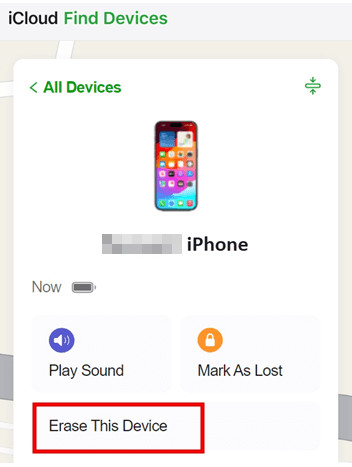
If you don't have a computer around, you can remotely erase your iPhone using the Find My app on another device. Just keep in mind that Find My needs to have been turned on before your iPhone became unavailable. If it wasn't, this option won't help much.
Open the Find My app on another Apple device or visit iCloud.com on a browser.
Sign in with your Apple Account used on your unavailable iPhone.
Select your iPhone from the device list. Choose Erase This Device and confirm it with one more click. Then your iPhone will be reset to factory settings.
FAQs.
-
If my iPhone says iPhone Unavailable how to reset it?
If your iPhone shows "iPhone Unavailable", you can reset it by using the Erase iPhone/Forgot Passcode option in the bottom right corner. You can also use iTunes/Finder, Find My, or a professional iPhone unlock tool like imyPass iPassGo to remove the screen lock.
-
How many wrong passcode attempts before iPhone becomes unavailable?
Your iPhone becomes unavailable after 10 incorrect unlock attempts. The lockout time increases after each failed attempt. Once you reach the limit, your iPhone will be completely disabled.
-
How to fix my iPhone Unavailable no Erase option without erasing my phone?
If you recently changed your passcode and are using iOS 17/18 or later, you are able to unlock your iPhone without erasing your data using your previous passcode within 72 hours. Tap the Forgot Passcode option and select Enter Previous Passcode to exit the unavailable screen.
Conclusion
iPhone Unavailable no Erase option issue is pretty annoying. When you have no idea what to do next, try these 4 ways mentioned in this guide. You can use the Forgot passcode option, restore via iTunes/Finder, erase using Find My, or try dedicated iPhone unlock software like imyPass iPassGo. Hopefully, one of these methods gets you back into your iPhone without too much trouble.
Samuel specializes in password security and digital privacy. He used to work as a cybersecurity consultant for small businesses to protect digital assets. With certifications in Cybersecurity and Ethical Hacking, he turns complex security topics into easy-to-follow advice. He also enjoys sharing password tips to help users protect their accounts more confidently.
Hot Solutions
-
Unlock iOS
-
iOS Tips
-
Unlock Android
-
Password Tips


