



 Solution
 Support Center
 About Us
 Contact
Ways to Remove a Password from an iPhone Using Reliable Methods
 Samuel Spenser Published on February 27, 2026Unlock iOS3-min reading
Have you ever been locked out of your iPhone and wondered what to do next? Knowing how to remove a passcode from an iPhone can prevent panic and keep your data safe. This guide takes you through each of the circumstances step by step: switching off a known passcode, creating a forgotten one, managing Apple ID verification, and clearing passwords on file. The steps are all easy, accurate and reliable.

Part 1. How to Turn Off Your Passcode (If You Know It)
Removing your iPhone passcode can simplify access when you no longer need that layer of security or want to speed up device use. Knowing how to remove a password from an iPhone is safe and will not cause any loss of data. It would be done in case you still have your existing password and wish to switch it off to ease the task, particularly on a personal device. Use the following well-structured steps to turn off your passcode and make sure that you have your iPhone settings under control:
Open the Settings app on your iPhone.
Scroll down and tap Face ID & Passcode or Touch ID & Passcode.
Enter your current passcode to access the passcode settings.
Tap Turn Passcode Off and confirm by entering your passcode again.
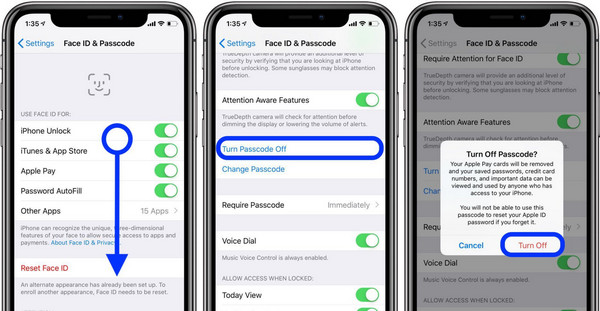
After completing these steps, your iPhone will no longer require a passcode, making everyday access faster while keeping your device settings intact.
Part 2. How to Remove a Forgotten Passcode (You're Locked Out)
1. imyPass iPassGo
imyPass iPassGo is a reliable lock remover tool that guides you through unlocking your iPhone when the passcode is forgotten. It is ideal for users who want a safe, easy-to-follow solution without using Recovery Mode or the lock screen erase function. With this tool, you can remove a password on an iPhone efficiently, reducing the risk of mistakes and ensuring your device stays intact.
You can download the iPassGo on your computer for free by ticking the button that we have here. Open the app package to install it and set it up before you can start using it.
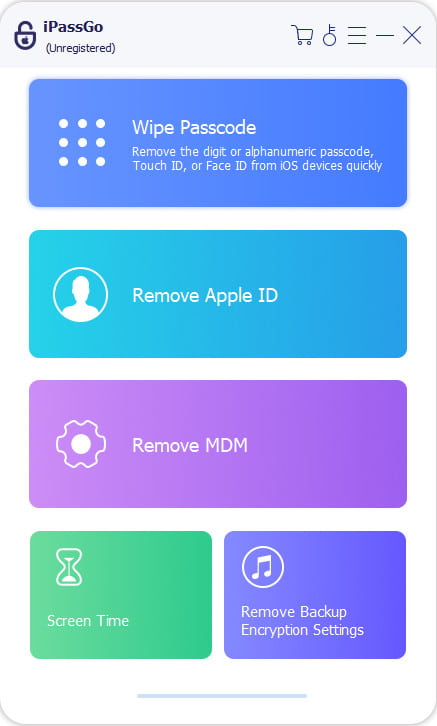
Now that the app is opened, connect your iPhone, and click the Wipe Passcode mode from the list that appears here. Then, click Start to proceed.
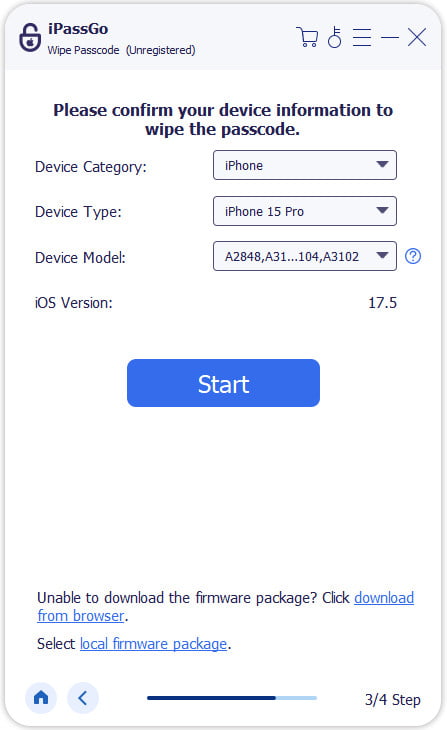
open-wipe-passcode.jpgConfirm all the device information before you wipe the device and click Start again. This is an important step to download the right firmware package for your iOS.
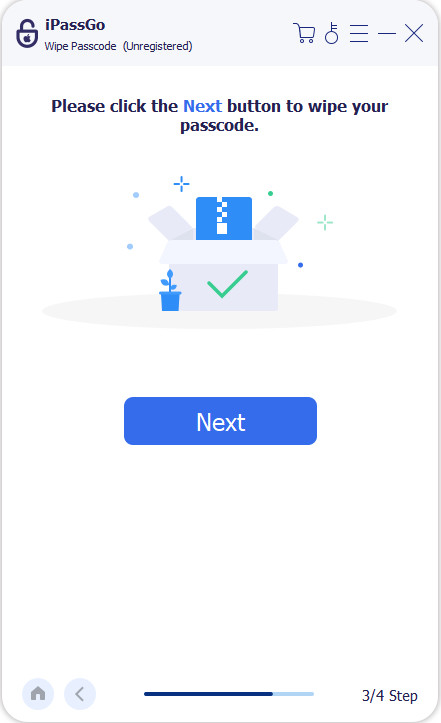
Hit the Unlock button and enter 0000 to start the process of removing the password on your device.
2. Recovery Mode
Recovery Mode is a built-in method for restoring your iPhone when it is disabled or the passcode is forgotten. By linking your device to a computer, you can erase the iPhone and remove the passcode completely. This method is reliable for all iPhone models and allows you to restore your data from a backup afterward. Using Recovery Mode ensures you safely how to delete a passcode on an iPhone without relying on third-party tools.
Establish a connection on your iOS device to a computer using a USB cable.
Open Finder on Mac, Catalina or later or iTunes on Windows or earlier macOS.
Force restart your iPhone to enter Recovery Mode:
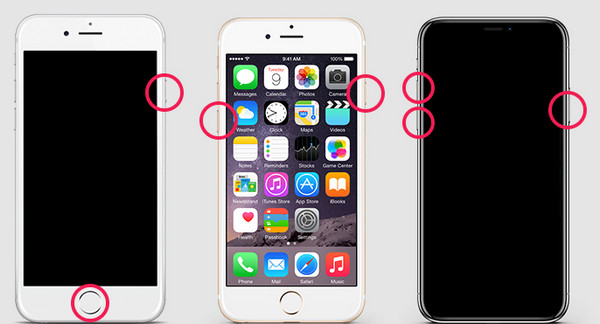
- iPhone 8 or later: Press and quickly release Volume Up, then Volume Down, then press and hold the Side button until the recovery screen appears.
- iPhone 7/7 Plus: Hold Side + Volume Down until the recovery screen appears.
- iPhone 6s or earlier: Hold Home + Side or Top until the recovery screen appears.
On the computer, click Restore when prompted. Wait for the restore process to finish, then set up your iPhone as new or restore from iCloud a backup.
3. Erase iPhone on the Lock Screen
In the case of devices with iOS 15.2 or more, it is possible to enter a forgotten passcode on the lock screen and then remove it. Once the incorrect passcode is typed in several times, the Erase iPhone option will be visible. This is a quick method that is integrated into the system, and it does not need a computer. Using this feature, you can eliminate the passcode on your iPhone safely and regain access while following its secure protocols.
Enter the wrong passcode six times on the lock screen.
Tap Erase iPhone when the option appears.
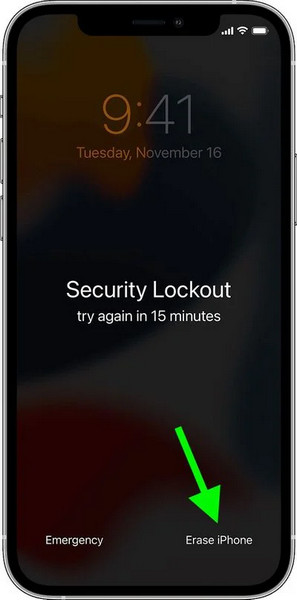
Confirm the action and enter your Apple ID credentials if prompted.
The iPhone will erase all data, remove the forgotten passcode, and restart automatically. After restarting, set up your iPhone as new or restore from a backup.
Part 3. What If It Requires an Apple ID When Removing the Password?
In the process of deleting a forgotten passcode, your iPhone might require you to have an Apple ID before it can proceed. This measure belongs to its security system and should help to avoid unauthorized access. Understanding how to get rid of a passcode on an iPhone includes knowing why this verification appears and how to handle it correctly.
Verification of Apple ID normally appears after accessing Recovery Mode or Erase iPhone. It will help to ascertain that the device belongs to you. In order to proceed, you need to sign in using the Apple ID that was associated with the iphone. After authentication, the device will be allowed to erase and delete the passcode.
In case you do not recall the Apple ID or password, one has to go through recovery first. Apple has canned account recovery tools that you can use to reset your credentials. This step cannot be skipped because, to ensure the safety of personal data and avoid its misuse, it is necessary to verify the Apple ID.
After confirming the Apple ID, it becomes possible to complete the setup, restore the backup, and access the iPhone fully safely.
Part 4. How to Delete Saved Website/App Passwords
Knowing how to delete saved passwords on an iPhone helps protect your privacy and keep your accounts secure. iCloud Keychain keeps data such as logins to sites and applications, stored in your device as time passes. It is also handy to delete saved passwords when you are no longer using an application, are not using it in a shared environment, or need to minimize security risks. This will not impact the Apple ID, and this can be done directly in your iPhone settings. Use the steps to carry out and delete saved credentials in a safe manner.
Open the Settings app on your iPhone.
Scroll down and tap Passwords. Use Face ID, Touch ID, or your device passcode to continue.
Select the website or app whose saved password you want to remove.
Tap Delete Password, then confirm to remove the saved login details.
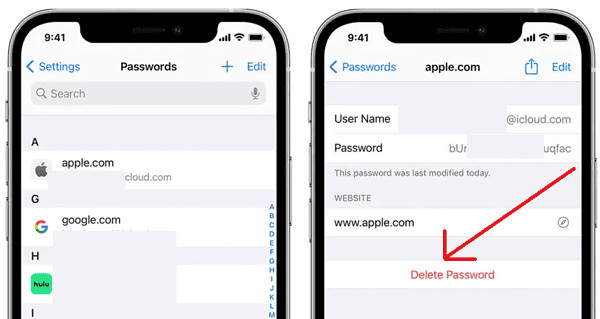
After completing these steps, the selected password will no longer be stored on your iPhone, helping you maintain better control over your personal information.
Conclusion
Managing your iPhone security does not need to be difficult. You can turn off a passcode you remember, recover access if you are locked out, or verify your Apple ID when required. You can also clean up saved login details to protect your privacy. Knowing when and how iPhone delete passwords helps keep your device secure and easier to use.
Samuel specializes in password security and digital privacy. He used to work as a cybersecurity consultant for small businesses to protect digital assets. With certifications in Cybersecurity and Ethical Hacking, he turns complex security topics into easy-to-follow advice. He also enjoys sharing password tips to help users protect their accounts more confidently.
Hot Solutions
-
Unlock iOS
-
iOS Tips
-
Unlock Android
-
Password Tips


