



 Solution
 Support Center
 About Us
 Contact
Bypass Login Windows 11 Screen: 4 Effective Solutions
 Samuel Spenser Published on December 11, 2025Windows Password3-min reading
Are you having trouble logging into your Windows 11? Is your password not working? Do you see the login screen but cannot get in?
Do not worry! In this article, we will show you how to bypass the Windows 11 login screen. We will give you four ways to do it. So, keep going, and you will be able to access your Windows system again.

In this article:
Way 1: Bypass Windows 11 Login Screen via a Pro Tool
If you need to bypass the Windows 11 login screen, a pro tool can make it easy. The tool is called imyPass Windows Password Reset. It is designed to manage Windows password and account problems. Whether you forgot or lost your password, or you cannot log in for another reason, it can help.
But note that it only supports Windows 11 if BitLocker is turned off before locking. Overall, it is safe to use and 100% working.
First, install the imyPass Windows Password Reset on a computer you can access easily.
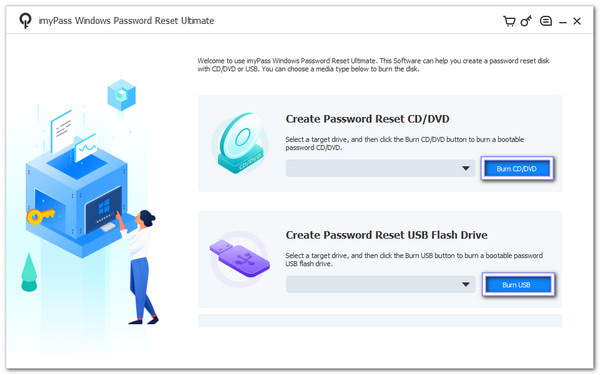
As you can see on the interface, you have two options to create a bootable disk.
• If you want to use a CD/DVD, choose your ROM drive and click Burn CD/DVD.
• If you want to use a USB, select your USB drive and click Burn USB.
Once the process finishes, remove the bootable medium carefully.
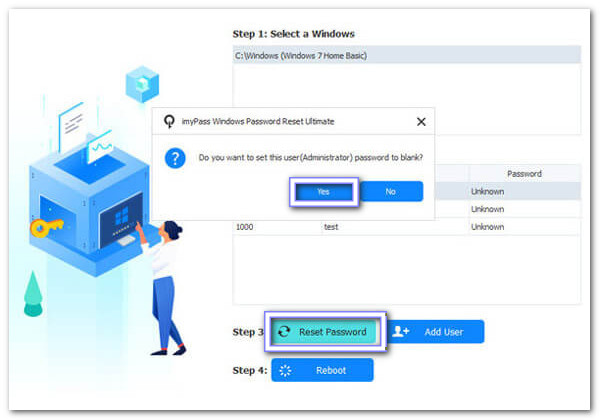
Insert the bootable CD/DVD or USB into the locked computer. Please turn on the computer and make sure it boots from the medium. The program will load automatically. Then, select your Windows operating system and choose your account. After that, click the Reset Password button and enter a new password.
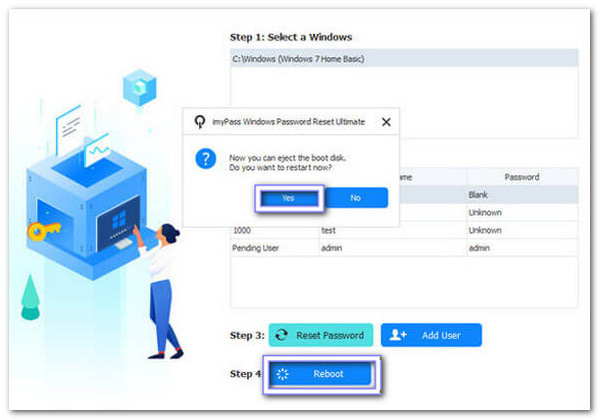
After resetting, click the Reboot button. Then, remove the bootable medium and restart your computer. It will now boot normally into Windows 11. What you need to do now is sign in using the new or updated password you just created.
Congratulations! You have successfully bypassed the Windows 11 login screen using imyPass Windows Password Reset. Just remember to keep your bootable medium safe for future use or if you ever forget your password again.
Pros
- You can reset your password using a CD/DVD or USB drive.
- Safe to use; it will not erase or change your data.
- Works with many brands: HP, Dell, Lenovo, Acer, Asus, Toshiba, Sony, Samsung, etc.
- You can also use it to bypass Windows 10 password, as well as 8.1, 8, 7, etc.
Cons
- It is paid, but it comes with a 30-day money-back guarantee.
Way 2: Bypass Windows 11 Login Screen with Command Prompt
You can also bypass the Windows 11 login screen using Command Prompt. However, it is tricky. You need to type commands carefully. If you make a mistake, your system may not work properly. It also needs admin rights, so not everyone can use this. This method is good for tech-savvy users who understand commands.
Run the Start menu, enter cmd, then right-click on Command Prompt and pick Run as administrator. It gives you full permission to run commands.
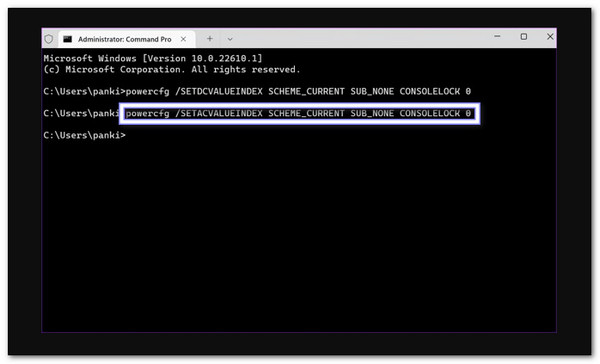
Type this command: powercfg /SETDCVALUEINDEX SCHEME_CURRENT SUB_NONE CONSOLELOCK 0 and press Enter. It helps you skip the login screen when your laptop runs on battery.
To do the same when your computer is plugged in, type this command: powercfg /SETACVALUEINDEX SCHEME_CURRENT SUB_NONE CONSOLELOCK 0 and press Enter. Now, your computer will skip the login screen whether it is on battery or charger.
Restart your computer. After it turns on, it should go directly to your desktop without asking for a password.
Pros
- Can check and repair corrupted system files.
- Uses tools already in Windows, so you need no extra applications.
Cons
- Mistyped commands can cause system errors or data problems.
- It is technical and hard for users who do not know commands.
Way 3: Bypass Windows 11 Login Screen via Another Admin Account
Think of having two admin accounts on your computer. If you forget your password, you can use the second account to bypass the Windows 11 login screen. Just log in to that account, go to settings, and change the password of the locked account. This method is simple and quick. However, you need access to the second admin account first.
Log in to another administrator account on your computer. You need access to an account with admin rights.
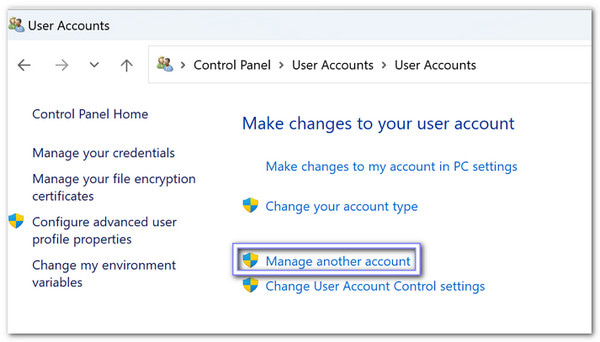
Open the Control Panel from the Start menu. Then, look for User Accounts and click Manage another account. It shows all user accounts on your computer.
Now, please select the account you want to bypass. After that, click Change the password.
Enter a new password and a hint you remember. Hit Change password to finish. This way, the account no longer needs the old password at login.
Pros
- Keeps user files intact when done properly.
- It is fast if you already have access to the admin account.
Cons
- It will not help if every admin account is also locked.
- You must have legal permission to use the other admin account.
Way 4: Bypass Windows 11 Login Screen with a Pre-created Disk
A password reset disk is a special USB or CD you prepare before you forget your password. It has files that help you reset your password easily. If you get locked out, just connect the disk, follow the steps, and create a new password. This method is handy but needs planning, so you can bypass the login screen on Windows 11.
Turn on your computer and enter a wrong password at the login screen.
When you see the Reset password option, connect your password reset disk to your computer.
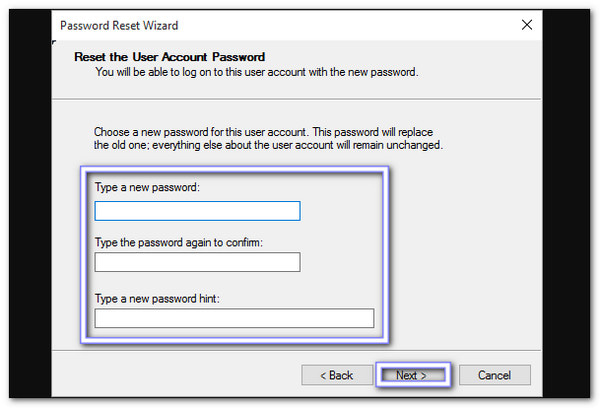
Choose the disk in the Password Reset Wizard. It will guide you through resetting your password.
Enter a new password you can remember, along with a hint. After that, click Next and then Finish to complete the process. Now, you can log in with the new or updated password without trouble.
Pros
- It is an official Windows feature and is easy to follow.
- Works offline, so you do not need internet access.
- It also works to bypass the Windows 7 password.
Cons
- If the disk is lost or damaged, it becomes useless.
- It cannot be created after you are already locked out.
Conclusion
When you want to bypass the login screen on Windows 11, the best way is to use a professional program, like imyPass Windows Password Reset. As shown above, it can remove the password so you can get into your computer without logging in.
Of course, if you do not want to use a third-party program, you can rely on the other solutions mentioned. Remember, bypassing the Windows 11 screen is possible, but it is essential to do it carefully.
We hope this write-up helps you get into your Windows 11 system smoothly. We love to hear your experience in the comment section!
Samuel is a senior editor from imyPass. He is an expert on password unlocking. He has over five years of experience writing tutorials on phone unlocking.
Hot Solutions
-
Windows Password
-
Windows Tips
-
Fix Windows
-
Password Tips


