Solution
 Support Center
 About Us
 Contact
Unlock Your Windows PC with Ease: A Guide to Using PassFab 4WinKey
 Penny Warren Published on June 18, 2026Windows Password3-min reading
Locked out of your Windows PC? PassFab 4WinKey could be your solution. This tool promises to help you reset or remove your password quickly and easily. In this review, we'll explore its key features, safety, pricing, and how to use it step by step, so you can decide whether it's the right tool to unlock your locked computer.

In this article:
What is PassFab 4WinKey?
PassFab 4WinKey is a powerful Windows password reset tool that helps you regain access to your computer if you've forgotten your password. It allows you to remove or reset your Windows password by creating a password reset disk using a USB drive, CD, or DVD. This way, you can bypass the Windows login screen and access your system without reinstalling the operating system, all while keeping your personal data safe.
Compabality
PassFab 4WinKey supports password reset on the following Windows versions:
Windows 11, Windows 10, Windows 8.1, Windows 8, Windows 7, Vista, XP (32-bit/64-bit), Server 2019, 2012, 2008(R2), 2003(R2), 2000, SBS 2011.
System Requirements
- CPU: 1 GHz (32-bit or 64-bit) and above.
- RAM: 256 MB (1028 MB Recommended).
- Hard Disk: 200 MB free space and more.
- Drives: RAID/SCSI/SATA drives, and FAT16, FAT32, NTFS, NTFS5 file systems.
Key Features of PassFab 4WinKey
- 1.Offer an intuitive, simple, and user-friendly interface.
- 2.Supports resetting or removing passwords for all types of user accounts, including Windows admin passwords and user accounts.
- 3.Reset passwords for local Microsoft accounts on Windows 10 and 11.
- 4.Easily create a password reset disk using a USB drive and restore access without losing data.
Is PassFab 4WinKey Safe?
PassFab 4WinKey demonstrates that it is completely secure and does not compromise user privacy.
In our tests, we used PassFab 4WinKey on a Dell XPS 15 running Windows 10 and a HP Specter x360 running Windows 11. We encountered no security risks or malware during installation, and the software didn't interfere with system performance. It doesn't prompt you to install any unrelated programs.
We also recommend that you free download PassFab 4WinKey only from the official website to avoid any risks associated with cracked versions.
Compare Editions & Pricing of PassFab 4WinKey
Is PassFab 4WinKey free? No, it is a paid tool that offers various editions to suit different user needs. Each edition has different features, and the pricing details are listed below:
| Editions | Price (Month) | Features |
| Professional | $19.95 | Remove admin/local password |
| Enterprise | $39.95 | 1. Remove admin/local password 2. Remove domain admin/local password (for enterprise) |
| Ultimate | $59.95 | 1. Remove admin/local password. 2. Reset Microsoft account/ RAID Server user password. 3. Reset/Remove domain admin/local password & Create domain admin/local admin account (for enterprise). 4. Delete admin/guest account. |
User Reviews of PassFab 4WinKey
Here's what users are saying about PassFab 4WinKey:
"Not gonna lie, I thought this was another scam… but it actually worked. My laptop is unlocked, and I’m officially impressed."
"Needed quick access to my files and PassFab 4WinKey was the swift access giver. It's a must for productivity."
"I purchased the PassFab 4WinKey - Ultimate. Customer service was very nice, and although their product did not work for me, I was able to get a partial refund."
"I tried to crack an Excel password using the PassFab for Excel program. Even after running it for 10 hours, it failed to crack the password."
How to Use PassFab 4WinKey?
Download and install PassFab 4WinKey on a spare computer (not your locked PC). Launch the software and click Start Password Reset on the main interface.
Insert a CD/DVD or USB flash drive to create a bootable password reset disk. Click Start burning to proceed. Note that this will erase all data in your CD/DVD or USB drive, so make sure there is nothing important in it.
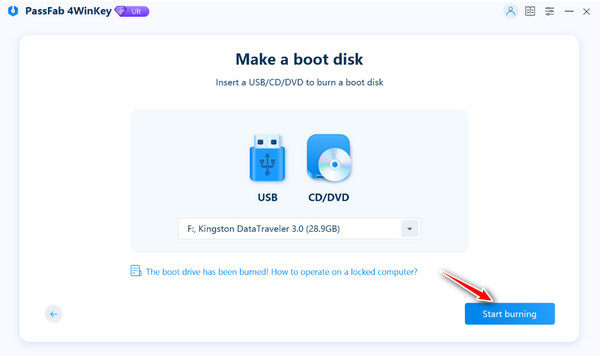
Select the device you inserted, then click Next to proceed. 4WinKey will create the bootable password recovery drive.
Follow the step-by-step tutorial to boot the locked computer. Insert the bootable USB, CD or DVD into the locked computer. Restart the computer and press F12 or ESC to enter the Boot menu.
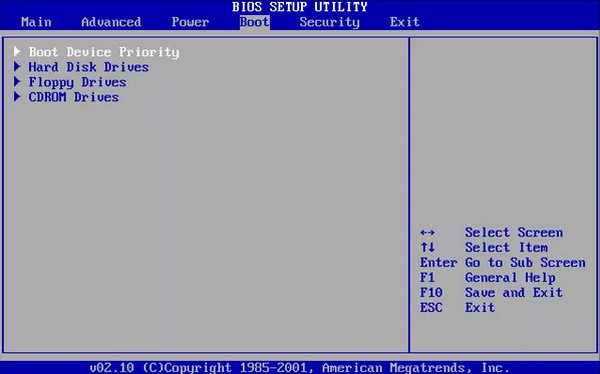
Use the arrow keys to find the name of your inserted disk. Press F10 to save and exit.
Once the BIOS settings are saved, your computer will restart, and the PassFab 4WinKey interface will appear. Select the operating system and click Next.
You can now see all the user accounts in the system. Choose the account that you want to unlock and select Remove Account Password or Reset Account Password, then click Next.
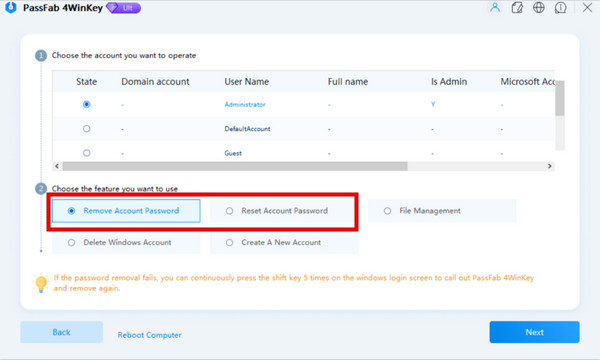
Follow the prompts to complete the removal. Once done, you should be able to access your computer.
An Alternative Way to Reset Lost Windows Password
If the method above doesn't work for you or you're looking for another option, there's an alternative way to reset your Windows password. imyPass Windows Password Reset can help you remove any admin, user, or Microsoft account password on a Windows PC without losing data. This easy-to-use tool also offers a 30-day money back guarantee, so you can try it risk-free.
4,000,000+ Downloads
Remove your lost or forgotten Windows login password.
Remove the admin, local, and Microsoft account passwords directly.
Create a new account without administrator permissions.
Compatible with almost all Windows versions and desktop brands.
Download and install the software on an available computer. Plug the empty DVD or USB flash drive into your computer to create a password reset disk.
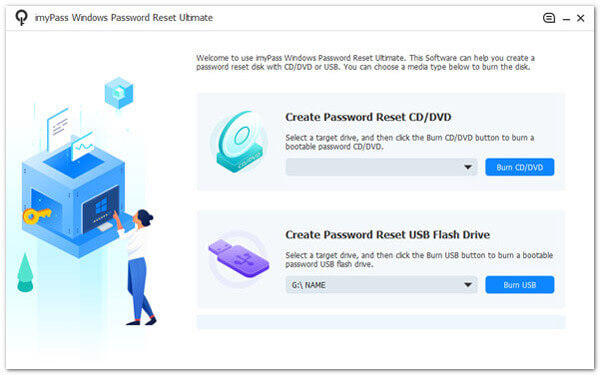
Insert the burned disk into your locked computer. Later, reboot your computer and press the F12 key or ESC to enter the Boot menu.
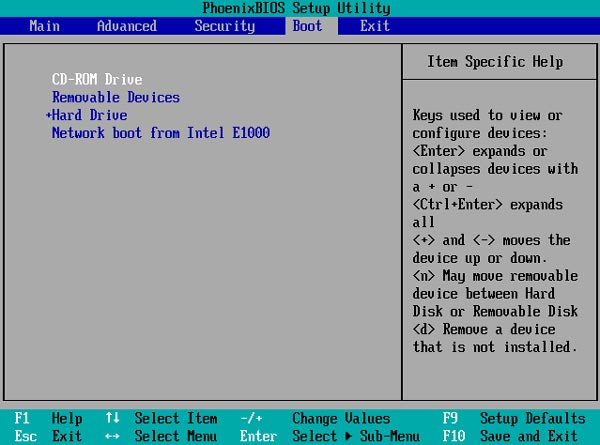
Use the arrow-down or arrow-up key to find your inserted USB drive or CD/DVD, then press Enter to proceed. Then save and exit the Boot menu.
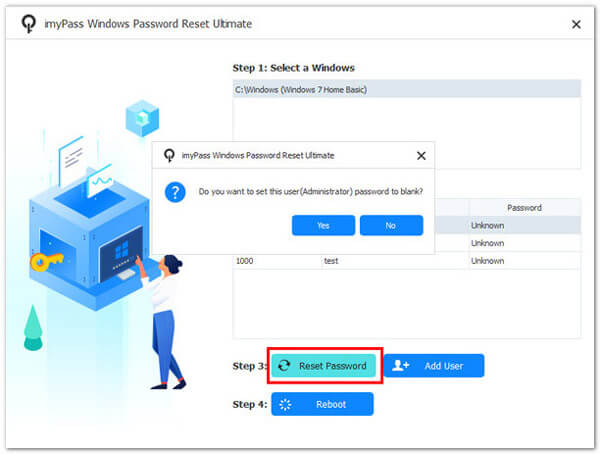
Select the operating system and choose a Windows account. Then, click Reset Password and hit the Enter button to confirm. Finally, eject your burned disk and reboot your computer.
Conclusion
We've shown how to use PassFab 4WinKey to unlock Windows accounts. You just need to create a bootable drive, boot your locked PC, and follow the prompts to remove the Windows password. If you're looking for an alternative password recovery tool, imyPass Windows Password Reset is also a solid choice. Which tool have you tried? Share your thoughts with us!
Penny focuses on GPS troubleshooting and Windows optimization. She formerly worked as a technical support engineer, helping clients solve location-based and system issues efficiently. Backed by IT support experience, she provides practical solutions that really work. In her free time, she likes hiking and geocaching, testing GPS tech in the real world.
Hot Solutions
-
Windows Password
-
Windows Tips
-
Fix Windows
-
Password Tips