



 Solution
 Support Center
 About Us
 Contact
How to Reset to Factory Settings on a Lenovo Laptop
 Penny Warren Published on January 09, 2026Windows Tips3-min reading
There could be various reasons if you want to know how to factory reset Lenovo laptop. Maybe your computer usually lags, has too many unauthorized files and applications, or runs into a system crash. You can reset your Lenovo to factory settings to solve all annoying problems.
This article tells you how to factory reset your Lenovo easily, whether you can or cannot access the desktop screen.

In this article:
Part 1: How to Factory Reset Lenovo Laptop on Windows 10 and 11
Suitable for: Have Windows password | Sell Lenovo laptop | Optionally keep personal files | Laptop runs into minor issues | Reinstall Windows
If your Lenovo laptop or computer is stable and crash-free, you can factory reset it with this method. This method is effective and effortless and rarely fails. Besides, if you want to sell your laptop and are wondering how to reset Lenovo laptop to factory settings, but still only delete apps and keep your files to export, we will also introduce how to operate at the end of this part.
Factory Reset Lenovo Laptop on Windows 10
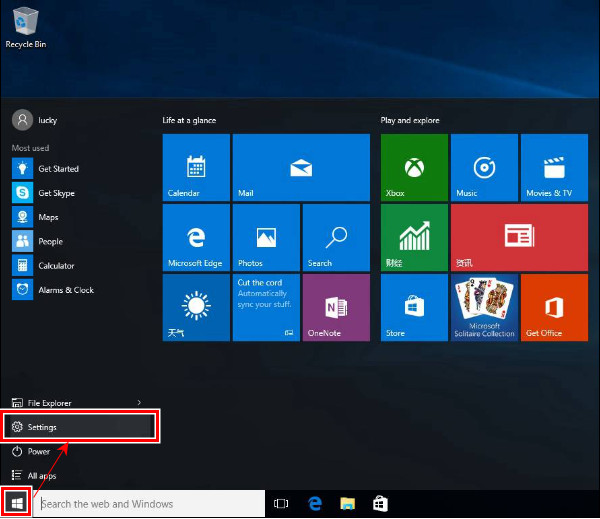
Enter your computer and click the Windows button in the bottom left corner. Select Settings.
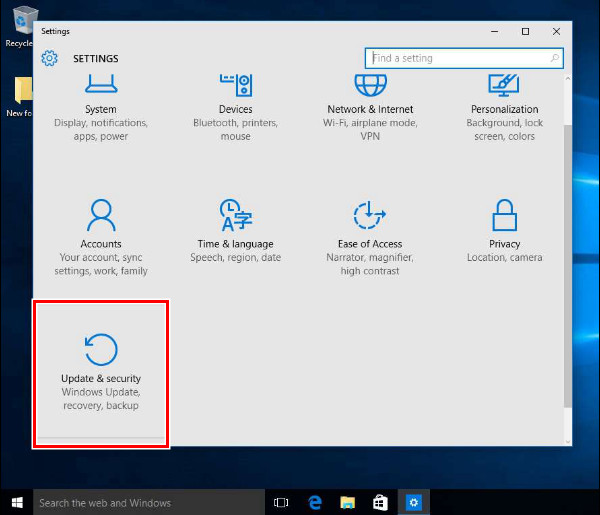
Scroll down and choose Update & Recovery at the bottom.
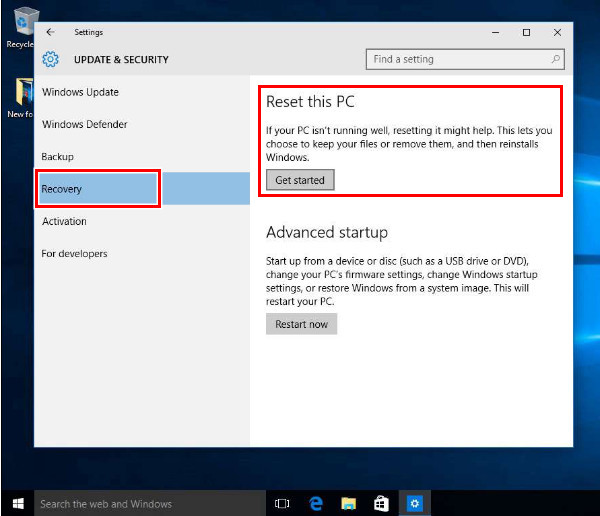
Click Recovery on the left menu, choose Reset the PC, and click Get started.
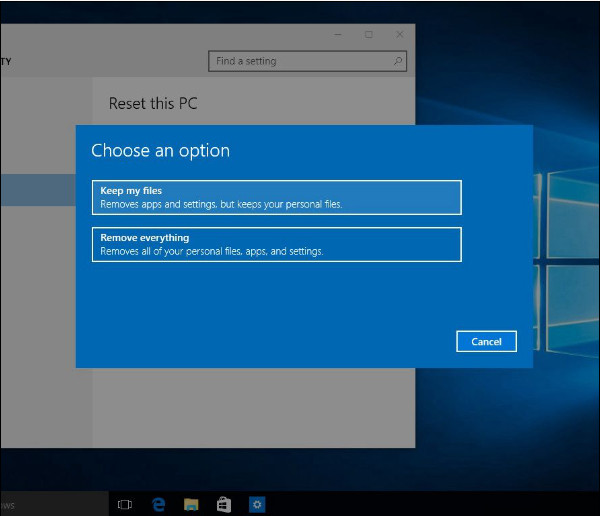
On the following screen, click Remove everything. Select one of the removal options: either Just remove my files or Remove files and clean the drive according to your situation.
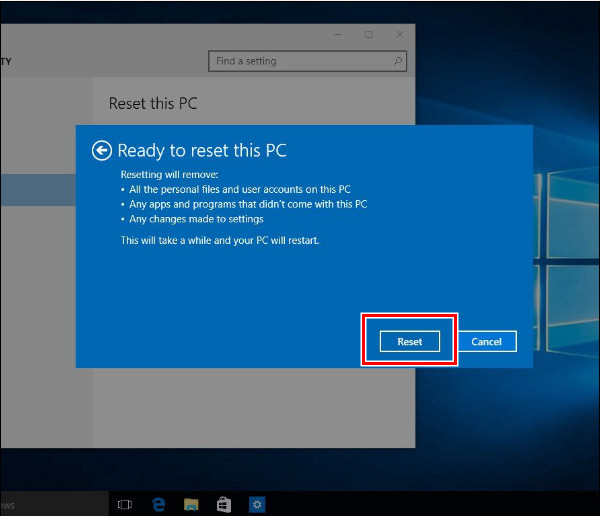
Confirm and click Reset, and the process will begin. The time varies for different resetting options.
Factory Reset Lenovo Laptop and Keep Your Files
How to hard reset Lenovo laptop but keep my files? This method hard resets your laptop and reinstalls Windows for you, but it will keep your files and uninstall all apps on your laptop.
The first three steps are the same as Factory Reset Lenovo Laptop on Windows 10. Therefore, let's show you this method from Step 4.
In Step 4, choose Keep my files instead of Remove everything. Then click Next and Reset to confirm.
Factory Reset Lenovo Laptop on Windows 11
How to factory reset Lenovo Laptop is slightly different from how to do that on Windows 10. Check the steps below to do that easily.
Click the Start button and select Settings.

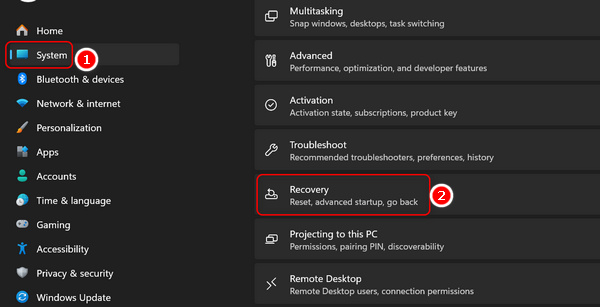
Click System on the left menu bar. Then, click the Recovery button.
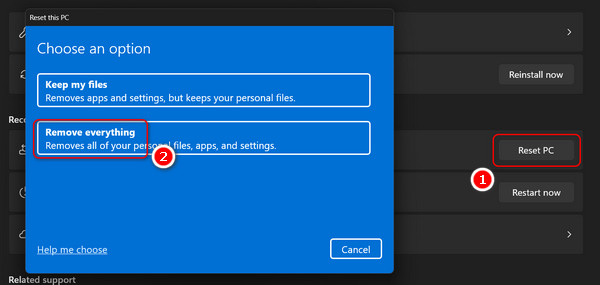
Click the Reset PC button, and then click the Remove everything button to factory reset your Lenovo laptop or computer.
Note:
If you want to reset your Lenovo computer while keeping all files, just select Keep my files.
Part 2. How to Factory Reset Lenovo Laptop without a Password [2 Ways]
Factory Reset Lenovo Laptop with imyPass Windows Password Reset
Suitable for: Factory reset | Without password | Without Administrator access| Without Novo button | Locked computer
How to factory reset Lenovo laptop without password? imyPass Windows Password Reset is a reliable third-party program that allows you to factory reset Lenovo laptops without a password or administrator access. No matter whether your Lenovo laptop is locked or black-screened, this program will help you get access to your computer again. In this case, you can reset your computer to factory settings.
4,000,000+ Downloads
Get into a locked Lenovo laptop without the forgotten password.
Bypass/reset/remove Windows password on Windows 7/8/10 Lenovo laptop.
Reset the Windows password without the current password.
Create a new Admin account without administrator access via CD/DVD or USB drive.
Support reset Acer laptops, Lenovo, Dell, HP, IBM, Sony, Samsung, ASUS, and more.
Let's see how to reset password on Lenovo laptop with this program if you forget your password. First, you must prepare a USB stick or a DVD to create a reset disk. After re-accessing your computer, you can reset the Lenovo factory from boot following the Part 1 instructions.
Create Bootable Disk
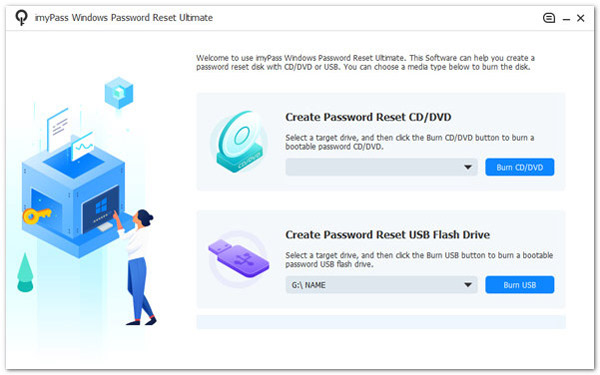
Download the program on an available computer. Plug in your blank USB or insert your blank DVD into the computer. Click Burn CD/DVD or Burn USB according to your disk. When the burning process is finished, take out your disk from this computer.
Boot Locked Computer
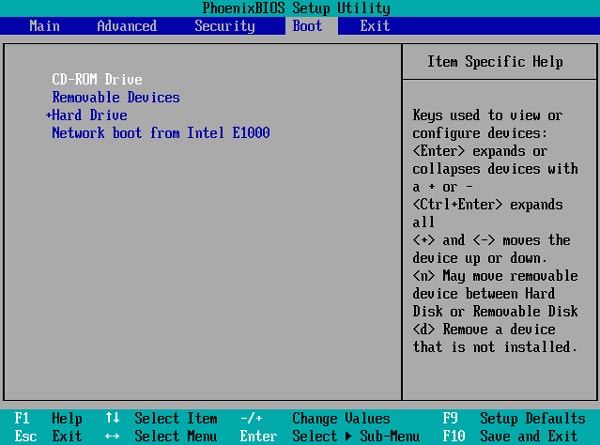
Now plug the bootable disk created on the available computer into your locked computer. Press F12 or Fn+F12 to enter the Boot Menu. Press arrow-down or arrow-up to select your disk. Press F10 or follow the instructions on the screen to save and exit.
Reset Windows Password
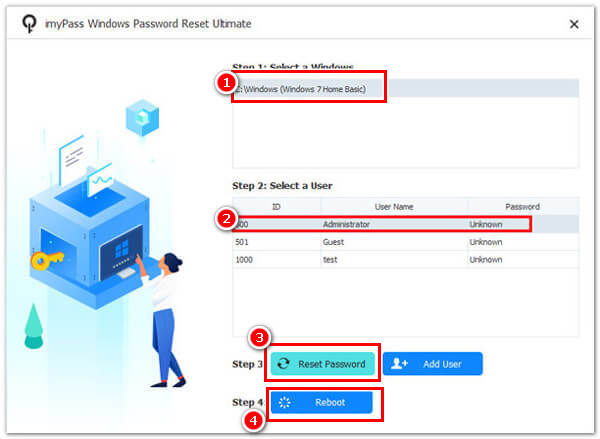
Choose the OS (if you have installed more than one on your computer) for which you want to reset your password. Select a user and click Restore Password. Wait for the process to be finished, then reboot the computer.
Note: This program resets your Windows password with a disk and keeps all your data as original if you can't log in to Windows 10. As mentioned, follow the Part 1 instructions in the article to reset the Lenovo notebook factory after you unlock your computer.
Factory Reset Lenovo Laptop via Troubleshoot
Suitable for: Factory reset | With Administrator access | Without password | Without Novo button
Trouble is another method for easily resetting your computer. The most essential thing is to have administrator access.
However, it is controversial whether you need to enter a password. Lenovo support claims that you have to do so, but some users proved they reset Lenovo laptop without password successfully. Moreover, some users on YouTube say their Lenovo laptops have been stuck at 70% for hours, and they have to interrupt the process. In a word, this method is polarizing. But it is still worth a try. Let's see how to factory reset a Lenovo laptop with Troubleshooting.
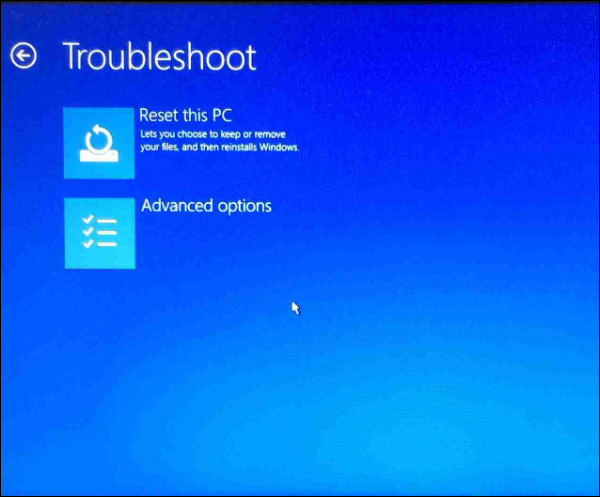
Press Shift and hold it. Start your computer. Release Shift until you see this screen. Click Troubleshoot.
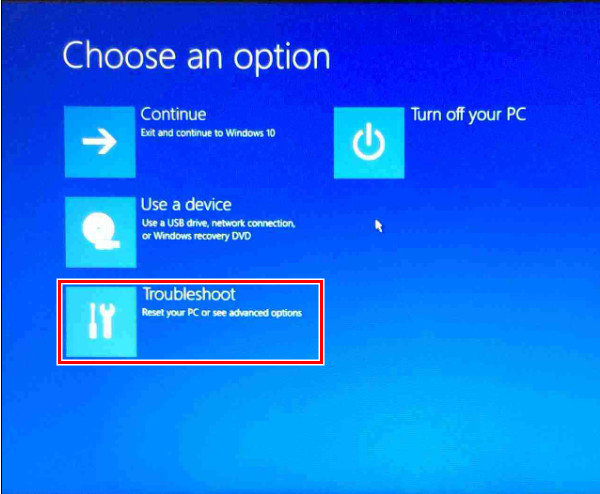
Click Reset the PC and then Remove everything.
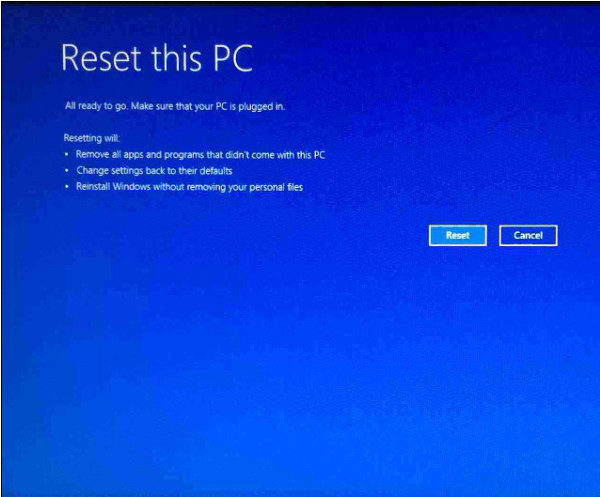
Click the Reset button to confirm to factory reset your Lenovo laptop or computer.
Part 3. How to Factory Reset Lenovo with a Novo Button
Best for: Factory reset Lenovo ThinkPad and IdeaPad | Without password | With Novo button
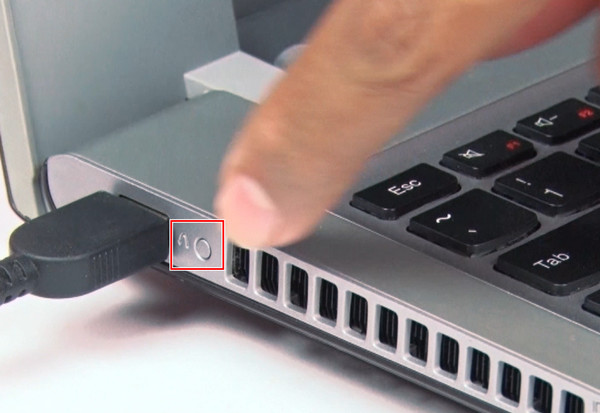
The Novo button is a Lenovo feature that efficiently enters system recovery without pressing complex shortcuts. It's usually in Lenovo ThinkPad and IdeaPad. So, let's see how to factory reset Lenovo IdeaPad or ThinkPad with a Novo button.
Press the Novo button, usually on the side of your computer or the margin of your keyboard.
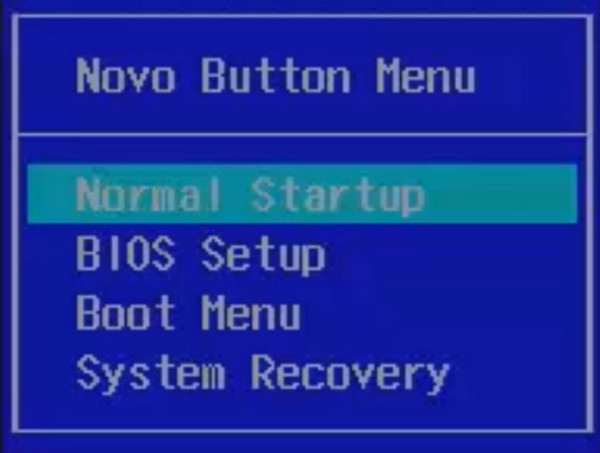
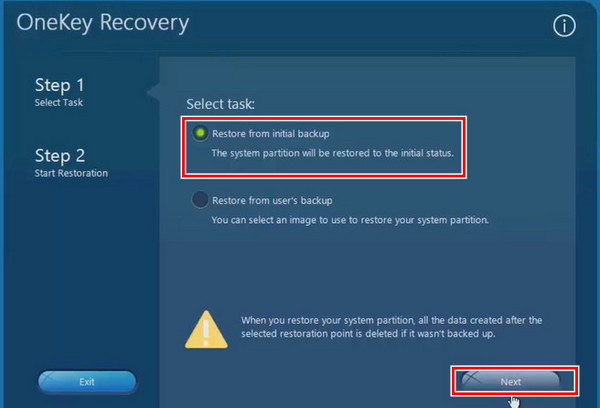
Select System Recovery by pressing the arrow down.
After loading files, select Recover from Initial Backup. Wait for the process to be done and click Done to reboot your computer. Then, you've factory reset your Lenovo ThinkPad or IdeaPad.
Conclusion
We illustrate 5 ways to factory reset Lenovo laptop on Windows 10, 11, and old ThinkPad and IdeaPad. In conclusion, if you have full access to your computer, you can easily reset or factory reset it. If you forget your password, try imyPass Windows Password Reset and the Troubleshoot feature on Windows 10 and 11.
Penny focuses on GPS troubleshooting and Windows optimization. She formerly worked as a technical support engineer, helping clients solve location-based and system issues efficiently. Backed by IT support experience, she provides practical solutions that really work. In her free time, she likes hiking and geocaching, testing GPS tech in the real world.
Hot Solutions
-
Windows Tips
-
Windows Password
-
Fix Windows
-
Password Tips


