



 Solution
 Support Center
 About Us
 Contact
Enter Administrator Password or Power On Password Explained
 Penny Warren Published on December 05, 2025Windows Password3-min reading
Have you ever wondered when the Enter Administrator Password or Power On Password exactly appears and why your computer asks for it? If you are curious, this write-up will explain it for you.
Moreover, you will also discover the difference between Power On Password and Windows Login Password, so you can know which password controls what. Please keep reading to find out simple ways to manage or reset them.

In this article:
Part 1: When Does "Enter Administrator Password or Power On Password" Appear
The "Enter Administrator Password or Power On Password" shows up right when the computer starts, before Windows, Linux, or any other system loads. It is part of the BIOS or UEFI, which runs first and controls the hardware.
Here are the situations when it appears:
1. Power-On Password is set: If someone sets a Power-On Password in the BIOS, the computer will ask for it as soon as it starts.
2. Administrator Password is set: Some computers allow an Administrator Password in BIOS to prevent unauthorized access.
3. School or company devices: Schools and companies often set BIOS passwords on their computers.
4. Second-hand computers: If you bought a used computer, the previous owner may have set a BIOS password.
5. Restart or power off/on: The message will appear every time the computer is restarted or turned off and on, as long as the BIOS password is active.
Part 2: Why Does "Enter Administrator Password or Power On Password" Appear
This "Enter Administrator Password or Power On Password" message appears because a BIOS or UEFI password was set. It will never appear randomly or by mistake.
Here are the reasons it can happen:
1. User set it: The owner may have added a password to prevent others from turning on the computer or changing settings.
2. School control: Schools often set BIOS passwords to prevent students from using the computer without permission or changing settings.
3. Company protection: Companies set BIOS passwords to protect sensitive work data and control access to work devices.
4. Second-hand computers: If you never set a password, the computer may have been used before. The previous owner could have set a password that is still active.
5. Refurbished or older computers: Some older or refurbished laptops may still have leftover BIOS passwords that were never removed.
Part 3: Find Administrator Password or Power On Password
If you forget your administrator or power-on password, you cannot "find" it because of security rules. But you can reset it using built-in recovery tools or by contacting the manufacturer. Here is a guide on how to remove or reset an administrator password or power-on password safely for each type of password:
1. Windows Administrator Password
You can reset your Windows password using recovery tools or Safe Mode.
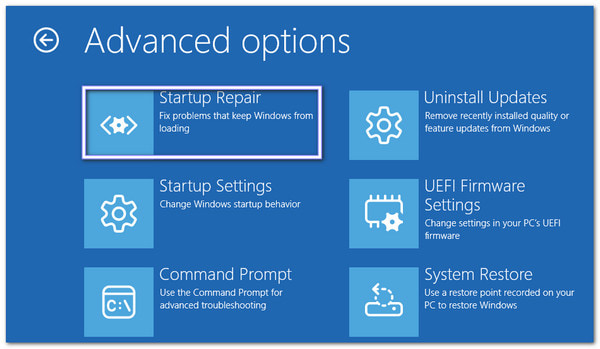
Using Windows Recovery Environment (WinRE):
Restart your computer. Please turn it off when you see the Windows logo three times to enter WinRE.
Head to Troubleshoot > Advanced options > Startup Settings and click Restart.
Press 4 or F4 to boot into Safe Mode.
Log in with a default administrator account (sometimes it has no password).
Open the Control Panel to reset your main admin password.
Using Command Prompt (if you have another admin account):
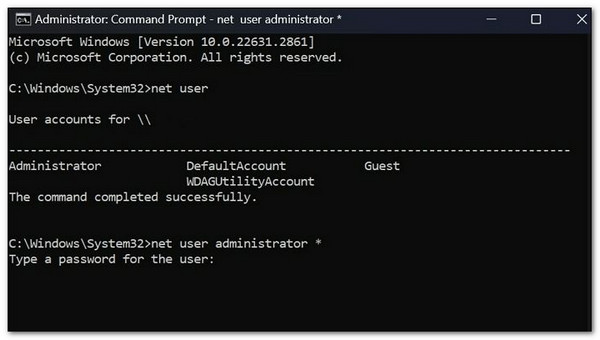
Open Command Prompt as administrator.
Type net user and click Enter to see all user accounts.
Type net user [username] * to clear the password for that account.
2. Power-On (BIOS) Password
If your computer asks for a password before Windows starts, you need to reset it differently.
Contact the Manufacturer:
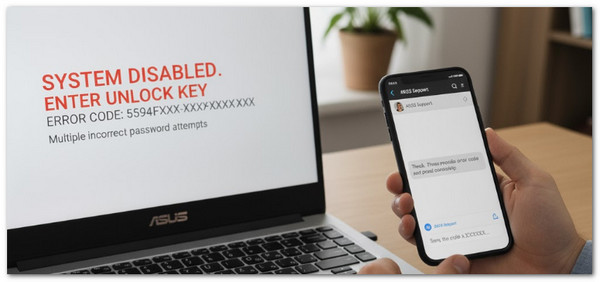
Please turn on the computer, and when it asks you to enter the administrator password or power-on password on HP, type a wrong password several times.
Record the error code that shows.
Contact the computer's support and give them the code plus proof of ownership. After that, they can give you a one-time unlock code you can use.
Resetting the CMOS:
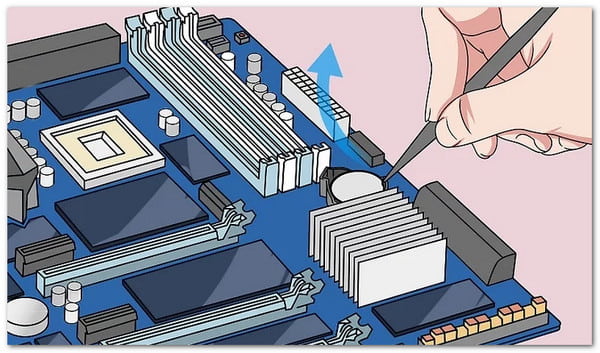
Please turn off the computer and unplug it.
Open the case and find the small, round CMOS battery on the motherboard.
Carefully remove the battery, and please wait a few minutes.
Put the battery back. It will reset the BIOS and remove the password.
Part 4: Power On Password VS Windows Login Password
When it comes to computer security, passwords play different roles depending on when and where they are used. Two important types are the Power-On (BIOS) password and the Windows login password. They protect your computer at different levels, and knowing the difference helps you select the right method to regain access if you forget a password.
| Feature | Power On Password | Windows Login Password |
| When it appears | Right when you turn on the computer, before Windows loads. | On the Windows login screen, after the computer has booted. |
| What it protects | The whole computer, stopping anyone from even starting it. | Only your Windows account and files, not the hardware. |
| Level of security | Hardware/firmware-level security (BIOS/UEFI). | Software-level security (Windows OS). |
| Purpose | It prevents unauthorized users from powering on or accessing the computer. | It prevents unauthorized users from accessing your Windows account and data. |
| How to reset | You can contact the manufacturer with the error code or reset the CMOS battery. | You can use Windows Recovery Environment (WinRE), Safe Mode, or third-party tools. |
| Effect if forgotten | The computer may not boot or remain locked at startup. | You can power on the computer, but cannot log in to the Windows account. |
If you are having a hard time finding the admin or power‑on password, the normal fixes can feel long and confusing. You may not know the steps or tools to use. Fortunately, imyPass Windows Password Reset makes Windows lockouts easy. It helps you reset or recover a Windows login password fast.
You can use it when you lose or forget your Windows password, have a second‑hand computer with a password, forgot the admin password, or want to make a new account without admin access. Another thing is that it offers two ways to reset, and that is via CD/DVD or via USB flash drive. Remember to only use it on your own computer or with the owner's permission.
Beginner's Guide:
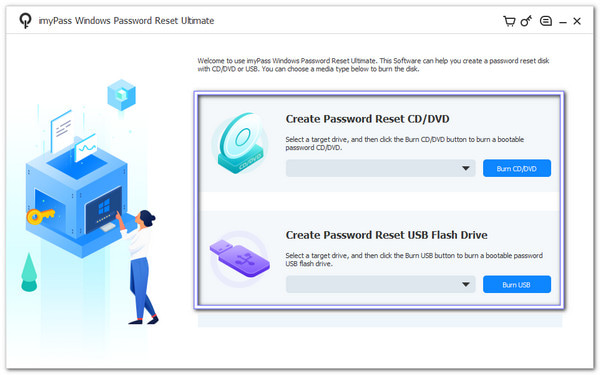
Have imyPass Windows Password Reset installed on a working computer. Once installed, open the program to get started.
Pick Create Password Reset CD/DVD or Create Password Reset USB Flash Drive. Insert a blank disc or a USB drive. Choose it in the drop-down and click Burn CD/DVD or Burn USB. After that, please wait for the burn to finish.
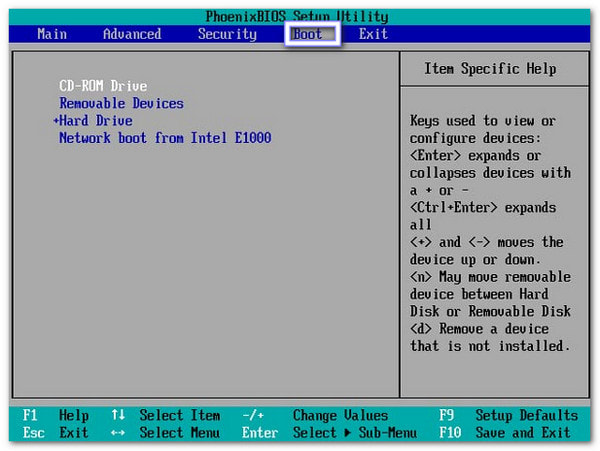
Put the CD/DVD or USB into the locked computer and turn it on. If it does not start from the media, enter the Boot Menu and pick the disc or USB, depending on your choice, as the first boot device.
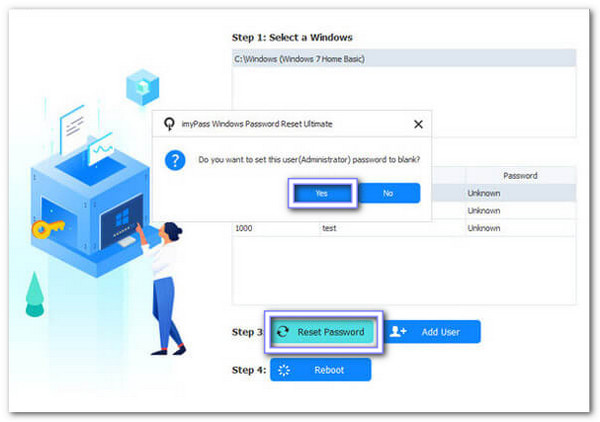
Once the program window appears, choose the locked user. Then, click Reset Password and enter a new password. You can also click Add User to make a new admin account. Finally, click Reboot, remove the media, and sign in with the new password or account.
imyPass Windows Password Reset lets you reset your Windows 11 password, or any other Windows version, without losing your data. If you need to regain access quickly, try it now and enjoy a fast, reliable, and safe solution.
Conclusion
You have learned when and why the Enter Administrator Password or Power On appears. It is essential to know because it protects your computer from unauthorized access.
You also learned the difference between Power On Password and Windows Login Password, so you know which password controls what.
Also, we introduced imyPass Windows Password Reset as a program that offers a fast and easy way to reset or recover a Windows login password. Try it now for a safe and quick solution to get back into your account.
Penny is a senior editor from imyPass. She has focused on discovering perfect GPS location solutions in all scenarios, and also has experience in fixing computers.
Hot Solutions
-
Windows Password
-
Windows Tips
-
Fix Windows
-
Password Tips


