



 Solution
 Support Center
 About Us
 Contact
How to Remove Sign-In Password on Windows 10 [Safe]
 Penny Warren Published on January 16, 2026Windows Tips3-min reading
When using a computer daily, the login password in Windows 10 is meant to protect privacy and security. However, for many users who use their computers alone, having to enter a password every time they start the computer can become a burden. If you want to make your computer start faster and more conveniently, learning how to remove the password from Windows 10 can be a small trick that significantly improves operational efficiency.

In this article:
Part 1. Remove Windows 10 Password Through Settings
If you can still log in to your computer normally, then removing the password through system settings is the most straightforward method. This is also a safe way to learn how to remove the sign-in password in Windows 10 without using any additional tools.
In Windows 10, Microsoft allows users to customize the login experience, and you can easily turn off the password login feature through the 'Accounts' settings. Here are the specific steps:
Press the Windows + I shortcut to open the Control Panel, then select Accounts.
In the left-hand menu, click Sign-in options and find the Password section.
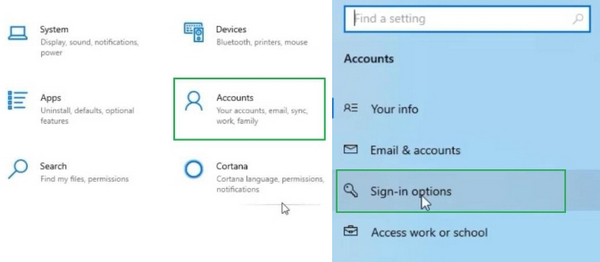
Click Change, enter your current password, and click the Next button.
The system will prompt you to enter a new password. At this point, leave all three input fields blank, then click Next.
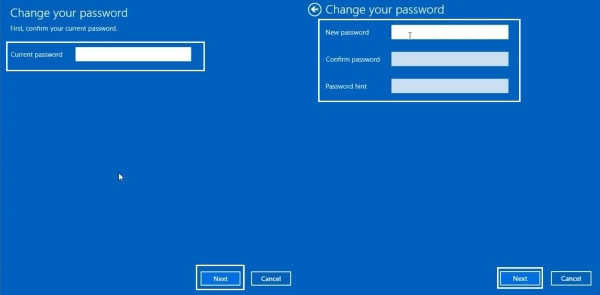
Once completed, your account will no longer require a password to log in.
If your device is mainly used at home or in a personal environment, this method can save login time without affecting daily operations. However, suppose multiple people share the computer. In that case, it is recommended to change the Windows username and use alternatives such as a PIN or picture password to prevent others from accessing your data.
Part 2. Remove or Reset Windows 10 Password Without Logging In
When you forget your login password and cannot access the system, there is no need to rush to reinstall it. In fact, you can still safely remove a password on Windows 10 using professional tools. In this case, the most practical solution is to use imyPass Windows Password Reset, a password reset tool specifically designed for Windows users.
4,000,000+ Downloads
Can be operated without logging into the system.
Supports all mainstream Windows systems, including Windows 10, 8, 7, etc.
Can be booted via multiple methods, such as USB or CD/DVD, offering flexible operation.
100% safe, will not delete files or damage system data.
To figure out how do I remove a password on Windows 10 without logging in, first install the latest version of the software. You can directly click the Free Download button above to install it.
After launching the software, insert an empty USB or CD/DVD and click Create Boot Disk. The system will automatically write the program to the device, and once completed, it can be used to boot the locked computer.
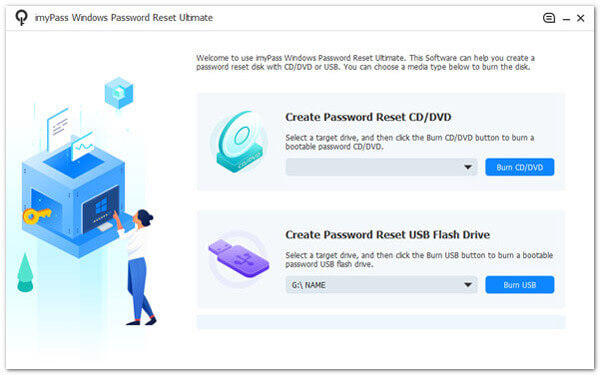
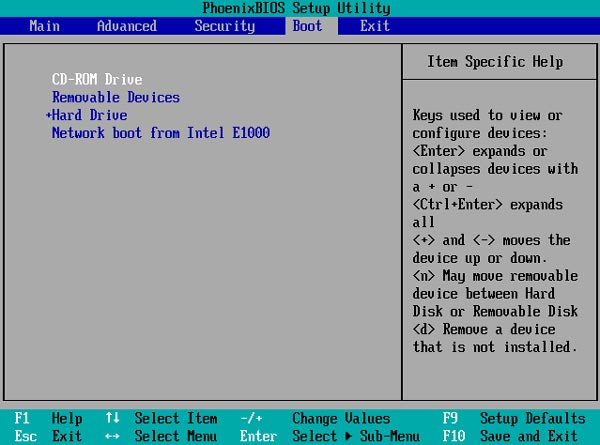
Insert the boot disk into the locked computer and then restart the device. During startup, continuously press F2, F12, ESC, or DEL (depending on the computer brand) to enter the Boot Menu.
- Find the Boot or Boot Priority option
- Select the boot device containing USB or CD/DVD; you can use the up and down keys on the keyboard to choose
- Save the settings and exit (usually by pressing F10)
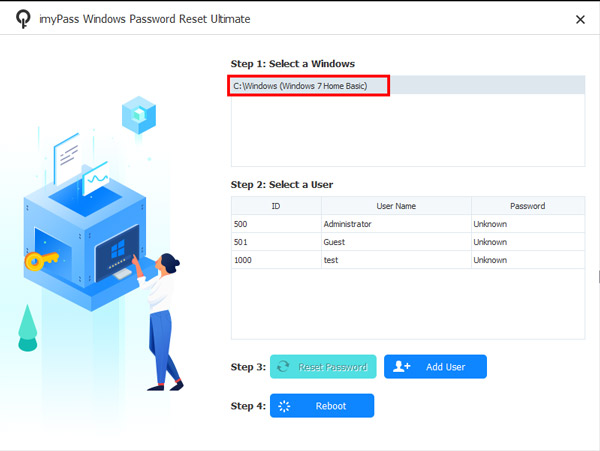
The system will automatically boot from the device and load the imyPass interface. In the interface, select your Windows system and account.
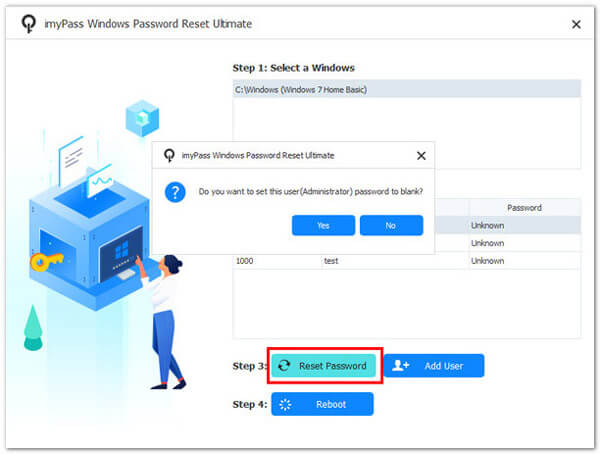
Click Reset Password, and imyPass will remove the password from Windows 10 within seconds, without reinstalling the system.
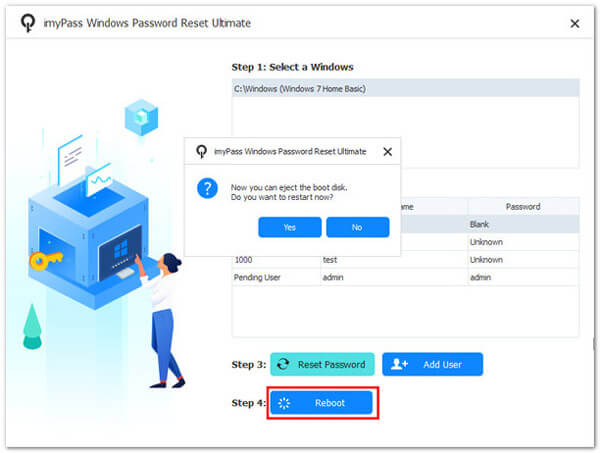
After completion, remove the boot disk and restart the system. You will find that Windows can now be entered without a password.
This tool can quickly resolve access issues caused by forgetting the Windows 10 password. It can easily unlock both local accounts and administrator accounts. If you often need to maintain computers or provide technical support to others, imyPass Windows Password Reset is also a very useful emergency tool to have installed.
Part 3. Remove Windows 10 Password Using User Account Tool
If you can still access the system but want a quicker way to remove the password from Windows 10, you can try using Windows' built-in User Account Tool. This method is simple to use, requires no additional software, and is suitable for users who want to manage account settings manually.
Press the Windows key and R, type netplwiz or control userpasswords2, and then press Enter.
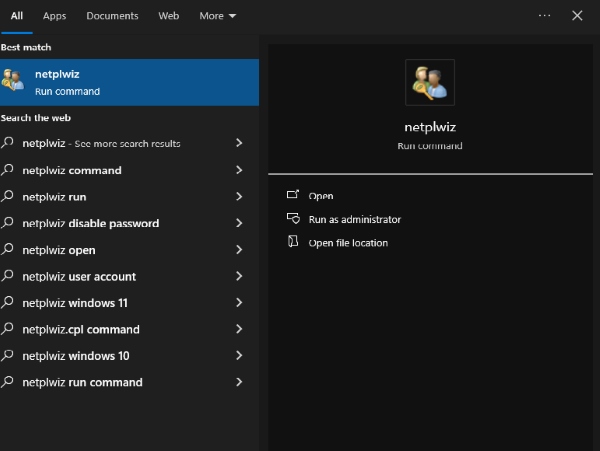
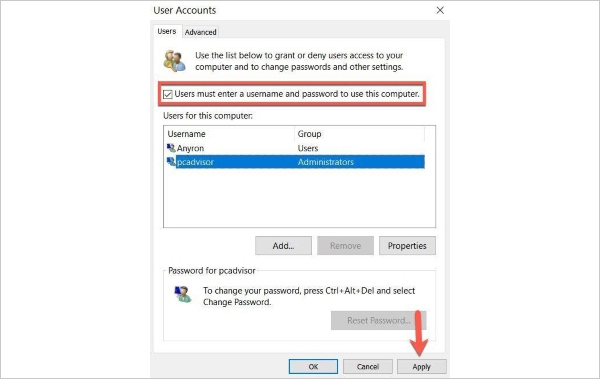
You will see all user accounts on the current computer. Uncheck the box that says Users must enter a username and password to use this computer, and click the Apply button.
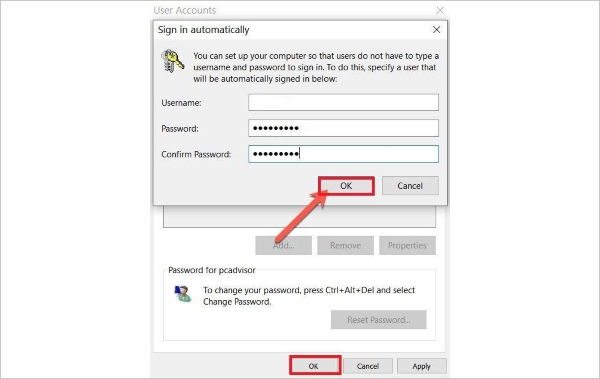
The system will prompt you to enter the username and password of the current account to verify your identity. After that, click OK.
After restarting, the system will log in automatically without requiring a password.
The biggest advantage of this method is that it does not require changing the system security policy and will not affect other functions of the computer. However, please note that if important files are stored on the computer, it is recommended to set up BitLocker or enable automatic screen locking before removing the login password on Windows 10 to ensure information security.
Part 4. Remove Windows 10 Password via Computer Management
For users familiar with system operations, Computer Management provides a more professional way to modify or delete account passwords. As long as you have administrator privileges, you can easily remove the login password in Windows 10.
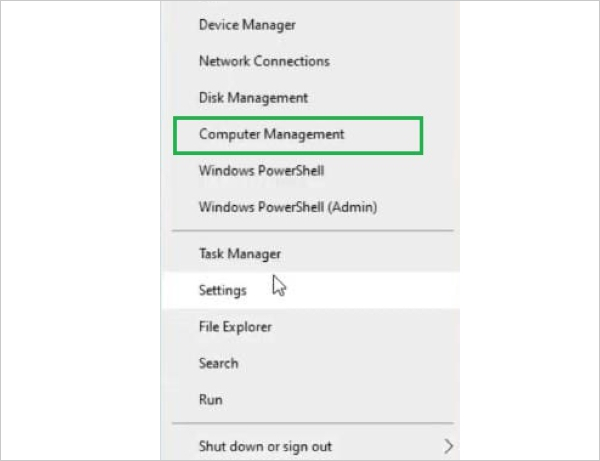
Right-click on This PC on the desktop and select Manage. You can also press Windows + X and choose Computer Management.
From the panel on the left, open System Tools, go to Local Users and Groups, and then choose Users.
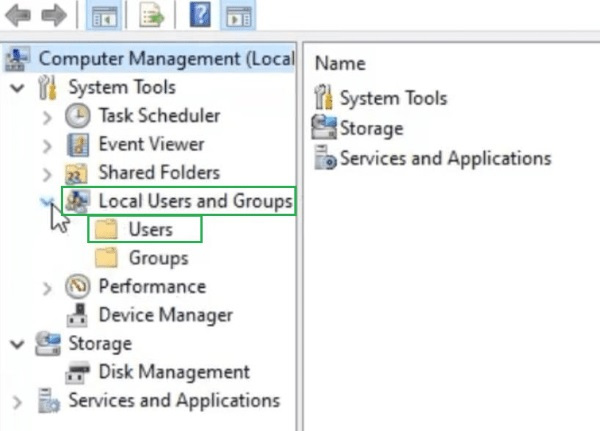
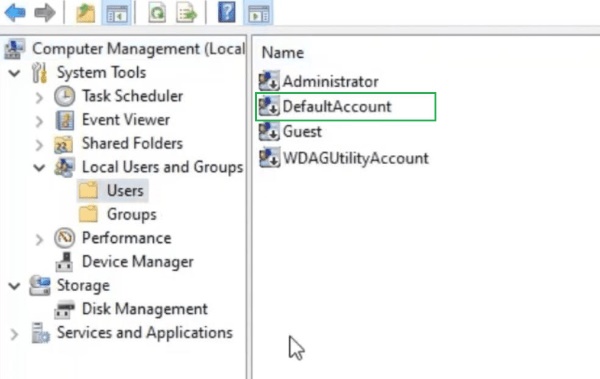
Find the account for which you want to change the password, right-click on it, and select Set Password.
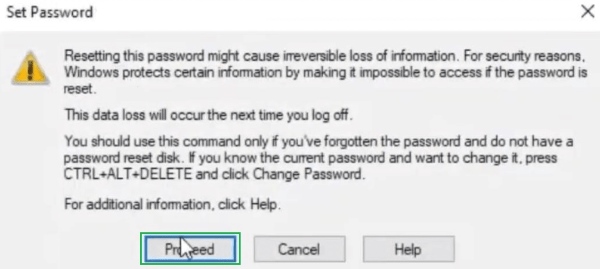
The system will warn that changing the password might cause data loss, mainly for encrypted files or stored credentials. Click Proceed to continue.
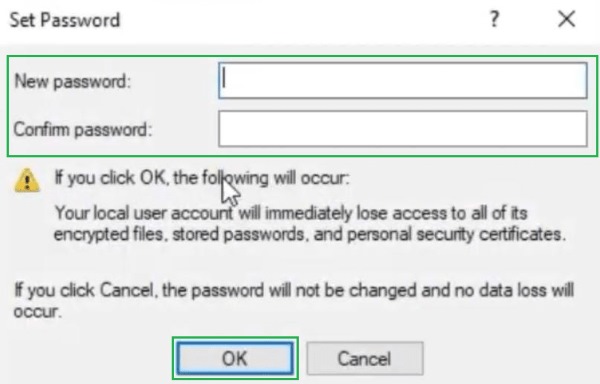
In the pop-up window, leave the new password field blank, then click OK. This will complete the deletion process.
In this way, you can quickly remove the password from Windows 10 while maintaining the integrity of the system. This method is especially suitable for corporate administrators or shared home computers, as it can improve management efficiency and quickly restore access when needed.
Conclusion
Whether you want to speed up startup or deal with the hassle of forgotten passwords, knowing how to remove sign-in password in Windows 10 can make using your computer more efficient. If you want to easily solve problems even when you can't log into the system, imyPass Windows Password Reset is the best choice. With this tool, you can balance convenience and system security, ensuring every startup is smooth and worry-free.
Penny is a senior editor from imyPass. She has focused on discovering perfect GPS location solutions in all scenarios, and also has experience in fixing computers.
Hot Solutions
-
Windows Tips
-
Windows Password
-
Fix Windows
-
Password Tips


