



 Solution
 Support Center
 About Us
 Contact
How to Combine Two Apple ID Accounts on iPhone/iPad
 Clara Prescott Published on June 24, 2026iOS Tips3-min reading
While the Apple ID is crucial in Apple's ecosystem, you can create more than one account. In fact, some users have multiple Apple IDs, especially for multi-device owners. It is well known that purchased content, services, and subscriptions are associated with Apple IDs. If you have more than one account, you may wish to combine Apple IDs. This article answers whether you can have multiple accounts and merge them.

In this article:
Part 1. Can You Have Multiple Apple IDs
Can I have two Apple IDs? The answer is simple: yes. In fact, Apple doesn't limit the number of accounts for each user. You can sign up multiple Apple IDs with your email addresses and Apple IDs. If you have more than one Apple device, you can log in with one account on each device. Plus, Apple allows you to use two Apple IDs on an iOS device, one for your services and the other for the App Store.
Part 2. How to Combine Apple IDs
You can have multiple Apple IDs; however, the downside is that you have to switch accounts to access different content. According to our research, Apple doesn't allow users to merge Apple ID accounts. Fortunately, you can merge purchases.
The Content You Can Merge
- 1.Apps and games, including in-app purchases and active subscriptions.
- 2.Music and playlists in your Apple Music and iTunes Store.
- 3.Movies and TV shows purchased from the iTunes Store or Apple TV.
- 4.Books and audiobooks purchased from Apple Books.
- 5.Your podcasts and subscriptions.
The content won't be transferred include Apple Cash, iCloud backups, and app-specific login credentials.
Preparation for Apple ID Combination
- 1.Make sure both your Apple ID accounts are set to the same country or region.
- 2.Both accounts must set up Two-factor Authentication.
- 3.If the secondary Apple ID is part of a different Family Sharing group, quit it.
- 4.To avoid data loss, back up your data to a computer.
How to Merge Two Apple IDs
Turn on your iPhone or iPad and open the Settings app.
Tap on your profile and choose Media & Purchases.
Choose the View Account option on the dialog.
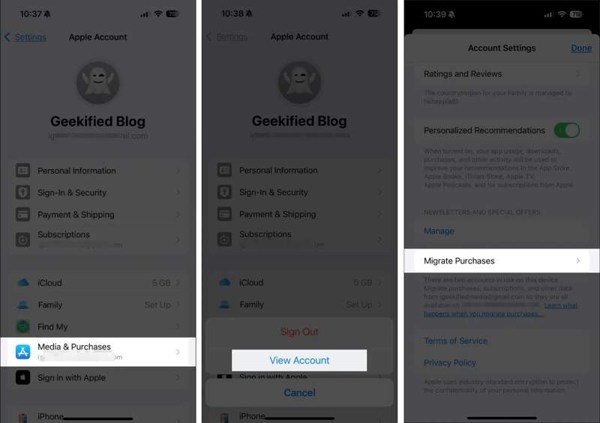
Tap the Migrate Purchase option.
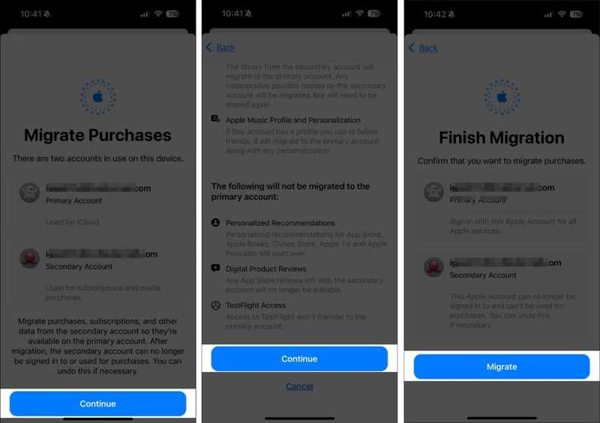
Enter your current Apple ID password when prompted.
Check the two Apple IDs associated with your device, and tap Continue.
Read the message and tap Continue to proceed.
Check your accounts again and tap the Migrate button.
Now, back to the Settings app.
Tap on your profile and choose Media & Purchases.
Choose Sign Out on the pop-up and confirm it.
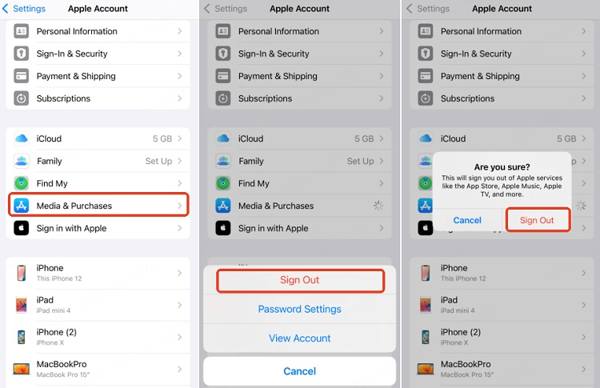
Finally, log in to the primary Apple ID for Media & Purchases.
Related Readings:
Part 3. Bonus Tip: How to Remove Old Apple ID from iPhone Without Password
Merging Apple IDs requires your Apple ID passwords. If you forgot either password, you have to use imyPass iPassGo to remove your accounts quickly. It is able to delete all accounts from your iPhone or iPad without the password.

4,000,000+ Downloads
Remove your Apple IDs from your iPhone in 3 steps.
Don't require your iPhone passcode or Apple ID password.
Offer bonus features, like Screen Time bypassing.
Support the latest versions of iOS and iPadOS.
How to Remove Old Apple ID from Your iPhone Without a Password
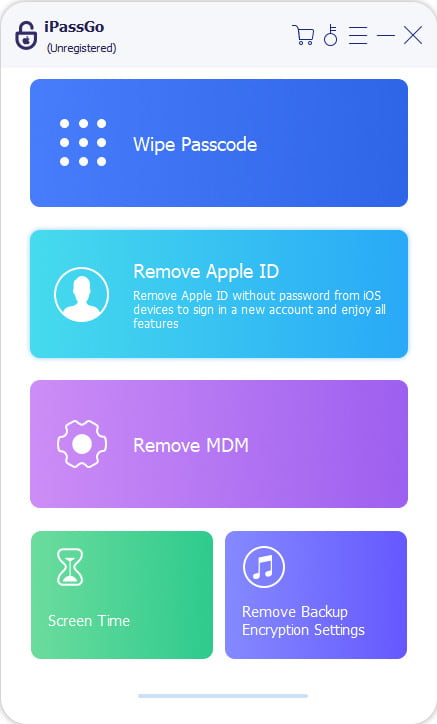
Install the Apple ID removal tool
Start the Apple ID removal software once you install it on your PC. It is compatible with Windows 11/10/8/7. There is another version for macOS 10.12 and above. Choose the Remove Apple ID mode to proceed.
Link to your iPhone
Connect your iPhone to your PC with a Lightning cable. If you link the two devices for the first time, tap Trust on your screen to trust this PC. The software will automatically detect your iPhone.
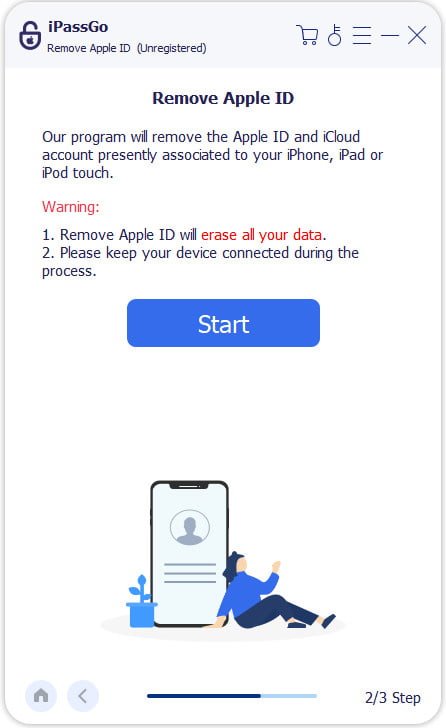
Remove Apple ID
Click the Start Now button to begin removing the old Apple ID if Find My iPhone is disabled. If Find My is enabled, reset all settings on your iPhone following the onscreen instructions. Then, click the Confirm Again button to confirm it and check your device information. Next, the software will do its job immediately.
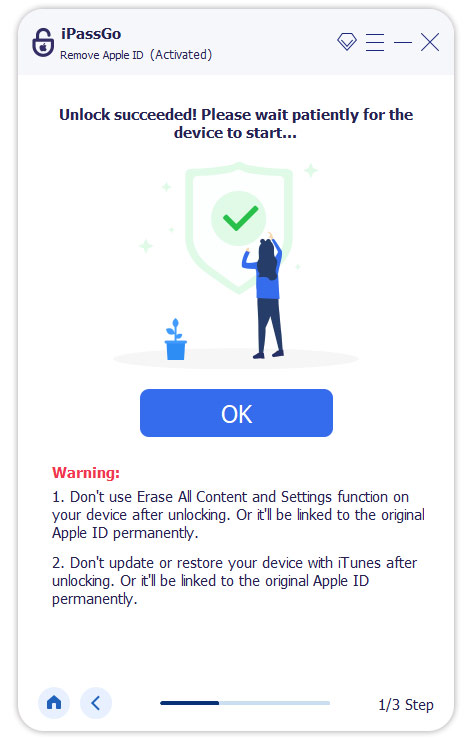
The process will erase all data on your iPhone. You'd better back it up before the process.
Conclusion
This guide shared how to merge Apple IDs on your iPhone and transfer purchased content into a single account. Firstly, you can create and have more than one Apple ID account. If you are using two accounts on your iPhone or iPad, you can follow our steps to transfer content into a single account. Moreover, we recommended an Apple ID account removal software, imyPass iPassGo, to get rid of old accounts without the password.
Clara has over 8 years of experience helping users recover lost files and transfer data. She previously worked as a data recovery technician for a major IT service company. Certified in Data Recovery and Digital Forensics, her articles focus on simple solutions that make complicated recovery tasks easier for everyday users.
Hot Solutions
-
iOS Tips
-
Unlock iOS
-
GPS Location
-
Windows Tips


