



 Solution
 Support Center
 About Us
 Contact
How to Reset Face ID on Your iPhone or iPad Quickly
 Clara Prescott Published on May 11, 2026iOS Tips3-min reading
Apple's Face ID is an advanced security measure. It allows users to unlock their devices and services without frequently entering passcodes. However, users can only add two Face IDs on one iOS device. If an old Face ID is unavailable, you cannot delete it. Alternatively, you have to reset Face ID on the iPhone completely. This article shares a concrete guide. Plus, you can learn what to do if you cannot finish the process.

In this article:
Part 1: How to Reset Face ID on iPhone
As mentioned previously, once you set up Face ID, you cannot delete it. If you want to change Face ID on your iPhone, you have to reset it. The workflow is not complex, and we share the process below:
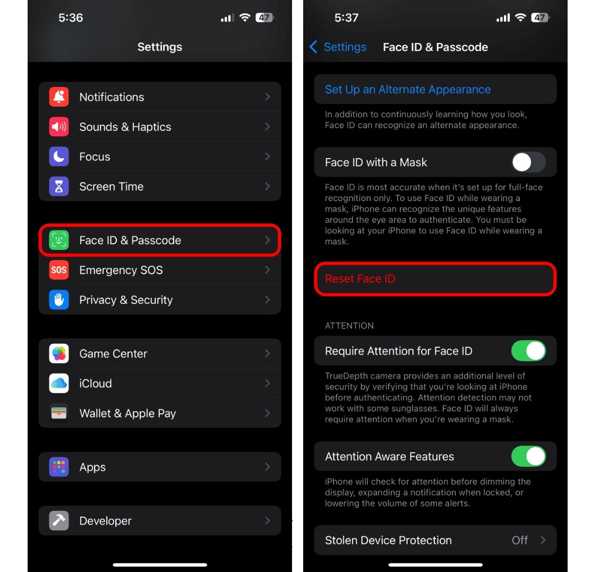
Open the Settings app on your iOS device.
Go to Face ID & Passcode.
If prompted, enter your iPhone passcode.
Tap the Reset Face ID button.
Part 2: Why Cannot I Reset My Face ID
Some users reported that Reset Face ID greyed out, and they could not reset Face ID. Before walking through the solutions, let's discuss the reasons. That can help you address this problem in a targeted manner. The reasons why Face ID cannot be reset include:
- 1.The passcode changing is restricted.
- 2.Stolen Device Protection is enabled.
- 3.Your iPhone gets stuck.
- 4.Your iPhone software is outdated.
- 5.Software glitches.
Part 3: What to Do If Face ID Greyed out
Solution 1: Restart Your iPhone
While restarting the iPhone is simple, this solution can fix basic software glitches, such as the iPhone won't let me reset Face ID. The process can close all apps and processes in the background and reload iOS.
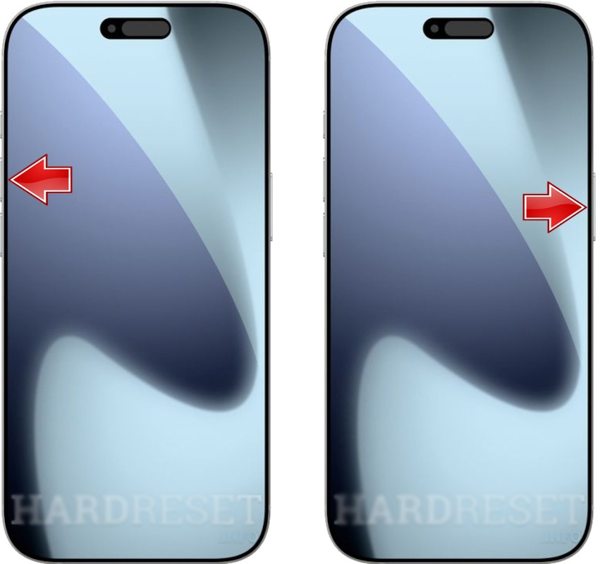
Press and hold either Volume button and the Side button together.
When the power-off screen appears, release the buttons.
Move the slider to shut down your iPhone.
After your screen turns black, hold down the Side button until you see the Apple logo.
Solution 2: Allow Passcode Changes
If you have turned on the Content & Privacy Restrictions feature and Reset Face ID is greyed out, you need to allow passcode changes manually. This solution requires your Screen Time passcode.
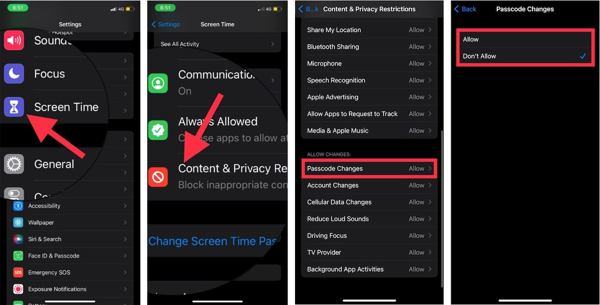
Run your Settings app.
Go to the Screen Time tab.
When prompted, enter your Screen Time passcode.
Choose Content & Privacy Restrictions.
If Content & Privacy Restrictions is on, tap Passcode Changes under the Allow Changes section.
Next, switch to the Allow option.
Solution 3: Disable Stolen Device Protection
The Stolen Device Protection feature is a new security measure on iOS 17.2 and above. It adds another layer of security to iPhones. If you have turned on this feature, you cannot reset Face ID on iPhone.
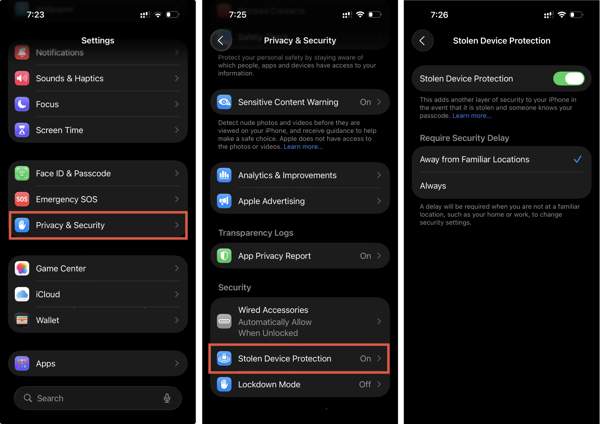
Go to the Settings app.
Choose the Privacy & Security option.
Scroll down and tap Stolen Device Protection.
Toggle off Stolen Device Protection.
Solution 4: Update Your iPhone
Outdated software can lead to a lot of errors, such as Reset Face ID being greyed out. It makes sense that experts suggest iPhone users keep iOS up to date. You can manually install the update to your iPhone to fix bugs.
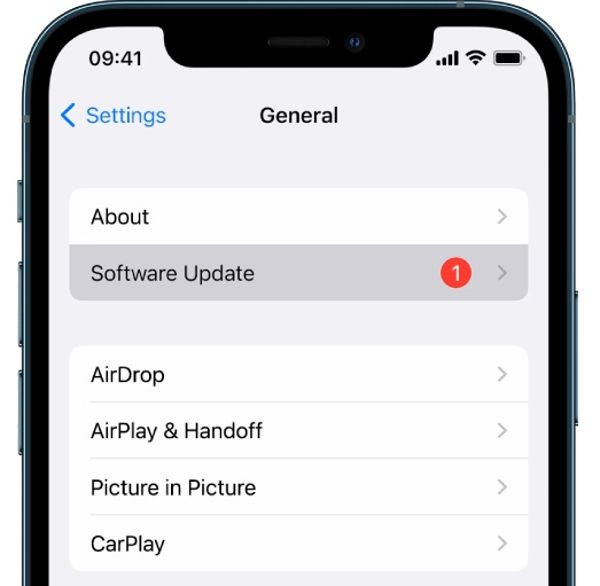
Go to the General tab in your Settings app.
Tap Software Update to find available updates.
Next, tap the Download and Install button.
Follow the on-screen instructions to update the software.
Solution 5: Reset All Settings
Another solution to fix iPhone won't let me reset Face ID is to reset all settings. That brings your Settings app to the factory status, including Face ID. Bear in mind that this solution won't interrupt your data.
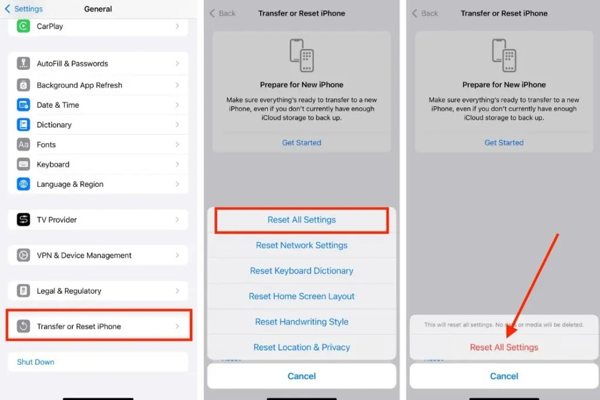
Open your Settings app.
Go to General, and Transfer or Reset iPhone.
Tap the Reset button.
Pick the Reset All Settings option.
If prompted, enter your Apple ID password or iPhone passcode.
Finally, choose Reset All Settings.
Part 4: How to Reset Face ID on iPhone Without a Password
If your iPhone is locked and you forgot your passcode, you cannot reset Face ID. imyPass iPassGo can help you address this problem. It is able to remove any screen locks from your iPhone without restrictions, including resetting your Face ID. Moreover, the user-friendly design makes it work without technical skills.

4,000,000+ Downloads
Reset Face ID on your iPhone in three steps.
Don't require your passcode or Apple ID password.
Offer bonus features, like Screen Time bypassing.
Support a wide range of iPhones and iPad devices.
How to Reset Face ID on Your iPhone Without the Passcode
Connect to iPhone
Run the Face ID removal software once you install it on your computer. It is compatible with Windows 11/10/8/7 and macOS 10.12 or later. Choose the Wipe Passcode mode to proceed. Connect your iPhone to your computer with a Lightning cable.
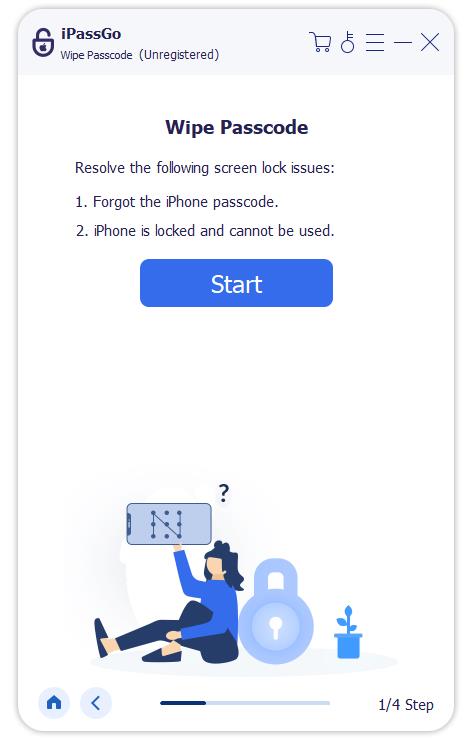
Download the firmware
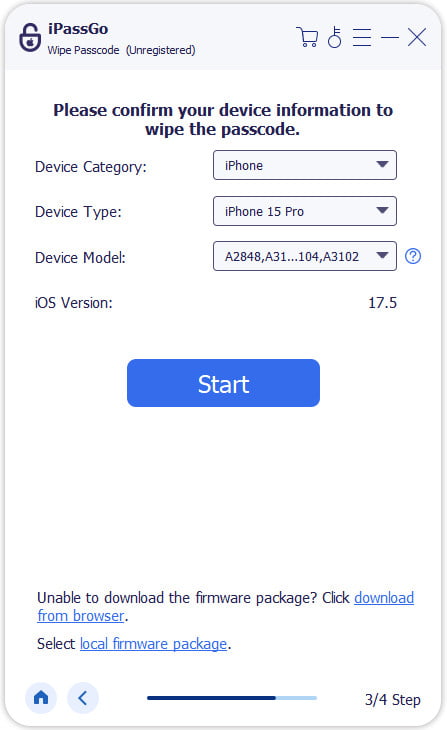
If prompted, tap Trust on your screen to trust this computer. Click the Start button to load your device information. Check them and click Start again to initiate downloading the firmware. It may take a while.
Reset Face ID
After downloading, click the Unlock button to continue. Next, read the notification carefully and confirm resetting Face ID on your iPhone. Complete the process following the prompts. When your iPhone restarts, set up Face ID again.

You May Also Like:
Conclusion
This guide shared how to change Face ID on your iPhone. You can follow our steps to delete Face IDs on your device. If you are blocked during the process, follow our solutions to address the problem. Then, you can set up a new Face ID on your device. imyPass iPassGo is the ultimate solution to remove old Face IDs and digit passcode from your iPhone without the password or other restrictions. Plus, it simplifies the workflow.
Clara has over 8 years of experience helping users recover lost files and transfer data. She previously worked as a data recovery technician for a major IT service company. Certified in Data Recovery and Digital Forensics, her articles focus on simple solutions that make complicated recovery tasks easier for everyday users.
Hot Solutions
-
iOS Tips
-
Unlock iOS
-
GPS Location
-
Windows Tips


