



 Solution
 Support Center
 About Us
 Contact
Reset iPhone Without Apple ID Password to Wipe Out All Data
 Samuel Spenser Published on April 09, 2026Unlock iOS3-min reading
An iPhone allows us to store hundreds or even thousands of files every day, depending on its storage capacity. However, due to excessive storage use on your iPhone, its system performance suffers. Some users prefer to factory reset their iPhone after backing up their data. This way, they can fix the system performance issue.
However, some iPhone users cannot proceed with the factory reset due to an unknown Apple ID password. It is one of the authentications to perform the process. How to factory reset an iPhone without an Apple ID password? Discover the two easy ways that are included in this article. Scroll below to know more details about them.

In this article:
Prerequisites & Understanding Activation Lock
Activation Lock is a feature that is associated with Find My. Apple offers it to prevent unauthorized access to an iPhone if it is lost or stolen. When Find My is turned on, iCloud Activation Lock is also enabled. Besides Find My, the security feature is also linked with your iCloud and Apple ID. The following are the prerequisites for iCloud Activation Lock to work.
- An Apple ID must be signed in to your iPhone.
- The iPhone must be connected to the internet.
- Find My must be turned on on your iPhone.
- The iPhone must run iOS 7 or later versions.
Please note that the iCloud Activation Lock can be accessed after you factory reset your iPhone in any way. Before you can set up your iPhone, you need to turn off the security feature. The Apple ID is the account required to unlock it.
Method 1: Using Find My on Another Device
Find My has a lot of features it can offer on your iPhone. It includes resetting the iPhone without the Apple ID. The easy methods for it can be found below.
1. If You Know The Apple ID Credentials (On Other Device)
Find My is associated with your Apple ID account. If you cannot proceed with factory resetting the iPhone via its Settings app, you can use a free service to do the job. You can use it with another device. The Apple ID must be signed in to the device. The best thing about this service is that you can access it on non-Apple devices through its website.
However, some users turn off Find My iPhone. If so, you cannot use it to remotely factory reset it. How to reset an iPhone without an Apple ID password or a computer? The steps are available below.
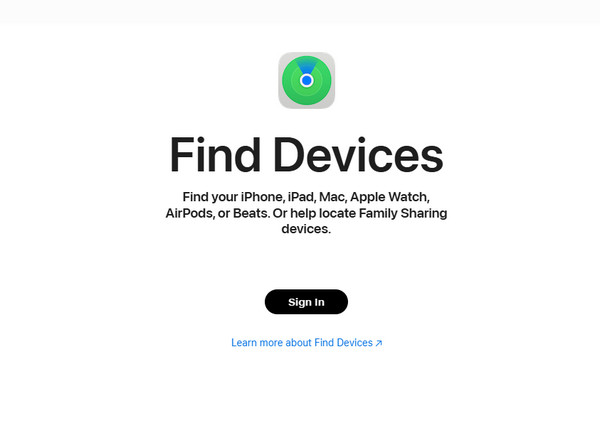
Grab your spare device. Then, open the most trusted web browser. After that, please search for the main website of iCloud Find My. The primary interface will display the service description. Please select the Sign In button to proceed.
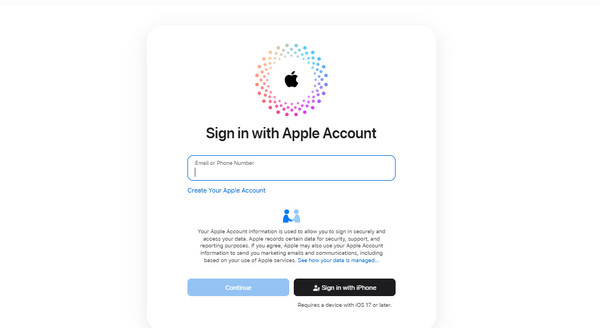
Enter your Apple ID account information. Select the Continue button to sign in. Later, go to the All Devices section at the top left. The list of devices will appear. Please choose the name of your iPhone to see its features. Finally, select the Erase This Device button.
2. If You Know The iPhone’s Passcode (But Not Apple ID Password0)
The factory reset on your iPhone is simple. But it is the other way around if the Apple ID password is unknown. The reason is that it is the primary authentication account to proceed with the factory reset. How to reset an iPhone to factory settings without an Apple ID? You only need to know the iPhone passcode to access Find My. Later, you can follow the preview method.
Method 2: Using a Computer & Recovery Mode (The Most Common Solution)
Besides Find My, you can also use a recovery mode to factory reset your iPhone without the Apple ID password. This method is the most common solution to this issue. It is a professional procedure that allows you to restore your iPhone to its factory settings with a computer. iTunes and Finder can help with the restore process. Please be careful with this process because it might lead to other commands. Perform the steps below for a safe and successful process.
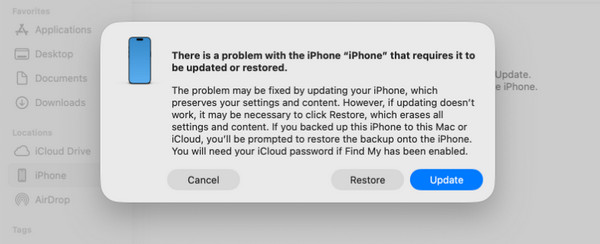
Plug an iPhone into a computer using a USB cable. Please open Finder or iTunes afterward. Enter the iPhone into recovery mode afterward.
If your iPhone has no Home button, press the Volume Up button quickly. Perform the same process with the Volume Down button. Then, long-press the Side button. If the iPhone has a Home button, press and hold the Side and Home or Volume Down button.
Next, a small window will appear on the screen. Click the Restore option at the bottom right. Then, click the button again to start restoring the iPhone to its factory settings. Wait for a few minutes or hours for the process to be complete. Unplug the iPhone from the computer afterward.
What If You Forgot the Password
imyPass iPassGo is a third-party tool that can help you remove the Apple ID account from your iPhone. This way, you do not need to enter the account credentials for authentication. The tool will also wipe all the content and settings of your iPhone during the Apple ID account removal. This way, you no longer need to worry about the iCloud Activation Lock once you start to set up your iPhone.
Additionally, this tool can also remove other security features on your iPhone. It includes Screen Time restrictions, MDM profile, screen lock, and iTunes backup encryption settings. Please refer to the steps below to know how the tool operates.
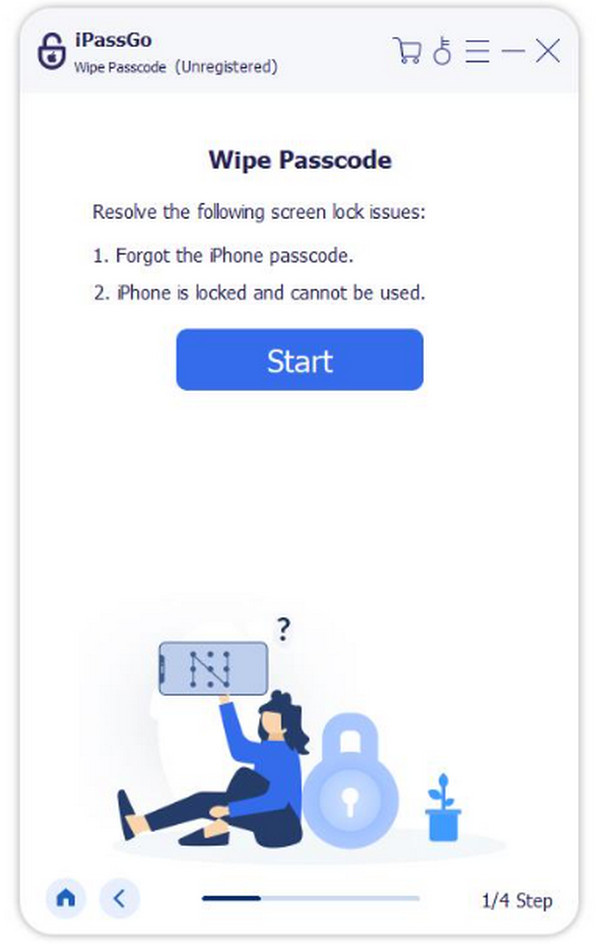
Go to the primary website of imyPass iPassGo for a safer download process. Then, locate the file on your computer and set it up. Install and open the tool afterward. Please plug your iPhone into the computer using a USB cable. Click the Remove Apple ID button afterward.
Click the Start button in the center. The iPhone information will appear on the next screen.
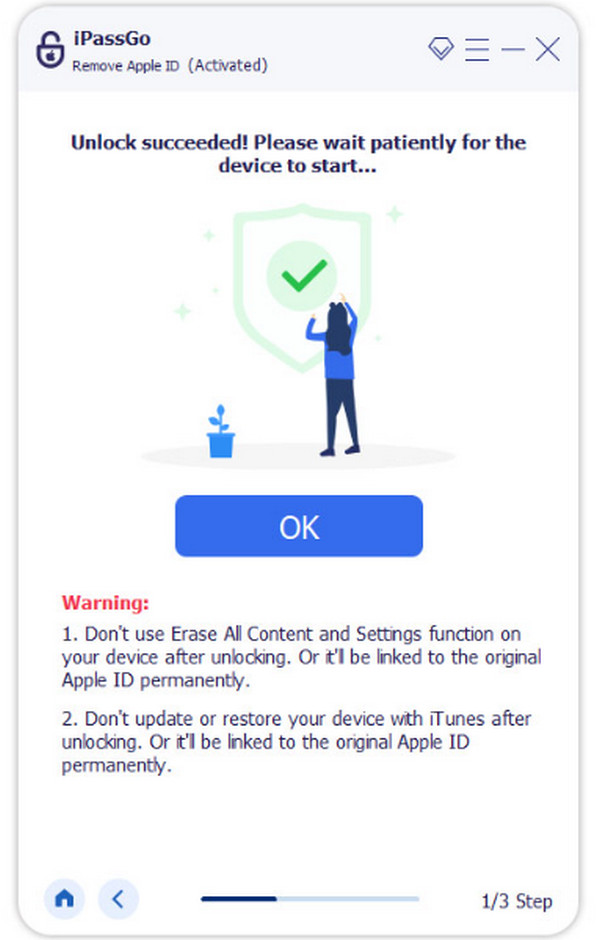
The unlocking process will start immediately. Approximately, the process will only last for a few minutes or seconds. Finally, click the OK button at the center as the final procedure.
What Does Not Work
There are some misconceptions about factory resetting the iPhone without the Apple ID account. Some say that you can use a free iCloud unlock service online. Unfortunately, these methods are unreliable. They do not guarantee you a high success rate.
Additionally, there are no secret codes to reset your iPhone without the Apple ID password. The legitimate ways are the most recommended by Apple. Also, you cannot bypass the Apple ID via the Settings app alone. In short:
- No online iCloud Unlock services can reset your iPhone without an Apple ID.
- No secret codes can factory reset an iPhone.
- You cannot bypass it via Settings alone.
Conclusion
This article discussed how to reset an iPhone without an Apple ID password. The two common ways to achieve it are included. You can also use imyPass iPassGo to remove the Apple ID from your iPhone when the password is unknown. Please download the tool to know more about the features it offers.
Samuel is a senior editor from imyPass. He is an expert on password unlocking. He has over five years of experience writing tutorials on phone unlocking.
Hot Solutions
-
Unlock iOS
- Review of the Free iCloud Unlock Services
- Bypass iCloud Activation With IMEI
- Remove Mosyle MDM from iPhone & iPad
- Remove support.apple.com/iphone/passcode
- Review of Checkra1n iCloud Bypass
- Bypass iPhone Lock Screen Passcode
- How to Jailbreak iPhone
- Unlock iPhone Without Computer
- Bypass iPhone Locked to Owner
- Factory Reset iPhone Without Apple ID Password
-
iOS Tips
-
Unlock Android
-
Windows Password


