



 Solution
 Support Center
 About Us
 Contact
Resolve iPhone Randomly Asking for Apple ID Password to Remove Pop-ups
 Samuel Spenser Published on May 20, 2026Unlock iOS3-min reading
The Apple ID on your iPhone is very helpful because it can be used for different additional services. It includes the iCloud service because an Apple ID can be associated with it. However, other users report that their iPhone keeps asking for the Apple ID password even though there are no requests for changes in the system or other features.
If that happens, there might be errors in the system. Eyes here! This article helps you to fix the mentioned issue using the eight easy methods it offers. Kindly scroll below to know the full details about the topic.

In this article:
Part 1. Why Does My iPhone Keep Asking for My Apple ID Password?
By default, the Apple ID is required when changes need to be made to your iPhone. It includes resetting the Screen Time passcode, making a purchase online, and more. However, sometimes this authentication appears out of nowhere. Why does my iPhone keep asking for an Apple ID? It is due to software issues on your iPhone. Some of them are listed below.
- iCloud sync issues on your Apple ID. You might need to recover an Apple ID to adjust the account.
- There are problems in the App Store or iTunes download processes.
- An iOS update or software glitches have occurred.
- Your Apple ID sessions have expired.
- An existing backup and restore issue.
Part 2. Common Solutions to Fix
Regardless of the cause, it is indeed great to fix the iPhone that keeps asking for Apple ID verification. In this section, you will encounter the eight ways to fix the mentioned issue. Kindly scroll below to know their full details.
1. Sign Out and Back Into iCloud
Apple ID is associated with your iCloud account. You may try signing out and signing back in to fix the issue. This method requires an internet connection.
Please select the Settings app from your iPhone Home Screen. Then, choose your name at the top. Swipe down on the screen and tap the Sign Out button. Enter your Apple ID password.
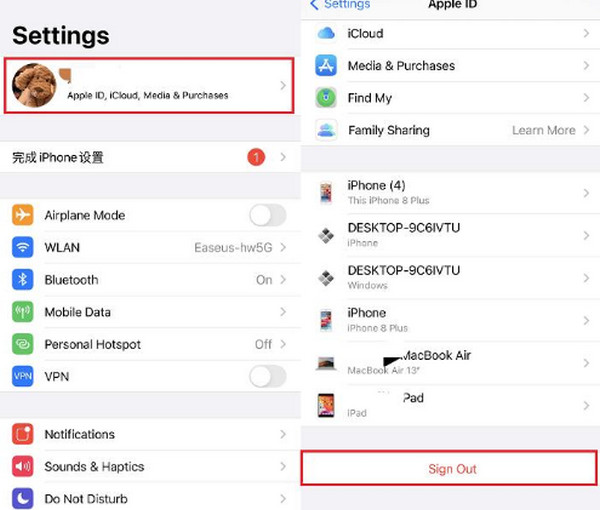
To sign in, tap the Settings app to open it. Tap the Sign In to Your iPhone option. Enter the Apple ID credentials.
2. Restart Your iPhone
Bugs and glitches can be the reason for an Apple ID authentication to pop up out of nowhere. Restating your iPhone can help you get rid of the issue.
- For iPhones Without a Home Button: Press and hold the Side and Volume Down buttons. A slider will appear on the screen. Please toggle off the slider to restart your iPhone.
- For iPhones with a Home Button: Push and hold the Side or Top button. Wait for the slider to be prompted on your screen. Later, toggle the slider to restart your iPhone.
3. Check Apple System Status
The Apple System Status page can help you determine if there are down services that the manufacturer offers. In this case, you will know if the problem is on their end or on your iPhone. If it appears that Apple has a system down for Apple ID, you only need to wait for the problem to be fixed on their end. You cannot do anything about it but wait.
4. Check App Store Downloads
There might be an unfinished or stuck update for your apps. So, the Apple ID will be required to be authenticated. You can check the App Store for this issue. Continue updating the apps to fix it.
Open the App Store app. Tap the Profile option at the top right corner.
Wait for the apps to load. Tap the Update All button to fix the issue.
5. Toggle Media & Purchases
If you do not want to sign out of the Apple ID, you can also toggle Media & Purchases. It is the quickest way to fix pop-ups for the Apple ID password.
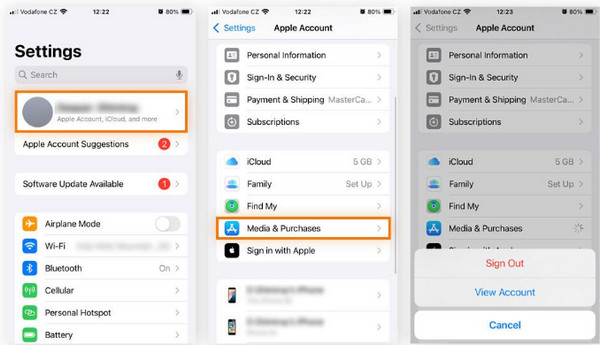
Open the Settings app. Tap your name at the top.
Tap the Media & Purchases button. Tap the View Account button at the bottom.
6. Disable Password for Free Downloads
You can also turn off the password requirement for downloading free apps. This way, you can lessen the pop-ups for your Apple ID.
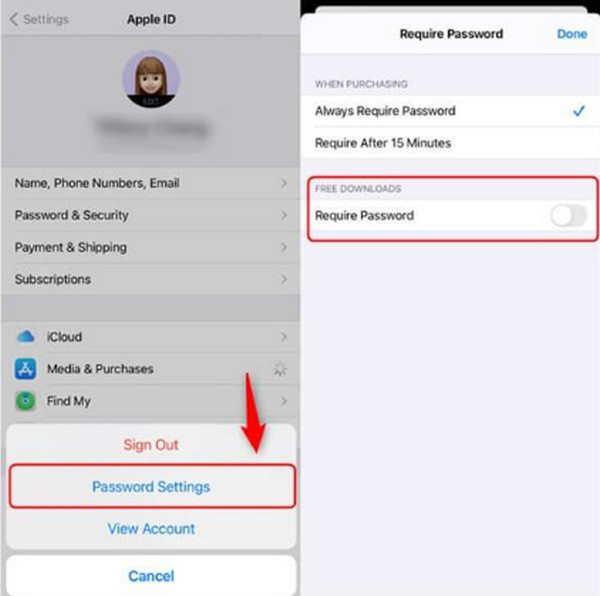
Open the Settings app. Select the name at the top and tap the Media & Purchases button.
Tap the Password Settings button. Turn off the Require Password section.
7. Reset Network Settings
The network can also affect how you sign in to your Apple ID when there are changes needed to make on your iPhone. So, wrong network settings can lead to the pop-ups of your Apple ID when they are not needed. Resetting the network settings is the best solution to fix the issue.
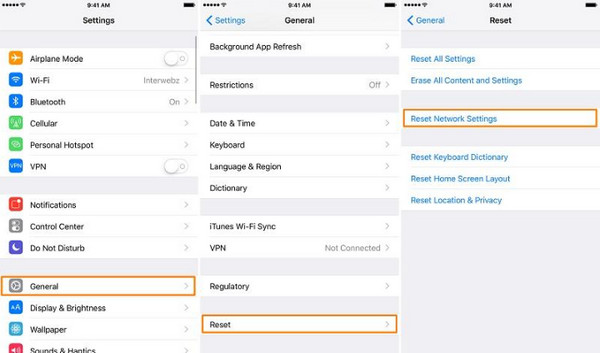
Open the Settings app and tap the General button. Select the Transfer or Reset iPhone button afterward.
Tap the Reset button. Choose the Reset Network Settings button and enter the iPhone passcode. Tap the same button to confirm.
8. Update iOS System
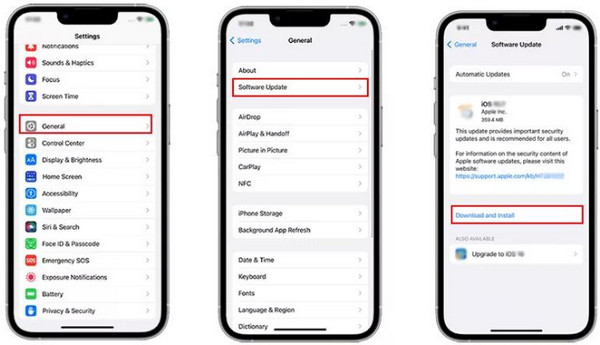
Your iPhone needs its updates to fix issues in its system. It includes the Apple ID that keeps asking for your password. It can also be the way to fix Apple ID greyed out and other Apple ID issues. Know how to update iOS with the steps below.
Open the Settings app. Tap the General button.
Tap the Software Update button. Wait for the available updates. Tap the Download and Install button afterward.
Bonus: How to Bypass If You Forgot Your Apple ID Password
In addition to the issue, there are also iPhone users who have forgotten their Apple ID credentials. So, they cannot make any changes to the iPhone. imyPass iPassGo can help you get rid of the mentioned account on your iPhone without its credentials. It is an offline tool that only relies on a USB connection.
Also, novices will find this tool convenient because of the simple interface it contains. Besides that, the tool can also be used to remove SIM lock, Screen Time, MDM, and other security features on your iPhone. Please use the tool using the steps below.
Quickly visit the website of imyPass iPassGo. Then, download the tool on your computer. Set up, install, and open it to start the process.
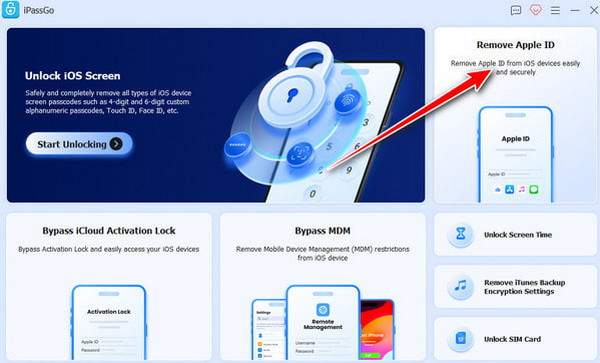
Select the Remove Apple ID button at the top right. Plug your iPhone into the computer afterward.
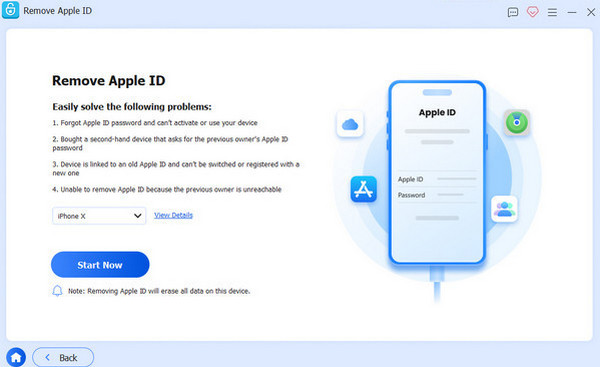
Click the Start Now button. Follow the on-screen additional steps. Later, click the Confirm Again button to start removing the Apple ID. Finally, please click the Finish button.
Conclusion
All in all, when the iPhone keeps asking for an Apple ID and password, it is due to software issues. This post lets you discover the eight easy methods to fix it. imyPass iPassGo is a bonus tool that can be used to bypass the Apple ID on your iPhone when its credentials are forgotten. Downloading the tool will help you know more facts and features about it!
Samuel specializes in password security and digital privacy. He used to work as a cybersecurity consultant for small businesses to protect digital assets. With certifications in Cybersecurity and Ethical Hacking, he turns complex security topics into easy-to-follow advice. He also enjoys sharing password tips to help users protect their accounts more confidently.
Hot Solutions
-
Unlock iOS
-
iOS Tips
-
Unlock Android
-
Password Tips


