



 Solution
 Support Center
 About Us
 Contact
What You Can Do When Your iPhone Face ID Is Not Working Suddenly
 Penny Warren Published on May 22, 2025Unlock iOS3-min reading
"I like to unlock my iPhone with Face ID since it is convenient, but it suddenly stops working, how to fix this problem?"
Nowadays, biometric identifications are not news anymore. iPhone X and above are equipped with a TrueDepth camera system to unlock your device with Face ID. However, many users report that Face ID doesn't work suddenly or randomly. This piece of troubleshooting helps you understand how to fix iPhone Face ID not working.

In this article:
Part 1. Why Is My Face ID Not Working
Since Face ID requires both software and the camera, either could be the cause when the feature malfunctions. Before starting troubleshooting the issue, let's look at the possible reasons:
1. Face ID is not available currently. For example, you just restarted your iPhone.
2. Your face or the camera is blocked, or you are not facing the right camera.
3. Your iPhone has not been unlocked for more than 48 hours.
4. Your iOS system is outdated, and it can't support Face ID recognition.
5. The Emergency SOS mode is activated by mistake.
6. Your iPhone is locked by Find My iPhone remotely.
Part 2. Extra Tip: What If Face ID Not Work and Can't Enter iPhone
If your Face ID can't recognize you, and you forgot your passcode, or you didn't set it at all, you will be locked out of your iPhone. In this case, few of the following methods can help. In this case, please try imyPass iPassGo and unlock your iPhone first.

4,000,000+ Downloads
Bypass Face ID when it doesn't work.
Unlock iPhone without Face ID and passcode.
Support the latest iPhone models and iOS versions.
Easy, safe, and reliable.
Part 3. How to Fix iPhone Face ID Not Working
Solution 1: Clean the TrueDepth Camera Sensor
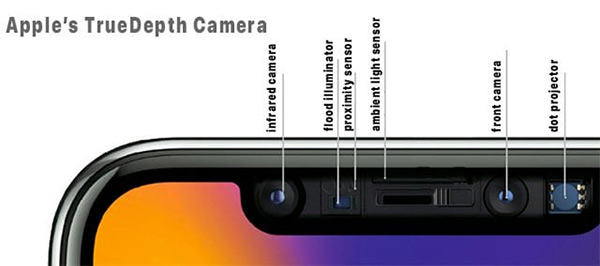
Apple's TrueDepth camera sensor is on the top of your iPhone. When Face ID is not working on your handset, the first thing you can do is clean your camera with a soft, dry cloth or cotton swab. Bear in mind that Face ID is only available on iPhone X/XR/XS/XS Max and iPhone 11 or older.
Solution 2: Check Face ID Settings
As a security measure feature, you need to set up Face ID on your iPhone X/11/12 and later. Otherwise, it won't work. Moreover, you can decide where to use Face ID or not in the Settings app.
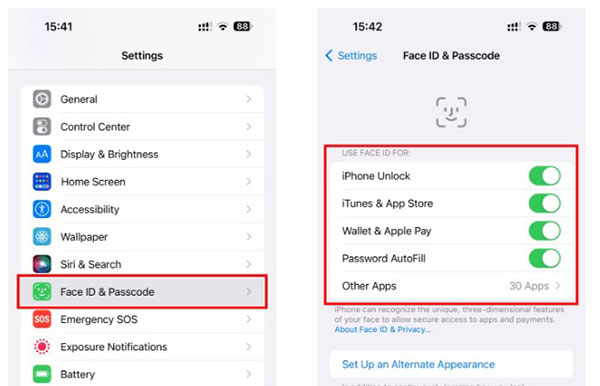
Scroll down in the Settings app, and head to Face ID & Passcode.
If you see the Reset Face ID option, it means the feature is already set up. Otherwise, press Set up Face ID and follow the instructions to complete it.
Locate the USE FACE ID FOR section. Make sure to toggle on the iPhone Unlock option and other desired items.
To use Face ID for third-party apps, tap Other Apps, and turn them on the list. Now, try Face ID again.
Solution 3: Take off Your Mask and Glasses
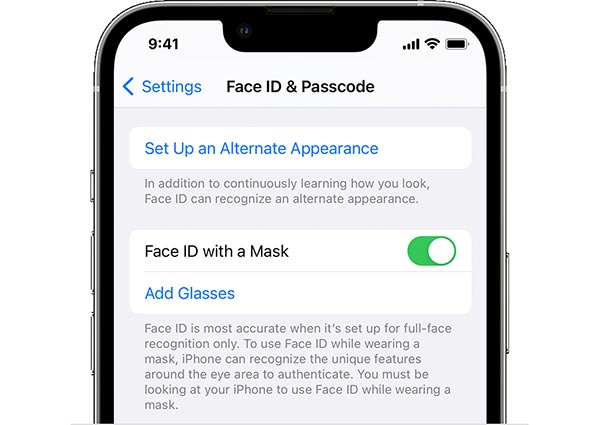
Since iOS 15.4 and iPhone 12, Apple added the Face ID with a Mask feature. Plus, Apple designed Face ID to work with glasses, contact lenses, hats, scarves, and a part of sunglasses. Open your Settings app, tap Face ID & Passcode, and turn on Face ID with a Mask. Then follow the instructions to set it up.
If you wear glasses, tap Add Glasses on the Face ID & Passcode settings screen, and complete the setup process. Bear in mind that iPhone Face ID is not available for most polarized sunglasses.
If you are not using iPhone 12 or later running iOS 15.4 and above, take off any block when using Face ID.
Solution 4: Restart Your iPhone
Sometimes, your iPhone gets stuck in a specific mode or is full of cache. That makes Face ID stop working on your iPhone. Although a restart is the most basic fix for many issues, it is worth trying.
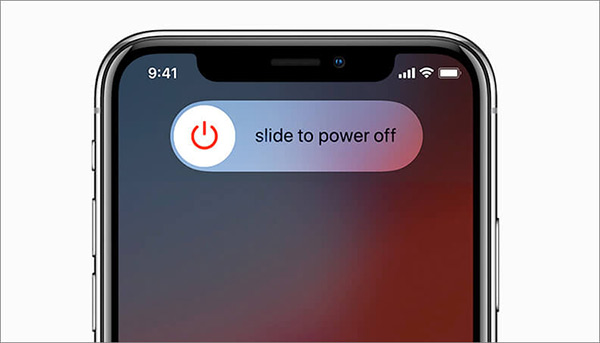
Hold down the Side button until you enter the power-off screen. Move the slider to the right side. Or go to the Settings app, tap General, and then Shut Down.
Wait for a few minutes, and then long-press the Side button until you see the Apple logo. Unlock your iPhone with your passcode. Now, the Face ID should work.
Solution 5: Update the Software
Apple frequently updates iOS to fix bugs and improve the software, as well as the built-in features. If the security feature works randomly or abnormally, such as Face ID moving a little lower on your iPhone, you'd better up the software to date. This solution can troubleshoot no location found on Find My friends..
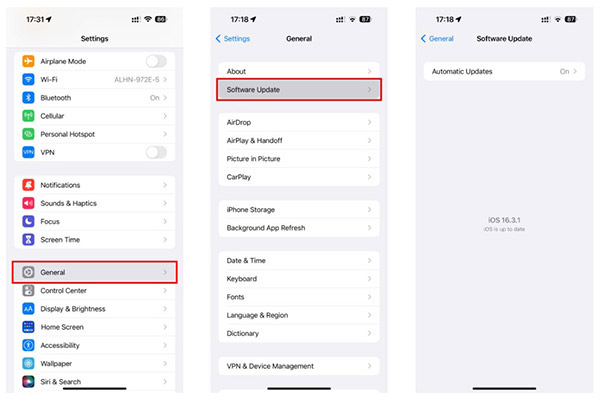
Open the Settings app, go to the General tab, and tap Software Update.
Tap the Download and Install button if there is an update available. If prompted, enter your passcode or Apple ID password. Then install the latest version of iOS.
Try Face ID again and it should work now.
Solution 6: Set up an Alternate Appearance
How many Face ID on iPhone 11 and other models? With iOS 12 and above, you can have up to two Face IDs on your iPhone. Therefore, setting up an additional Face ID may help the biometric recognition feature perform better.
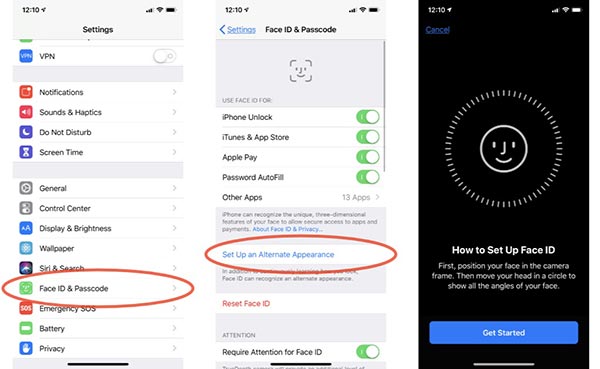
Go to the Face ID & Passcode tab in your Settings app. If prompted, enter your passcode.
Tap the Set Up an Alternate Appearance option.
Then the Face ID setup screen will pop up. Tap Get Started and follow the instructions to add another Face ID on your iPhone.
Solution 7: Reset Face ID
When your iPhone says Face ID is not available or not working, resetting this feature could help. That removes all current using Face IDs so that you can set it up again with your passcode.
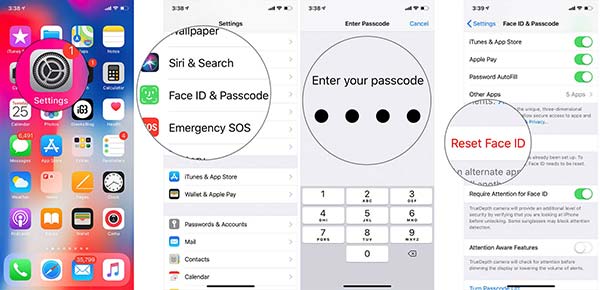
Head to Face ID & Passcode in your Settings app. When prompted, enter your passcode.
Press the Reset Face ID button and wait for the process to complete.
Next, tap Set Up Face ID on the Face ID & Password settings screen, and follow the instructions to set it up again.
Conclusion
The troubleshooting has discussed how to fix iPhone Face ID not working. Although the facial recognition feature is convenient, it does not always work perfectly. When you encounter the same problem, you can resolve it by following our solutions. imyPass iPassGo is the ultimate way to get rid of Face ID errors. But the most reliable resort is to set variable screen unlock methods, so that you can use the others to unlock your iPhone.
4,000,000+ Downloads
Remove Face ID directly when it doesn't work.
Support removing many iOS-related locks: screen lock, Screen Time, iCloud lock.
The program interface is simple and easy to use.
Downloading the program is free for all readers of this article.
Penny is a senior editor from imyPass. She has focused on discovering perfect GPS location solutions in all scenarios, and also has experience in fixing computers.
Hot Solutions
-
Unlock iOS
- Review of the Free iCloud Unlock Services
- Bypass iCloud Activation With IMEI
- Remove Mosyle MDM from iPhone & iPad
- Remove support.apple.com/iphone/passcode
- Review of Checkra1n iCloud Bypass
- Bypass iPhone Lock Screen Passcode
- How to Jailbreak iPhone
- Unlock iPhone Without Computer
- Bypass iPhone Locked to Owner
- Factory Reset iPhone Without Apple ID Password
-
iOS Tips
-
Unlock Android
-
Windows Password


