



 Solution
 Support Center
 About Us
 Contact
Get Admin Rights on Windows 10/11 With or Without a Password
 Penny Warren Published on December 12, 2025Windows Tips3-min reading
Not having administrator privileges on Windows 10 can be frustrating. You cannot install applications, change important settings, or manage other accounts. You do not want that, right?
That is why it is essential to learn how to get administrator privileges on Windows 10. In this write-up, you will discover ways to gain full control of your computer so that you can manage freely without limits.

In this article:
Part 1: Why Don't I Have Administrator Privileges in Windows 10/11
You notice that you cannot install applications, change settings, or access some files on your computer. This situation usually happens because you do not have administrator privileges. Administrator privileges are special rights that let you make big changes on Windows.
To answer, why don't I have administrator privileges in Windows 10/11? Please read the full details below.
1. Your Account Is Not an Administrator
If your account is a "standard user," you can use applications and browse the internet, but you cannot make big changes. Windows separates accounts this way to protect your computer. Only accounts labeled "Administrator" have full access.
2. User Account Control (UAC) Is Blocking You
Windows has a security feature called UAC. It stops programs from making changes without permission. Even if you think you are allowed, UAC can block you.
3. Admin Account Is Disabled
Windows has a hidden built-in admin account. Sometimes it is turned off, especially on Windows 10 and 11. If your account is standard and the hidden admin is off, you cannot do admin tasks.
4. Group Policies or Company Restrictions
If your computer is part of a workplace or school, administrators may restrict your access. They use group policies to block standard users from installing applications or changing settings.
5. Corrupted User Profile
Sometimes, your account is broken or corrupted. Windows may stop giving admin rights because it thinks the account isn't safe.
Part 2: How to Enable the Hidden Administrator and Access It
Windows has a secret administrator account that is usually hidden to keep your computer safe. If you need admin access privileges on Windows 10/11, you can turn them on anytime using the Command Prompt.
Once enabled, it gives you full control to install programs, change settings, or fix problems that normal accounts cannot. This method works on all Windows editions, including Windows 10 and 11 Home, and helps you manage your computer more freely and safely.
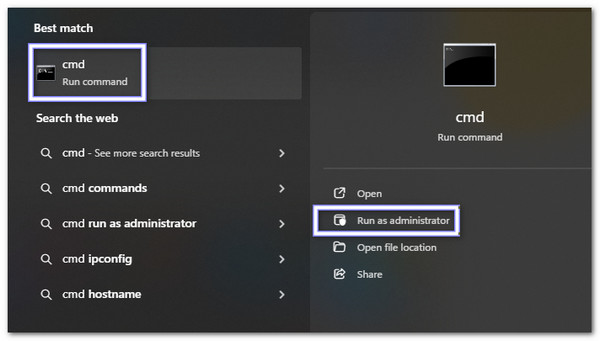
Head to Windows search and enter cmd. You will see Command Prompt in the result list. Right-click it and select Run as administrator.
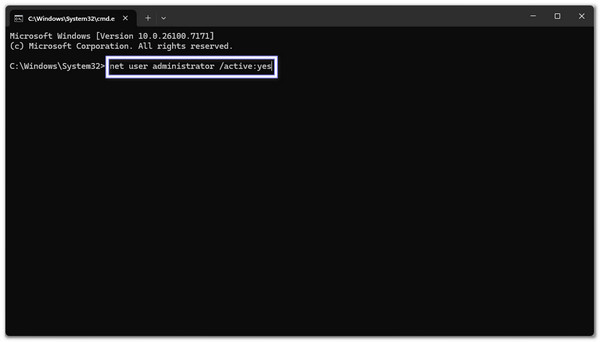
In the Command Prompt display, type: net user administrator /active:yes. Then, press Enter. Windows will confirm the command worked and turn on the hidden admin account.
Close everything and restart your computer. On the login display, you will now see Administrator as a new account option.
Click the Administrator account. If it is the first time, you will not need a password. Now, you have full rights to make changes to your computer.
For safety, rename the hidden admin account. Go to Control Panel > User Accounts > Manage another account, select Administrator, and choose Change the account name. Then, pick a unique name so hackers cannot easily guess it.
Part 3: How to Add Admin Rights to a User in Windows 10/11
Sometimes, a regular user needs more control over their computer. If you want to know how to get administrator privileges on Windows 10/11, you can do this using the user accounts tool in Windows. This method is simple, safe, and works on both Windows 10 and 11. It is especially useful for family computers or small offices where trusted users need extra privileges.
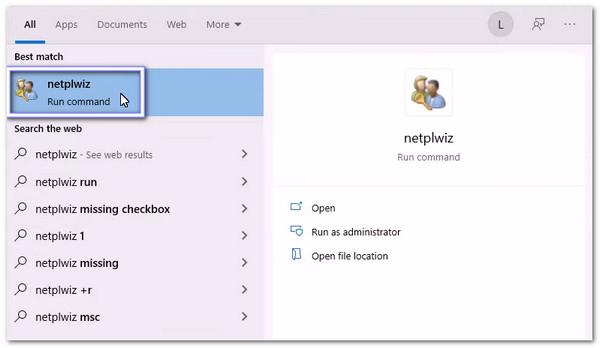
Press Windows + R on your keyboard. It opens the Run box. Type netplwiz and press Enter. It opens the user accounts window.
In the list of accounts, find the user you want to make an administrator. Click on their name to select it.
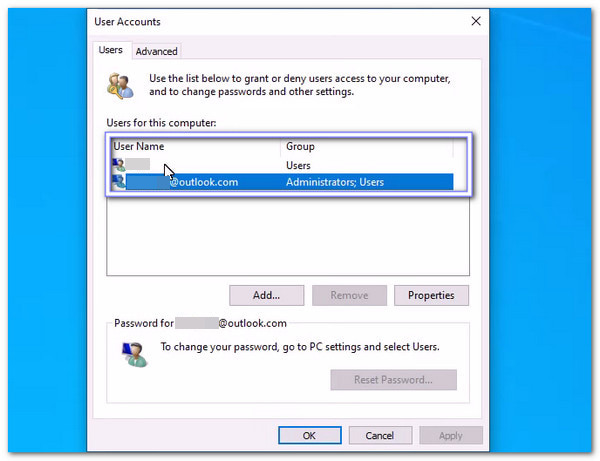
Click the Properties button. It opens a new window with account details and settings.
Go to the Group Membership tab. You will see options like Standard User and Administrator. Select Administrator to give full rights to the account.
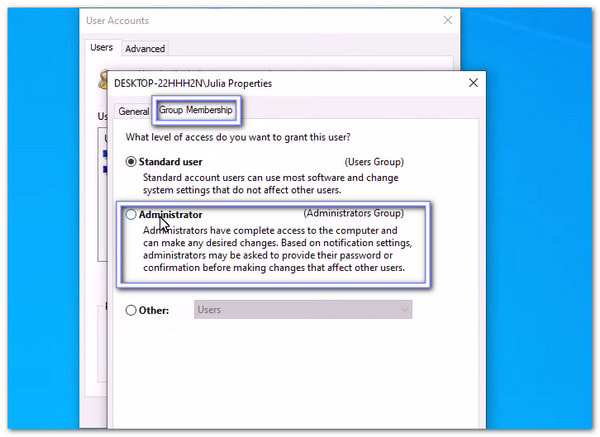
Click Apply, then OK to save changes. The user now has administrator privileges. Restarting the computer is optional, but it can help apply all changes fully.
Note:
You can also use CMD to bypass the admin password. This method works fast, but make sure you only use it on your own computer. It is a helpful extra option when you need another way to get inside your system.
Part 4: Create a New Administrator and Get Admin Privilege
You are now aware that enabling admin access privileges on Windows 10/11 gives you full control to install applications, change settings, and manage accounts freely.
With imyPass Windows Password Reset, you can create a new administrator and get full privileges even if your old account is locked. It also lets you remove admin or local account passwords directly, helping you access a locked computer fast.
Without a doubt, imyPass Windows Password Reset is simple, safe, and powerful for taking back control of your computer.
4,000,000+ Downloads
Easy to use, even if you have no tech experience.
Unlock or reset Windows passwords in just seconds.
Works on Windows 10, 11, 8, 8.1, 7, and other editions.
Create a recovery tool with a CD, DVD, or USB Flash Drive.
Add new administrator accounts to access your computer fully.
Refer to the guide presented to learn how to create a new administrator and get admin privileges using it:
Use a normal computer to download, install, and open imyPass Windows Password Reset. Then, choose Create Password Reset CD/DVD or Create Password Reset USB Flash Drive.
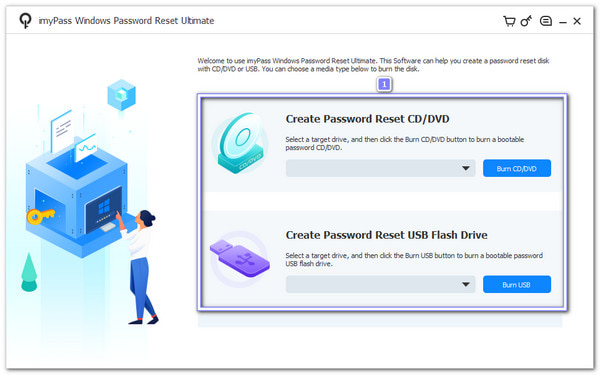
Depending on your choice, place the blank CD/DVD, or USB Flash Drive into the computer and let the program burn the tool for you. Once it is done, click the OK button and remove the one you inserted.
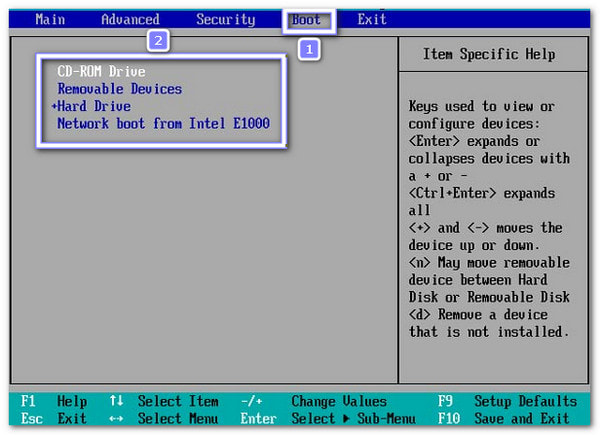
You need to turn on your locked Windows 10 computer now. Then, press F12 or ESC to open the Boot menu. You can use the directional keys to pick the disk or USB you just created. Once selected, press the Enter button to confirm. What you need to do now is save the changes and exit, and your computer will restart and load the program.
The imyPass Windows Password Reset screen will appear. If your computer has more than one Windows system, select the correct Windows operating system first. Then, it is time to click the Add User option. A new small display will appear, where you can type a username and password for the new account.
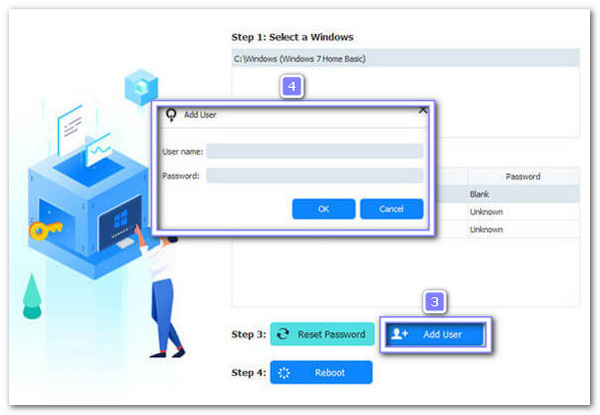
Once settled, click the Reboot option and let the computer restart. Once the login screen appears, choose the new admin account you created. Now, you can enter your computer again with full administrator privileges.
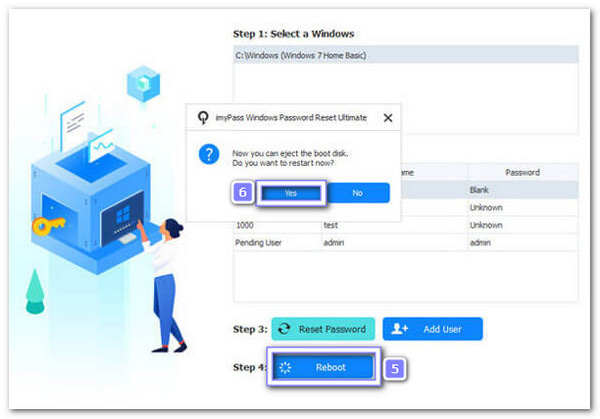
You are done! It is easy to use, right? As mentioned above, imyPass Windows Password Reset can also reset a Windows password without logging in. It works on Windows 10, 11, 8, and other versions, so you do not need to worry because it can handle them all.
Conclusion
If you are thinking about how you can get administrator privileges on Windows 10, the guide above shows legit methods.
Of course, there is imyPass Windows Password Reset, which you can use to create a new administrator and get full admin privileges quickly. With this tool, managing your computer becomes simple, safe, and stress-free, so you can always stay in control.
Penny is a senior editor from imyPass. She has focused on discovering perfect GPS location solutions in all scenarios, and also has experience in fixing computers.
Hot Solutions
-
Windows Tips
-
Windows Password
-
Fix Windows
-
Password Tips


