



 Solution
 Support Center
 About Us
 Contact
Easily Delete Configuration Profile on iPhone (Complete Guide)
 Penny Warren Published on December 04, 2025Unlock iOS3-min reading
A configuration profile is a file installed on iPhones and iPads to manage settings, restrictions, network configurations, or device permissions. These profiles are commonly used by schools, companies, VPN services, developers, and beta software testing programs. If you've ever wondered what is a configuration profile, how to remove one, or why it was installed, this guide explains everything.

In this article:
Part 1: What Is a Configuration Profile?
A configuration profile is a .mobileconfig file that applies specific settings to an iOS device. These are often used for:
1. Wi-Fi and proxy settings.
2. Email accounts.
3. Restrictions and parental controls.
4. Device management (MDM).
5. Beta iOS enrollment.
6. Security certificates.
These configuration profiles for iPhone and configuration profiles for iPad allow administrators or apps to control certain behaviors on the device.
Part 2: How Configuration Profiles Are Installed
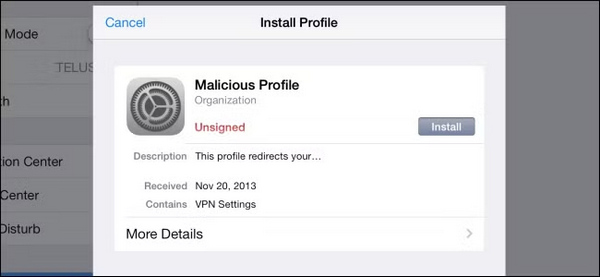
Have you ever used or installed configuration profiles on iPhone? Suppose you want to download an app through TestFlight, you probably need to perform an iOS configuration profile download. Generally, they can be installed through:
1. iOS configuration profile download from a website.
2. Apps requiring special permissions.
3. School or company management portals.
4. Apple Developer or beta software pages.
5. MDM enrollment systems.
Part 3: Why Users Want to Delete Configuration Profiles
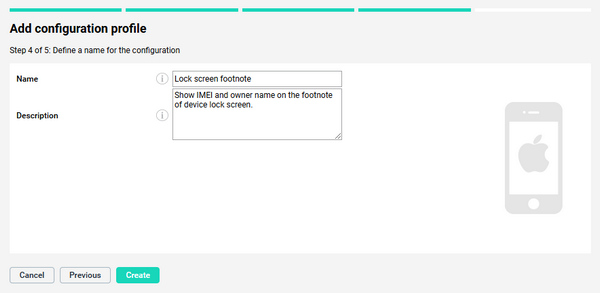
Although many configuration profiles can offer extra features that the App Store cannot offer, some profiles can limit app installation, restrict common or special features, block websites, and control security settings. Some iOS configuration profiles may also affect device and system performance.
That's why many users eventually search for delete configuration profile iPhone when they no longer need these restrictions.
Part 4: How to Delete a Configuration Profile on iPhone
It's very easy to delete configuration profile on iPhone and iPad. You can follow the guide below to do that.
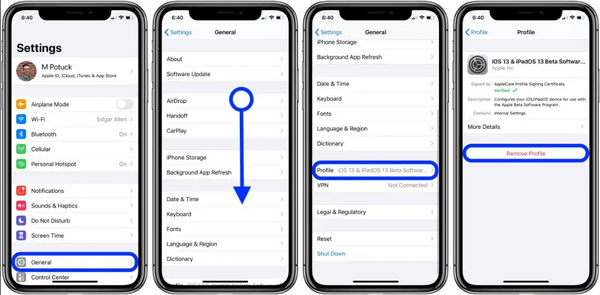
Go to the Settings app. Then, tap General. Then, tap the Profile button.
Select the profile, and tap the Remove Profile button. Enter your passcode, and restart your device (if necessary). That's how to remove configuration profile from iPad or iPhone.
How to Export Configuration Profile from iPhone
iOS does not allow direct export of profiles, but you can ue Apple Configurator to view or copy settings or re-download the configuration profile from its original source (VPN service, company portal, Apple beta page).
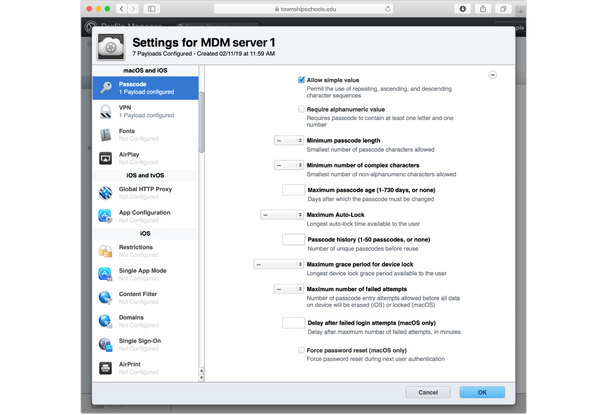
For management tools like Apple's Profile Manager, Ivanti, or Miradore, use the export function within the admin portal to download the profile as a .mobileconfig file. If you are using iMazing, you can extract profiles from a device backup.
Part 5: How to Delete an Unremovable Configuration Profile
Some profiles are locked by MDM and cannot be removed manually. If the device belongs to a company or school, you need to ask the IT admin to remove the MDM profile remotely. Perhaps, you can factory reset your iPhone or iPad to delete configuration profile on iPhone or iPad. However, what if the admin refuses you, and a factory reset doesn't help or can't even be performed?
You can use imyPass iPassGo to quickly remove MDM on iOS devices. It's the most reliable MDM bypassing tool. You can remove MDM configuration profile on your iOS devices without a password or factory reset.

4,000,000+ Downloads
Connect your iPhone or iPad to a computer to remove MDM quickly.
Remove the MDM profile without a password or permission.
Remove Screen Time restrictions on your iOS devices.
Help you remove screen lock if you forgot the password.
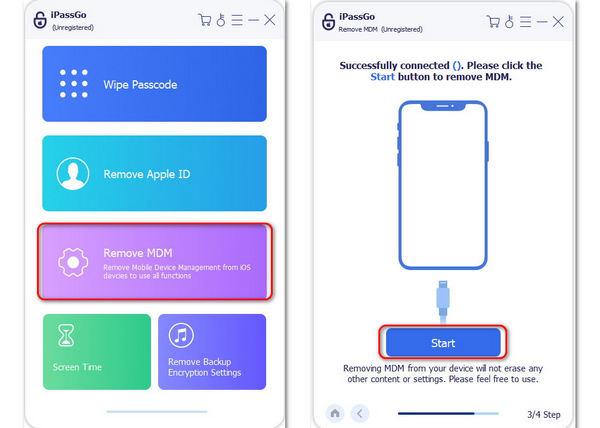
Download, install, and launch imyPass iPassGo. Connect your iPhone to your computer. Then, on the program, tap the Remove MDM button.
This program will test the connection between your iPhone and your computer. Once done, you can click the Start button to start removing the MDM configuration profile on your iOS device.
Your device will restart after the process of removing MDM. When your iOS device reboots successfully, you can find that the configuration profile is removed.
Conclusion
Configuration profiles help manage and customize iOS devices, but they can also add restrictions or unwanted behaviors. Understanding what is a configuration profile and iOS configuration profile download is essential. Whether you want to remove a simple settings profile or need to learn how to delete an unremovable configuration profile, this guide provides every method available. imyPass iPassGo can even help you remove MDM profiles with only one click. You'll use your iOS device freely.
Penny is a senior editor from imyPass. She has focused on discovering perfect GPS location solutions in all scenarios, and also has experience in fixing computers.
Hot Solutions
-
Unlock iOS
- Review of the Free iCloud Unlock Services
- Bypass iCloud Activation With IMEI
- Remove Mosyle MDM from iPhone & iPad
- Remove support.apple.com/iphone/passcode
- Review of Checkra1n iCloud Bypass
- Bypass iPhone Lock Screen Passcode
- How to Jailbreak iPhone
- Unlock iPhone Without Computer
- Bypass iPhone Locked to Owner
- Factory Reset iPhone Without Apple ID Password
-
iOS Tips
-
Unlock Android
-
Windows Password


