



 Solution
 Support Center
 About Us
 Contact
How to Reset Screen Time Passcode After Failed Attempts [Guide]
 Samuel Spenser Published on February 10, 2026Unlock iOS3-min reading
Screen Time lockouts seem to most users like a device passcode, but the system operates under an entirely different principle that leaves the user confused once the errors start compounding. This guide explains what happens after 10 failed screen time passcode attempts, why you no longer gain access with time, and what you can do not control your iPhone. The following sections elaborate on the logic behind the lockout, the appropriate recovery steps, and the procedures to follow in order to avoid the same problem in the future.

In this article:
Part 1. The Lockout System Explained (What Actually Happens)
1. Initial Attempts:
Screen Time does not have a time-based reset, such as the device passcode system. The failed attempt counter remains permanently fixed and has to be reset by the input of a correct passcode. As soon as the limit is exceeded, the lockout becomes permanent until the recovery is done. This is how failed attempts Screen Time passcode errors quietly build up without alerting the user.
2. The Key Number: 10 Attempts.
Apple enforces a fixed limit that answers a common question about how many failed attempts for the Screen Time passcode are allowed. After 10 consecutive failed attempts, your Screen Time passcode will be turned off, and a message will appear confirming this status. This does not lock your iPhone itself. You can still bypass the device using your device passcode, but you cannot change Screen Time settings, manage limits, or view usage data until the passcode is reset.
3. When Do Attempts Reset?
Screen Time does not use a time-based reset like the device passcode system. The failed attempt counter stays in place indefinitely and only resets if the correct passcode is entered. Once the limit is reached, the lockout becomes permanent until recovery is completed. Understanding this behavior is essential before learning how to reset the Screen Time passcode after failed attempts using the approved recovery options.
Part 2. How to Reset Your Screen Time Passcode (3 Methods)
1. Use Your Apple ID Password (If You Set Up Recovery)
Apple has built in Screen Time recovery route to ensure that there is no permanent lockout of the device in case people forget passcodes. When recovery has been turned on, your Apple ID serves as an ownership verifier and can be used to reclaim the device without making the device wipe out. It is a secure and reliable option, which should be taken in the first place in case of loss of access.
Go to the Settings on your iPhone and tap Screen Time.
Tap Change Screen Time Passcode, then tap Forgot Passcode.
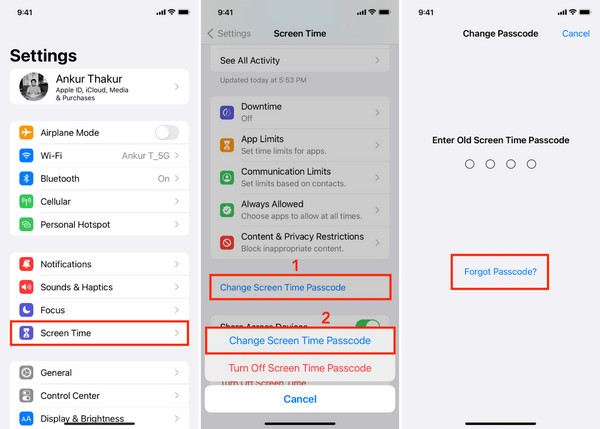
Enter the Apple ID, which is your account, and the password linked to Screen Time.
Create and confirm a new Screen Time passcode.
This method works regardless of how many attempts to unlock the Screen Time on the iPhone have already failed.
2. Reset via Family Sharing (If You're the Organizer)
With Family Sharing to manage Screen Time, the organizer account is purposely restricted to control. This monitors managed users to avoid circumventing limits and maintain uniform implementation of implementation across devices. The organizer is the only person who can reset or alter the screen time passcode of family members.
Sign in to the organizer iPhone or iPad.
Open Settings and tap Family Sharing.
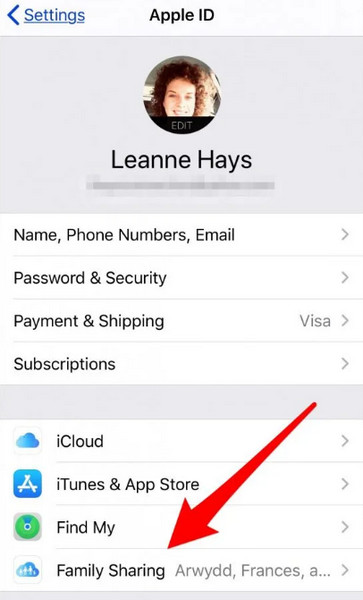
Select the child or managed account, then tap Screen Time.
Tap Change Screen Time Passcode and set a new code.
This approach applies after what happens after 10 failed Screen Time passcode attempts turn off local changes on the device.
3. Use imyPass iPassGo
imyPass iPassGo is a third-party desktop product that aims at overcoming Screen Time limitations in case of non-presence of official recovery means. It works by connecting the iPhone to a computer and making an effort to delete the Screen Time setting directly. The approach is normally viewed as a last resort as it has security, privacy and compatibility risks. It should only be explored after understanding how to reset the screen time passcode after failed attempts using Apple-approved methods.
Download the imyPass tool on your computer by clicking the appropriate download button, following the setup, and launching it.
On the interface, click the Screen Time and connect the device you want to remove the Screen Time from, then click Start.
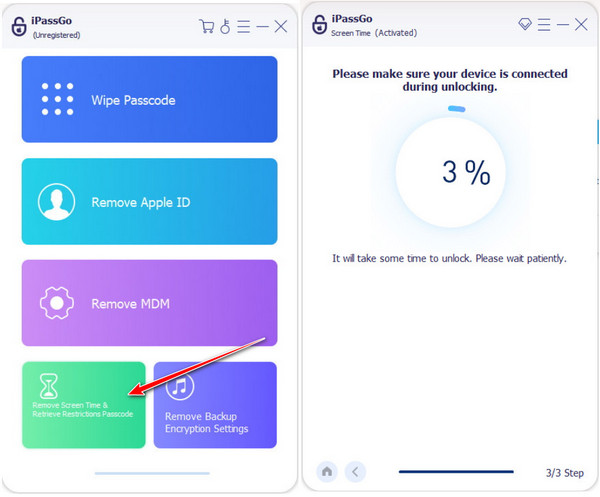
If the connected device is running iOS 12 or later, follow the on-screen setup instructions. When prompted, select Don’t Transfer Apps & Data to avoid data removal, then choose Set Up Later in Settings to complete the Screen Time removal successfully.
If the connected device is running iOS 11 or earlier, the tool attempts to retrieve the restriction passcode instead of removing it. This process requires an unencrypted iTunes backup. Once the retrieval is complete, the software displays the current restriction passcode on screen.
Part 3. What NOT to Do & How to Prevent This
1. Don't Keep Guessing
What to do if I forgot my Screen Time passcode? Guessing several times is the most expeditious method of permanently losing access. No attempt counter slows down, and no cooldown sends any warning to you regarding the buildup of attempts. Every wrong touch gets you yet another step closer to a hard lockout, which is impossible to undo by waiting. When the limit is high, then recovery methods, which reestablish access. The most secure way of responding to uncertainty is to cease all efforts and proceed to recovery solutions.
2. Always Set Up Recovery
Screen Time recovery is optional, and not taking it leaves one with unnecessary risk. Forgotten passcode may result in permanent lock-up of settings. Connecting Screen Time to an Apple ID or using it with Family Sharing presents you with a confirmed method of completely restoring access, loss-free and no third-party apps to bypass the Screen Time passcode. Taking a minute to confirm recovery settings prevents hours of frustration later.
3. Use a Memorable Code
Passcode Screen Time can be easily forgotten and set in a short period of time. The possibility of repeating errors is minimized with the help of a code that can be memorized easily but is not that obvious. Do not use confusing number combinations, such as device passcodes and device limits. An easy and clear passcode with a recovery system provides the most effective long-term lockout protection.
Conclusion
Screen Time lockouts seem abrupt, yet they have definite regulations that are easy to understand after realizing what went amiss. Repetitive guessing or lost recovery setup is the root cause of most of the problems, rather than the device itself. You will know how the lockout operates, and you can tell what the correct reaction is and much less stressful. Whether you are fixing the issue now or preventing it later, knowing how to reset the Screen Time passcode after failed attempts gives you a clear path forward without risking your data or losing control of your iPhone.
Samuel is a senior editor from imyPass. He is an expert on password unlocking. He has over five years of experience writing tutorials on phone unlocking.
Hot Solutions
-
Unlock iOS
- Review of the Free iCloud Unlock Services
- Bypass iCloud Activation With IMEI
- Remove Mosyle MDM from iPhone & iPad
- Remove support.apple.com/iphone/passcode
- Review of Checkra1n iCloud Bypass
- Bypass iPhone Lock Screen Passcode
- How to Jailbreak iPhone
- Unlock iPhone Without Computer
- Bypass iPhone Locked to Owner
- Factory Reset iPhone Without Apple ID Password
-
iOS Tips
-
Unlock Android
-
Windows Password


