Solution
 Support Center
 About Us
 Contact
How to Reset iCloud Password When You Forgot iCloud Password
 Gideon Byron Published on November 19, 2025Password Tips3-min reading
The iCloud password, the same as your Apple ID password, is essential for every Apple customer. Once you forget your account password, you cannot access the content synced to iCloud on any Apple device. Moreover, you cannot turn on or disable features involved with iCloud, such as Find My. This guide will show you how to find your iCloud password, what to do if you forgot iCloud password in various situations, and what to note when saving your iCloud password. Read more!

In this article:
- Part 1: How to Find the iCloud Password
- Part 2: How to Reset iCloud Password on iOS Devices
- Part 3: How to Change iCloud Password on Mac
- Part 4: How to Ask Others to Help You Reset iCloud Password
- Part 5: How to Recover iCloud Password on iforgot.apple.com
- Part 6: How to Save iCloud Password Correctly
Part 1: How to Find the iCloud Password
Before we start, you should know that the iCloud password is the same as the Apple ID password. If you’ve ever saved the password in your iCloud Keychain, you can easily access it on your iPhone, iPad, or Mac.
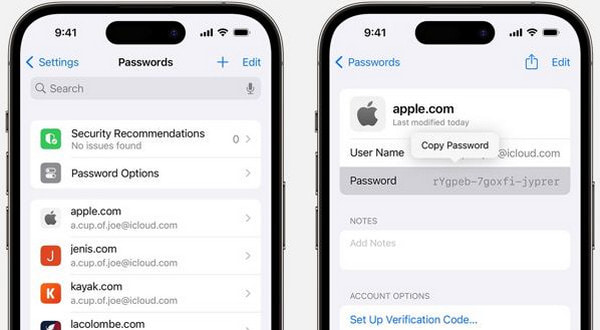
For iOS 17 and earlier users:
Open Settings.
Scroll down and tap Passwords.
Authenticate using Face ID, Touch ID, or your device passcode.
In the list, look for the entry with the website appleid.apple.com.
Tap the entry to view the User Name and Password, and you can click it to copy the password.
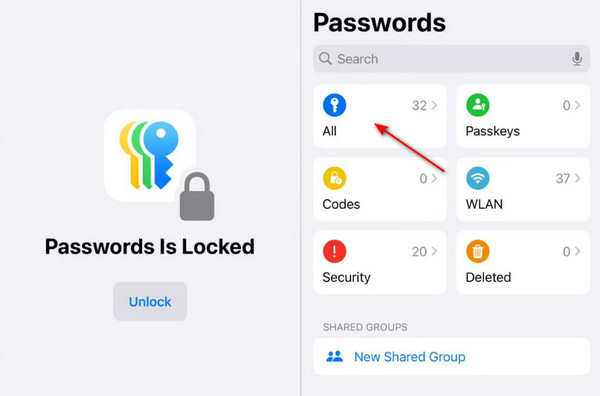
For iOS 18 and above users:
Open the Password app on your iPhone and press All.
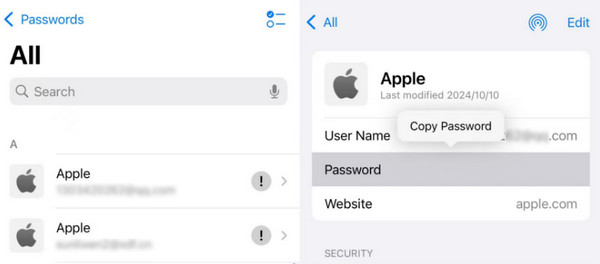
Click the Apple website. Click the asterisk and the password will be displayed.
Part 2: How to Reset iCloud Password on iOS Devices
If you haven’t saved your Apple ID password to iCloud Keychain or can’t find it in the Passwords list, don’t worry! You can still reset your iCloud password directly on your iOS devices. This ensures that you can regain access to your Apple ID and all associated services, even if the saved password isn’t available.
Go to Settings and tap your name.
Click Sign-In & Security.
Choose Change Password.
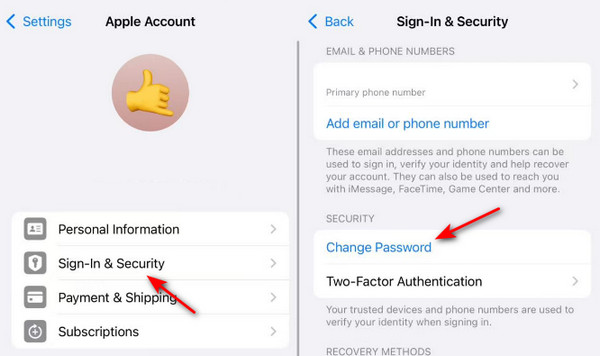
Verify your identity through Face ID, Touch ID, or your screen passcode.
Set a new password.
You may encounter the Security Delay window that requires you to wait for 1 hour to continue with your password resetting process. Don’t worry. That’s because the Stolen Device Protection is turned on, and this device is not at a familiar location.
Part 3: How to Change iCloud Password on Mac
On macOS Catalina or later:
Unfold the Apple menu and select System Preferences.
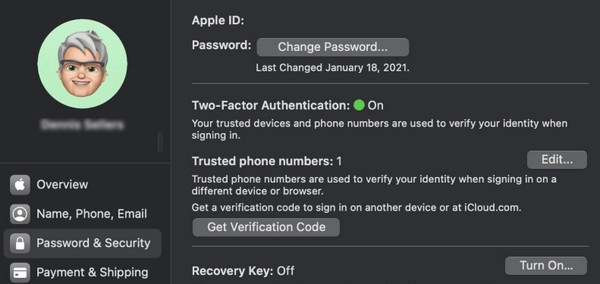
Select Apple ID/Apple Account.
Click Password & Security, and then press the Change Password button.
Enter your Mac screen passcode to continue.
On macOS Mojave or earlier:
Open the Apple menu and choose System Preferences.
Select iCloud - Account Details - Security.
Click Change Password.
Part 4: How to Ask Others to Help You Reset iCloud Password
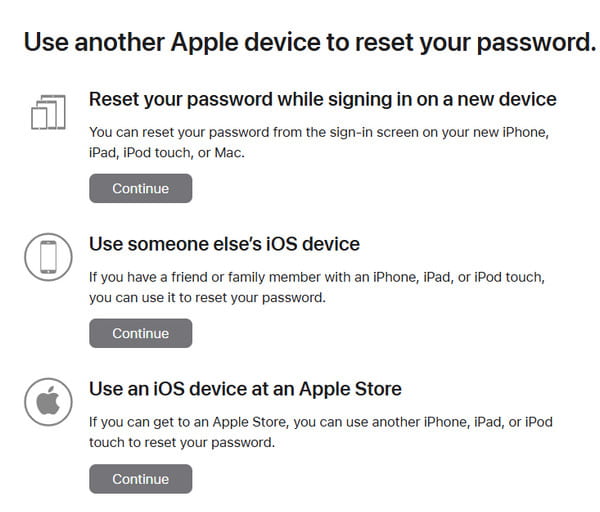
Normally, you can reset your iCloud password directly on your own trusted iPhone or iPad. However, if your devices are locked, not signed in to your Apple ID, or you cannot receive verification codes, Apple allows you to ask a trusted person to help reset your password. This ensures that even when you can’t perform the reset yourself, you can regain access to your Apple ID securely through a verified contact.
Ask your friend to download Apple support from the App Store.
Launch the app and press Reset Password.
Click Help Someone Else on the next page.
Enter your Email or phone number.
Fill in the code you receive and follow the onscreen instructions to move on.
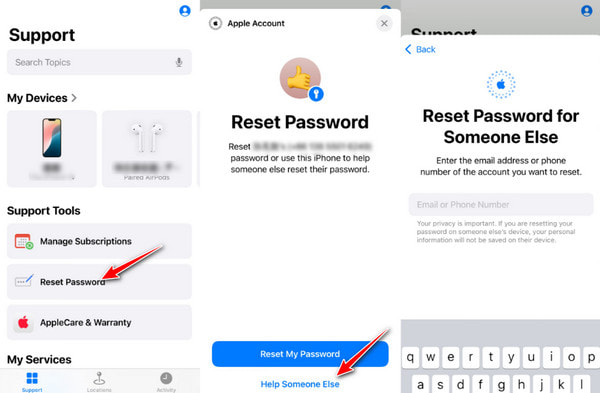
The same steps also apply to an iPhone locked to the owner.
Part 5: How to Recover iCloud Password on iforgot.apple.com
If you cannot reset your iCloud password on your device or through a trusted contact, another reliable way is to recover the iCloud password from Apple’s official website - iforgot.apple.com.
This method works when:
Your device is unavailable.
You’re signed out of Apple ID.
You can’t receive verification codes.
Follow the steps below to learn how to quickly reset iCloud password on iforgot.apple.com:
Go to https://iforgot.apple.com/.
Press the Reset Password button.
Enter your email or phone number. Type the characters in the image and press the Continue button.
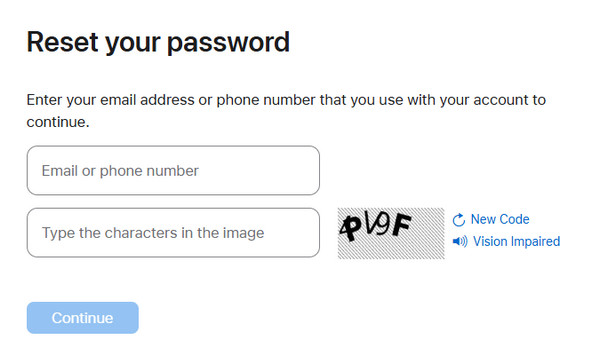
Choose either option and follow the onscreen instructions to reset your password on the website.
4,000,000+ Downloads
Bypass the iCloud activation lock when you forget the iCloud password.
3 steps to easily remove the iCloud activation lock.
Simple and easy-to-follow interface.
Compatible with multiple iOS versions.
Part 6: How to Save iCloud Password Correctly
After you’ve successfully reset your iCloud password, the most important thing you need to do is to keep your iCloud password well since it is closely related to the iCloud drive, iCloud backup, activation lock, and your iPhone’s safety.To avoid getting locked out of your account in the future, here we list some tips for your reference:
Avoid using passwords that are too complicated.
Many users forget their iCloud credentials because the password is too complex to remember. Avoid using a meaningless string of symbols. Instead, you can use some combinations of numbers and letters whose special meanings only you know.
Enable the iCloud Keychain on your iPhone.
Go to Settings and click your name. Choose iCloud.
Click Passwords.
Make sure the toggle is on.
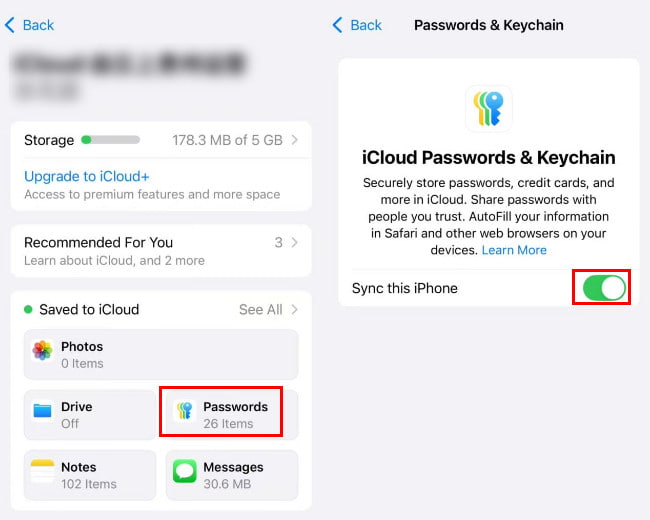
Then, when you enter your account and password on the website or App, the system will prompt Save to iCloud Keychain. Click Save. Next time, when you want to log in, you don’t need to enter the password again.
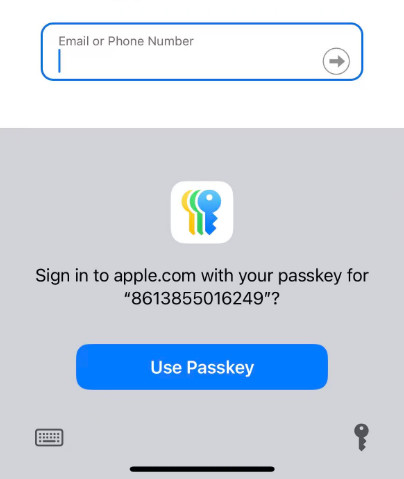
Using a third-party password manager.
If you want to manage and back up passwords on your iPhone more conveniently, you can try imyPass iPhone Password Manager. It supports one-click operation to view, manage, export, and share passwords saved on iPhone without jailbreak.
4,000,000+ Downloads
Back up your iCloud password easily and safely.
Simple steps to export your iCloud password anytime.
You can quickly check the previously scanned passwords.
Compatible with the latest iPhone models and iOS versions.
Conclusion
What to do if you forgot your iCloud password? We believe you’ve got the answer. This article has listed several ways to help you recover iCloud password, in terms of how to find your iCloud password, how to reset your iCloud password, as well as how to save your iCloud password correctly.
To change your iCloud password, we have introduced detailed methods in terms of using your own iPhone, using your friend’s iPhone, using a Mac, visiting Apple’s website in the browser, etc.
Also, we’ve introduced a tool to help you bypass the iCloud activation lock easily when you’re locked out.
Hope this post will be useful when you forget your iCloud password next time!
Gideon is a senior editor from imyPass. He is an expert in unlocking phones and computers, and he has written password tutorials in imyPass for 3 years.
Hot Solutions
-
Password Tips
- 5 Best Password Finders for Instagram
- 10 Best Wireless Network Password Viewers
- Change Email Passwords on iPhone
- Reset or Change a Forgotten Twitter Password
- How to Restore or Reset Instagram Password
- Solutions When Forgot TikTok Password
- Recover or Change Discord Forgotten Password
- How to Reset Keychain Passwords
- Review of Microsoft Edge Password Manager
- 5 Best iPhone Password Manager Recommendations
-
Windows Password
-
Unlock iOS
-
Unlock Android