



 Solution
 Support Center
 About Us
 Contact
How to Quickly Bypass SOTI MobiControl on iOS and Android
 Samuel Spenser Published on March 27, 2026Unlock iOS3-min reading
SOTI MobiControl is a comprehensive MDM solution. It consists of four components: Management Service, Deployment Server, SQL database, and Soti agent. Many small and large organizations deploy SOTI MobiControl and monitor enrolled mobile devices. At the same time, users will lose full control of their iPhones and Android phones. Without an admin password, you cannot easily remove the MDM. However, this tutorial shares how to bypass SOTI MobiControl on your device quickly.

In this article:
Part 1: What Is SOTI MobiControl
As mentioned previously, SOTI MobiControl is a mobile device management solution. With an SOTI MobiControl login, IT administrators can simplify the security and management of multi-vendor, multi-form-factor, and multi-operating-system devices.
Main Features of SOTI MobiControl
1. Manage apps on enrolled devices.
2. Manage content.
3. Share devices.
4. Remote support.
5. Single Sign-On for shared devices.
6. Integrate the SOTI One platform.
7. Compatible with SOTI XSight.
Part 2: How to Bypass SOTI MobiControl on Android
Way 1: How to Bypass SOTI MobiControl on Android by Factory Reset
A standard factory reset cannot bypass SOTI MobiControl on Android or any other MDM solutions. If you don't have an admin password, you have to perform a factory reset in Recovery Mode to get freedom.
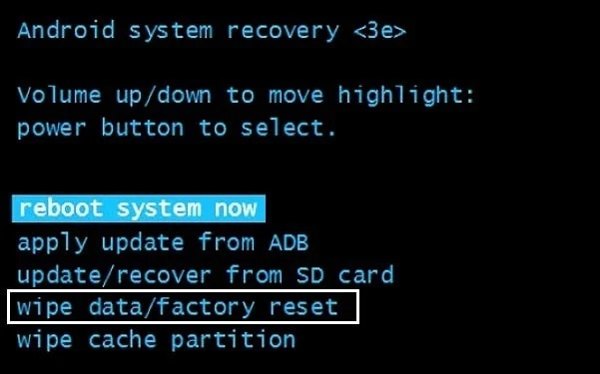
Press and hold the Power + Volume Down buttons together until the boot-loader menu appears.
The button combination may be different on your phone.
Highlight Recovery Mode with the Volume buttons, and select it with the Power button.
Next, select Wipe data/factory reset with the Volume buttons, and press the Power button to perform the option.
If prompted, select Yes and confirm it.
When it is complete, select reboot system now and perform it.
Wait for your phone to restart and set it up as a new device.
Don't restore a backup that contains SOTI MobiControl when setting up your phone. Otherwise, the MDM solution will be added on your phone again.
Way 2: How to Delete SOTI MobiControl on Android via ADB
ADB is a command-line tool for Android devices. It can access the basic system and personalize your device. It is possible to delete SOTI MobiControl from an Android device without a password.
Turn on your phone.
Open the Settings app and go to Developer options.
If you cannot find Developer options, go to About phone in Settings and tap on the Build Number seven times.
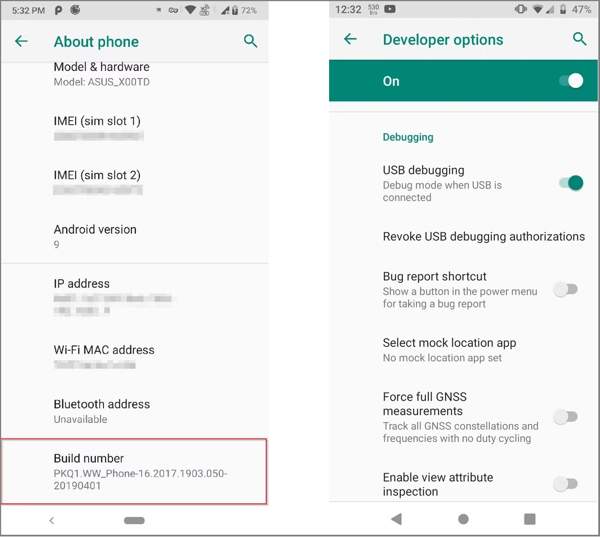
Turn on the USB debugging mode.
Download and install ADB on your PC.
Connect your phone to your PC with a USB cable.
Go to the directory where ADB is installed.
Right-click the Start menu and choose Command Prompt(admin) or Windows PowerShell(admin).
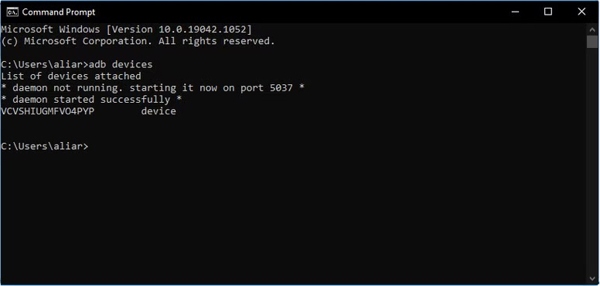
Type in adb devices and press the Enter key on your keyboard.
Next, input adb shell and press Enter.
Type in su and press Enter.
Perform the command: cd /system/priv-app to access the system apps folder.
Input ls, and press Enter.
Then, input rm -rf and press Enter to delete SOTI MobiControl on Android.
Disconnect your device and go to the Settings app.
Choose Apps and uninstall the SOTI MobiControl device agent.
Part 3: How to Bypass SOTI MobiControl on iPhone
Way 1: How to Remove SOTI MobiControl on iPhone with 3uTools
3uTools is a free toolkit for iOS devices. While it doesn't support all iPhones, you can try it to remove SOTI MobiControl on iOS 17.1 to 18.2. Bear in mind that the success rate is different, depending on your situation.
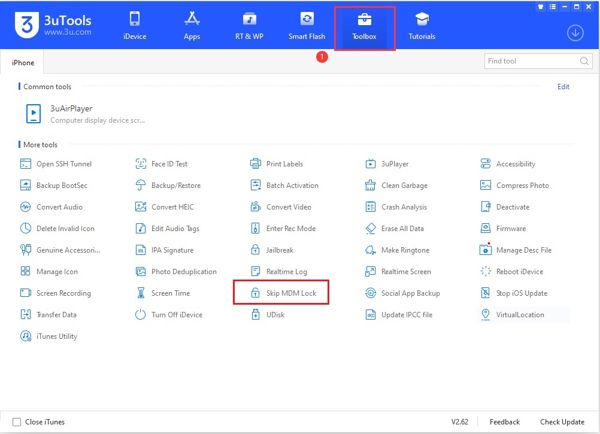
Install the freeware on your computer.
Next, plug your iPhone into your computer with a USB cable.
Open 3uTool, go to the Toolbox tab, and choose Skip MDM Lock.
Click the Skip Now button on the pop-up dialog.
Then, click Deactivate and wait for the process to finish.
Tap and hold the MDM app until it shakes, and tap the X to remove SOTI MobiControl.
The freeware cannot get rid of the SOTI MobiControl profile permanently. Your device will be locked again if you reset it.
Way 2: How to Uninstall SOTI MobiControl on iPhone Using iPassGo
Another way to uninstall SOTI MobiControl on your iPhone is iPassGo. It is able to get rid of any MDM profiles from your iOS device with a single tap. More importantly, the user-friendly design makes it easy to use.

4,000,000+ Downloads
Uninstall SOTI MobiControl and other MDM profiles.
Don't require admin passwords or your Apple ID password.
Protect your data during the process.
Offer bonus features, like Screen Time bypass.
Support the latest editions of iOS and iPadOS.
How to Uninstall SOTI MobiControl from Your iPhone
Connect to your device
Download and install the MDM removal software on your PC. It is compatible with Windows 11 to XP. There is another version for Mac users. Connect your iPhone to your PC with a Lightning cable, and the software will detect your device immediately. Choose the Remove MDM mode to proceed.
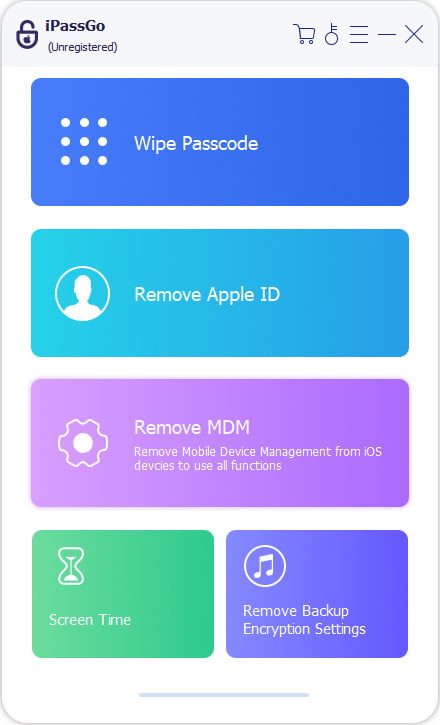
Uninstall SOTI MobiControl
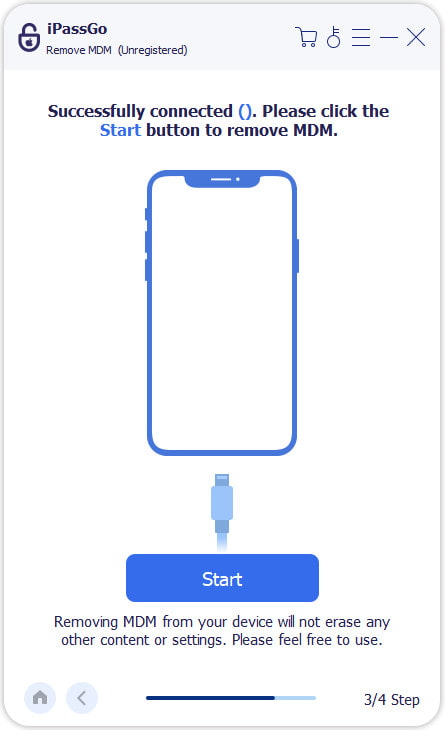
If you are ready, click the Start button to begin bypassing SOTI MobiControl on your iPhone. Once the process is successful, your device will restart. Disconnect it, and you will find the MDM profile is deleted. If you can see the SOTI MobiControl app on your home screen, manually uninstall it directly.
Extended Reading:
Conclusion
This guide discussed what SOTI MobiControl is and how to bypass the MDM solution from Android and iOS devices. A factory reset in Recovery Mode can remove all data from a phone, including MDM. The ADB commands enable users to get rid of MDM without rooting their devices. For iPhone users, 3uTools is a good starting point. iPassGo is an ultimate solution to remove any MDM solution from an iOS device with a single click.
Samuel is a senior editor from imyPass. He is an expert on password unlocking. He has over five years of experience writing tutorials on phone unlocking.
Hot Solutions
-
Unlock iOS
- Review of the Free iCloud Unlock Services
- Bypass iCloud Activation With IMEI
- Remove Mosyle MDM from iPhone & iPad
- Remove support.apple.com/iphone/passcode
- Review of Checkra1n iCloud Bypass
- Bypass iPhone Lock Screen Passcode
- How to Jailbreak iPhone
- Unlock iPhone Without Computer
- Bypass iPhone Locked to Owner
- Factory Reset iPhone Without Apple ID Password
-
iOS Tips
-
Unlock Android
-
Windows Password


