



 Solution
 Support Center
 About Us
 Contact
How to Change Country of Apple ID to Align Account with Local Services
 Samuel Spenser Published on April 02, 2026Unlock iOS3-min reading
The Apple ID account that can be used on Apple devices, including iPhone, iPad, and Mac, is essential. It is used for making changes to the mentioned device, authentication, etc. This account requires your country information due to payment methods, local laws, and more.
On the other hand, some users need to change the Apple ID country. It happens when you move locations, access subscriptions, see local content, and use local payment methods. Do you want to learn how to change the country of an Apple ID? Continue browsing the post to find related, reliable information about the topic.

In this article:
Part 1. Crucial Prerequisites & Requirements
Changing the Apple ID country of the account is simple. However, there are crucial prerequisites and requirements you need to meet. This way, you will not encounter future issues before or after changing the country of your Apple ID account. You must do the following before you can change countries:
1. Spend Store Credit
You can link your Apple ID to your App Store. This digital store offers paid purchase applications. The balance from the mentioned account must be spent. If not, you cannot use the balance to the other country. Apple does not convert the store credit to the currency of the country where you are.
2. Cancel Subscriptions
You can subscribe to different services on your Apple devices, including Netflix, Apple Music, and iCloud+. You must cancel their subscriptions because they might be tied to the country where you purchased them. Their pricing may vary by country, so some services may not be accessible. Also, Apple does not transfer your service subscriptions across countries. If so, you need to create a new Apple ID to avoid cancellation.
3. Wait for Pending Transactions
Also, you need to wait for your pending transactions to be completed. It might be a recent purchase that has not fully processed, a subscription renewal, or something else. Apple does not allow a country change while the account has active billing.
4. Have a Valid Payment Method
Each country supports a payment method for digital purchases. However, your current payment method might not be supported in the other country you plan to visit. Apple has a designated payment method for each country.
5. Redeem Gift Cards
You need to redeem the gift cards on your Apple devices before changing the Apple ID country. The reason is that the gift cards are region-locked. Once you have already arrived in a new country, gift cards will no longer work.
Part 2. Step-by-Step Guide to Change Your Apple ID Country
All Apple devices can change the country for your Apple ID account. It includes iPhone, iPad, iPod Touch, and Mac. Additionally, you can do the procedure on your PC. Please continue browsing below for the full details.
1. On iPhone, iPad, or iPod Touch
iPhone, iPad, and iPod Touch are the most common Apple devices where users change their Apple ID country. The best thing about them is that they have the same procedures. Please use the steps below as a guide for the process.
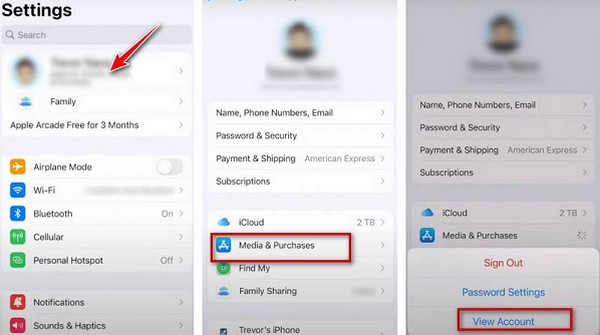
Open the Settings application. Then, select your name at the top and tap the Media & Purchases button. Tap the View Account button. Sign in to an Apple ID account and select the Country/Region button.
Select your country or region. Tap the Change Country or Region button. Follow the on-screen instructions afterward to complete the process.
2. On a Mac or PC
Mac and PC can also be used to change your Apple ID country. You can use Apple Music or Apple TV for the changing process. Also, ensure that the Apple ID authentication information is known to proceed with the process. Please use the steps below to change your Apple ID country with a Mac or PC.
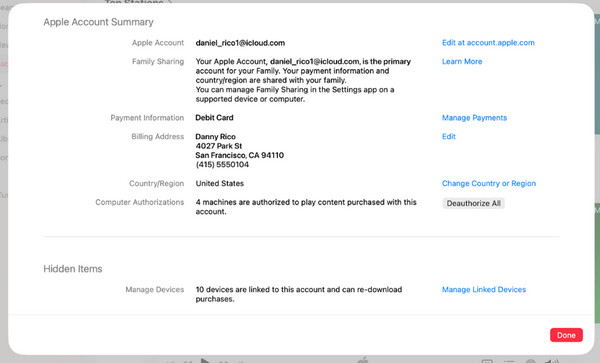
Open your Apple Music or Apple TV program. Then, click the Account button and select Account Settings or View My Account. Please sign in to the account you want to change the region for.
Click the Change Country button. Then, select your preferred one. Click the Agree button twice. Follow the on-screen instructions. Finally, click the Done button in the bottom-right corner.
Part 3. What Happens After You Change Your Country
When you change your account country, it will not sign out the Apple ID account from your Apple devices. You only need to provide your new payment method, which is supported in your country. So, the remaining balance from the previous payment method cannot be used.
Furthermore, there will be a 12-month restriction on the App Store, as it can only be changed once per year. Also, the music, movies, and books might be altered due to regional licensing.
Part 4. Why Can I Not Change My Country?
Why can I not change my country on Apple ID? There are different reasons for this issue. You might have an active subscription to your account. Additionally, you may have a remaining or pending store credit. You might also have incomplete purchases on the Apple ID account.
Part 5. In Case You Need to Recover Lost Data on iPhone
There are instances when we lose our data on the iPhone, including when we change the country of our Apple ID. imyPass iPhone Data Recovery can help you recover the lost data from your iPhone. This third-party tool can retrieve various types of data, including videos, photos, app data, call history, and more. Also, it supports multiple recoverable scenarios. Accidental deletion, no backups, water damage, broken screen, and system problems are some of them.
iOS 5 to 18 and iOS 26 are supported for the recovery. Additionally, it uses an advanced algorithm tailored to iOS and has a high success rate. Please use the steps below to use the tool properly.
Download imyPass iPhone Data Recovery on your computer. Then set it up, install it, and open it to start the recovery process.
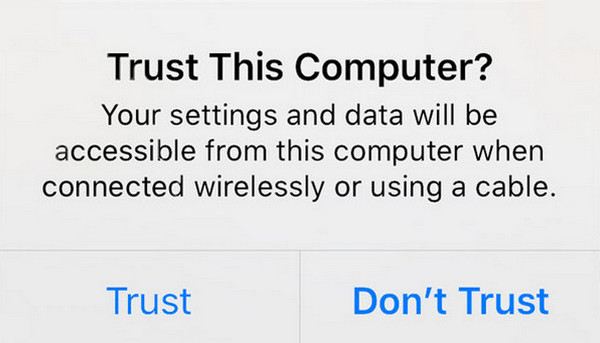
Plug your iPhone into the computer using your compatible USB cable. Then, go to your iPhone and tap the Trust button at the bottom-right of the small window.
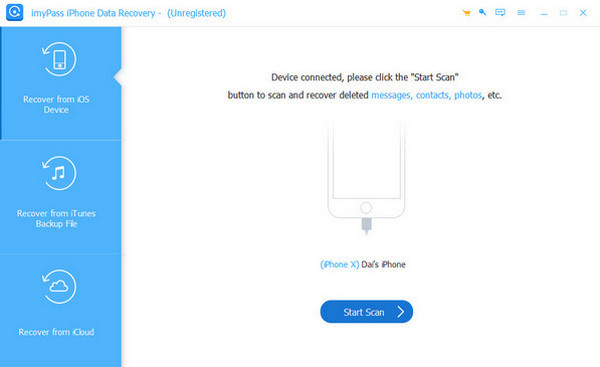
Later, click the Start Scan button at the bottom center. You can also click the Recover from iOS Device button. Select the data type from the left side of the screen. Please select the files on the right. Choose the Recover option at the bottom right.
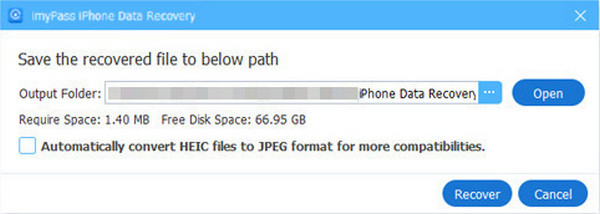
A small window will be prompted on your screen. Please choose the destination path of the data you want to recover. Finally, click the Recover option to complete the process.
Conclusion
In conclusion, you can perform an Apple ID edit country procedure easily. But you need to consider the prerequisites and requirements before you do that. This information is listed in this article. Also, imyPass iPhone Data Recovery is here to help you retrieve data from your iPhone if data loss occurs during the process. Download the tool if you want to explore it more.
Samuel is a senior editor from imyPass. He is an expert on password unlocking. He has over five years of experience writing tutorials on phone unlocking.
Hot Solutions
-
Unlock iOS
- Review of the Free iCloud Unlock Services
- Bypass iCloud Activation With IMEI
- Remove Mosyle MDM from iPhone & iPad
- Remove support.apple.com/iphone/passcode
- Review of Checkra1n iCloud Bypass
- Bypass iPhone Lock Screen Passcode
- How to Jailbreak iPhone
- Unlock iPhone Without Computer
- Bypass iPhone Locked to Owner
- Factory Reset iPhone Without Apple ID Password
-
iOS Tips
-
Unlock Android
-
Windows Password

