



 Solution
 Support Center
 About Us
 Contact
How to Turn the Passcode Off on iPhone Even Under Restrictions
 Samuel Spenser Published on December 17, 2025Unlock iOS3-min reading
Almost all phones have screen passcode features, like 6-digit passcode, Touch ID, and Face ID. You can set up a passcode on an iPhone to protect your data and privacy. However, you may need to turn off passcode on iPhone for quick access to a device. It's very easy to do that when you're familiar with iPhone settings or check the latest tutorial in this article.
However, due to Screen Time, MDM, or other restrictions, you can find that iPhone Turn Passcode Off greyed out. In that case, you should remove the restrictions on your device first. Follow the guides in this article, you can learn how to turn off passcode on iPhone with or without restrictions.

In this article:
Part 1. How to Turn Off Passcode on iPhone When You Remember It
Please note that, after disabling passcode on iPhone, your data and privacy won't be protected if the device is taken by others.
Now, let's see how to turn the passcode off on iPhone 16/15/14 and other series in Settings.
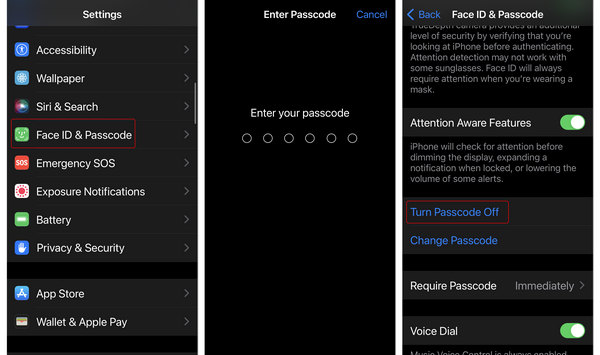
Open the Settings app on your iPhone.
Slide down, and then do one of the following steps based on your device:
On an iPhone with Face ID: Tap Face ID & Passcode.
On an iPhone with Touch ID: Tap Touch ID & Passcode.
Then, you need to enter the current screen passcode on the iPhone.
Finally, slide down to tap Turn Passcode Off to easily remove passcode on your iPhone.
Note:
After turning off iPhone passcode, the Touch ID and Face ID features won't work. You cannot keep using Touch or Face ID with the screen passcode off. So, ensure that you can accept your data and privacy will be in a less secure situation.
Part 2. How to Turn Off Passcode on iPhone If You Forget It
How do you turn the passcode off on an iPhone when you don't know the current passcode? That is a big problem, because you will inevitably face a data erasing to remove passcode and regain access to the iPhone. But you're still lucky if you have iPhone backups, like iCloud Backup or iTunes Backup. Let's check how to turn the passcode off on iPhone when you don't know the passcode in 3 fastest ways.
Method 1. imyPass iPassGo
If you don't know the iPhone passcode, you can't unlock your iPhone, let alone turn off the passcode. In that case, you can rely on imyPass iPassGo to wipe iPhone passcode (4-digit and 6-digit), Face ID, and Touch ID. You don't need to unlock the iPhone, but just connect it to your computer, and then use imyPass iPassGo to turn off passcode on iPhone 17/16/15.
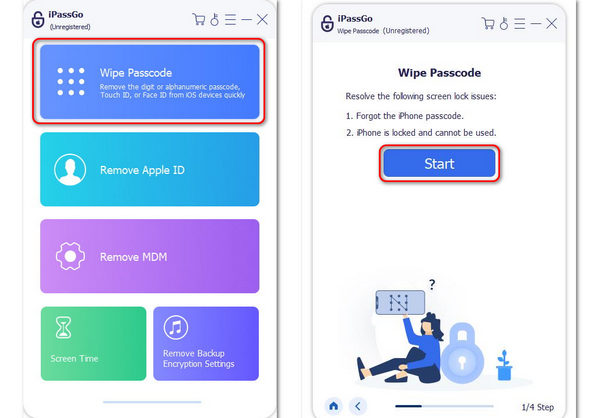
When you want to remove the lock screen passcode from your iPhone or iPad, you can free download imyPass iPassGo on your computer. Then, install and launch it. Connect your iPhone to your computer with a USB cable.
Select Wipe Passcode from the program interface. Then, click the Start button.
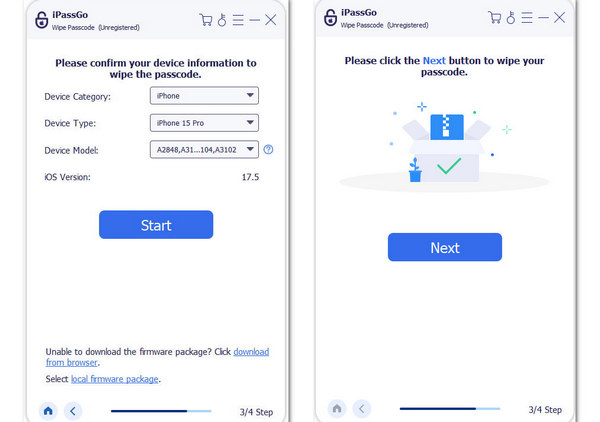
Confirm your iPhone category, type, and model. Click the Start button to confirm it. Then, it will download the firmware package for your iOS version.
After downloading, you just need to click the Next button to turn off passcode on iPhone easily.
Note:
Turning off iPhone passcode when you don't know it will definitely factory reset the iPhone. What you can do then is only use the iPhone as a new device or restore data from iCloud, iTunes, or other backup files.
Method 2. Recovery Mode
You can also enter your iPhone into Recovery Mode. Then, use iTunes or Finder to factory reset your iPhone or update the iOS version. After that, you will need to enter your Apple ID and password to use the iPhone as a new device.
Enter Recovery Mode
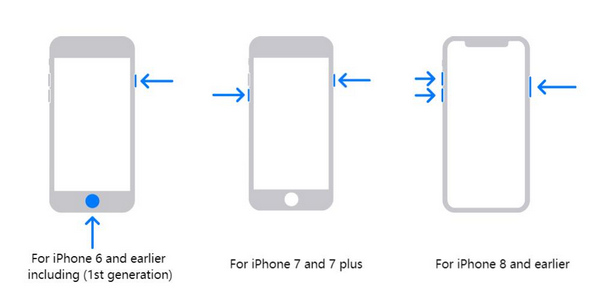
Keep your iPhone connected to a computer. On Windows, you should launch iTunes, and on macOS, you should launch Finder. If your MacBook still has iTunes, launch iTunes instead. Then, follow the guides below based on your iPhone model.
On iPhone 8 or higher models:
Tap and quickly release the Volume Up button, and then tap and quickly release the Volume Down button. Then, keep pressing the Power button until the screen gets black. Then, keep pressing the Power and the Volume Up buttons until you see the iTunes logo.
On iPhone 7 and 7 Plus:
Keep pressing the Volume Down and the Power buttons. You'll see the screen gets black. Release the buttons when you see the Recovery screen.
On iPhone 6s and older models:
Keep pressing the Home and the Power buttons until you see the Recovery screen.
Restore or Update iPhone
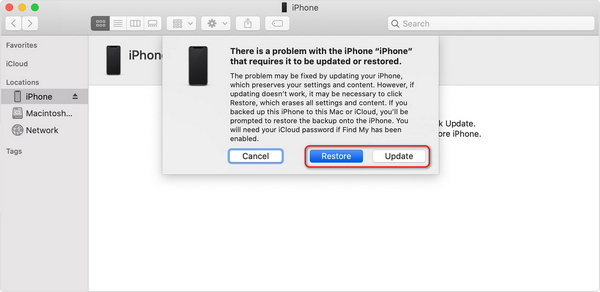
Now, go back to your computer. Whether you're using iTunes or Finder, you will see a prompt saying your iPhone has an issue, and you have two options: Restore or Update. You can choose what you want. It will finally factory reset your iPhone, and automatically turn off passcode on iPhone.
Note:
After the steps above, you need to set up your iPhone as a new device and enter the previous Apple ID and password on the iPhone. If you forget your Apple ID password, you can only either reset it with your combined phone number or email, or bypass iCloud Activation Lock and use the phone with great restrictions.
Method 3: Erase iPhone in iCloud Find
It's complicated to enter an iPhone into Recovery Mode. Sometimes, you may even fail to enter that mode. How do you turn off iPhone passcode in an easier way? If you still remember the Apple ID and password, you can log into iCloud Find My on a web browser, and then erase the device without any operation on your iPhone. Then, set up the phone, enter your Apple ID password, and set a new screen passcode. Check how to turn off iPhone passcode with iCloud.
Open a browser, and go to the official webpage of icloud.com/find. Sign in to your Apple ID.
You can see all the iOS devices combined with this Apple ID. Select the iPhone and click the Erase This Device button to factory reset this device. This step will also turn off passcode on iPhone.
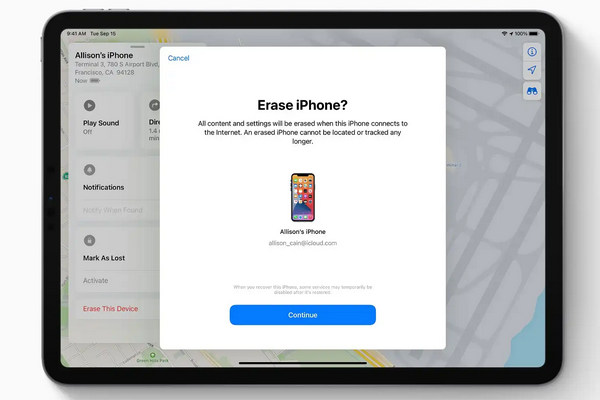
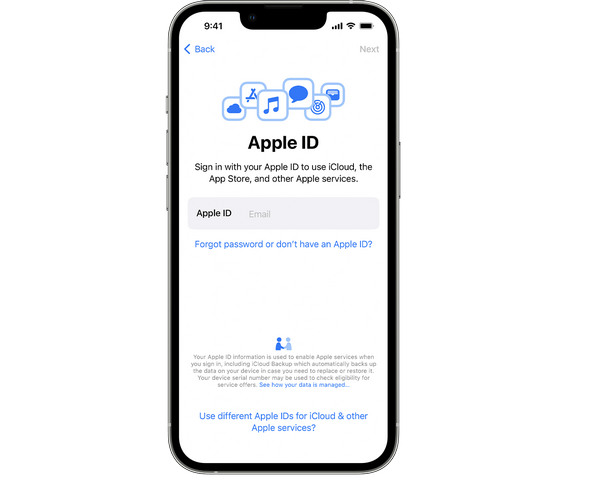
Then, you can set up your iPhone as a new device. Then, enter your Apple ID and password to access your iPhone. Then, you can set a new screen passcode and Touch ID or Face ID.
Part 3. How to Fix iPhone Turn Passcode Off Greyed Out
However, sometimes you may find that the Turn Passcode Off option is greyed out and you can't turn off the screen lock. That's because some profiles or settings forbid this operation. You can check the reasons and find solutions to fix it. Then, you can easily turn the passcode off on iPhone.
Reason 1: MDM Configuration Profiles
If your iPhone is enrolled in a MDM or supervised by an organization, like a business or educational institution, the Turn Off Passcode option is greyed out. In that case, you can only remove the configuration profiles to turn off the passcode on iPhone.
How to Fix it When Your iPhone Isn't Supervised
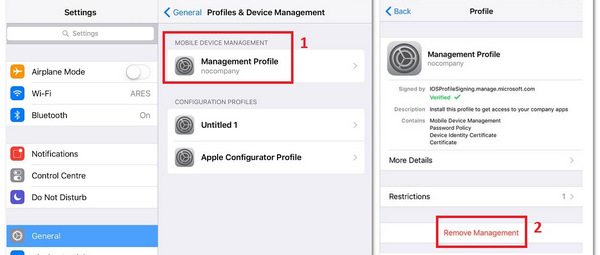
Go to Settings > General > VPN & Device Management.
If any configuration profile is shown on the screen, tap it. Then, choose Remove Management.
Now, you can easily turn off iPhone passcode in Settings.
How to Fix it When Your iPhone is Supervised
You can only ask your supervisor to help you remove restrictions. Then, you can directly turn off iPhone passcode in Settings.
Reason 2: Screen Time Restrictions
If your iPhone has Screen Time restrictions, maybe the iPhone Turn Passcode Off will be greyed out. In that case, you can only ask the Screen Time establisher to help you remove Screen Time. But what if they refuse? You can check an ultimate solution below.
Ultimate Solution to Fix Turn Passcode Off Greyed Out
When you cannot turn off the iPhone passcode, the cause is either MDM or Screen Time. How can you remove the two restrictions without others knowing? imyPass iPassGo can help you do that easily.
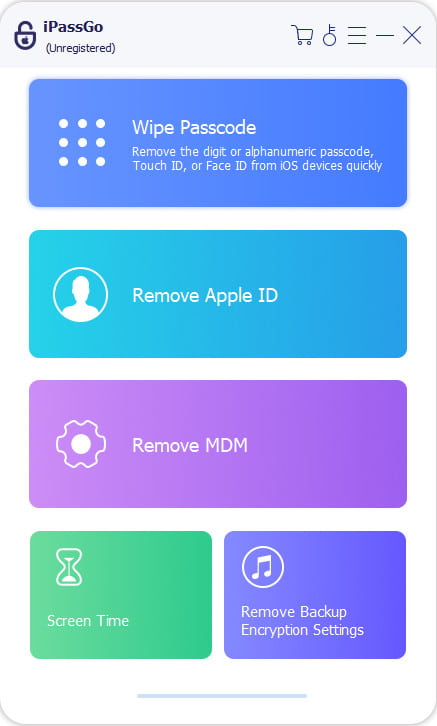
You only need to connect your iPhone to your computer and launch imyPass iPassGo. Then, choose Remove MDM or Screen Time. Then, just click the Start button to remove restrictions. After that, you can easily turn off the passcode on your iPhone.
Conclusion
How do you turn off iPhone passcode? It's really easy to do that when you remember the passcode. Just confirm it and then disable it in Settings. If you don't know the screen time passcode, you inevitably need to factory reset your device to turn off passcode on iPhone. imyPass iPassGo is the fastest solution to do that. It can remove Screen Time and MDM on your iPhone to fix iPhone Turn Passcode Off greyed out, and then let you remove passcode and screen lock in a few clicks.
Samuel is a senior editor from imyPass. He is an expert on password unlocking. He has over five years of experience writing tutorials on phone unlocking.
Hot Solutions
-
Unlock iOS
- Review of the Free iCloud Unlock Services
- Bypass iCloud Activation With IMEI
- Remove Mosyle MDM from iPhone & iPad
- Remove support.apple.com/iphone/passcode
- Review of Checkra1n iCloud Bypass
- Bypass iPhone Lock Screen Passcode
- How to Jailbreak iPhone
- Unlock iPhone Without Computer
- Bypass iPhone Locked to Owner
- Factory Reset iPhone Without Apple ID Password
-
iOS Tips
-
Unlock Android
-
Windows Password


