



 Solution
 Support Center
 About Us
 Contact
What to Do When I Forgot My Apple ID Password - 5 Recovery Secrets
 Samuel Spenser Published on January 16, 2026Password Tips3-min reading
Few things slow you down more than a login issue at the wrong moment. When you face a forgot Apple ID password problem, it can feel like your whole device is on hold. The good news is that this is a common issue with clear and safe ways to fix it. With the right steps, you can recover access, keep your data secure, and get back to your work fast. In this guide, you will learn how to reset your details on a signed-in device, use the iForgot page, try a recovery key, and unlock devices tied to your account.

In this article:
Part 1. Reset Apple ID Password If It Is Logged In
1. On iPhone or iPad
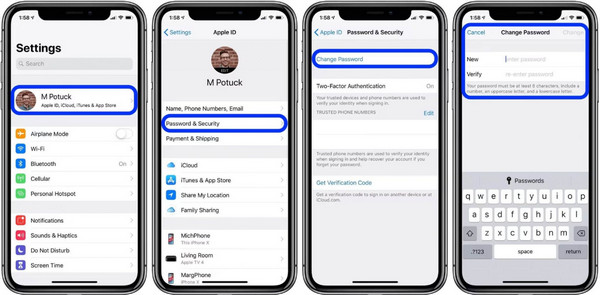
If your device is already signed in, you can update your details even when you feel stuck and think,"I forgot my Apple ID password". Follow the steps below to set a new password with ease:
Open Settings on your iPhone or iPad. Tap your name at the top.
Select Password and Security and enter your device passcode when asked.
Tap Change Password and follow the onscreen steps to create your new Apple ID password.
2. Reset Apple ID Password on a Mac - macOS Catalina or later
You can reset your password through System Preferences when your Mac is already signed in. This method works well for users dealing with an Apple ID forgot password issue.
Go to the Apple Menu > System Preferences.
Click Apple ID and choose Password and Security.
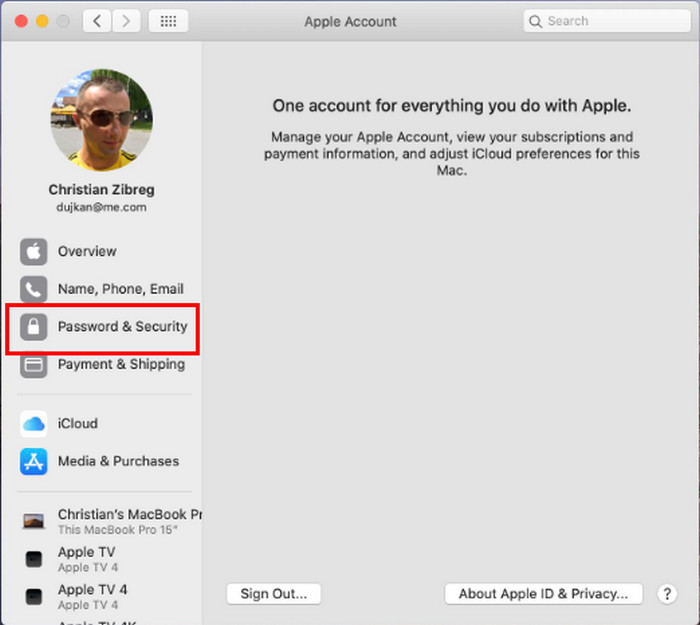
Click Forgot Apple ID or Password. If no prompt appears, click Change Password. Enter your Mac login password and follow the guide to set a new Apple ID password.
3. Reset Apple ID Password on a Mac - macOS Mojave, High Sierra, or Sierra
Older macOS versions use iCloud settings for password changes. This is helpful if you recently forgot my Apple ID password and need a direct way to recover it.
Go to the Apple Menu > System Preferences.
Click iCloud and select Account Details.
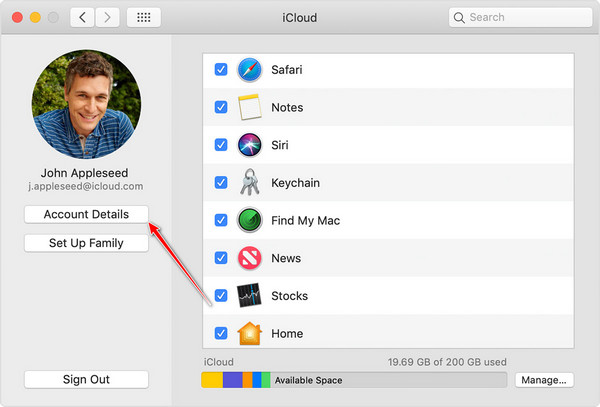
When the prompt appears, click Forgot Apple ID or Password. If the prompt does not show, select Security, then click Reset Password or Change Password.
Type in the password you use to access your Mac and construct a new Apple ID password by following the onscreen guide.
Part 2. Recover Apple ID Password via iForgot
You can recover your account through the iForgot page if you forgot your Apple ID and password and cannot access a trusted device. This method works on any browser and guides you through a secure verification process.
Open your browser and go to the iForgot page at iforgot.apple.com. Enter your Apple ID on the screen, then select Continue.
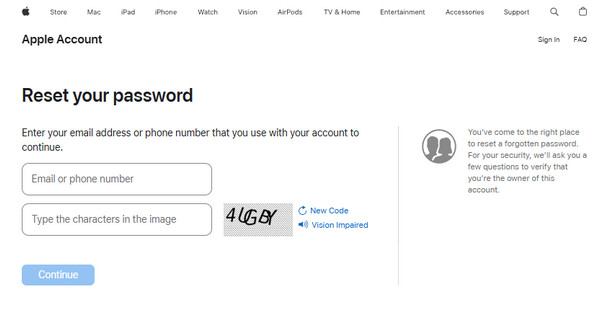
Choose the option to receive a reset link through your email. Open the message titled How to reset your Apple ID password in your inbox.
Click the Reset Now link inside the email. Follow the onscreen steps to confirm your identity and create a new password.
Part 3. Recover Apple ID Password Using Recovery Key
A recovery key is a secure fallback that helps when you are unsure what to do when you forget your Apple ID password and need another way to protect your account. You can set it up or update it on a trusted device.
1. Set Up or Update a Recovery Key on iPhone or iPad:
Open Settings, tap your name, and go to Sign in and Security. Enter your Apple Account password if needed.
Select Recovery Key, tap Continue, and start the setup.
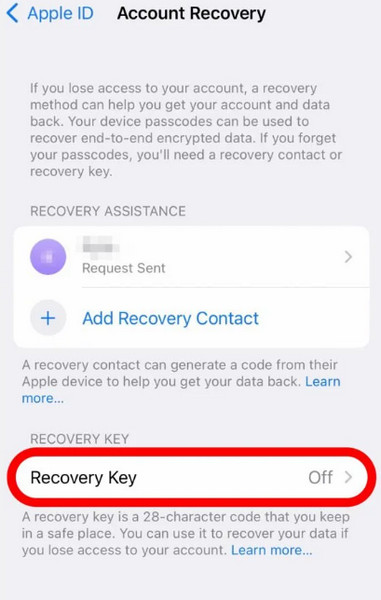
Follow the onscreen guide to generate your recovery key, then write it down or store it safely.
Confirm the key by entering or scanning it to finish the setup.
2. Set Up or Update a Recovery Key on Mac:
Open the Apple Menu, choose System Settings, click your name, then go to Sign in and Security.
Select Recovery Key, enter your Apple Account password, then click Turn On.
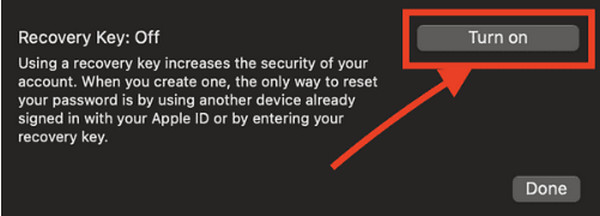
Choose Use Recovery Key, enter your Mac login password, and generate your key. Write it down or print it for safekeeping.
Click Continue and confirm the key to complete the setup.
Part 4. Recover Apple ID When You Forget Apple ID and Password
If I forgot my Apple ID password and email, you can still recover my Apple ID using Apple Support. Apple allows recovery when you can confirm details linked to your account. These details help prove that you are the rightful owner and ensure your data stays secure.
You may recover your account under the following circumstances:
1. Additional Email Address:
You previously set up a rescue or secondary email linked to your Apple ID.
2. Trusted Phone Number:
A phone number was added to your account to receive verification codes.
3. Security Questions:
You had previously configured security questions and answers for your account.
4. Previously Used Devices:
You have a trusted device that was signed in to your Apple ID, such as an iPhone, iPad, or Mac.
5. Personal Account Details:
You may give your personal information associated with the account, which could be your full name, date of birth, or the country in which the account was opened.
6. Recent Account Activity:
You can test the recent activity in the account, such as the recent app purchases, subscriptions, or iCloud usage.
Steps to Recover Your Apple ID via Apple Support:
Go to the Apple Support site at support.apple.com, open the Apple Repair > Start Repair > Apple Account > Forgot Apple Account.
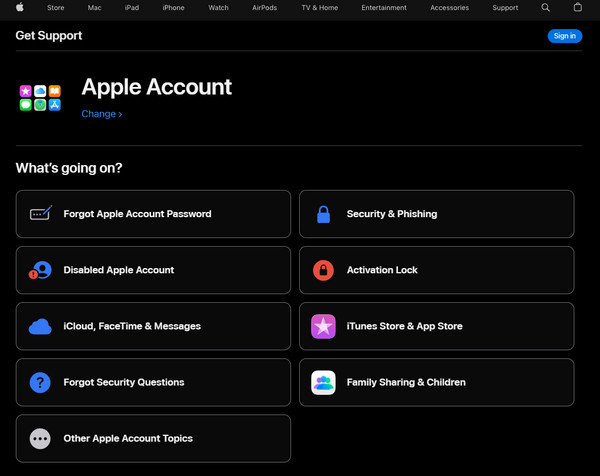
Apple may ask for a trusted phone number, previous passwords, or answers to security questions.
Check your rescue email or trusted phone number for a verification code. Enter the code to confirm ownership.
Once verified, follow the instructions to restore access to your Apple ID and set a new password.
If Apple cannot confirm or if Apple ID verification fails, the recovery process may take longer. You might need to provide details about your devices, account history, or recent activity. This keeps your account secure and answers the question, What if you forgot your Apple ID password. Your information stays safe during the process.
Part 5. Two Tips for Devices Locked by Apple ID and Password
1. Best Tool to Remove Activation Lock on iOS
imyPass iPassBye is a special tool that will help to extract the Activation Lock of iPads and iPhones. It will take users through the steps required to turn the device off the lock so that they can access the device without using the original Apple ID details. The tool is compatible with most iOS devices and versions and offers a simple way of gaining access to locked devices.
Download and install iPassBye on your computer. Open the program and connect your iPhone or iPad with a USB cable. If your device asks you to trust the computer, tap Trust to continue.
Read the notes on the screen. Bypassing the Activation Lock requires jailbreaking your device, so make sure you understand the process before moving forward. Click Start once you are ready to proceed.
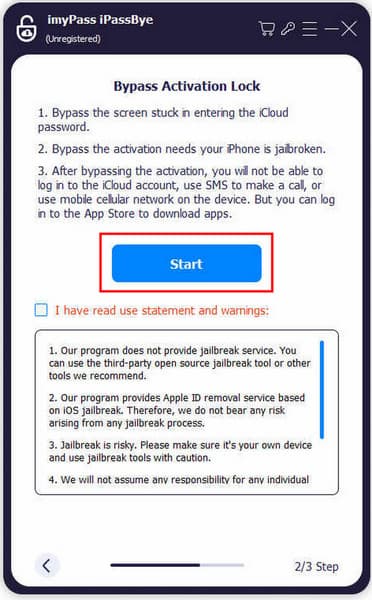
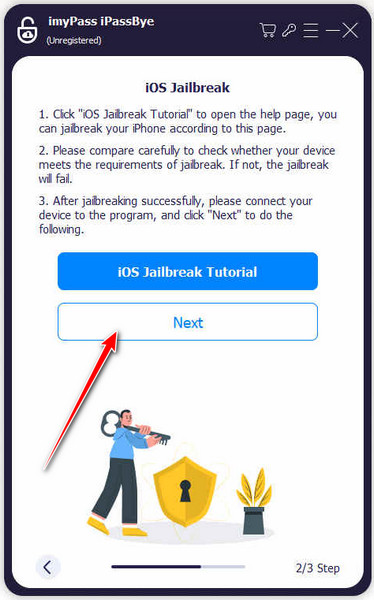
Check the jailbreak status of your device. If it is not yet jailbroken, select the iOS Jailbreaking Tutorial button to see the guide. After you complete the jailbreak, return to the software and click Next.
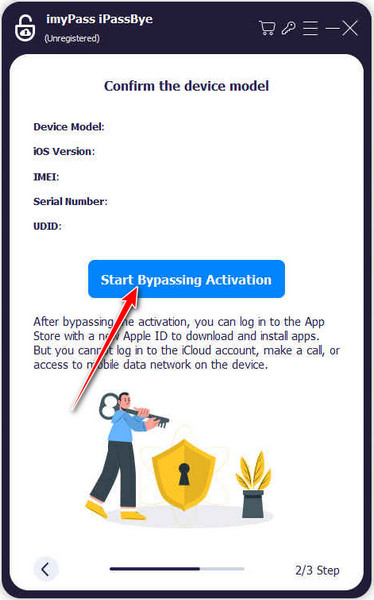
Review the device information displayed by iPassBye. When everything looks correct, click Start Bypassing Activation. The tool will begin removing the Activation Lock. Wait for the process to finish, then set up your device again.
2. Best Tool to Remove the Apple ID without the Password
imyPass iPassGo allows users to remove an Apple ID from a locked device when the password is unknown. This is a safe tool that can be used to delete the account so that you can use a new Apple ID to sign in. It works with modern iOS versions and has a convenient interface, which gives a clean slate to the devices that cannot be reached after the regular recovery procedures.
Download and install iPassGo on your computer. Once installed, launch the software.
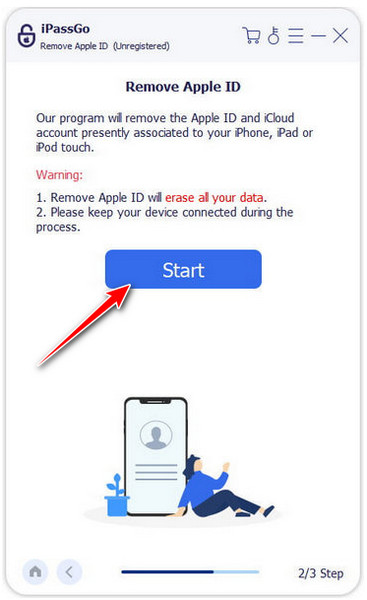
Select Remove Apple ID and connect your iPhone to the computer using a Lightning cable. Click Start to begin the process.
Follow the instructions based on your device situation:
- Find My iPhone disabled: The software will automatically remove the forgotten Apple ID password.
- Find My iPhone enabled on iOS 11.3 or earlier: Reset all settings on your device first. The software will then remove the Apple ID automatically.
- Find My iPhone enabled on iOS 11.4 or later: Ensure two-factor authentication is turned on. Enter 0000, verify your device information, and click Start to remove the Apple ID.
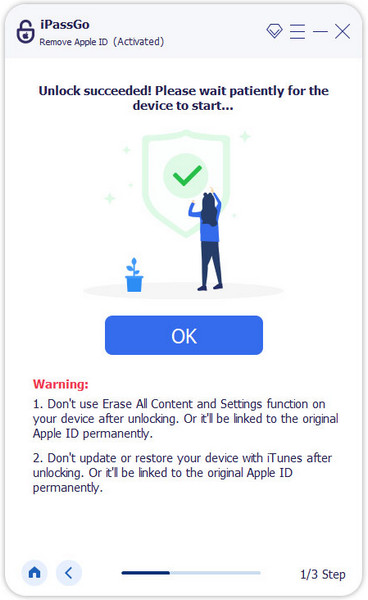
Wait for the software to complete the process. After removal, your device will be free of the previous Apple ID, allowing you to set up a new account.
Conclusion
When I forgot my Apple ID password, I can now lean on the tutorial added here. With the steps in this guide, the process is now clear and easy to follow. You can use these methods to reset your account, recover your details, or unlock your device. Each part shows a safe way to regain access and keep your information protected.
Samuel is a senior editor from imyPass. He is an expert on password unlocking. He has over five years of experience writing tutorials on phone unlocking.
Hot Solutions
-
Password Tips
- 5 Best Password Finders for Instagram
- 10 Best Wireless Network Password Viewers
- Change Email Passwords on iPhone
- Reset or Change a Forgotten Twitter Password
- How to Restore or Reset Instagram Password
- Solutions When Forgot TikTok Password
- Recover or Change Discord Forgotten Password
- How to Reset Keychain Passwords
- Review of Microsoft Edge Password Manager
- 5 Best iPhone Password Manager Recommendations
-
Windows Password
-
Unlock iOS
-
Unlock Android


