



 Solution
 Support Center
 About Us
 Contact
Forgot My Windows 10 Password: Ways & Tips to Unlock
 Penny Warren Published on December 05, 2025Windows Password3-min reading
We store so many essential files and memories on our computers that if you forget your Windows 10 password, it can feel stressful. What if you cannot get in or lose access to your photos and documents?
Worry no more; we have already prepared solutions for you. Please continue reading to learn how to recover or reset your Windows 10 password if you forgot it, so that you can regain full access.

In this article:
Part 1: What Is Your Windows 10 Account Type
Windows 10 lets you pick how you want to sign in. Each account type works in a different way. It helps to know the difference so you can choose what is best for you. The two types are the Microsoft Account and the local computer account.
1. Microsoft Account
A Microsoft Account is an online account. It is not tied to one computer. You can use it on many devices.
Here is what it does:
• It lets you use cloud storage.
• It is needed when you want to buy applications from the Windows Store.
• It lets you open your applications, settings, and files on any device where you sign in.
• If you forget the password, it is possible to reset it on another device with internet access.
This type of account is good if you move from one device to another. It keeps things in sync.
2. Local Computer Account
A local account stays on one device and is made only for that computer. Using another local account can help fix login problems when you cannot access Windows 10.
Here is what it does:
• You do not need the internet to sign in.
• You cannot open them on another device.
• Your files, applications, and settings stay on that one device.
A local account is simple. It is good if you only use one computer and do not need cloud features.
Part 2: How to Reset a Microsoft Password When Forgotten
If you forgot your Windows 10 computer password or your Microsoft password, you can reset it by checking your identity and creating a new password. This process is simple and uses the forgot password option so that you can get back into your account without stress.
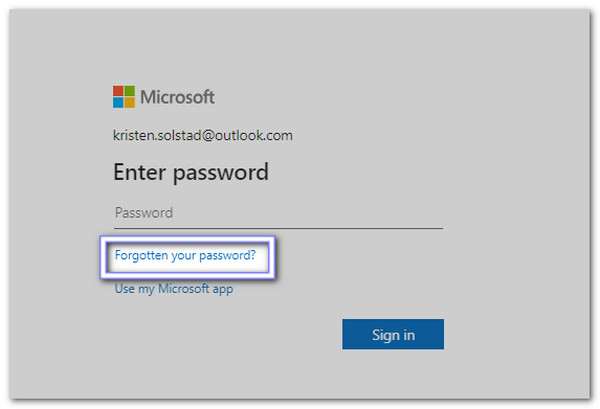
Start by clicking Forgot your password? on the Enter password window. If that window is not open, tap Reset password instead. Then, type the username of the account you want to fix. Hit Next. It helps Microsoft know which account needs a new password.
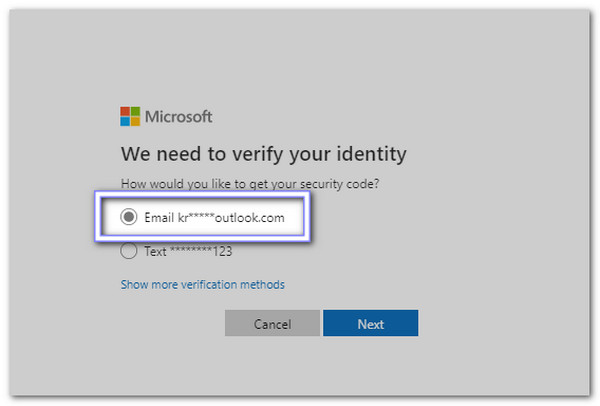
Microsoft will now check if it is really you. Pick how you want to get a verification code, like through your phone or email. If you cannot find any options you know, or you have lost access to them, you can use the sign-in helper tool. After picking one choice, press Next.
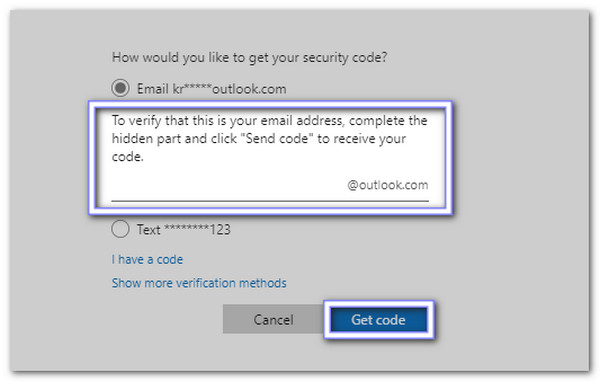
You will need to confirm the hint shown, like the first part of an email or the last four numbers of a phone. Type it and choose Get code. Microsoft will then send the code to the option you picked. Go to that phone or email and look for the code so you can continue.
Copy or type the code into the box and click Next. Now you can make a new password. Type the new password and click Next again. Your password is now reset, and you can sign in with it.
Part 3: How to Reset Windows 10 Local Account Password When Forgotten
1. Using Security Questions
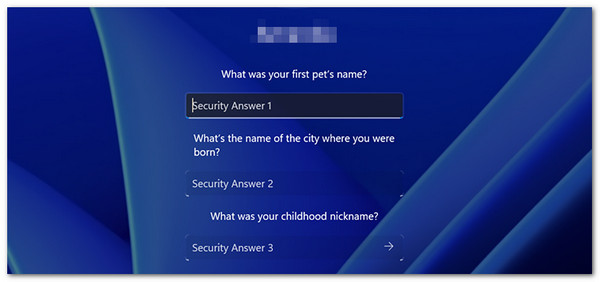
Security questions help you reset your Windows 10 local account when you forget your password, as long as you set them up before.
Head to the login screen and click Reset password under your username.
Please answer your security questions the same way you set them before.
Type a new password and then sign in with it.
Make sure the password is easy for you to remember so you do not get locked out again
2. Using Admin Account
An admin account can change passwords for other users on the same device, which is helpful if someone forgot the admin password for Windows 10 for another account. This approach works well when you can still sign in with an administrator profile to manage and reset the locked account.
Restart your computer and sign in using an administrator account.
Open the search bar, type Computer Management, and pick the top result.
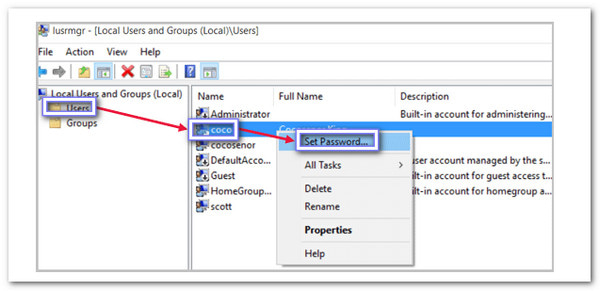
Go to Local Users & Groups, then open Users on the left side.
Right-click the account you want to fix, pick Set password, and type the new one.
3. Using Pre-created Reset Disk
A password reset disk gives you a backup way to unlock your Windows 10 local account. Once you insert the disk, Windows runs a short wizard that helps you create a new password right away.
On the login screen, type any wrong password and press Enter, then click Reset password.
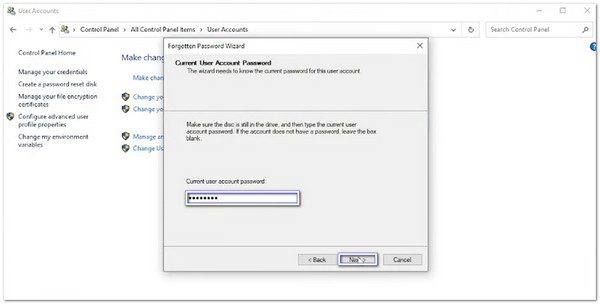
Put your password reset disk into the computer to open the Password Reset Wizard.
Pick the reset disk from the list, press Next, and set your new password with a hint.
Click Finish, then sign in with your new password.
Part 4: The Ultimate Method: Use imyPass Windows Password Reset
imyPass Windows Password Reset is the ultimate program to recover or reset a forgotten Windows 10 password. It supports removing both Microsoft passwords and local account passwords, handling any Windows 10 account type. Another impressive thing about it is that it keeps all your data safe, and does not reinstall or format your computer. On top of that, expect a 100% success recovery rate.
4,000,000+ Downloads
Create CD, DVD, or USB boot drives fast..
Easy-to-use interface with clear instructions.
Reset passwords and create a new account instantly.
Remove admin and user passwords safely without data loss.
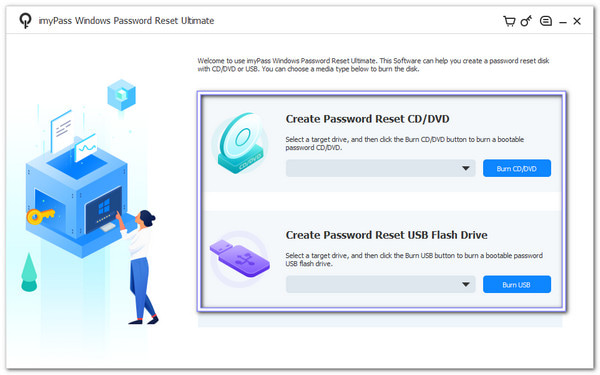
On another computer, get and set up imyPass Windows Password Reset. Then, insert a CD/DVD or USB to create a password reset disk. Please follow the program's instructions to burn it.
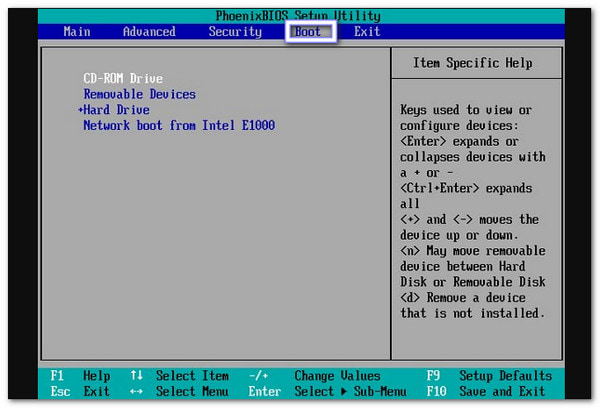
Insert the CD/DVD or USB into your locked Windows 10 computer. You can press F12 to run the boot menu and choose your drive device.
imyPass Windows Password Reset will start. So, select your Windows 10 operating system from the list to continue.
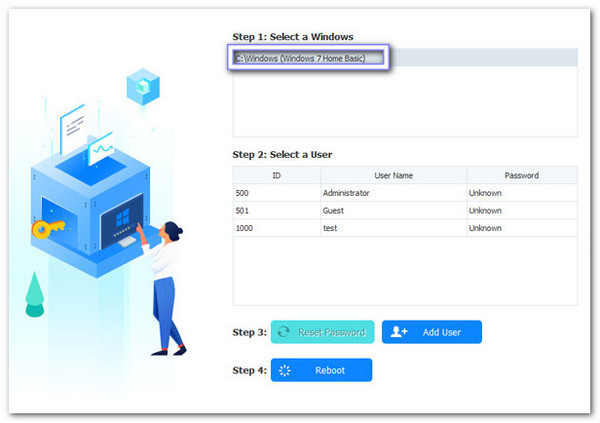
You will see all users who have logged into the computer. Pick the account that you want to reset the password for.
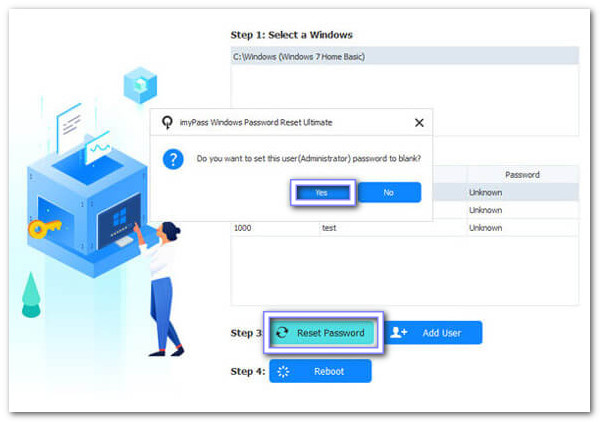
Hit Reset Password and confirm with Yes. Now, enter a new password, then reboot the computer. You can now log in using your new password!
Part 5: Avoid Being Locked Again
Keeping access to your Windows account is essential. Here are simple things to consider to make sure you do not get locked out in the future.
1. Connect Local Account with Microsoft
Connect your local account to your Microsoft account. It allows password recovery online and adds extra security so you can reset your password anytime if you forget it.
2. Create Another Admin Local Account
Set up a second admin account on your computer. This backup account lets you sign in and manage the main account if you ever get locked out.
3. Create a Reset Disk
Create a Windows password reset disk. It is a safe backup tool that can reset your password quickly without losing any data if you forget it again.
4. Keep Passwords Safe
Write down or use a password manager to store your passwords. It helps you remember your passwords and prevents repeated lockouts.
Conclusion
"Forgot my Windows 10 password?" You are not alone, but the good thing is that there are solutions to recover or reset it, as shown above. These methods are really helpful, especially imyPass Windows Password Reset, which works fast, keeps your data safe, and guarantees access. Now you can get back into your computer without worry!
Penny is a senior editor from imyPass. She has focused on discovering perfect GPS location solutions in all scenarios, and also has experience in fixing computers.
Hot Solutions
-
Windows Password
-
Windows Tips
-
Fix Windows
-
Password Tips


