



 Solution
 Support Center
 About Us
 Contact
Step-by-Step Guide to Factory Reset Windows 10 Without a Password
 Penny Warren Published on February 06, 2026Windows Tips3-min reading
Access issues in Windows 10 usually stem from account problems or system-level errors. Understanding how to factory reset Windows 10 without a password requires knowing how the operating system manages recovery, user profiles, and reset protections. Microsoft has a number of built-in features to recover a locked computer. Both choices are suitable for a particular scenario and have various risks.

In this article:
Part 1. If You Only Want to Reset Windows Password
When the actual problem is a locked account, but not a broken system, many users search for how to factory reset Windows 10 without a password. The factory reset will remove applications and can be a source of data loss, which is not always a necessary outcome. imyPass Windows Password Reset is designed with this situation in mind. It is able to delete or reset local and administrator passwords, create a new administrator account, and work across Windows without erasing files. The system is not lost but rather restored by means of this approach.
Download the app on Windows that works well, and you know the password for. Follow the installation and setup, then proceed to the next step.
Prepare a CD/DVD or a USB to burn and ensure that it is blank. Choose the burning method you want to use, then click OK to proceed.
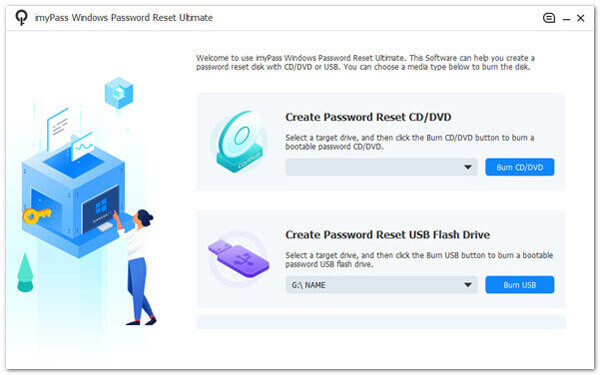
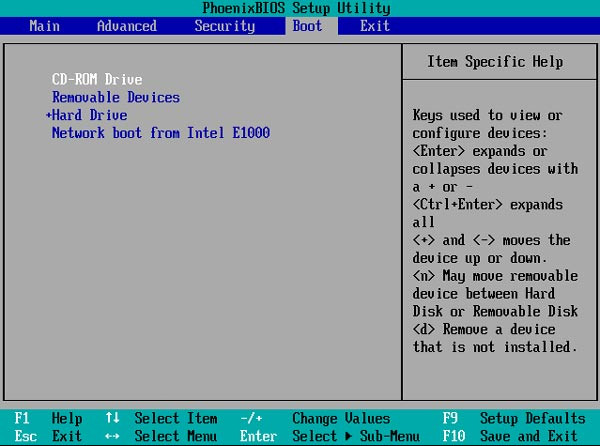
Now, insert the burned drive into the locked Windows and put that Windows into the Boot menu. Once you have entered it, highlight the drive you have connected to the PC by using the arrow keys and hit Enter to proceed. Then, press Save and Exit.
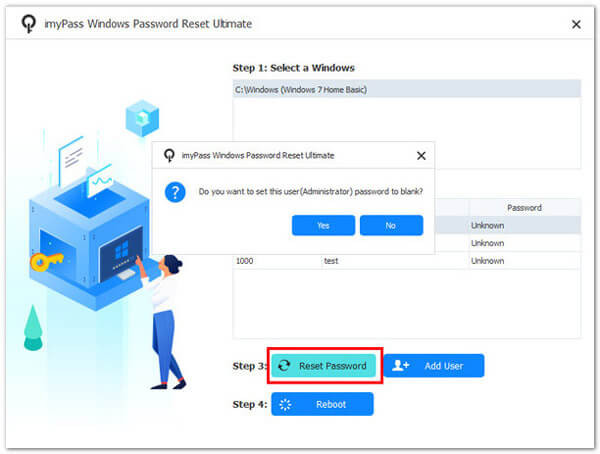
The imyPass interface will appear on the locked Windows, and to remove it, you will need to select the Windows account > User you want to reset > Reset Password. Once resetting is done, you can now eject the burned drive from the PC and restart it.
Part 2. Using Windows Installation Media (The Most Universal Method)
In case of failure of built-in recovery services or the inability to boot normally, the use of Windows installation media is the most reliable option. The technique is frequently employed in cases where the users are trying to factory reset Windows 11 without a password because it works outside the locked account environment. This approach is universal and effective, but it will remove installed apps and personal data, so backups are strongly recommended before proceeding with doing factory reset on Windows.
Prepare another working computer and download the Windows 11 ISO file that matches the edition installed on the locked device. This method also works for other Windows versions, as long as you download the ISO that matches the system you are resetting. Always use a trusted source and confirm that the file download is complete before continuing.
Insert a blank USB flash drive or DVD into the working computer. Use a tool such as Windows USB/DVD Download Tool or Rufus to burn the ISO file and create bootable installation media.
Insert the installation media into the locked Windows computer. Restart it and enter the Boot Menu or BIOS using keys like F2, F12, Esc, or Del. Set the USB or DVD as the first boot option, then save and exit.
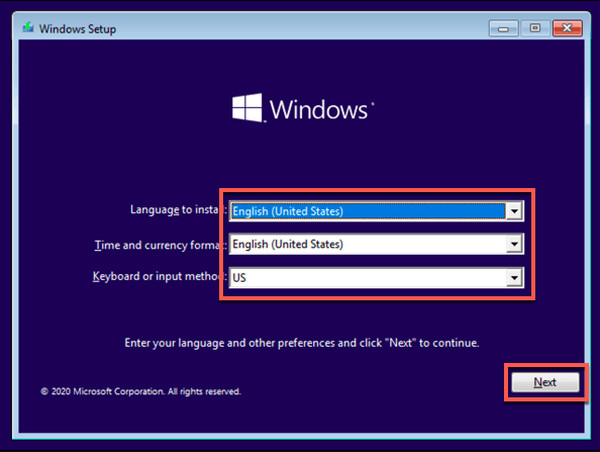
When the Windows setup screen appears, select your language and keyboard settings, then click Install Now. Accept the terms and choose the Custom installation option.
Select the partition where Windows is installed. Format the partition if prompted, then continue with the installation. This step removes the old system, accounts, and passwords.
Install the system in accordance with the instructions on the screen. Installation is complete. Make a new user account and password. The system will launch anew abs the old login information.
Part 3. Using the Built-In Recovery Environment (WinRE)
For many HP devices, the built-in Windows Recovery Environment offers a direct way to reset the system without logging in. This method is commonly used for HP laptop factory reset without password Windows 10 because HP systems provide easy access to WinRE even when the account is locked. It works by launching recovery tools outside the Windows desktop, allowing a full system reset using official Windows features. This option removes apps and settings, so back up important data if possible.
Turn off the HP laptop completely. Click on the power button to start it, and at once press the F11 key over and over till the recovery screen comes up.
On the Choose an option screen, pick Troubleshoot to access advanced recovery tools.
Click Reset this PC. When prompted, choose Remove everything to perform a full factory reset without requiring the account password.
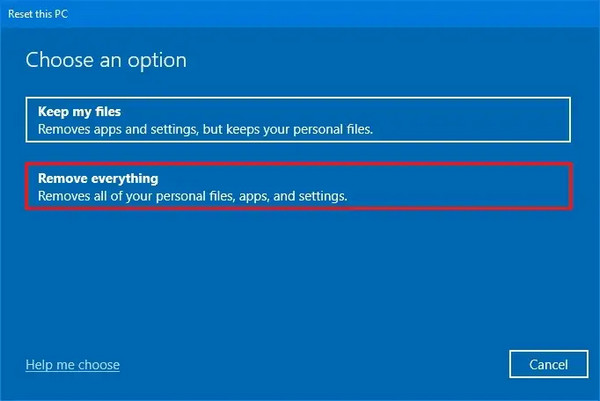
Select your Windows version if asked, then confirm the reset. Windows will prepare the system and begin reinstalling the operating system automatically.
Wait for the reset process to complete. This may take some time, and the laptop may restart several times during the process.
Once finished, follow the on-screen setup instructions to configure Windows. You can now make a new user account and password, and the HP laptop will be restored to its factory state without the previous login credentials.
This WinRE method is one of the safest built-in options for HP laptops running Windows 10 when password access is no longer available. You can use a similar method for factory resetting Lenovo.
Part 4. Using Safe Mode (For Older Systems / Windows 7)
Safe Mode may occasionally be used to recover a system that is blocked by normal login access in older systems. This technique has been discussed to reset Windows 7 factory reset without a password, which is not really a factory reset, but it can be used to achieve a factory reset. Instead, you can use Safe Mode to retrieve administrative privileges or start a recovery utility that can perhaps restore the system or enable additional commands to be issued.
Restart the Windows 7 computer. As soon as it begins to power on, hit the F8 key repeatedly until the Advanced Boot Options menu appears.
Use the arrow keys to pick Safe Mode with Command Prompt, then press Enter. Windows will boot with a few system files, and a command prompt window will be opened.
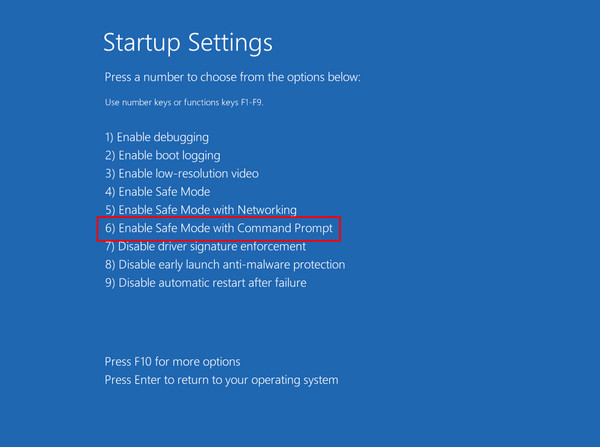
Unless the Administrator account is hidden, then by default, it is displayed in the login screen, and you can use it. In most old systems, this account is default password-free.
At the Command Prompt, you can reset a user password by typing:net user username newpassword
Enter the locked account name in the place of username and a new password in the place of newpassword, and press the Enter button.
If a password reset is not possible, you can attempt a system restore by typing rstrui.exe and pressing Enter. Follow the on-screen instructions to fix Windows to an earlier state.
Restart the computer normally once the process finishes. If successful, you should be able to access Windows or proceed with other reset methods.
Safe Mode does not guarantee a full factory reset. In the case of these options not working, Windows installation media is the surest way of fully resetting Windows 7 without the need for login credentials.
Conclusion
A factory reset without a password on Windows 7 can be done using several methods, depending on whether the system still starts or is fully locked. Mostly, it is sufficient to reset the password and not lose data. In the event that that is not successful, there are recovery tools or installation media that offer a complete reset.
Penny is a senior editor from imyPass. She has focused on discovering perfect GPS location solutions in all scenarios, and also has experience in fixing computers.
Hot Solutions
-
Windows Tips
-
Windows Password
-
Fix Windows
-
Password Tips


