Solution
 Support Center
 About Us
 Contact
How to Transfer Passwords to a New iPhone Using Approved Methods
 Samuel Spenser Published on January 23, 2026Password Tips3-min reading
Moving to a new device feels exciting, but one question can slow that excitement. Many users ask do passwords transfer to a new iPhone because saved logins help run daily tasks. Through years of hands-on work, I am familiar with the secure Apple systems that safeguard your data as it transfers from one device to another. When you understand how these systems work, you avoid setup mistakes and keep your move smooth. This guide will show what passwords you can move and the best methods to transfer them with ease.

In this article:
Part 1. What Passwords Can You Transfer to a New iPhone
When you transfer passwords to a new iPhone, almost all saved login data can move with you. Modern Apple devices store a wide range of passwords in a secure system that keeps your details safe on both old and new devices. This includes your Apple ID, website logins, app passwords, Wi-Fi details, and email account passwords.
Each of these plays a key role in daily use, so moving them helps you start strong on your new device. Understanding what transfers makes the setup smoother and helps you avoid missing access later.
Part 2. 3 Methods to Transfer Password to New iPhone
There are three trusted ways to move your saved passwords to a new iPhone. Each method uses secure systems that protect your data during the move. The right choice depends on how many passwords you want to bring over and how you want to manage them. Below are the best options for a smooth and safe setup.
Method 1. iCloud Keychain
iCloud Keychain is the most complete option when learning how to transfer passwords to a new iPhone because it syncs all saved logins through your Apple ID. It supports website passwords, app passwords, Wi Fi details, and payment cards. The sync runs in the background and updates both devices without extra steps.
Open Settings on your old iPhone and tap Your Name, then choose iCloud.
Scroll down, tap Keychain, and turn on its toggle.
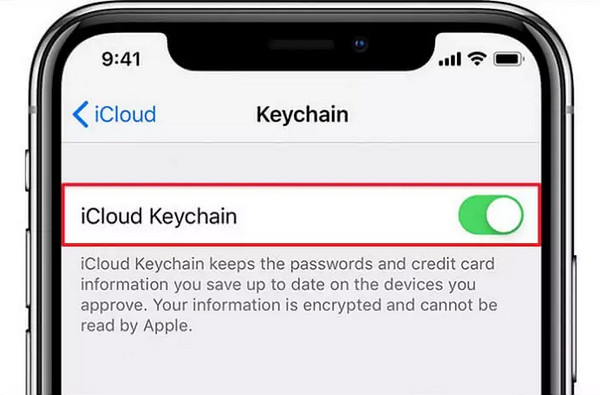
On your new iPhone, sign in with the same Apple ID and enable Keychain.
Your passwords will sync to the new device.
Method 2. AirDrop
AirDrop works well when you want a simple way to send single logins and understand how to transfer passwords from iPhone to iPhone without syncing everything. It uses a fast wireless link and keeps the process secure, but it can send only one password at a time.
Place both iPhones close together and turn on WiFi and Bluetooth.
Open Control Center, press the Wireless panel, and enable AirDrop.
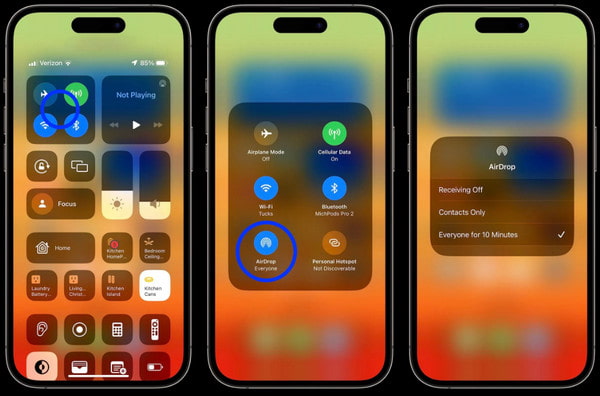
Go to Settings, then Passwords, and open Website and App Passwords. Choose a password.
Press and hold the password field, select AirDrop, choose the other device, then accept the transfer. With this feature, you can also Airdrop videos on other Apple devices quickly, and other file types you want.
Method 3. imyPass iPhone Password Manager
imyPass iPhone Password Manager is helpful when you need full control over your saved logins and want to transfer Google passwords to iPhone, along with other stored details. It reads and organizes your password data and prepares it for secure export, making it useful when you need more than the standard Apple sync tools. You can add your specific steps for this method next.
Go to the official imyPass website and download the imyPass iPhone Password Manager, or you can click the one we have here. Install the program on your computer and open it once the setup is complete.
Use a USB Lightning cable to connect your iPhone to the computer. The program will detect your device and prepare it for scanning.
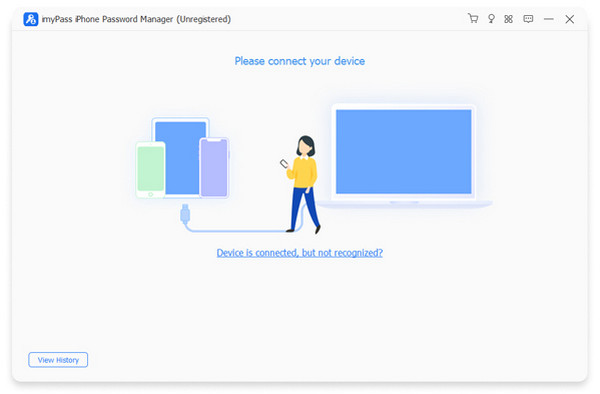
Tick the Start button to begin the scan. After the scan finishes, you will see all the passwords saved on your iPhone. You can preview each item before exporting.
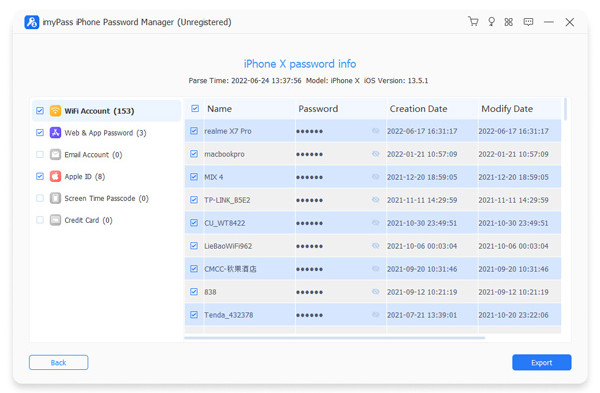
Choose the passwords you want to save. Then export them as a .csv file for secure backup or for transfer to your new device.
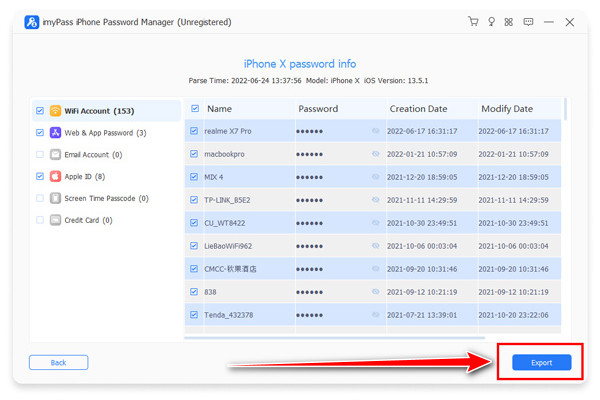
As you can see, each methods offer different results but with almost a similar approach, giving you the password saved on your iPhone.
Part 3. Do Password Transfer to New iPhone with iCloud/iTunes
You can transfer passwords from iPhone to iPhone using iCloud Keychain or iTunes, but each method has its limits. iCloud Keychain moves your saved logins automatically, but it works only if you have it enabled on your old device. This feature keeps your passwords secure and synced through your Apple ID.
If you prefer to move all passwords at once, iTunes is a reliable option. It creates a full backup of your old iPhone, including saved passwords, which you can then restore on your new device. Note that iTunes cannot transfer data from a device running a newer iOS to one with an older version.
Open iTunes on your computer and connect your old iPhone.
Click iPhone, then go to the Summary tab.
Turn on Encrypt local backup, set a password, and click Back Up Now.
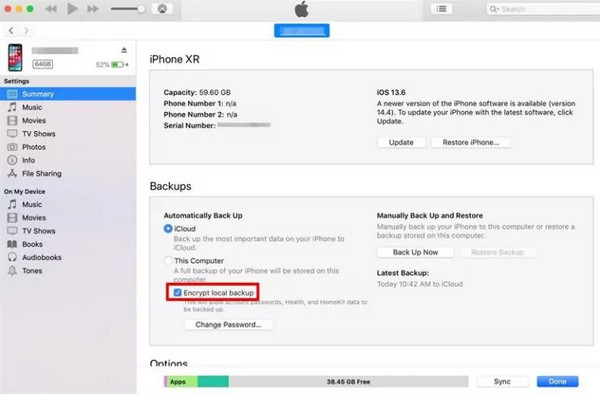
After the backup finishes, connect your new iPhone and restore the encrypted backup. All your saved passwords will now appear on your new device.
Part 4. How to Transfer iPhone Password to a New Android
You can transfer passwords from an iPhone to Android using iCloud Keychain on a Mac. This method lets you export your saved iCloud Keychain passwords into a file. Once exported, you can import the file into Google Password Manager, and the passwords will sync automatically to your Android device.
Open System Settings on Mac and proceed to the Passwords tab. Sign in using Touch ID or your Mac password to access all saved iCloud Keychain passwords.
Click the three dots button to extend and select Export All Passwords… to save a CSV file containing your passwords.
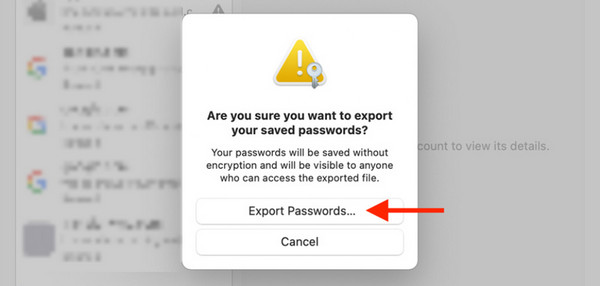
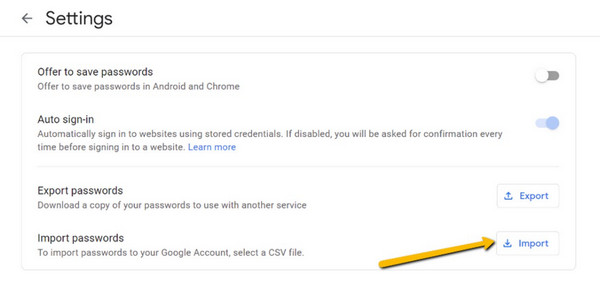
Open Google Password Manager on your computer and sign in with the same Google account used on your Android. Click the gear button to access Settings.
Click the Import button next to Import Passwords and select the CSV file you exported. The passwords will now sync to your Android phone.
Conclusion
Learning how to transfer passwords to a new iPhone makes moving to a new device quick and stress-free. Using iCloud, iTunes, AirDrop, or a password manager ensures all your logins are ready on day one. Pick the technique that fits your setup, and your passwords will follow smoothly, keeping your accounts secure and accessible.
Samuel is a senior editor from imyPass. He is an expert on password unlocking. He has over five years of experience writing tutorials on phone unlocking.
Hot Solutions
-
Password Tips
- 5 Best Password Finders for Instagram
- 10 Best Wireless Network Password Viewers
- Change Email Passwords on iPhone
- Reset or Change a Forgotten Twitter Password
- How to Restore or Reset Instagram Password
- Solutions When Forgot TikTok Password
- Recover or Change Discord Forgotten Password
- How to Reset Keychain Passwords
- Review of Microsoft Edge Password Manager
- 5 Best iPhone Password Manager Recommendations
-
Windows Password
-
Unlock iOS
-
Unlock Android