



 Solution
 Support Center
 About Us
 Contact
Forgot Passcode
 Samuel Spenser Published on December 25, 2025Unlock iOS3-min reading
Every sword has two sides, so does an iPhone passcode. It was designed to protect data, settings, and information on iOS devices from unauthorized access. However, users will be locked out if they forget the lock screen passcodes. To help users regain access to their devices, Apple introduced a few ways to unlock an iPhone when the user forgot the passcode. This tutorial shares the proven methods and demonstrates the workflow.

In this article:
Part 1: Can You Unlock a Locked iPhone
Can you unlock a locked iPhone? The answer is ambiguous. It cannot be denied that Apple released a few methods to re-access a locked iOS device. However, these methods all need to follow certain preconditions. In other words, you must meet some requirements when unlocking your iPhone's screen lock.
Furthermore, unlocking a locked iPhone requires you to erase the lock screen passcode and other data on your device. Therefore, you'd better create a backup first to avoid data loss. If you are locked out of your device, you can back it up to your computer using iTunes or Finder. The backup doesn't cover Face ID, Touch ID, or iPhone passcode, so you can restore your data after unlocking your device directly.
Part 2: How to Unlock Any iPhone
As mentioned previously, you must meet somewhat preconditions to unlock an iPhone with Apple's methods. Alternatively, iPassGo allows you to unlock any iOS device even if you forgot your Apple ID password. Moreover, it equips a user-friendly interface to help you simplify the workflow.

4,000,000+ Downloads
Unlock a locked iPhone without a password.
Available for a variety of situations, including disabled devices.
Offer bonus features, like Screen Time bypass.
Support the latest versions of iOS and iPadOS.
Advantages
- Work for any iPhone, including disabled devices.
- Reinstall firmware on your device.
- Easy to perform, even for beginners.
- Don’t ask your Apple ID password.
Disadvantages
- It may remove your iPhone data.
How to Unlock a Locked iPhone with One Click
Detect your iPhone
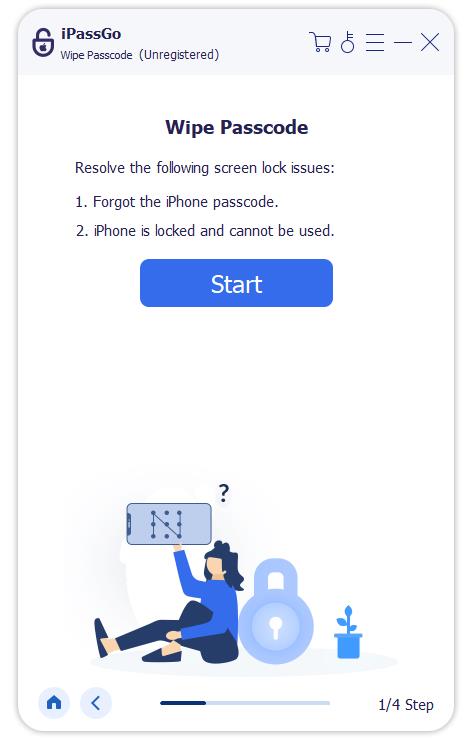
Launch the best iPhone unlocking software once you install it on your PC. There is another version for Mac users. Connect your locked iPhone to your PC with a Lightning cable. If you connect the two devices for the first time, tap Trust on your screen to trust this PC. Choose the Wipe Passcode mode to proceed.
Download firmware
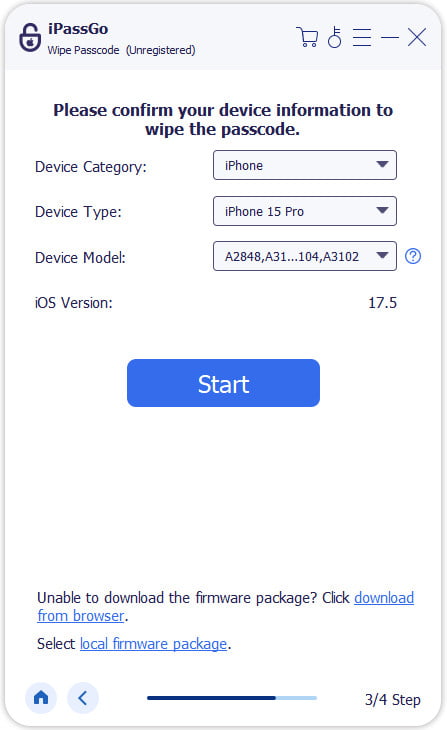
Click the Start button after the software detects your iPhone. Then, confirm your iPhone information. Hit the Start button to begin downloading the necessary firmware.
Unlock your iPhone
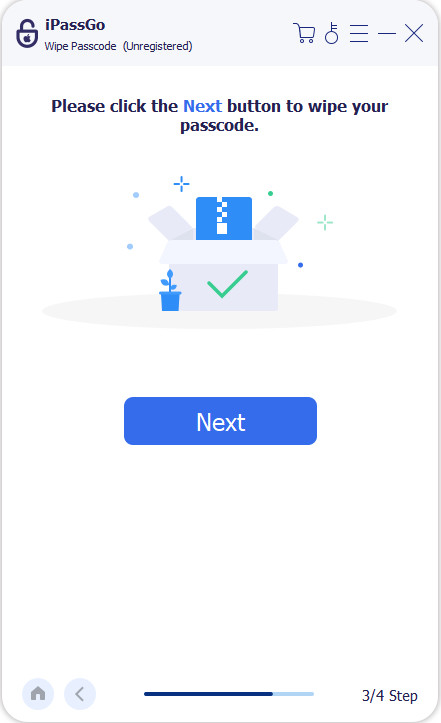
When the downloading finishes, click the Unlock button to move on. Read the message carefully and confirm the unlocking again. Next, enter 0000 to begin unlocking your iPhone passcode.
Part 3: How to Unlock iPhone through Erasing iPhone
To avoid unauthorized access, Apple added the Security Lockout feature to iOS. It comes with the Erase iPhone option, which allows you to unlock iPhone 11/12/13/14/15 and newer running iOS 12 or above.
Requirements:
- Your iPhone runs iOS 12 and above.
- Your iPhone enters the Security Lockout or iPhone Unavailable screen.
- Your Apple ID password.
Advantages
- Don’t require extra software or hardware.
- Unlock iPhone quickly.
- Fix a disabled iPhone.
Disadvantages
- All your data and settings will be erased.
- It is unavailable if you forgot your Apple ID password.
How to Unlock an iPhone Running iOS 17 or Above
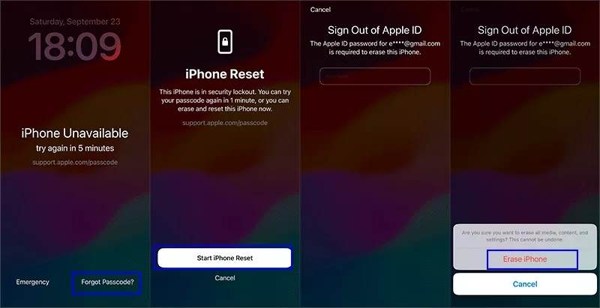
Repeatedly input a wrong passcode until the iPhone Unavailable screen appears.
Tap the Forgot Passcode option at the bottom right side.
Read the alert and tap Start iPhone Reset.
Enter your Apple ID password to verify your ownership.
When prompted, tap Erase iPhone.
After your iPhone restarts, restore a backup or set up as a new device.
How to Unlock iPhone Running iOS 12 to 16
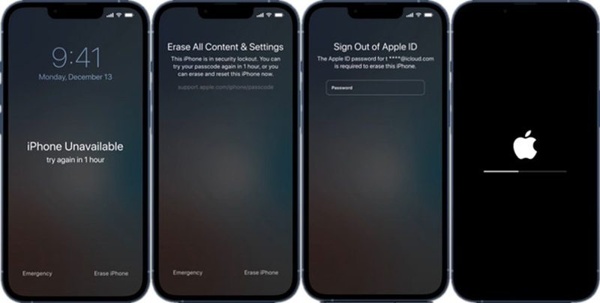
Enter the iPhone Unavailable or Security Lockout screen.
Tap the Erase iPhone button at the bottom.
Read the message and hit Erase iPhone to confirm it.
Type the associated Apple ID password to initiate unlocking your iPhone.
When it finishes, your iPhone should boot into the Hello screen.
Part 4: How to Unlock iPhone with Previous Passcode
Experts suggest that iPhone users change their passcodes regularly to protect their privacy. If you forgot the passcode that you set within 72 hours, Apple allows you to unlock the iPhone passcode with the previous passcode.
Requirements:
- Your iPhone runs iOS 17 and above.
- You change your iPhone passcode within 72 hours.
- Your Apple ID password.
Advantages
- Won’t erase data on your iPhone.
- Regain access to your device quickly.
- Don’t require computers or a USB cable.
Disadvantages
- You must remember your previous passcode.
- This way is not working if you have changed your password more than 72 hours.
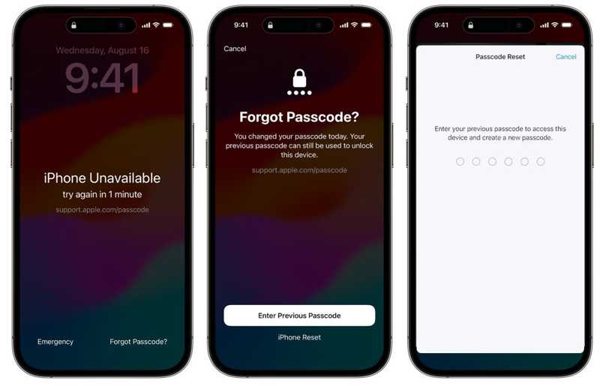
Keep inputting a wrong passcode until you see the iPhone Unavailable or Security Lockout screen.
Tap the Forgot Passcode option.
Choose Enter Previous Passcode, and type the previous passcode.
Next, set a new passcode.
Unlock your iPhone with the new passcode.
Then, you can make a solid passcode in the Settings app.
Part 5: How to Unlock iPhone Using Find My
Find My is the device tracking service released by Apple for iPhones and iPad. It can track your iPhone online or on another iOS device. At the same time, it provides a few useful options, including erasing and unlocking a locked iPhone remotely.
Requirements:
- Your Apple ID and password.
- Find My iPhone has been enabled on your device.
- A computer and a web browser or another Apple device.
- Your iPhone is online.
Advantages
- Unlock an iPhone remotely.
- Disable Activation Lock at the same time.
- Flexible and work with either another Apple device or a computer.
Disadvantages
- You must have enabled Find My iPhone.
- It requires the associated Apple ID and password.
- The process will erase all data and custom settings on your iPhone.
How to Unlock iPhone Using Another iOS Device
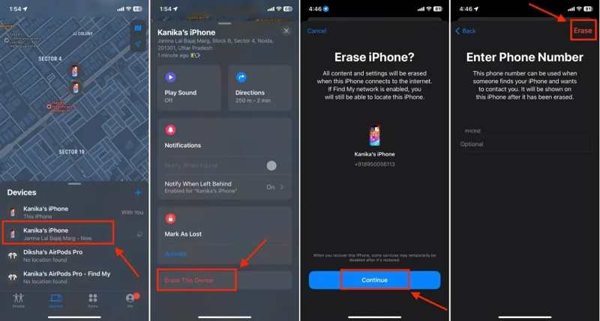
Open the Find My app on the iOS device or Mac. You can install it from the App Store for free.
Go to the Devices tab at the bottom.
Choose your locked iPhone on the list.
If you cannot find your device on the list, tap the + button next to Devices. Choose Add AirTag or Add New Item, and place your iPhone nearby. Once it is detected, enter your Apple ID and password to add it.
Swipe the toolbar icon at the bottom upward to expand it.
Tap Erase This Device.
If prompted, enter your Apple ID password again.
Then, read the message and tap the Continue button.
Input your phone number or ignore it.
Finally, tap the Erase button to begin unlocking your iPhone for free.
How to Unlock iPhone on the Web
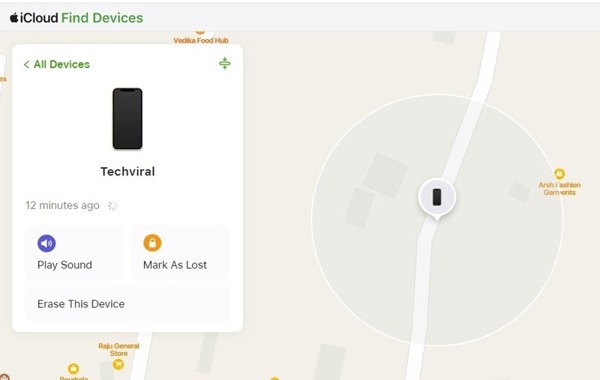
If you don't have another Apple device, go to www.icloud.com/find in a browser.
Sign in with your Apple ID and password.
If you have turned on Two-factor authorization, enter the verification code that appears on your iPhone screen.
Choose your iPhone from the All Devices option.
Once your device is tracked on the map, click the Erase This Device button on the pop-up dialog.
Next, provide your Apple ID password to disable Activation Lock.
Type your phone number or ignore it.
At last, click the Erase or Continue button to initiate iPhone unlocking.
Part 6: How to Unlock iPhone in Recovery Mode
Another method to unlock a locked iPhone is the Recovery Mode. It enables you to restore your device to the factory settings and remove the lock screen passcode. Of course, this method will erase your data, too.
Requirements:
- A computer.
- A compatible cable.
- The latest version of iTunes or Finder.
- Buttons on your iPhone are working.
Advantages
- Unlock your iPhone without your Apple ID password.
- Don’t require an internet connection.
- Available to both new and old iPhones.
Disadvantages
- It requires a computer and a USB cable.
- It will remove all data on your iPhone.
Make sure that your Mac is up to date. If you have a PC, use the latest version of iTunes or Apple Devices.
Plug your iPhone into your computer with a compatible cable.
If you plug your iPhone into the computer for the first time, tap Trust on your device screen.
Run the Finder app on macOS Catalina or later. On Windows or macOS Mojave and older, open iTunes instead.
Put your iPhone in Recovery Mode:
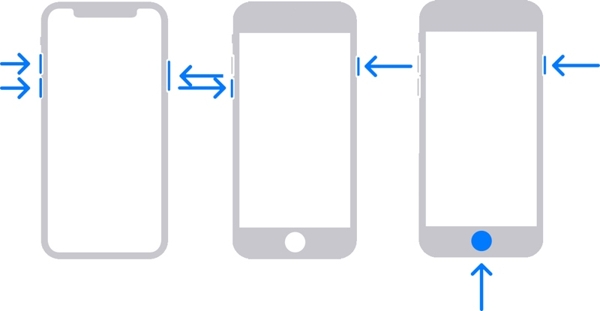
For iPhone 8 and above, including iPhone SE(2nd and 3rd)
Press the Volume Up button and quickly release it.
Press the Volume Down button and quickly release it.
Long-press the Side button.
When you see the Recovery Mode screen, let the button go.
For iPhone 7/7 Plus
Hold the Side button until the power-off screen pops up.
Move the slider to shut down your device.
Then, hold down the Volume Down + Side buttons together.
As long as the Recovery Mode screen appears, release the buttons.
For iPhone 6s and earlier, including iPhone SE(1st)
Keep pressing the Home + Sleep/Wake or Top buttons at the same time.
Once you see the Connect to computer screen, release the buttons.
When iTunes or Finder detects your iPhone in Recovery Mode, a pop-up dialog will appear.
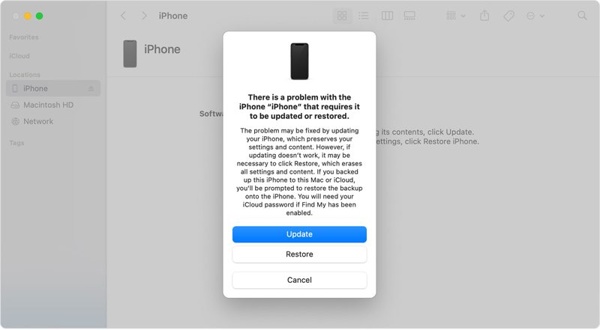
Click the Restore button to initiate unlocking your iPhone.
After the Restore process completes, set up your iPhone as a new device or restore an available backup.
Note:
If it takes more than 15 minutes, disconnect your iPhone, and repeat the steps above to try again. Plus, if you have turned on Find My iPhone, you still need to provide your Apple ID and password to unlock Activation Lock when setting up.
Conclusion
Now, you should learn multiple ways to unlock an iPhone without Apple by your own. In fact, Apple supports unlocking a locked iOS device using these methods, too. The Erase iPhone option enables you to unlock your device when it is disabled. The Find My feature allows you to regain access to your device remotely. Plus, you can remove your iPhone passcode using iTunes in Recovery Mode. If the common methods are unavailable, iPassGo can help you resolve this problem. Moreover, the iOS unlocking software doesn't require technical skills.
Samuel is a senior editor from imyPass. He is an expert on password unlocking. He has over five years of experience writing tutorials on phone unlocking.
Hot Solutions
-
Unlock iOS
- Review of the Free iCloud Unlock Services
- Bypass iCloud Activation With IMEI
- Remove Mosyle MDM from iPhone & iPad
- Remove support.apple.com/iphone/passcode
- Review of Checkra1n iCloud Bypass
- Bypass iPhone Lock Screen Passcode
- How to Jailbreak iPhone
- Unlock iPhone Without Computer
- Bypass iPhone Locked to Owner
- Factory Reset iPhone Without Apple ID Password
-
iOS Tips
-
Unlock Android
-
Windows Password


